Ground Truth Images and Video
Create instance segmentation training data from labeled ground truth
Use the new instanceSegmentationTrainingData function to create training
data for instance segmentation networks directly from polygon ROI labels in a
groundTruth object. The
instanceSegmentationTrainingData function converts
polygon annotations into a training-ready datastore that provides images,
bounding boxes, class labels, and binary instance masks.
The instanceSegmentationTrainingData function supports
labeled ground truth exported from the Image
Labeler and Video
Labeler apps, as well as COCO JSON annotations imported using the
groundTruthFromCOCO function.
Label images and videos using numeric and string scene labels
You can now define scene labels in the Image Labeler and Video Labeler apps using numeric and string values. In previous releases, scene labels supported only logical values.
Detect and Segment Objects
Segment objects across video frames using SAM 2
Segment objects across video frames from minimal point or bounding box prompts
using the new sam2VideoObjectSegmenter object and its object functions. The
object uses the Segment Anything Model 2 (SAM 2) to propagate object
segmentation masks with consistent identity across all frames of a video or
image sequence.
The sam2VideoObjectSegmenter object has these object functions:
addObjectsToSegment— Specify objects to segment by providing point or bounding box prompts on one or more frames.removeObjectsToSegment— Remove objects from segmentation dynamically during processing.segmentObjects— Obtain per-object binary masks and pixel-wise confidence scores on any frame.releaseGPUMemory— Free GPU memory allocated during model initialization and inference.
The sam2VideoObjectSegmenter object requires the Image Processing Toolbox™ Model for Segment Anything Model
2 add-on. You can install the add-on from Add-On Explorer. For more
information about installing add-ons, see Get and Manage Add-Ons. For best performance,
use a CUDA® enabled NVIDIA® GPU with Parallel Computing Toolbox™.
Release GPU Memory Used by groundingDINOObjectDetector
Object
Starting in R2026b, the groundingDinoObjectDetector object includes the releaseGPUMemory object function. Use this function to release
GPU memory used by the detector when the execution environment is GPU.
Automated Visual Inspection Library for Computer Vision Toolbox has transitioned into Visual Inspection Toolbox
Starting in R2026b, the Automated Visual Inspection Library for Computer Vision Toolbox™ has transitioned into Visual Inspection Toolbox.
Improve DATA-MATRIX barcode detection using Gaussian
filtering
The readBarcode now provides the GaussianSigma
name-value argument to apply 2-D Gaussian filtering as a preprocessing step when
detecting "DATA-MATRIX" barcodes. Smoothing can improve
detection for barcodes with circular markers, such as dot peen marking
(DPM).
Functionality being removed or changed
Parallel computing preference replaced by UseParallel
name-value argument
Behavior change
Starting in R2026b, the Computer Vision Toolbox parallel computing preference has been removed. Instead,
individual functions now provide a UseParallel name-value
argument that you can set to "on",
"off", or "auto" to control
parallel execution. The default value is "off".
To update your code, specify UseParallel="on" or
UseParallel="auto" directly in the function call
instead of enabling parallel computing through preferences.
The following functions and object functions now support the
UseParallel argument:
Note
The balancePixelLabels and writeFrames functions previously accepted logical
(true/false) values for the
UseParallel argument. Starting in R2026b, these
functions use the new "off",
"auto", "on" syntax. Using
logical true or false values is
not recommended. Use "on", "off",
or "auto" instead.
Five semantic segmentation network creation functions have been removed
These semantic segmentation network creation functions have been removed. Attempting to run them in your code results in an error.
fcnLayerssegnetLayersunetLayersunet3dLayersdeeplabv3plusLayers
For the list of supported semantic segmentation network creation functions, see Semantic Segmentation.
vision.AlphaBlender System object has been
removed
Errors
The vision.AlphaBlender
System object™ has been removed. Calling this object returns an error. To
blend images, use the imblend function instead.
3-D Vision
Estimate depth from monocular images using Depth Pro
Estimate scene depth from a single image using the depthpro object and the estimateDepth object function. These functions use a pretrained
Depth Pro model to generate metric depth maps from grayscale or RGB images. For
an example that uses the depthpro object to estimate depth
from a monocular RGB image and compute 3-D human body keypoints, see 3-D Human Pose Estimation from Monocular Images.
This functionality requires the Computer Vision Toolbox Model for Apple Depth Pro Network add-on. You can install the add-on from Add-On Explorer. For more information about installing add-ons, see Get and Manage Add-Ons.
Reconstruct sparse 3-D scenes from images using structure-from-motion
The sfm
object provides a ready-to-run structure-from-motion (SfM) pipeline for
reconstructing 3-D scenes from a set of 2-D images captured by a single
calibrated monocular camera. Create an sfm
object with your images and camera intrinsics, then call these object functions
to run the full reconstruction pipeline:
connectImagePairs— Build a view graph of visually similar images.verifyImagePairs— Refine the view graph using geometric constraints.triangulateInitialViews— Select a robust initial view pair and triangulate the first 3-D points,reconstruct— Incrementally process all remaining views and reconstruct the full 3-D scene.
Use the poses, pointCloud, and plot object functions to retrieve and visualize the sparse 3-D
scene point cloud and camera poses. For an example showing the end-to-end SfM
pipeline, see Structure from Motion from Multiple Views.
For an example that shows how to perform dense 3-D reconstruction using the camera poses and the sparse 3‑D point cloud obtained from SfM, see Dense 3-D Reconstruction of Asteroid Surface from Image Sequence.
For best practices on using the SfM pipeline, see Best Practices for 3-D Reconstruction Using Structure from Motion.
Perform 3-D reconstruction using MapAnything model
The mapanything object and its object functions enable you to
reconstruct a 3-D representation of a scene from 2-D images using the pretrained
MapAnything model. Use the reconstruct object function to perform 3-D scene reconstruction
from multi-view images using the MapAnything model, and estimate the camera
poses, intrinsic parameters, depth maps, and point clouds for the input images.
The function supports GPU acceleration for faster processing. For an example
that generates point cloud using the MapAnything model, see Generate Point Cloud Using MapAnything Model.
This functionality requires the Computer Vision Toolbox Interface for MapAnything Network add-on. You can install the add-on from Add-On Explorer. For more information about installing add-ons, see Get and Manage Add-Ons. For best performance, use a CUDA enabled NVIDIA GPU with Parallel Computing Toolbox.
Use SIFT features to create bag of words visual vocabulary and compute similarity matrix for a set of images
You can now use the bagOfFeaturesDBoW object to create a bag of words vocabulary using
SIFT features by specifying the FeatureType name-value
argument as "SIFT".
You can also compute a self-similarity matrix for a set of image features
using the similarityMatrix object function, which represents visual
similarity scores among all the images in the data set. Use the similarity
matrix to identify loop closures in visual SLAM, or to find image views that
share covisible points.
Robust loss control for bundle adjustment functions
The bundleAdjustment, bundleAdjustmentMotion, and bundleAdjustmentStructure functions now support these name‑value
arguments that improve robustness when optimizing camera poses and 3‑D structure.
LossFunction— Choose the"squared-euclidean","huber", or"cauchy"loss function to control how the function weights residual errors.TransitionPoint— Adjust the transition behavior of the robust loss functions. Larger values make the loss behave more like least squares, while smaller values increase outlier suppression. This argument applies only when using a robust loss.
Specify larger disparity ranges in disparitySGM
function
The disparitySGM function now supports specifying larger disparity
ranges using the DisparityRange name, value argument.
Previously, the difference between the minimum and maximum disparity values was
limited to 128.
Input arrays to pose2extr and extr2pose
functions
The pose2extr and extr2pose functions now support arrays of rigidtform3d or se3
objects as inputs, which is useful for multi-camera setups. In previous
releases, these functions accept only scalar inputs.
Calibrate Cameras
Improved Checkerboard Detection in Cluttered Scenes
The detectCheckerboardPoints
function now provides improved detection of checkerboard patterns in cluttered
scenes, reducing false detections of checkerboards in textured
backgrounds.
Functionality being removed or changed
Specify HighDistortion name-value argument for
fisheye lens checkerboard detection
Behavior change
To ensure accurate detection of checkerboard patterns in images captured
with a fisheye lens, you must now specify the
HighDistortion name-value argument as
true. In previous releases, the detectCheckerboardPoints
function did not require this argument for fisheye lens images.
Calibrate Multi-Sensor Systems
Multi-Camera Calibration app
The Multi-Camera Calibrator app provides an interactive process for calibrating the extrinsic parameters of two or more cameras. You can use the app to estimate the relative poses of cameras in systems with overlapping cameras, non‑overlapping cameras, or a mix of both, and to visually verify and refine calibration results before exporting them for use in your algorithms. For more details on how to use the app, see Using the Multi-Camera Calibrator App.
To use this feature, first install the Multi-Sensor Calibration Tools library
by using the installMultiSensorCalibrationTools function.
For more information about the process of multi-camera calibration, see What Is Multi-Camera Calibration?.
Manage Sensor Poses and Intrinsic Parameters Using the
multiSensorParameters Object
The multiSensorParameters object provides a unified object for
managing multiple sensor types, such as cameras, lidar sensors, radars, IMUs,
and GPS units, in a shared reference frame. It supports adding sensors using
absolute or relative poses, storing mounting angles and locations, managing
camera and IMU intrinsic parameters, computing transformations between sensor
frames, changing reference frames, selecting sensor subsets, combining sensor
sets, and visualizing sensor mounting geometry and coordinate frames. Use this
object as a container for storing pairwise calibration results in a unified
multi‑sensor representation.
For an example showing intrinsic and extrinsic parameter calibration of a camera-IMU-lidar system, see Calibrate a Multi-Sensor System Using MUN-FRL Dataset.
Functionality being removed or changed
Use installation function to install multi-sensor calibration features
Behavior change
Use the installMultiSensorCalibrationTools function to install these
multi‑sensor calibration tools:
Attempting to use these multi-sensor calibration tools without first installing them returns an error.
Point Cloud Processing
Migration of point cloud functionality to Point Cloud Toolbox
Point cloud processing functionality has transitioned to the new Point Cloud Toolbox™. Many general‑purpose point cloud functions and objects previously included in Computer Vision Toolbox have been moved to the new product to provide a more specialized and scalable foundation for point‑cloud workflows.
Computer Vision Toolbox continues to include point‑cloud capabilities that are integral to vision‑specific tasks, such as 3‑D reconstruction and stereo vision pipelines. These features remain fully supported, and existing workflows that depend on them continue to function without modification.
This migration enables clearer separation between general 3‑D point cloud processing and vision‑focused functionality while maintaining full compatibility for existing Computer Vision Toolbox workflows. For more information, see the Point Cloud Toolbox product page.
Vision-Language Models
Perform zero‑shot object detection, optical character recognition, and visual question answering using Moondream vision-language model
Use the Moondream vision-language model to perform zero‑shot object detection,
optical character recognition (OCR), and visual question answering (VQA) using
the detectObjects, ocrMoondream, and queryImage object functions, respectively.
The moondream object now supports an additional Moondream
vision‑language model with 1.6 billion parameters. In comparison to the model
introduced in a previous release, this model offers faster performance and a
higher level of accuracy.
The moondream object requires the Computer Vision Toolbox Model for Moondream™ Vision Language Model add-on. You can install the add-on from Add-On Explorer. For more
information about installing add-ons, see Get and Manage Add-Ons.
Code Generation, GPU, and Third-Party Support
MATLAB Coder Support: Generate C and C++ code using additional functions
The opticalFlowRAFT object supports C/C++ code generation for host
target platforms.
Ground Truth Images and Video
Automatically label ground truth using Segment Anything Model 2
Automatically label ground truth in the Video Labeler and the Image Labeler apps using the Segment Anything Model 2 (SAM 2). Use the SAM 2-based Segment Anything tool for improved performance and faster computing speed compared to the initial version of SAM. You can use the Segment Anything tool to rapidly label ground truth for object detection, semantic segmentation, and instance segmentation.
To learn more about labeling ground truth using SAM 2 in video or image sequences, see Automatically Label Ground Truth Using Segment Anything Model.
This functionality requires the Image Processing Toolbox Model for Segment Anything Model 2 add-on and a Deep Learning Toolbox™ license. You can install the add-on from Add-On Explorer. For more information about installing add-ons, see Get and Manage Add-Ons.
Automatically label ground truth using Grounding DINO vision-language model
Using the Grounding DINO vision-language model in the Image Labeler app, you can now automatically create rectangle ground truth ROI labels for object detection by specifying descriptive text. To use Grounding DINO for rectangle ROI labeling, select the Grounding DINO tool on the Label tab of the app toolstrip. For an example, see Automatically Label Ground Truth Using Vision-Language Model.
This functionality requires the Computer Vision Toolbox Model for Grounding DINO Object Detection add-on and a Deep Learning Toolbox license. You can install the add-on from Add-On Explorer. For more information about installing add-ons, see Get and Manage Add-Ons.
Image Labeler available in MATLAB Online
The Image Labeler app is now available in MATLAB® Online™.
Identify unresolved folder paths in ground truth data
The changeFilePaths object function of the groundTruth object can now also return unresolved folder paths.
Use this output to identify which folders contain unresolved files when the list
of unresolved file paths is large.
Application examples
This release introduces new application examples for image retrieval and labeling using vision-language models:
Detect, Extract, and Match Features
Optionally output linear indices for selected feature points
The selectUniform and selectStrongest object functions can now optionally return the
linear indices of selected points for the SIFTPoints, SURFPoints, ORBPoints, KAZEPoints, BRISKPoints, and cornerPoints objects.
Functionality being removed or changed
Change in default font value of inserted text
Behavior change
Starting in R2026a, the default font for the insertText, insertObjectKeypoints, insertObjectAnnotation functions and the Insert Text block has changed.
For the insertText, insertObjectKeypoints, and insertObjectAnnotation functions, the default value of the
Font name-value argument is now
"Roboto-Regular". In previous releases, the default
value is "LucidaSansRegular".
For the Insert Text block, the default value of the Font
face parameter is now "Roboto-Regular".
In previous releases, the default value is
"LucidaSansRegular".
Detect and Segment Objects
Analyze and visualize object detector performance using the Object Detector Analyzer app
Use the Object Detector Analyzer app to visualize and analyze object detector performance. Using the app, you can:
Run a supported object detector in the app, or import object detection results from the workspace.
Interactively visualize and compare detections and ground truth annotations.
Compute and display evaluation metrics, including average precision (AP), precision-recall plots, and confusion matrices.
Inspect individual detection types, such as false positives and false negatives, overlaid on images.
Interactively adjust the detection threshold and overlap (IoU) threshold to analyze how stricter or more lenient thresholds impact detector performance.
Filter and sort results by class, confidence score, or error type.
Export all detections or filtered results to the workspace for further analysis.
Export computed performance metrics as an
objectDetectionMetricsobject for further analysis.
To get started, see Get Started with Object Detector Analyzer.
For examples that use the app, see:
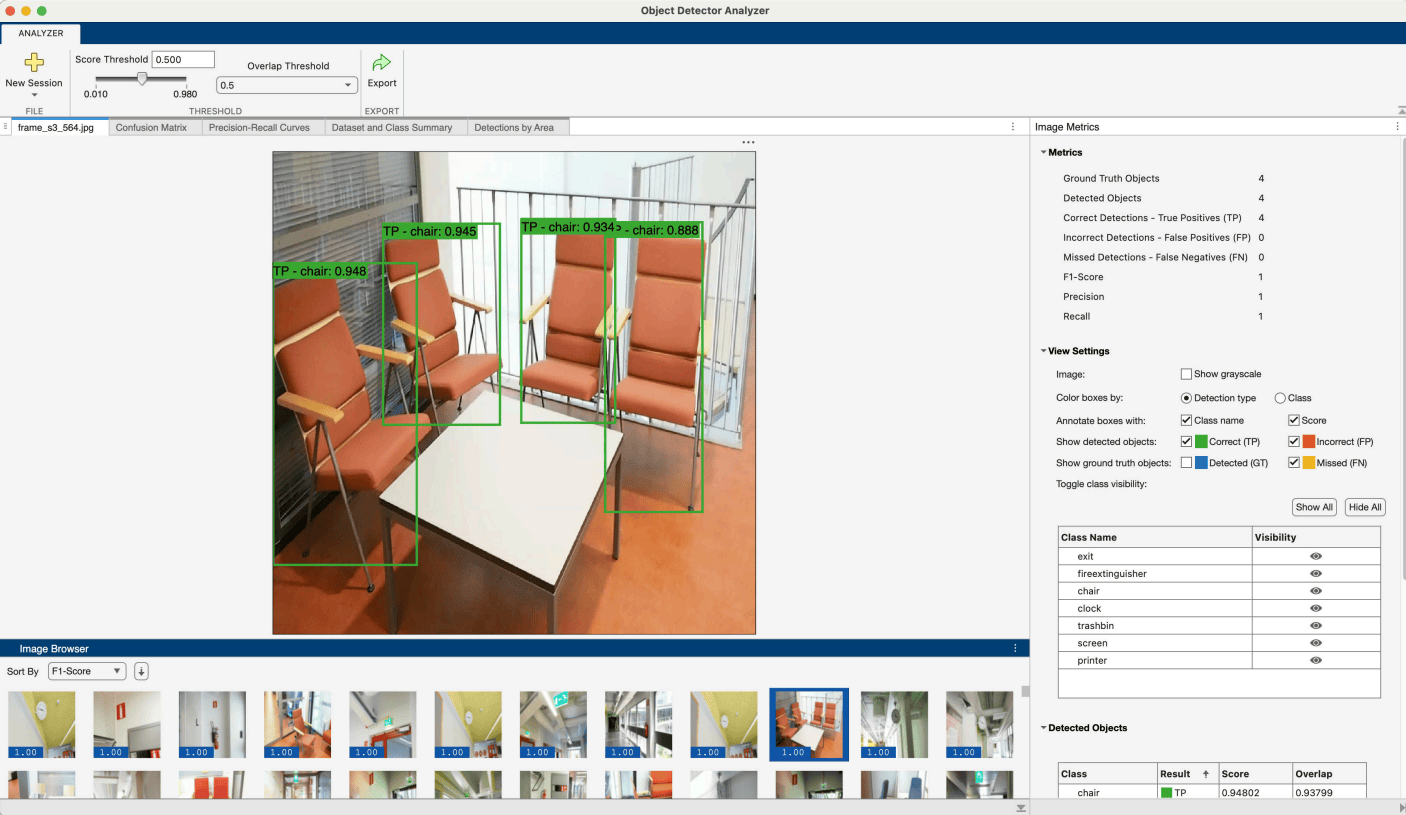
Analyze and visualize object detector performance using the Object Detector Analyzer app
Evaluate per-image object detector performance metrics
To evaluate the per-image object detection metrics for all images, or a subset
of images, in a data set, use the imageMetrics object function of the objectDetectionMetrics object.
To learn more about object detection performance metrics, see Evaluate Object Detector Performance.
Automated Visual Inspection: Select bounding boxes and extract exemplar patches from images
Use the uiselectboxes function to interactively select rectangular
bounding box ROIs in an image. Use the extractpatches function to extract exemplar patches from the
image at the selected ROI locations.
This functionality requires the Automated Visual Inspection Library for Computer Vision Toolbox. You can install the Automated Visual Inspection Library for Computer Vision Toolbox from Add-On Explorer. For more information about installing add-ons, see Get and Manage Add-Ons.
Automated Visual Inspection: Specify class weights for loss function in YOLOX object detection
Specify class weights for the loss function using the new
ClassWeights name-value argument of the trainYOLOXObjectDetector function.
showShape Function: Specify striped line color
Use the new LineStripeColor name-value argument of the
showShape function to specify the color for a striped line. You
can use this feature in objection detection to display a predicted object
bounding box.
hrnetObjectKeypointDetector Object: Specify threshold for
detecting keypoints using the detect object function
Use the new Threshold name-value argument of the detect object function to specify the threshold for detecting
keypoints when using the hrnetObjectKeypointDetector object. Use this name-value argument
to vary the threshold for detecting keypoints without recreating the hrnetObjectKeypointDetector object.
Application examples
This release introduces new application examples for these areas:
Object detection
Automated visual inspection
Functionality being removed or changed
Five semantic segmentation network creation functions have been removed
Errors
Starting with R2026a, these semantic segmentation network creation functions have been removed. Attempting to run them in your code results in an error.
vision.AlphaBlender System object will be
removed
Warns
The vision.AlphaBlender
System object will be removed in a future release. When you call this
object, it issues a warning that it will be removed. To blend images, use
the imblend function instead.
Vision-Language Models
Perform zero-shot and open-vocabulary object detection using Grounding DINO object detector
Use natural language queries with the detect object function of the groundingDinoObjectDetector object to identify a wide range of
objects.
This functionality requires the Computer Vision Toolbox™ Model for Grounding DINO Object Detection add-on and a Deep Learning Toolbox license. You can install the add-on from Add-On Explorer. For more information about installing add-ons, see Get and Manage Add-Ons.
Perform image classification and retrieval using CLIP network
Use the clipNetwork object to configure a pretrained Contrastive
Language—Image Pre-training (CLIP) network, which is a vision-language model.
Use the classify object function for zero-shot image classification
without retraining. Use the extractImageEmbeddings and extractTextEmbeddings object functions to perform image
retrieval based on text queries.
This functionality requires Deep Learning Toolbox and the Computer Vision Toolbox Model for OpenAI CLIP Network. You can install the Computer Vision Toolbox Model for OpenAI CLIP Network from Add-On Explorer. For more information about installing add-ons, see Get and Manage Add-Ons.
Caption images using Moondream vision-language model
Use the moondream object and the captionImage object function to quickly generate descriptive
captions for images using the Moondream model. These captions provide a summary
of the image content, which you can then use for tasks such as searching images
by description or comparing the captions of different images.
Calibrate Cameras
Multi-camera calibration support for multiple calibration patterns and for cameras with non-overlapping fields of view
Computer Vision Toolbox now has enhanced multi-camera calibration features, including support for multiple calibration patterns for cameras with non-overlapping fields of view.
The
estimateMultiCameraParametersfunction now has theReferenceCameraPosename-value argument, which enables you to specify a reference camera pose as arigidtform3dobject. TheimagePointsinput argument has also been expanded to support multiple calibration patterns from multiple cameras, with or without overlapping fields of view.Use the new
detectMultiPatternPointsfunction to detect multiple calibration keypoints in images from multiple cameras.Use the new
MinMarkerIDname-value argument of thedetectPatternPointsfunction to specify the minimum marker ID for ChArUco or AprilGrid patterns.The
multiCameraParametersobject has these new properties to support multiple calibration patterns:PatternCount— Number of unique calibration patterns captured in images.PatternPoses— Poses of calibration patterns relative to the reference pattern.MeanReprojectionErrorPerView— Average reprojection error of each view.MeanReprojectionErrorPerImage— Average reprojection error of each image.ReprojectedPoints— World points reprojected onto calibration images.
The
showExtrinsicsfunction now has theViewIndexandPatternIndexname-value arguments. Specify them to select the camera views and patterns to display, respectively.The
plotCamerafunction now enables you to specify camera poses in world coordinates by using thecamPosesargument. TheLabelname-value argument has also been enhanced to support multiple camera poses.
For more information about the process of multi-camera calibration, see What Is Multi-Camera Calibration?.
3-D Vision
Perform dense reconstruction and novel view synthesis using Nerfacto NeRF model
The nerfacto object and supporting object functions enable you to
reconstruct a 3-D representation of a scene from 2-D images using the Nerfacto
Neural Radiance Field (NeRF) model. To train a nerfacto
object on a collection of 2-D images from different camera poses, use the
trainNerfacto function.
For an example that trains a NeRF model on 2-D images of a scene, uses the trained model to synthesize novel views of the scene, and generates a dense, colored point cloud of the scene, see the Reconstruct 3-D Scenes and Synthesize Novel Views Using Neural Radiance Field Model example.
This functionality requires the Computer Vision Toolbox Interface for Nerfstudio Library add-on, a Deep Learning Toolbox license, a Parallel Computing Toolbox license, and a CUDA enabled NVIDIA GPU with at least 16 GB of available GPU memory. You can install the add-on from Add-On Explorer. For more information about installing add-ons, see Get and Manage Add-Ons.
SE3 transformations in SLAM
The se3 transform object eliminates the need for format conversions
between rigidtform3d and se3 when using the Computer Vision Toolbox and the Navigation Toolbox™ in visual SLAM and visual-inertial SLAM workflows. se3 also simplifies common operations such as concatenating
transforms, calculating distances between transforms, and interpolating
transforms. These features now support se3 objects:
The
se3object now supports therigidtform3dobject function, which you can use to createse3objects.The
imageviewsetobject and its object functions now support using se3 objects for properties and arguments that specify or return the absolute camera poses.The
compareTrajectoriesfunction now supportsse3objects for theestimatedPosesargument.The
pose2extrfunction now supportsse3objects for thecameraPoseinput argument andcamExtrinsicsoutput argument.The
extr2posefunction now supportsse3objects for thecamExtrinsicsinput argument andcameraPoseoutput argument.
monovslam object adds IMU alignment status, gravity
rotation, and scale properties
The monovslam object now includes these read-only properties for IMU
alignment status, rotation, and scale:
IsIMUAligned— Indicates whether IMU alignment has been successfully completed.GravityRotation— Stores the rotation transform that aligns the IMU gravity vector to the pose reference frame.IMUScale— Provides the scale factor applied to input poses to match IMU measurement units.
The monovslam object now generates detailed diagnostic
messages related to IMU alignment and fusion in verbose logs.
Application examples
This release introduces new application examples for these areas:
Incremental structure from motion (SfM)
Dense 3-D reconstruction using RAFT optical flow model
Stereo reconstruction
Improving accuracy in visual SLAM workflows
Track Objects and Estimate Motion
Application examples
This release introduces new application examples on object tracking and motion estimation:
Point Cloud Processing
Store Color property of pointCloud
object using additional data types
You can now store the Color property of a pointCloud object using the single or
double data type. The pcread and
pcwrite functions also support
pointCloud objects with Color properties stored as these additional data types.
pcsegdist Function: Support for
NumClusterPoints in GPU code generation
The pcsegdist function now supports the
NumClusterPoints name-value argument for GPU code
generation.
pcwrite Function: Improved performance
The pcwrite function shows improved performance when you use it with
the default encoding type. This improvement is due to a change in the default
encoding, which now uses "binary" for PLY files and
"compressed" for PCD files instead of
"ascii" for both. Writing data with these encoding types
significantly reduces execution time. Consequently, when you use the pcread function to read a file generated by the
pcwrite function, the pcread
function also shows improved performance. The performance improvement increases
as the number of points stored in the point cloud increases. For example,
writing and then reading a point cloud using this code is about 17x and 11x
faster, respectively, than in the previous release.
function [tWrite,tRead] = timingTest
    % Create a large point cloud
    rng("default");
    N = 1e6; % Number of points

    x = -50 + 100*rand(N,1);        % range [-50, 50]
    y = -50 + 100*rand(N,1);        % range [-50, 50]
    z = 10*rand(N,1);               % range [0, 10]

    ptCloud = pointCloud([x y z]);

    % Measure execution time of the operations
    tWrite = timeit(@()pcwrite(ptCloud,"temp.ply"));
    tRead = timeit(@()pcread("temp.ply"));
end
This table shows the approximate execution times required to write and read point cloud data to and from a PLY file.
| Release | pcwrite Execution Time | pcread Execution Time |
|---|---|---|
| R2025b | 2.19 s | 0.56 s |
| R2026a | 0.13 s | 0.05 s |
The code was timed on a Debian® 12, Intel®
Xeon® CPU W-2133 @ 3.60 GHz test system by calling the
timingTest function.
Functionality being removed or changed
pcwrite Function: Change in default encoding
type
Behavior change
The default value of the encodingType argument of the
pcwrite function is now "binary"
for PLY files and "compressed" for PCD files. Before
R2026a, the default value is "ascii" for both file
formats.
In most cases, you do not need to make any changes to your code. However,
if you specifically want to write point cloud data to a PLY or PCD file with
ASCII encoding, you must specify the encodingType
argument as "ascii", as shown in this command:
pcwrite(ptCloud,"sample.ply",Encoding="ascii").
Quality and stability improvements
R2025b delivers quality and stability improvements, building on the new features introduced in R2025a.
Ground Truth Images and Video
Video Labeler App: Label ground truth using Segment Anything Model (SAM)
Interactively label ground truth in the Video Labeler app using the Segment Anything Model (SAM). Use the SAM-based Segment Anything tool in the Video Labeler app to perform these tasks:
Create pixel labels for semantic segmentation by clicking on a region or drawing an ROI around it.
Perform automatic full image segmentation to create pixel labels for many or all regions in the image.
Create polygon labels for instance segmentation by clicking an object or drawing an ROI around the region containing it.
Create rectangle labels for object detection by clicking an object or drawing an ROI around the region containing it.
To learn more about labeling ground truth using the SAM in video or image sequences, see Automatically Label Ground Truth Using Segment Anything Model.
This functionality requires the Image Processing Toolbox Model for Segment Anything Model add-on and a Deep Learning Toolbox license. You can install the support package from Add-On Explorer. For more information about installing add-ons, see Get and Manage Add-Ons.
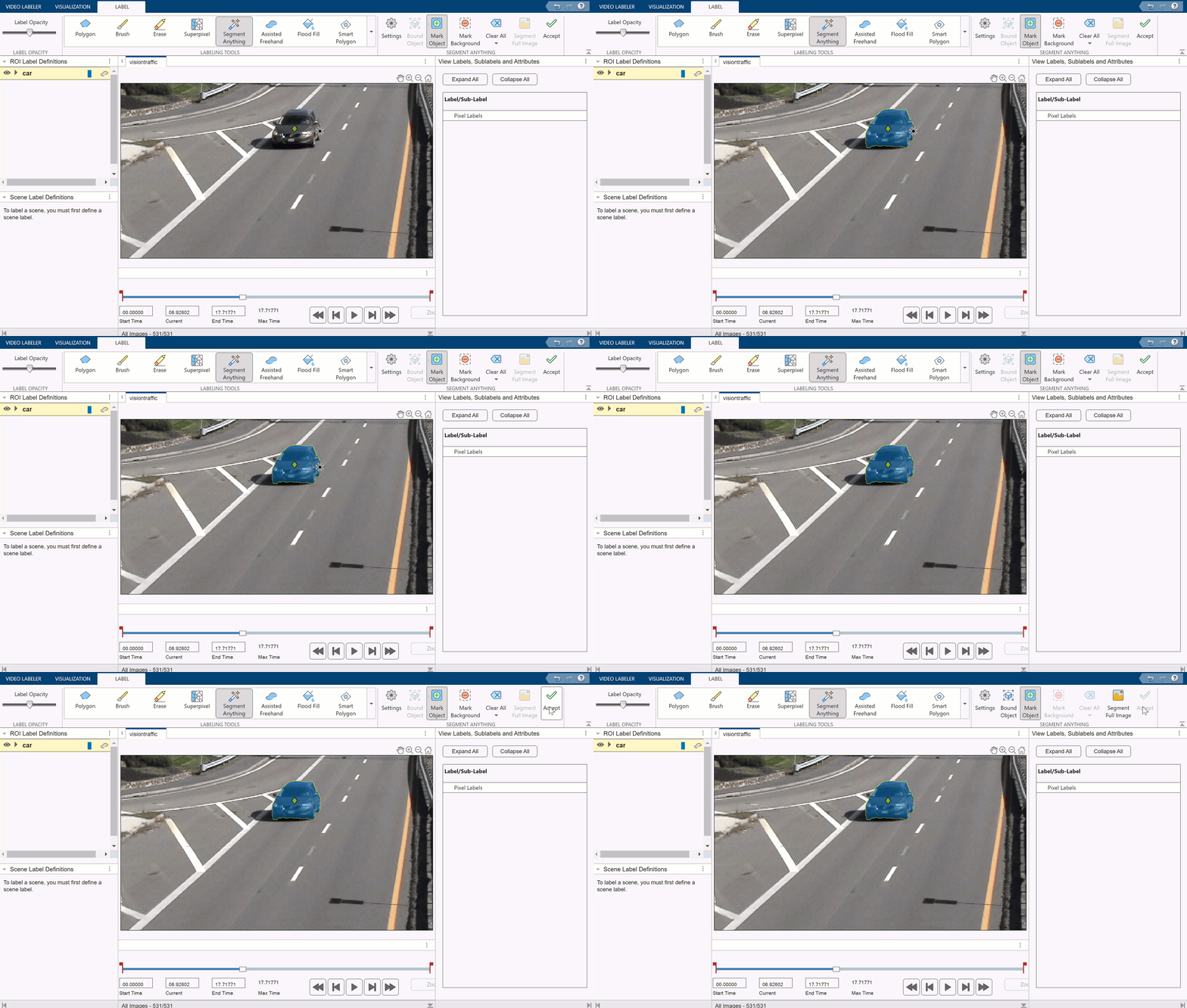
Video Labeler App: Label ground truth using Segment Anything Model (SAM)
Create rectangle and polygon ROI labels, and ROI-based pixel labels, using Segment Anything Model (SAM)
Using the Segment Anything Model (SAM) in the Video Labeler and the Image Labeler apps, you can now interactively:
Create rectangle ROI labels for object detection.
Create polygon ROI labels for instance segmentation.
Create pixel labels by drawing an ROI around an area to segment. For an example, see Label Pixels for Semantic Segmentation.
To use the SAM for pixel labeling, select the Segment Anything tool on the Label tab of the Image Labeler or Video Labeler app toolstrip.
This functionality requires the Image Processing Toolbox Model for Segment Anything Model support package and a Deep Learning Toolbox license. You can install the support package from Add-On Explorer. For more information about installing add-ons, see Get and Manage Add-Ons.
Write frames from groundTruth object to specified image file
location
Use the new writeFrames object function to write frames from a
groundTruth object to image files in a disk location that
you specify. For an example, see Reidentify People Throughout a Video Sequence Using ReID
Network.
Import COCO-formatted JSON files to groundTruth
object
Use the new groundTruthFromCOCO function to convert data
stored in the COCO JSON format into a groundTruth
object.
Image Labeler Enhancements: Display labeled image tags and use keyboard shortcuts for scene labeling
The Image Labeler app includes these enhancements for scene labels.
The app interface has been updated. You can now apply a scene label to an image by selecting the check box after that scene label in the Scene Label Definitions pane.
You can distinguish between labeled and unlabeled images. In the Image Browser pane, image thumbnails of labeled images display an
SLtag in their bottom-left corners. The Scene Label Definitions pane shows how many images have been labeled out of the total number of images, and each scene label indicates the number of images that have been labeled with that specific scene label.You can show or hide the
SLtag on image thumbnails for a specific type of scene label by selecting the icon in front of that scene label
in the Scene Label Definitions pane.
icon in front of that scene label
in the Scene Label Definitions pane.Use these new keyboard shortcuts for scene labeling tasks:
Task Keyboard Shortcut Navigate to the next scene-labeled image. K Navigate to the previous scene-labeled image. J Hide the selected scene label. W Show the selected scene label. Shift+W Show only the selected scene label and hide all others. Ctrl+W Show all scene labels. Ctrl+Shift+W
To learn more about the various apps for labeling ground truth data, see Choose an App to Label Ground Truth Data.
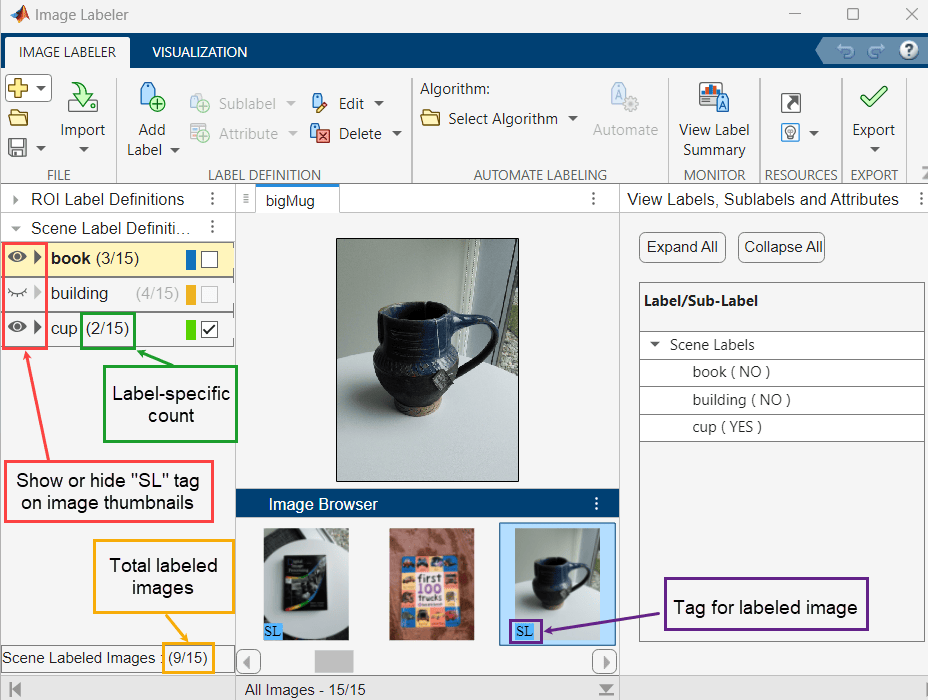
Image Labeler Enhancements: Display labeled image tags and use keyboard shortcuts for scene labeling
Detect and Segment Objects
Face Detector: Detect faces using pretrained RetinaFace face detection network
Use the faceDetector object to create a face detector from a pretrained
RetinaFace deep learning network. Then, use the detect object function to detect faces in an image. The
RetinaFace face detector is trained on the WIDER FACE data set.
This functionality requires Deep Learning Toolbox and the Computer Vision Toolbox Model for RetinaFace Face Detection. You can install the Computer Vision Toolbox Model for RetinaFace Face Detection from Add-On Explorer. For more information about installing add-ons, see Get and Manage Add-Ons.
Segment images using the BiSeNet v2 semantic segmentation network
Use the bisenetv2 function to semantically segment images using the
BiSeNet v2 convolutional neural network. You can use the pretrained network to
perform inference on a generic test image. To perform semantic segmentation on a
custom data set, train the network on your data set using the trainnet (Deep Learning Toolbox) function.
This functionality requires the Computer Vision Toolbox Model for BiSeNet v2 Semantic Segmentation Network and a Deep Learning Toolbox license. You can install the Computer Vision Toolbox Model for BiSeNet v2 Semantic Segmentation Network from the Add-On Explorer. For more information about installing add-ons, see Get and Manage Add-Ons.
Select image block locations that contain bounding box ROIs
When working with blocked images for object detection, use the blockLocationsWithROI function to select image block locations
that contain entire or partial bounding box ROIs. You can additionally use the
blockLocationsWithROI function to select image block
locations that contain only the background with zero or minimal bounding box
ROIs.
Automated Visual Inspection: Interactively perform distance measurements in image data using a caliper tool
Interactively perform distance measurements in image data using the uicaliper object. To use the caliper tool for automated
measurements or code deployment, use the caliper function.
For an example, see Perform Metrology Edge Measurements and Alignment.
This functionality requires the Automated Visual Inspection Library for Computer Vision Toolbox. You can install the Automated Visual Inspection Library for Computer Vision Toolbox from the Add-On Explorer. For more information about installing add-ons, see Get and Manage Add-Ons.
Automated Visual Inspection: Count objects in images using CounTR object counter model
Count objects in images using the CounTR object counter model, without
training the model. Configure the CounTR model by specifying exemplar image data
to the counTRObjectCounter object, and then count objects using the
countObjects object function. Additionally, you can create an
object count density map to overlay on the image in which you count objects by
using the densityMap object function.
For an example, see Count Objects Using CounTR Model.
This functionality requires the Automated Visual Inspection Library for Computer Vision Toolbox and a Deep Learning Toolbox license. You can install the Automated Visual Inspection Library for Computer Vision Toolbox from the Add-On Explorer. For more information about installing add-ons, see Get and Manage Add-Ons.
Automated Visual Inspection: Insert labeled foreground objects into background images and create synthetic data sets
To create a synthetic labeled datastore for training an instance segmentation
or object detection network, blend labeled images of foreground objects with
background images using the objectInsertionDatastore object. To insert a foreground object
into a single background image at a randomized or specified location, use the
insertObjectInImage function.
This functionality requires the Automated Visual Inspection Library for Computer Vision Toolbox. You can install the Automated Visual Inspection Library for Computer Vision Toolbox from the Add-On Explorer. For more information about installing add-ons, see Get and Manage Add-Ons.
Automated Visual Inspection: Specify EfficientAD anomaly detection network to optimize anomaly score for logical anomalies
To configure the EfficientAD detector to optimize the anomaly score for
logical anomaly detection, specify the OptimizeScoreForLogicalAnomalies name-value argument as
true when you create an efficientADAnomalyDetector object.
This functionality requires the Automated Visual Inspection Library for Computer Vision Toolbox and a Deep Learning Toolbox license. You can install the Automated Visual Inspection Library for Computer Vision Toolbox from Add-On Explorer. For more information about installing add-ons, see Get and Manage Add-Ons.
New Example: Detect anomalies in audio spectrograms
The Identify Defects in Air Compressors Using Spectrogram Images example
shows how to detect localized defects in acoustic recordings using an
EfficientAD anomaly detector. This example preprocesses audio files into Mel
spectrogram images for use with an efficientADAnomalyDetector object, and shows
how to train the detector by using the trainEfficientADAnomalyDetector function. The
example also provides a pretrained detector that you can calibrate and use to
detect anomalies in the spectrogram images.
This example requires the Automated Visual Inspection Library for Computer Vision Toolbox and a Deep Learning Toolbox license. You can install the Automated Visual Inspection Library for Computer Vision Toolbox from Add-On Explorer. For more information about installing add-ons, see Get and Manage Add-Ons.
Spacecraft Pose Estimation Example: Estimate the keypoints and pose of a spacecraft
The Spacecraft Pose Estimation Using HRNet Keypoint Detector and PnP Solver example shows how to estimate keypoints of a spacecraft and use the keypoints to compute the pose of the spacecraft. This example uses:
A pretrained HRNet deep learning network to compute the keypoints of the spacecraft.
A PnP solver to estimate the pose of the spacecraft using the computed keypoints.
People Detection Example: Generate CUDA code for people detection
The Code Generation for People Detection Using Deep Learning example shows how to generate CUDA® executable code to perform people detection using a pretrained deep learning network. The generated code is plain CUDA code that does not depend on the NVIDIA cuDNN or TensorRT deep learning libraries.
Refine pose rotation predictions of Pose Mask R-CNN network using ShapeMatch loss
Refine 6-degree-of-freedom pose rotation predictions by using the ShapeMatch
loss in the third stage of training a Pose Mask R-CNN network. To refine the
rotation predictions of the Pose Mask R-CNN network, specify the
trainingStage input argument of the trainPoseMaskRCNN function as
"pose-refinement". The trainingMode
input argument has been renamed to trainingStage.
For an example of the three-stage training of a Pose Mask R-CNN network, see the Perform 6-DoF Pose Estimation for Bin Picking Using Deep Learning example.
This functionality requires the Computer Vision Toolbox Model for Pose Mask R-CNN 6-DoF Pose Estimation and a Deep Learning Toolbox license. You can install the Computer Vision Toolbox Model for Pose Mask R-CNN 6-DoF Object Pose Estimation from the Add-On Explorer. For more information about installing add-ons, see Get and Manage Add-Ons.
Functionality being removed or changed
yolov2Layers and
yolov2OutputLayer functions will be removed
Warns
The yolov2Layers and
yolov2OutputLayer functions will be removed in a
future release. When you call these functions, they issue a warning that
they will be removed. Create a YOLO v2 object detection network by using the
yolov2ObjectDetector object instead.
pixelLabelImageDatastore object will be removed
Warns
The pixelLabelImageDatastore object will be removed in a future
release. When you call the pixelLabelImageDatastore
function, it issues a warning that it will be removed. Create a datastore
for semantic segmentation networks by using the imageDatastore and pixelLabelDatastore objects and the combine function, instead.
Calibrate Cameras
Perform multiple camera calibration
Use these functions and objects for multiple camera calibration.
estimateMultiCameraParametersfunction — Calibrate multiple cameras with overlapping views to estimate extrinsic parameters.multiCameraParametersobject — Store multi-camera system parameters.detectPatternPointsfunction — Detect calibration pattern keypoints in images from multiple cameras. You can use this function for ChArUco boards, AprilGrid patterns, checkerboard patterns, circle asymmetric circle patterns, and custom calibration patterns.
The 3-D Motion Reconstruction Using Multiple Cameras example shows how to reconstruct the 3-D motion of an object for use in a motion capture system containing multiple cameras.
Estimate pose of camera relative to robot gripper using hand-eye calibration
Use the estimateCameraRobotTransform function to determine the pose of a
camera relative to robot using hand-eye calibration. For details about robot
hand-eye calibration, see What Is Robot Hand-Eye Calibration?
New Example: Calibrate a stereo fisheye camera
The Stereo Fisheye Camera Calibration example provides a step-by-step
guide showing you how to calibrate a stereo fisheye camera. This example uses
the estimateFisheyeParameters and estimateStereoBaseline functions.
Key highlights of the example include:
Intrinsic Fisheye Parameter Estimation — Determine the intrinsics parameters, which describe the lens properties, for each camera.
Distortion Correction — Convert fisheye intrinsic parameters to pinhole camera intrinsic parameters by effectively removing image distortion.
Baseline Estimation — Use the resulting virtual pinhole camera parameters to accurately estimate the baseline of the stereo fisheye camera setup.
3-D Vision
Stereo SLAM and RGB-D SLAM capabilities incorporate IMU input to perform visual-inertial SLAM
The rgbdvslam and stereovslam objects now support inertial measurement unit (IMU)
sensors. This support enables you to:
Add IMU parameters when constructing the vSLAM objects using their
imuParametersinput argumentsUse the new
CameraToIMUTransform,NumPosesThreshold, andAlignmentFractionproperties of the vSLAM objects to tune both the initial IMU-camera alignment and the main IMU-camera fusionAdd IMU gyroscope and accelerometer measurements to the vSLAM objects by using their respective
addFrameobject functions
New Example: Perform viSLAM by integrating images from monocular camera with IMU data
The Performant Monocular Visual-Inertial SLAM example shows you how to perform Visual Inertial SLAM (viSLAM) in real-time by integrating images from a monocular camera with data from an Inertial Measurement Unit (IMU) sensor.
MATLAB Coder support added for monocular visual-inertial SLAM IMU sensor support
MATLAB
Coder™ now includes C/C++ support for visual-inertial sensor fusion using
the monovslam object.
Quaternion Object: Use interp1 to interpolate quaternions
Use the interp1 object function of the quaternion object to
interpolate quaternions using interpolation methods such as SQUAD and SLERP.
This figure visualizes interpolated quaternions on a unit sphere by using the sample and
interpolated quaternions to rotate a 3-D point. The annotated numbers on the points are the
sample points and query points that correspond to v and
vq, respectively.
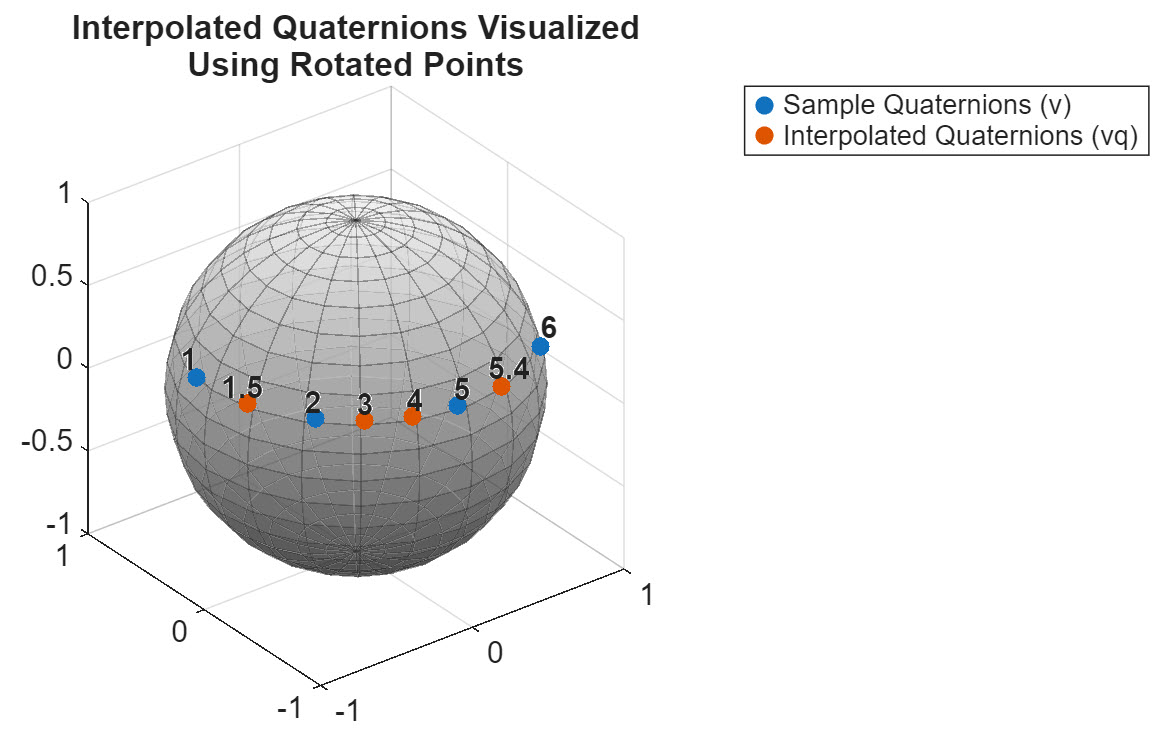
Quaternion Object: Use interp1 to interpolate quaternions
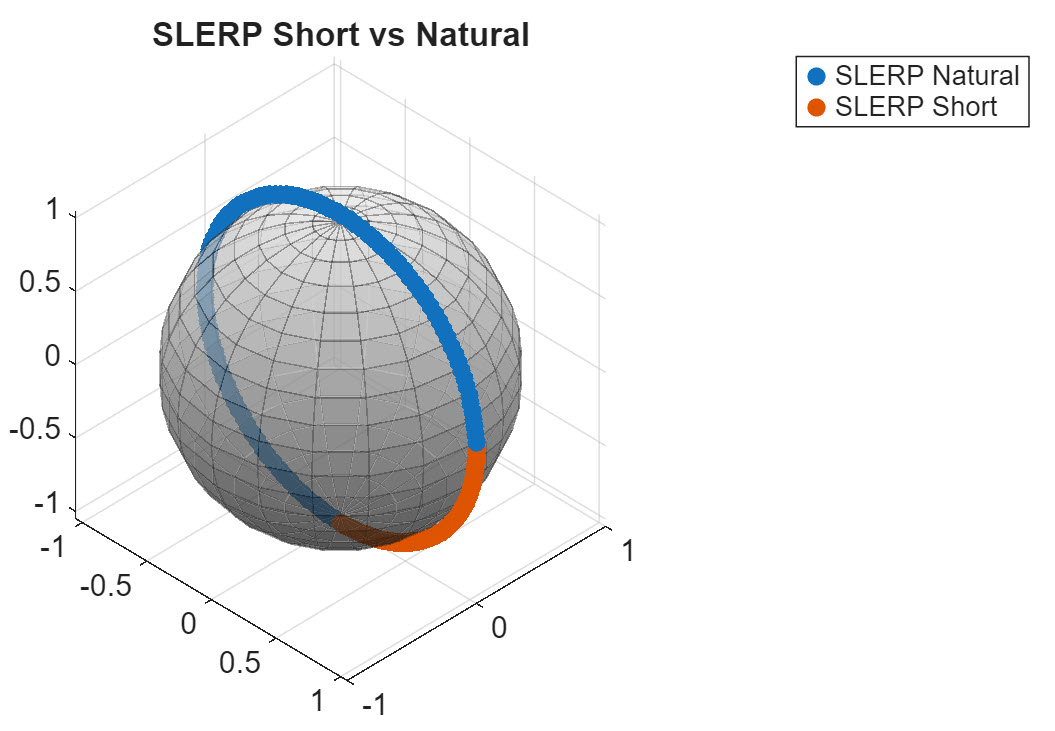
Quaternion Object: slerp function supports natural interpolation
The slerp object function of the quaternion object now supports
spherical interpolation using the "natural" path option, which avoids the
shortest path optimization, resulting in a longer path around the unit sphere that respects
the orientation of the start and end quaternions.
This figure visualizes the difference between the "short" and
"natural" interpolation methods by rotating a point using the
interpolated quaternions on a unit sphere.
Quaternion Object: slerp function supports natural interpolation
Point Cloud Processing
Combine point clouds using voxel grid filter
The pcalign and pcmerge functions now support additional downsample options
using a voxel grid filter.
pcalign— Specify theGridFiltername-value argument to select whether to downsample the aligned point cloud by an averaging process or by selecting the nearest point to the centroid of the voxel.pcmerge— Specify theGridFiltername-value argument to select whether to downsample the region of overlap between the merged point clouds by an averaging process or by selecting the nearest point to the centroid of the voxel.
pcviewer: Visualize very large point clouds using an
optimized octree structure, and support for LAS and LAZ files
The pcviewer object now has a display that is optimized for
visualizing very large point clouds containing more than 10 million points,
using an octree structure. Specify the OptimizeForDisplay
The pcviewer object also supports visualizing LAS and LAZ
files. Use the pcviewer object to efficiently load LAZ files
that you create using the lasFileWriter (Lidar Toolbox) object or LAZ files stored in the
Cloud Optimized Point Cloud (COPC) format. For more information on the COPC
format, see the COPC website. LAS
and LAZ file support requires a Point Cloud
Toolbox license.
Find nearest neighbors of multiple query points in point cloud
You can now find the nearest neighbors of multiple query points in the input
point cloud by using the findNearestNeighbors or findNeighborsInRadius object functions of the pointCloud object. The findNeighborsInRadius function now also returns the number of
neighbors found within the specified radius of each query point.
Functionality being removed or changed
Extrapolatepcregistericp function has been removed
Errors
The Extrapolatepcregistericp function has been removed.
Code Generation, GPU, and Third-Party Support
MATLAB Coder Support: Generate C and C++ code using additional functions
These functions and objects now support C/C++ code generation for both host and non-host target platforms.
cameraIntrinsicsKBobjectcaliperfunction"gridNearest"syntax of thepcdownsamplefunctionpeopleDetectorobject and itsdetectobject function
The detectCharucoBoardPoints object supports C/C++ code generation for
only host platforms.
GPU Coder Support: Generate CUDA code using additional functions
These functions now support code generation using GPU Coder™.
caliperfunctionundistortFisheyePointsfunctionundistortImagefunctionpeopleDetectorobject and itsdetectobject function
Computer Vision with Simulink
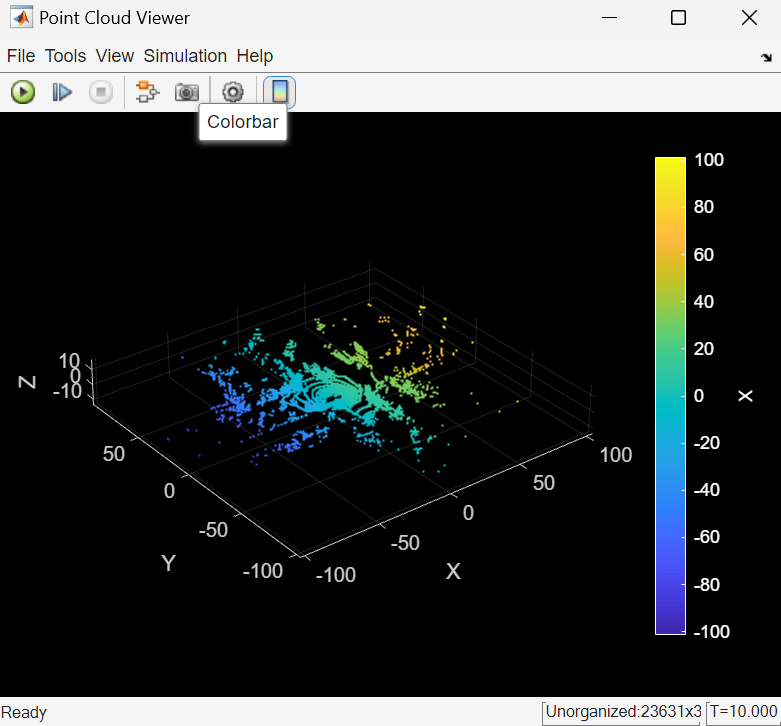
Point Cloud Viewer block enhancements
You can now visualize streaming point cloud data using intensity values. The Point Cloud Viewer block now supports an Intensity input port. To enable this port, select the File > Location and Intensity Port parameter.
The block now adjusts the default axes limits based on the input point cloud data.
You can view the color bar by selecting the Colorbar button, as shown in this image. This button is available when you select the File > Location Port or File > Location and Intensity Port parameter.
Detect, Extract, and Match Features
Select features during code generation
Use the select object function to select a set of point or region
features during code generation. You can use the select object function with the BRISKPoints, cornerPoints, KAZEPoints, MSERRegions, ORBPoints, SIFTPoints, and SURFPoints objects.
Ground Truth Images and Video
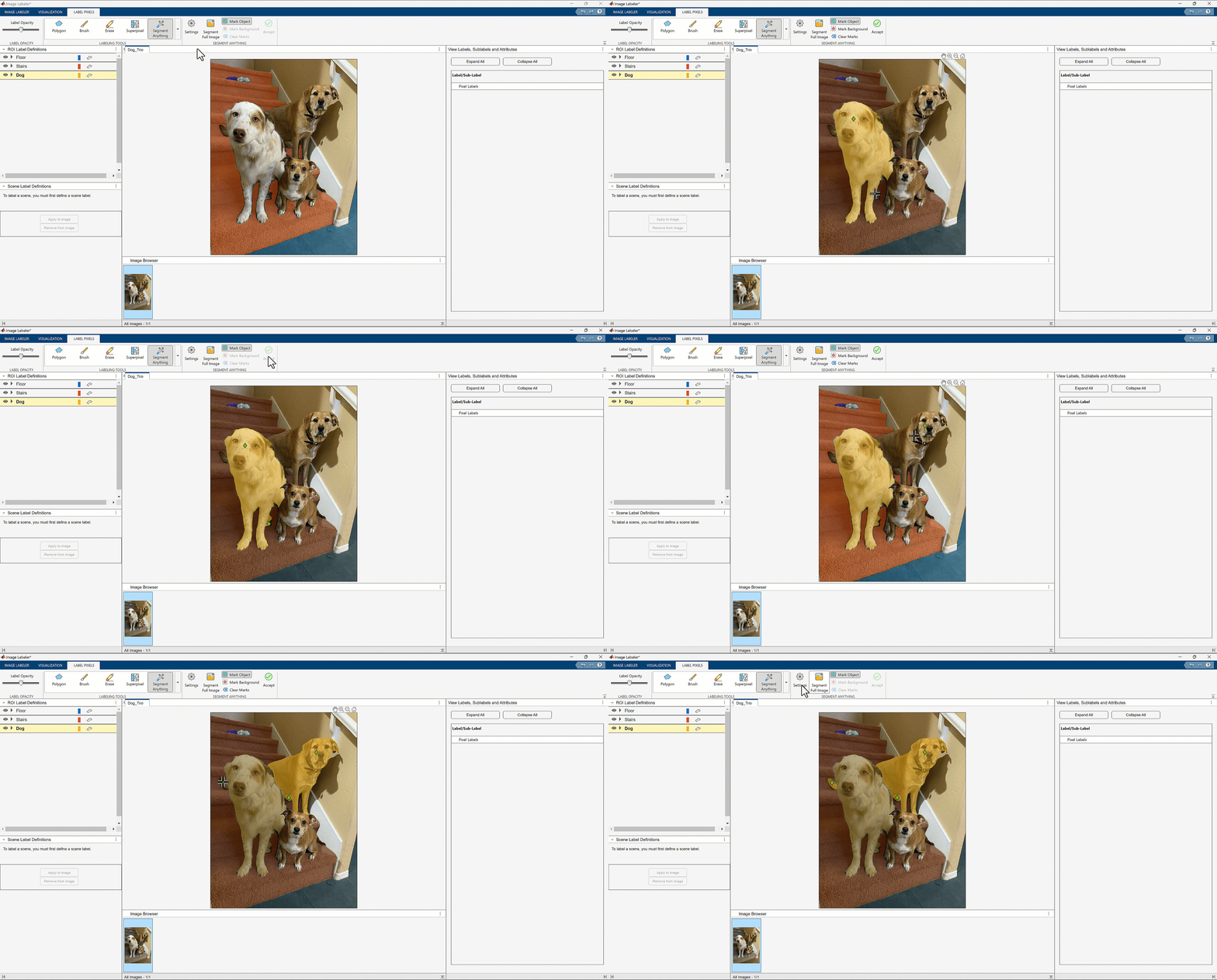
Label ground truth using Segment Anything Model (SAM)
Label ground truth for semantic segmentation in the Image Labeler app, using the Segment Anything Model (SAM). Use the SAM-based Segment Anything tool in the Image Labeler app to rapidly label some or all objects in an image without defining rectangle ROI labels. Interactively segment and label individual objects, or perform automatic full image segmentation and create label pixels for many or all objects in the image. For an example, see Automatically Label Ground Truth Using Segment Anything Model.
This functionality requires the Image Processing Toolbox Model for Segment Anything Model support package and a Deep Learning Toolbox license. You can install the support package from Add-On Explorer. For more information about installing add-ons, see Get and Manage Add-Ons.
Label ground truth using Segment Anything Model (SAM)
Convert ASAM OpenLABEL format file to ground truth object
Use the groundTruthFromOpenLabel function to convert an ASAM OpenLABEL®
format JavaScript Object Notation (JSON) file to a groundTruth object.
Use RAFT Optical Flow to automatically transfer ROI annotations to subsequent image frames
The Automate Labeling of Objects in Video Using RAFT Optical Flow example demonstrates how to automatically transfer polygon region-of-interest (ROI) annotations from one labeled frame to subsequent frames using the recurrent all-pairs field transforms (RAFT) deep learning-based optical flow algorithm.
Video Labeler enhancements
The Video Labeler app, designed for labeling video ground truth, has a new interface. For more details on using the Video Labeler app, see Get Started with the Video Labeler.
You can now use the merge object function of the groundTruth object to merge two or more ground truth objects
exported from the Video Labeler.
To learn more about the various apps for labeling ground truth data, see Choose an App to Label Ground Truth Data.
Detect and Segment Objects
Object Detection and Instance Segmentation Quality Metrics: Evaluate average precision, precision recall, confusion matrix, and metrics summary
Use these object functions of the objectDetectionMetrics and instanceSegmentationMetrics objects to evaluate the quality of
object detection results and instance segmentation results, respectively.
objectDetectionMetrics Object
Function | instanceSegmentationMetrics Object
Function | Usage |
|---|---|---|
Compute average precision (AP) for all classes and overlap thresholds in your data set, or specify the classes and overlap thresholds for which to compute AP. | ||
Compute precision, recall, and confidence scores for all classes in the data set, or for specified classes and overlap thresholds. | ||
confusionMatrix | Compute the confusion matrix and normalized confusion matrix at specified confidence score threshold or overlap threshold values. | |
summarize | Compute the summary of metrics over the entire data set, or over each class. |
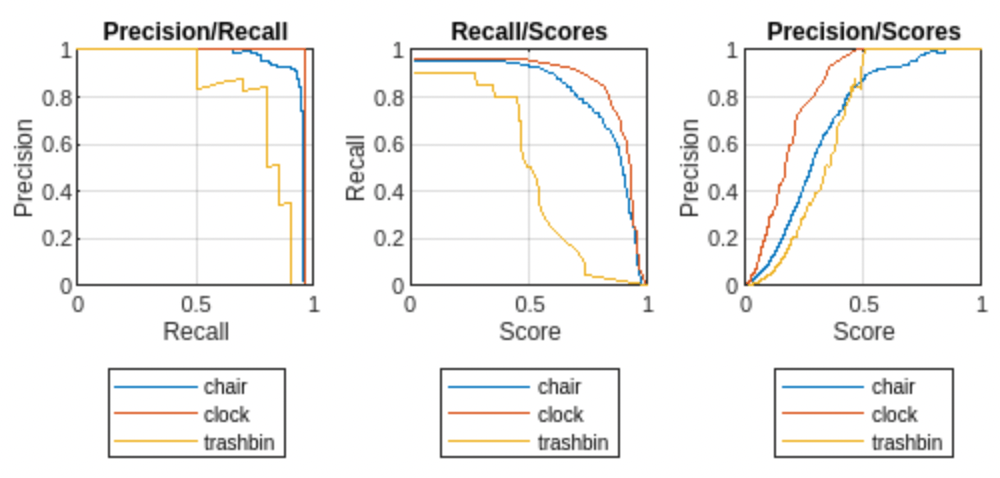
For an example that uses this functionality to evaluate object detection
metrics, see the Multiclass Object Detection Using YOLO v2 Deep Learning example. Use
the objectDetectionMetrics object functions to compute metrics
for a variety of classes and overlap (IoU) thresholds to select an optimal
detection threshold. This image shows the precision-recall metric and precision
and recall metrics as functions of confidence score, for multiple classes in a
data set.
Improve AprilTag detection using Gaussian smoothing and downsampling scale
The readAprilTag function now provides the
GaussianSigma and DecimationFactor
name-value arguments to improve AprilTag detections.
Draw ellipses on image or video data
Use the ellipse shape option of the showShape, insertObjectAnnotation, and the insertShape functions to visualize one or more ellipses on top
of an image or on video data.
Renamed Support Package: Computer Vision Toolbox Automated Visual Inspection Library has been renamed
The Computer Vision Toolbox Automated Visual Inspection Library has been renamed to Automated Visual Inspection Library for Computer Vision Toolbox.
You can install the Automated Visual Inspection Library for Computer Vision Toolbox from Add-On Explorer. For more information about installing add-ons, see Get and Manage Add-Ons.
Automated Visual Inspection: Train EfficientAD anomaly detection network
Use the efficientADAnomalyDetector object to detect anomalies using an
EfficientAD model. You can train the detector using the trainEfficientADAnomalyDetector function.
The Detect Defects Using Tiled Training of EfficientAD Anomaly Detector example shows how to use a pretrained EfficientAD anomaly detector to detect industrial defects in a sample image and configure an EfficientAD anomaly detector to perform transfer learning.
This functionality requires the Automated Visual Inspection Library for Computer Vision Toolbox and a Deep Learning Toolbox license. You can install the Automated Visual Inspection Library for Computer Vision Toolbox from Add-On Explorer. For more information about installing add-ons, see Get and Manage Add-Ons.
Automated Visual Inspection: Normalize anomaly score maps
Use the percentileNormalizer object to create an anomaly score map
normalizer for a specified anomaly detector using the computed percentile
statistics of non-anomalous images. Use the normalize object function to normalize an anomaly score map
using the percentile normalizer. You can normalize the anomaly scores of an
anomaly map computed using different detectors, or normalize anomaly scores to a
specified range for a set of anomaly maps.
This functionality requires the Automated Visual Inspection Library for Computer Vision Toolbox and a Deep Learning Toolbox license. You can install the Automated Visual Inspection Library for Computer Vision Toolbox from Add-On Explorer. For more information about installing add-ons, see Get and Manage Add-Ons.
Train YOLOX object detector on tiled full-resolution images to detect small objects
The Detect Small Objects Using Tiled Training of YOLOX Network example demonstrates how to train a YOLOX object detection network on a tiled image data set, and use it to detect very small objects in full-resolution images.
Automated Visual Inspection: Specify YOLOX-nano, YOLOX-medium, or YOLOX-large base networks for YOLOX object detector
The yoloxObjectDetector object now enables you to specify a
YOLOX-nano, YOLOX-medium, or YOLOX-large deep learning network as the base
network of the pretrained detector by using the name input argument.
This functionality requires the Automated Visual Inspection Library for Computer Vision Toolbox and a Deep Learning Toolbox license. You can install the Automated Visual Inspection Library for Computer Vision Toolbox from Add-On Explorer. For more information about installing add-ons, see Get and Manage Add-Ons.
RTMDet Object Detector: Detect objects using pretrained RTMDet deep learning network
Use the rtmdetObjectDetector object to create an object detector from a
pretrained real-time object detector (RTMDet) deep learning network. Then, use
the detect object function to detect objects in an image.
This functionality requires the Computer Vision Toolbox Model for RTMDet Object Detection support package and a Deep Learning Toolbox license. You can install the Computer Vision Toolbox Model for RTMDet Object Detection from the Add-On Explorer. For more information about installing add-ons, see Get and Manage Add-Ons.
People Detector: Detect people in image using pretrained deep learning network
Use the peopleDetector object to create a people detector from a
pretrained deep learning network. Then, use the detect object function to detect people in an image.
Monitor and track metrics while training YOLO v3 and YOLO v4 object detectors
You can use an mAPObjectDetectionMetric object to track the mean average
precision (mAP) metric while you train YOLO v3 and YOLO v4 object detectors. To
use the metric, specify it to the Metrics (Deep Learning Toolbox) name-value argument
of the trainingOptions (Deep Learning Toolbox) function.
YOLO v2 Object Detector: Support for dlnetwork objects and
new training process
The yolov2ObjectDetector object offers new ways to create and
customize a YOLO v2 object detector. You can now:
Perform transfer learning using pretrained a YOLO v2 network trained on the COCO data set.
Specify a custom YOLO v2 network formatted as a
dlnetwork(Deep Learning Toolbox) object. The YOLO v2 network can be pretrained or untrained.Specify a base feature extraction network formatted as a
dlnetwork(Deep Learning Toolbox) object. The YOLO v2 object detector adds a detection head to the base network. The base network can be pretrained or untrained.For transfer learning and training, specify class names and anchor boxes when you create the
yolov2ObjectDetectorobject.You can set these new properties of the YOLO v2 object detector using name-value arguments:
InputSize,ReorganizeLayerSource, andLossFactors.
The trainYOLOv2ObjectDetector supports a new process to train YOLO
v2 object detectors specified as yolov2ObjectDetector objects.
The function now uses:
Class names specified by the
ClassNamesproperty of theyolov2ObjectDetectorobject. The function no longer uses the class names from thetrainingDatatable.Anchor boxes specified by the
AnchorBoxesproperty of theyolov2ObjectDetectorobject.MSE loss weights specified by the
LossFactorsproperty of theyolov2ObjectDetectorobject.
The Network property of the
yolov2ObjectDetector object now returns a
dlnetwork object instead of a
DAGnetwork object.
When you create a yolov2ObjectDetector object,
DAGNetwork input networks are not recommended.
When you train a YOLO v2 object detector by using the
trainYOLOv2ObjectDetector function,
DAGNetwork input networks and the
TrainingImageSize name-value argument are not
recommended.
SSD Object Detector: Support for dlnetwork objects
When you create an ssdObjectDetector object, specify the single shot detector (SSD)
deep learning network or the base feature extraction network as a dlnetwork (Deep Learning Toolbox) object.
When you create an ssdObjectDetector object,
LayerGraph input networks are not recommended.
The Network property of the
ssdObjectDetector object now returns a
dlnetwork object instead of a
DAGNetwork object.
Functionality being removed or changed
ssdObjectDetector and
yolov2ObjectDetector functions return a
dlnetwork object
Behavior change
The Network property of ssdObjectDetector and yolov2ObjectDetector functions now returns a
dlnetwork object instead of a
DAGNetwork object.
R-CNN, Fast R-CNN, and Faster R-CNN are not recommended
Still runs
These objects and functions for creating and training networks based on R-CNN are no longer recommended:
Instead, use a different type of object detector, such as a yoloxObjectDetector or yolov4ObjectDetector detector. These object detectors are
faster than R-CNN-based object detectors. For more information, see Choose an Object Detector.
ConfusionMatrix,
NormalizedConfusionMatrix, and
DatasetMetrics properties of
objectDetectionMetrics and
instanceSegmentationMetrics objects have been
removed
Behavior change
The ConfusionMatrix,
NormalizedConfusionMatrix, and
DatasetMetrics properties of the objectDetectionMetrics and instanceSegmentationMetrics objects have been removed.
To update your code to compute the confusion matrix, replace instances of
the ConfusionMatrix and
NormalizedConfusionMatrix properties with the
confusionMatrix object function of the
corresponding object.
To compute the summary of the object detection or instance segmentation
quality metrics over the entire data set, or over each class, use the
summarize object function of the corresponding
object.
To compute precision, recall, and confidence scores for all classes in the
data set, or at specified classes and overlap thresholds, use the
precisionRecall object function of the
corresponding object.
To compute average precision (AP) for all classes and overlap thresholds
in your data set, or specify the classes and overlap thresholds for which to
compute AP, use the averagePrecision object function of
the corresponding object.
Table columns of ClassMetrics and
ImageMetrics properties of
objectDetectionMetrics and
instanceSegmentationMetrics objects have been
renamed
Behavior change
These table columns of the ClassMetrics and
ImageMetrics properties of the objectDetectionMetrics and the instanceSegmentationMetrics objects have been renamed.
| Property | Renamed Columns |
|---|---|
|
|
|
|
Some semantic segmentation network creation functions will be removed in future release
Warns
The fcnLayers and segnetLayers functions issue a warning that they will be
removed in a future release. To update your code, create a dlnetwork instead.
The unetLayers, unet3dLayers, and deeplabv3plusLayers functions issue a warning that they will
be removed in a future release. To update your code, replace these functions
with the corresponding new unet, unet3d, and deeplabv3plus functions, each of which returns a
dlnetwork object.
| Discouraged Usage | Recommended Replacement |
|---|---|
This example uses the
imageSize = [480 640 3];
numClasses = 5;
encoderDepth = 3;
lgraph = unetLayers(imageSize,numClasses, ...
EncoderDepth=encoderDepth) | Here is equivalent code that instead uses the
imageSize = [480 640 3];
numClasses = 5;
encoderDepth = 3;
unetNetwork = unet(imageSize,numClasses, ...
EncoderDepth=encoderDepth); |
This example uses the
imageSize = [128 128 128 3];
numClasses = 5;
encoderDepth = 2;
lgraph = unet3dLayers(imageSize,numClasses, ...
EncoderDepth=encoderDepth,NumFirstEncoderFilters=16) | Here is equivalent code that instead uses the
imageSize = [128 128 128 3];
numClasses = 5;
encoderDepth = 2;
unet3dNetwork = unet3d(imageSize,numClasses, ...
EncoderDepth=encoderDepth,NumFirstEncoderFilters=16); |
This example uses the
imageSize = [480 640 3]; numClasses = 5; network = "resnet18"; lgraph = deeplabv3plusLayers(imageSize,numClasses,network, ... DownsamplingFactor=16); | Here is equivalent code that instead uses the
imageSize = [480 640 3]; numClasses = 5; network = "resnet18"; deepLabNetwork = deeplabv3plus(imageSize,numClasses,network, ... DownsamplingFactor=16); |
yolov2Layers and
yolov2OutputLayer functions will be removed
Still runs
The yolov2Layers and yolov2OutputLayer functions will be removed in a future
release. Create a YOLO v2 object detection network by using the yolov2ObjectDetector object instead.
ssdLayers function has been removed
Errors
The ssdLayers function has been removed. Create an SSD object
detection network by using the ssdObjectDetector object instead.
anchorBoxLayer function has been removed
Errors
The anchorBoxLayer function has been removed. Specify the anchor
boxes for training an SSD object detection network by using the ssdObjectDetector object instead.
pixelLabelImageSource function has been
removed
Errors
The pixelLabelImageSource function has been removed. Create a
datastore for semantic segmentation networks by using the ImageDatastore and PixelLabelDatastore objects and the combine function, instead.
imageSet object has been removed
Errors
The imageSet object has been removed. Use the ImageDatastore object instead.
Eleven System objects have been removed
Errors
Starting with R2024b, these System objects are no longer supported. Attempting to run them in your code results in an error.
vision.GeometricShearervision.LocalMaximaFindervision.MarkerInsertervision.Maximumvision.Meanvision.Medianvision.Minimumvision.PeopleDetectorvision.ShapeInsertervision.StandardDeviationvision.Variance
vision.AlphaBlender System object will be
removed
Still runs
The vision.AlphaBlender system object will be removed
in a future release. To blend images, use imblend instead.
Calibrate Cameras
ChArUco board and AprilGrid pattern calibration support
Use the generateCharucoBoard function to generate a ChArUco board image
to print as a calibration target. Use the detectCharucoBoardPoints function to detect a ChArUco board in a
calibration image. The ChArUco board combines a checkerboard pattern, which
helps in precise corner detection, with ArUco markers.
Use the detectAprilGridPoints function to detect an AprilGrid pattern in
a calibration image.
You can now calibrate cameras using the ChArUco board or AprilGrid pattern by using the Camera Calibrator or Stereo Camera Calibrator app.
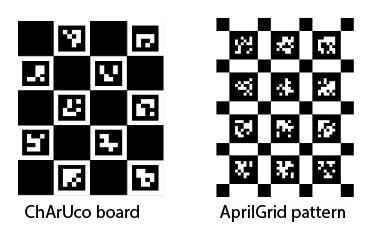
ChArUco board and AprilGrid pattern calibration support
Generate locations of a camera calibration pattern in world coordinates
Use the patternWorldPoints function to generate the locations, in world
coordinates, for camera calibration pattern points. The
patternWorldPoints function can generate points for all
supported calibration patterns, and you can use it in place of the
generateCheckerboardPoints and
gernerateCircleGridPoints functions.
New calibration pattern detection options added to calibration apps
The Camera Calibrator and Stereo Camera Calibrator apps include these enhancements:
Support for detecting white-circle grid patterns, commonly used for thermal cameras.
New Minimum Corner Metric parameter to control the quality of corner detections.
Calibrate stereo cameras using partial pattern detections by using the newly supported ChArUco board and AprilGrid patterns.
For more details on using these apps, see Using the Single Camera Calibrator App and Using the Stereo Camera Calibrator App.
Import OpenCV pinhole camera model with six radial distortion coefficients
The cameraIntrinsics and cameraParameters objects, and the cameraIntrinsicsFromOpenCV and stereoParametersFromOpenCV functions, now support the OpenCV
pinhole camera model with six radial distortion coefficients.
Perform and verify hand-eye calibration for a robot arm equipped with a camera
The Estimate Pose of Moving Camera Mounted on a Robot example demonstrates how to perform and verify hand-eye calibration for a robot arm or manipulator equipped with a camera in the eye-in-hand configuration.
3-D Vision
Perform monocular visual-inertial SLAM
The monovslam object now has fusion support for inertial measurement
unit (IMU) sensors. This support enables you to:
Add IMU parameters when constructing the new SLAM-fusion object
Use the new
CameraToIMUTransform,NumPosesThreshold, andAlignmentFractionname-value arguments of themonovslamobject to tune both the initial IMU-camera alignment and the main IMU-camera fusionAdd IMU gyro and accelerometer measurements to the
monovslamobject by using theaddFrameobject function
The fusion support for IMU sensor arguments for the
monovslam object do not support C/C++ code
generation.
Evaluate accuracy metrics of estimated trajectory from SLAM
Use the compareTrajectories function to calculate error metrics by
comparing the estimated poses from an odometry or SLAM system against the true
poses from a ground truth trajectory, as measured by an external ground truth
system.
The compareTrajectories function returns a trajectoryErrorMetrics object that stores accuracy metrics for
the absolute and relative trajectory error for a sequence of poses.
Set disparity map for stereo vSLAM
To add a disparity map for stereo images when adding them to a stereovslam object, use the DisparityMap
name-value argument of the addFrame object function.
Create customized bag of features to perform loop closure detection in vSLAM
Create a bag of words (BoW) using the bagOfFeaturesDBoW object, and then use the feature descriptors in
the bag to perform SLAM loop closure detection for ORB features using the
dbowLoopDetector object. The bagOfFeaturesDBoW object enables you to create a custom bag of
words (BoW) from feature descriptors, alongside options to utilize a built-in
vocabulary or load a custom one from a specified file.
Specify a custom bag of features by using the bagOfFeaturesDBoW for loop detection with the rgbdvslam, monovslam, and stereovslam vSLAM objects.
Set level of information to display during vSLAM
Set the Verbose property of the monovslam, stereovslam, and rgbdvslam vSLAM objects to one of three levels to display varying
amounts of information.
Verbose Value | Display Description | Display Location |
|---|---|---|
0 or false | Display is turned off. | N/A |
1 or true | Stages of vSLAM execution. | Command Window |
2 | Stages of vSLAM execution, with details on how the frame is processed, such as the artifacts used to initialize the map. | Log file in a temporary folder |
3 | Stages of vSLAM, artifacts used to initialize the map, poses and map points before and after bundle adjustment, and loop closure optimization data. | Log file in a temporary folder |
Simulate RGB-D visual SLAM with Gazebo and Simulink
The Simulate RGB-D Visual SLAM System with Cosimulation in Gazebo and Simulink (ROS Toolbox) example uses a Gazebo world with a Pioneer robot mounted with an RGB-D camera in cosimulation with Simulink®. It shows how to use the RGB and depth images from the robot to simulate an RGB-D visual SLAM system in Simulink. Cosimulation enables you to control Gazebo time stepping using Simulink and provides time-synchronized RGB and depth images, which is crucial for the accuracy of RGB-D vSLAM. Because this is an indoor scene, it is a good candidate for RGB-D cameras, which have limited depth perception and are sensitive to lighting conditions.
Point Cloud Processing
Downsample point cloud using grid nearest filter method
When using the pcdownsample function to downsample point clouds, you can
specify the "gridNearest" downsampling method, which selects
the nearest point to the centroid of each grid. This method maintains the
integrity of the color and intensity information from the input point
cloud.
Segment point cloud using exhaustive or approximate method
Choose between exhaustive and approximate clustering when using the pcsegdist function by specifying the Method
name-value argument. The "exhaustive" method ensures that all
points within a cluster maintain a minimum distance from points outside the
cluster, controlled by the minDistance input. The
"approximate" method is less accurate, but produces
faster results.
Track Objects and Estimate Motion
Estimate optical flow using RAFT deep learning algorithm
Use the opticalFlowRAFT object to estimate the motion of objects across
frames in a video. The opticalFlowRAFT object uses the
recurrent all-pairs field transforms (RAFT) optical flow algorithm with a deep
neural network to evaluate all pairs of pixels in consecutive frames to predict
their motion. The algorithm enables you to capture complex motion patterns, and
provides high accuracy in tracking objects through conditions such as camera
motion, blurry frames, and texture-less scenes.
The Automate Labeling of Objects in Video Using RAFT Optical Flow example demonstrates how to automatically transfer polygon region-of-interest (ROI) annotations from one labeled frame to subsequent frames using the RAFT deep learning-based optical flow algorithm.
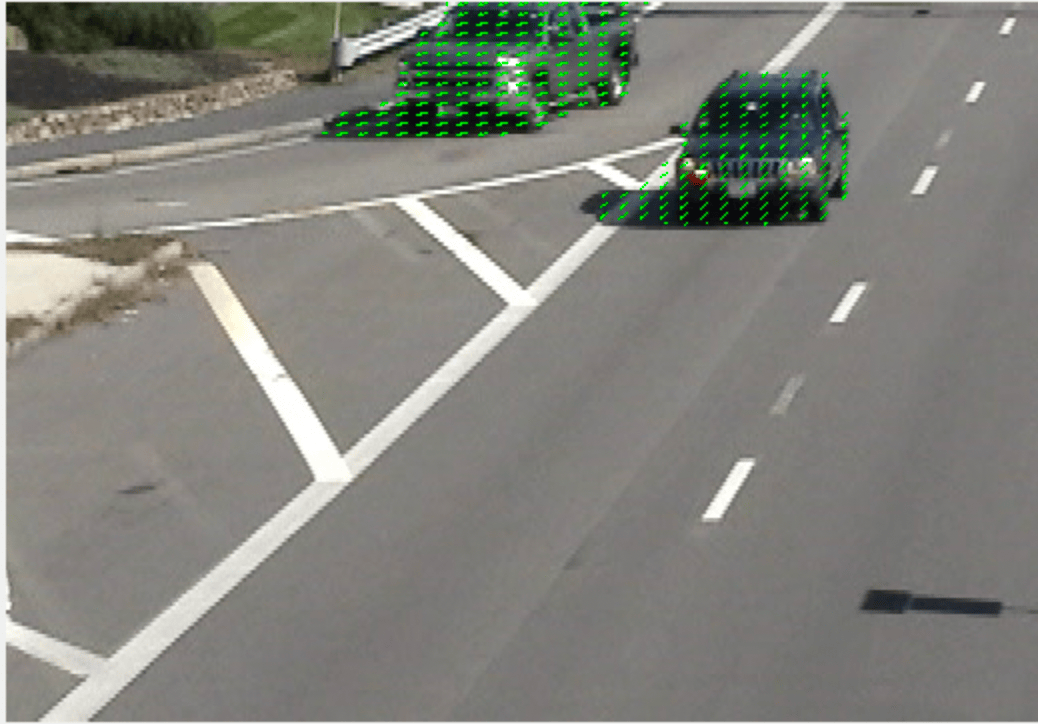
Estimate optical flow using RAFT deep learning algorithm
Code Generation, GPU, and Third-Party Support
MATLAB Coder Support: Generate C and C++ code using additional functions
These functions and objects now support C/C++ code generation for both host and non-host target platforms.
efficientADAnomalyDetectorobjectroialignfunctionsolov2object and itssegmentObjectsobject functionundistortFisheyePointsfunctionreadArucoMarkerfunctionsemanticsegfunctionyolov3ObjectDetectorobject withPredictedBoxTypeproperty set as"rotated"
GPU Coder Support: Generate CUDA code using additional functions
These functions now support code generation using GPU Coder.
solov2object and itssegmentObjectsobject functionsemanticsegfunctionundistortFisheyePointsfunction
Embedded Coder Support: Generate optimized C/C++ code for ARM processors using additional functions
These functions now supports code generation using Embedded Coder™.
ocrfunctionreadBarcodefunctionpcregistericpfunction
Ground Truth Images and Video
Convert Image Labeler ground truth data to the OpenLABEL Format
Use the groundTruthToOpenLabel function to convert groundTruth object data exported from the Image Labeler app to the ASAM OpenLABEL® format and return it as a
JavaScript Object Notation (JSON) file.
Labeler enhancements
This table describes enhancements for these labeling apps:
| Feature | Image Labeler | Video Labeler | Ground Truth Labeler | Lidar Labeler | Medical Image Labeler |
|---|---|---|---|---|---|
Convert groundTruth object data to ASAM OpenLABEL® format. | Yes | No | No | No | No |
| Use Erase tool to remove the labels from superpixel grids. | Yes | No | No | No | No |
| Turn the superpixel grid layout on or off. | Yes | No | No | No | No |
| Customize superpixel edge color. | No | No | No | No | Yes |
| Option to turn off autosave. | No | No | No | No | Yes |
| Toggle a drawing tool between active and inactive by clicking the button for the tool in the toolstrip. | No | No | No | No | Yes |
Improved playback speed for high-resolution videos. | No | Yes | No | No | No |
| Import point cloud data from a Hesai® PCAP file, Ouster® PCAP file, or E57 file. | No | No | No | Yes | No |
| Use the Brush and Brush Erase tools to label voxel regions on a point cloud. | No | No | No | Yes | No |
| Show or hide data in voxel regions on a labeled point cloud. | No | No | No | Yes | No |
| Undo or redo semantic labels for voxel regions on a point cloud. | No | No | No | Yes | No |
| Improved interface to select, reset, and save an ROI view of a point cloud. | No | No | No | Yes | No |
| Get the status of the Snap to Cluster operation using a progress dialog. | No | No | No | Yes | No |
Detect and Segment Objects
Read and estimate ArUco marker pose in image
You can use the readArucoMarker function to detect ArUco markers in an image.
The function enables you to restrict detections to specific marker families, and
to specify the marker size to detect. It also provides several name-value
arguments to adjust adaptive thresholding, contour filtering, bit extraction,
and subpixel corner refinement.
Use the generateArucoMarker function to generate ArUco marker
images.
Train 6-DoF pose estimation network using deep learning
Create a Pose Mask R-CNN network, a 6-degree-of-freedom (6-DoF) pose
estimation network for intelligent bin-picking scenarios, using the posemaskrcnn object. This network is pretrained for pose
estimation on images of variously oriented pipe connectors, or learns using
weights from a network pretrained for instance segmentation on the COCO data
set. You can predict object poses with the pretrained network using the
predictPose object function, or configure the network for
transfer learning.
To train the Pose Mask R-CNN network, use the trainPoseMaskRCNN function.
For an example of both inference using a pretrained Pose Mask R-CNN network and transfer learning on a custom data set, see the Perform 6-DoF Pose Estimation for Bin Picking Using Deep Learning example.
This functionality requires the Computer Vision Toolbox Model for Pose Mask R-CNN 6-DoF Pose Estimation and a Deep Learning Toolbox license. You can install the Computer Vision Toolbox Model for Pose Mask R-CNN 6-DoF Object Pose Estimation from Add-On Explorer. For more information about installing add-ons, see Get and Manage Add-Ons.
Automated Visual Inspection: Specify arguments for PatchCore, FastFlow, and FCDD anomaly detectors
When configuring a patchCoreAnomalyDetector object, you can specify the backbone
feature extraction network as a dlnetwork (Deep Learning Toolbox) object by using the backbone input argument.
When training a patchCoreAnomalyDetector object using the trainPatchCoreAnomalyDetector function, you can specify the
subsampling method by using the SubsamplingStrategy name-value argument. For example,
SubsamplingStrategy="greedycoreset" specifies the greedy
coreset subsampling method.
When configuring a fastFlowAnomalyDetector object, specify the backbone feature
extraction network as a dlnetwork (Deep Learning Toolbox) object by using the Backbone name-value argument. Specify the number of steps in the
flow network by using the NumFlowSteps name-value argument. Specify the ratio of input
channels to hidden channels in the input and output subnet layers of the
FastFlow detector by using the FlowModelChannelRatio name-value argument.
This functionality requires the Automated Visual Inspection Library for Computer Vision Toolbox and a Deep Learning Toolbox license. You can install the Automated Visual Inspection Library for Computer Vision Toolbox from Add-On Explorer. For more information about installing add-ons, see Get and Manage Add-Ons.
Automated Visual Inspection: Specify custom anomaly score function for FastFlow and FCDD detectors
When using the predict or classify object function with an fcddAnomalyDetector or fastFlowAnomalyDetector as your anomaly detector, you can specify
the custom anomaly score function used to compute a scalar score from the 2-D
anomaly map.
To specify the custom score function for the predict
object function, use the corresponding ScoreFunction name-value argument. To specify the custom score
function for the classify object function, use the
corresponding ScoreFunction name-value argument.
This functionality requires the Automated Visual Inspection Library for Computer Vision Toolbox and a Deep Learning Toolbox license. You can install the Automated Visual Inspection Library for Computer Vision Toolbox from Add-On Explorer. For more information about installing add-ons, see Get and Manage Add-Ons.
Automated Visual Inspection: Monitor and track metrics during anomaly detector training
You can use an AUCMetric (Deep Learning Toolbox) object to track the area under
the ROC curve (AUC) while you train an anomaly detector. To use the metric,
specify it to the Metrics (Deep Learning Toolbox) name-value argument
of the trainingOptions (Deep Learning Toolbox) function.
This functionality requires the Automated Visual Inspection Library for Computer Vision Toolbox and a Deep Learning Toolbox license. You can install the Automated Visual Inspection Library for Computer Vision Toolbox from Add-On Explorer. For more information about installing add-ons, see Get and Manage Add-Ons.
Monitor and track metrics during object detector training
You can use an mAPObjectDetectionMetric object to track the mean average
precision (mAP) metric while you train an object detector. To use the metric,
specify it to the Metrics (Deep Learning Toolbox) name-value argument
of the trainingOptions (Deep Learning Toolbox) function. For an
example, see the Train YOLOX Network for Vehicle Detection example.
Explain and visualize object detection network predictions using D-RISE
The detect object functions of the yolov2ObjectDetector, yolov3ObjectDetector, yolov4ObjectDetector, and yoloxObjectDetector (Computer Vision Toolbox
Automated Visual Inspection Library) objects can now return the
info output argument, which contains information about
the class probability and objectness score for each detection.
Generate visual explanations for the prediction results returned by
detect with the detector randomized input sampling for
explanation (D-RISE) algorithm by using the drise (Deep Learning Toolbox) function. Use this function to
generate a saliency map that indicates which regions of your input image have
the strongest influence on the detector predictions. This function requires
Deep Learning Toolbox and the Deep Learning Toolbox Verification Library.
Freeze subnetworks of YOLO v4 object detector
When training the deep learning YOLO v4 object detector, you can now freeze
the subnetworks to increase training speed and reduce GPU memory consumption.
The new FreezeSubNetwork name-value argument of the trainYOLOv4ObjectDetector function enables you to freeze the
backbone or both the backbone and neck subnetworks during training.
Train YOLO v3 object detector
Train or fine-tune a YOLO v3 object detection network using the trainYOLOv3ObjectDetector function. The function supports
includes support for subnetwork freezing and the Experiment Manager (Deep Learning Toolbox) app.
YOLO v3 Object Detector: Rotated rectangle bounding box support
The deep learning YOLO v3 object detector and supporting functionality now support rotated rectangle bounding boxes. These functions now support rotated rectangle bounding boxes as inputs:
Training —
trainYOLOv3ObjectDetectorDetection —
yolov3ObjectDetector,estimateAnchorBoxesVisualization —
insertShape,insertObjectAnnotation,showShapeAugmentation and Preprocessing —
balanceBoxLabels,bbox2points
The insertObjectAnnotation and showShape functions now support the
ShowOrientation name-value argument, enabling you to
specify whether to visually display the orientation of a rotated
rectangle.
Train HRNet object keypoint detector
Train or fine-tune an HRNet object keypoint detection network using the
trainHRNetObjectKeypointDetector function. The function includes
support for the Experiment Manager (Deep Learning Toolbox) app.
Create a segmentation dlnetwork with U-Net, 3-D U-Net, or
DeepLab v3+ architecture
Create a segmentation dlnetwork object that uses U-Net
architecture by using the unet function, and optionally specify a custom or pretrained
network to use as the encoder in the U-Net network. To use a pretrained encoder
network, create the network using the pretrainedEncoderNetwork function.
Create a segmentation dlnetwork with the 3-D U-Net
architecture by using the unet3d function, and optionally specify a custom or pretrained
network to use as the encoder in the 3-D U-Net network. To use a pretrained
encoder network, create the network using the pretrainedEncoderNetwork function.
Create a segmentation dlnetwork with the DeepLab v3+
architecture by using the deeplabv3plus function.
Specify spatial flattening mode of patch embedding layers
Specify the mode for flattening the output of convolution operations in
patchEmbeddingLayer objects using the SpatialFlattenMode property. Set this property when creating or
importing models that require this representation.
Functionality being removed or changed
OCR Trainer app removed
Errors
The OCR Trainer app has been removed. Instead, use the Image Labeler app for labeling and the trainOCR function for training.
TextLayout and Language
name-value arguments removed from ocr function
Errors
The Language and TextLayout
name-value arguments have been removed from the ocr
function. Use the Model and
LayoutAnalysis name-value arguments instead.
unetLayers, unet3dLayers, and
deeplabv3plusLayers functions will be removed in
future release
Still runs
The unetLayers, unet3dLayers, and deeplabv3plusLayers functions will be removed in a future
release. To update your code, replace these functions with the corresponding
new unet, unet3d, and deeplabv3plus functions, each of which returns a
dlnetwork object.
| Discouraged Usage | Recommended Replacement |
|---|---|
This example uses the
imageSize = [480 640 3];
numClasses = 5;
encoderDepth = 3;
lgraph = unetLayers(imageSize,numClasses, ...
EncoderDepth=encoderDepth) | Here is equivalent code that instead uses the
imageSize = [480 640 3];
numClasses = 5;
encoderDepth = 3;
unetNetwork = unet(imageSize,numClasses, ...
EncoderDepth=encoderDepth); |
This example uses the
imageSize = [128 128 128 3];
numClasses = 5;
encoderDepth = 2;
lgraph = unet3dLayers(imageSize,numClasses, ...
EncoderDepth=encoderDepth,NumFirstEncoderFilters=16) | Here is equivalent code that instead uses the
imageSize = [128 128 128 3];
numClasses = 5;
encoderDepth = 2;
unet3dNetwork = unet3d(imageSize,numClasses, ...
EncoderDepth=encoderDepth,NumFirstEncoderFilters=16); |
This example uses the
imageSize = [480 640 3]; numClasses = 5; network = "resnet18"; lgraph = deeplabv3plusLayers(imageSize,numClasses,network, ... DownsamplingFactor=16); | Here is equivalent code that instead uses the
imageSize = [480 640 3]; numClasses = 5; network = "resnet18"; deepLabNetwork = deeplabv3plus(imageSize,numClasses,network, ... DownsamplingFactor=16); |
fcnLayers and segnetLayers
functions will be removed in future release
Still runs
The fcnLayers and segnetLayers functions will be removed in a future release.
Create a dlnetwork (Deep Learning Toolbox) instead.
Output layers will be removed in future release
Still runs
The dicePixelClassificationLayer, pixelClassificationLayer, and focalLossLayer objects will be removed in a future release.
Use the trainnet (Deep Learning Toolbox) function and specify the
loss using a loss function instead.
yolov2ReorgLayer object has been removed
Errors
The yolov2ReorgLayer object has been removed. Use the spaceToDepthLayer object instead.
Calibrate Cameras
Import OpenCV fisheye camera model
Use the cameraIntrinsicsFromOpenCV function to import intrinsic
calibration parameters for a fisheye lens that has been calibrated using OpenCV.
The function returns the intrinsic parameters in a cameraIntrinsicsKB object.
These functions now support the cameraIntrinsicsKB object as a camera parameter input:
estimateMonoCameraParameters(Automated Driving Toolbox)
Get camera intrinsic parameters for undistorted image
The undistortImage function now returns a camera intrinsic
parameters object corresponding to a virtual perspective camera that produces
the image with lens distortion removed.
Functionality being removed or changed
undistortImage function no longer returns new image
origin
Behavior change
This release replaces the newOrigin output argument of
the undistortImage function. The function now returns a
cameraIntrinsics object as the second argument. Prior
to this release, the function returned a two-element vector,
newOrigin. You can still calculate the new origin by
subtracting the principal point of the input camera intrinsic parameters
from the principal point of the output camera intrinsic parameters using
this code, where intrinsics is the input
cameraInstrinsics object and
newIntrinsics is the
cameraIntrinsics object output by the
undistortImage
function.
newOrigin = intrinsics.PrincipalPoint - newIntrinsics.PrincipalPoint
vision.CameraParameters system object removed
Behavior change
The vision.CameraParameters
System object has been removed. Use the cameraParameters object instead.
3-D Vision
Implement complete feature-based RGB-D SLAM workflow with the
rgbdvslam object
Implement complete feature-based stereo vSLAM workflow with the
stereovslam object
Use the stereovslam object and supporting object functions to implement a
complete visual simultaneous localization and mapping (vSLAM) workflow with
stereo camera data.
For an example, see Performant and Deployable Stereo Visual SLAM with Fisheye Images.
To use the stereovslam object, you must have a Navigation Toolbox license.
Performant and deployable monocular visual SLAM example
The Performant and Deployable Monocular Visual SLAM example uses the
monovslam object, which contains a complete vSLAM workflow. You
can use MATLAB
Coder to generate multi-threaded C/C++ code from the monovslam object.
Specify and select world points using unique identifiers
Use the new selectWorldPoints object function to select world points from a
worldpointset object. You can now also specify unique point IDs to
manage world points. In prior releases, you could only save points to the
worldpointset with sequential identifiers.
Perform translation using geometric transformation functions
The estgeotform2d and estgeotform3d functions now support the
translation transformation type.
Generate C++ code for visual SLAM examples
The Stereo Visual Simultaneous Localization and Mapping and Visual SLAM with RGB-D Camera examples now show the C++ code generation process using MATLAB Coder.
Point Cloud Processing
Find points inside or on surface of geometric model in point cloud
Use the findPointsInModel object function to identify points in a point
cloud that are located inside or on the surface of a sphereModel or cylinderModel geometric shape.
pcregistercpd Function: Improved performance
The pcregistercpd function shows improved runtime performance when
registering non-rigid point clouds. For example, this code is about 2x faster
than in the previous
release:
handData = load("hand3d.mat");
moving = handData.moving;
fixed = handData.fixed;

tic
tform = pcregistercpd(moving,fixed);
toc
The approximate execution times are:
R2023b: 23.35 seconds
R2024a: 12.77 seconds
The code was timed on a Microsoft Windows® 10, AMD® EPYC™ 74F3 24-Core Processor @ 3.2 GHz test system using the
tic and toc functions.
pcnormals Function: Improved performance
The pcnormals function shows improved runtime performance when you
use a high number of points for local plane fitting. For example, this code is
about 4.2x faster than in the previous
release:
load("object3d.mat")

tic
normals = pcnormals(ptCloud,30);
toc
The approximate execution times are:
R2023b: 9.32 seconds
R2024a: 2.21 seconds
The code was timed on a Microsoft®
Windows 10, Intel
Xeon Gold 6240R CPU @ 2.4 GHz test system using the tic and toc functions.
pcsegdist Function: Improved performance
The pcsegdist function shows improved runtime performance when you
use parallel neighbor search to segment point cloud data. For example, this code
is about 2.1x faster than in the previous
release:
ld = load("drivingLidarPoints.mat");
maxDistance = 0.9;
referenceVector = [0 0 1];
[~,inliers,outliers] = pcfitplane(ld.ptCloud,maxDistance,referenceVector);
distThreshold = 2;
ptCloudWithoutGround = select(ld.ptCloud,outliers);

tic
[labels,numClusters] = pcsegdist(ptCloudWithoutGround, ...
    distThreshold,NumClusterPoints=[10 Inf],ParallelNeighborSearch=true);
toc
The approximate execution times are:
R2023b: 0.13 seconds
R2024a: 0.06 seconds
The code was timed on a Microsoft
Windows 10, Intel
Xeon Gold 6240R CPU @ 2.4 GHz test system using the tic and toc functions.
pcregisterndt Function: Improved performance
The pcregisterndt function shows improved runtime performance when
you use small sizes for the 3-D cube that voxelizes the fixed point cloud. For
example, this code is about 1.4x faster than in the previous
release:
veloReader = velodyneFileReader("lidarData_ConstructionRoad.pcap","HDL32E");
frameNumber = 1;
skipFrame = 5;
fixed = readFrame(veloReader,frameNumber);
moving = readFrame(veloReader,frameNumber + skipFrame);
groundPtsIdxFixed = segmentGroundFromLidarData(fixed);
fixedSeg = select(fixed,~groundPtsIdxFixed,OutputSize="full");
groundPtsIdxMoving = segmentGroundFromLidarData(moving);
movingSeg = select(moving,~groundPtsIdxMoving,OutputSize="full");
movingDownsampled = pcdownsample(movingSeg,gridAverage=0.2);
gridStep = 1;

tic
tform = pcregisterndt(movingDownsampled,fixedSeg,gridStep);
toc
movingReg = pctransform(moving,tform);
The approximate execution times are:
R2023b: 0.04 seconds
R2024a: 0.03 seconds
The code was timed on a Microsoft
Windows 10, Intel
Xeon Gold 6240R CPU @ 2.4 GHz test system using the tic and toc functions.
Default value of InitialTransform changed for
"pointToPlaneWithColor" metric
The pcregistericp function now uses a modified default value for the
InitialTransform name-value argument when you specify
the Metric name-value argument as
"pointToPlaneWithColor". The default value is now an
identity transformation represented as a rigidtform3d object.
Functionality being removed or changed
pcregrigid function will be removed
Warns
The pcregrigid function will be removed in a future release.
When you call the pcregrigid function, it issues a
warning that it will be removed. Use the pcregistericp function instead.
Track Objects and Estimate Motion
Reidentify and track objects using deep learning
Perform multi-object tracking using deep learning. Create a reidentificationNetwork object to configure a re-identification
network for feature extraction and training. Extract object re-identification
features from an image using the extractReidentificationFeatures object function. Train the
re-identification network using the trainReidentificationNetwork function.
Use the evaluateReidentificationNetwork function to evaluate the
re-identification network performance with the cumulative matching
characteristic (CMC) and mean average precision (mAP) metrics. The reidentificationMetrics object stores the metrics. Use the
plot object function to plot the CMC curve for the data set, the
CMC curve per object class, or the precision-recall curve.
For an example, see the Reidentify People Throughout a Video Sequence Using ReID Network
example, which now uses the reidentificationNetwork object and the associated training,
evaluation, and feature extraction functions.
Tracking and Re-Identification Example: Automatically label data for object tracking and re-identification
The Automate Ground Truth Labeling for Object Tracking and Re-Identification example shows you how to create an automation algorithm to automatically label ground truth data for object tracking and re-identification.
Tracking and Human Pose Estimation Example: Track multiple people and estimate their body poses in a video
The Multi-Object Tracking and Human Pose Estimation example shows you how to track multiple people and estimate their body poses in a video by using multi-object tracking and object keypoint detection.
Code Generation, GPU, and Third-Party Support
Integrate OpenCV version 4.7.0 projects with MATLAB
Integrate OpenCV projects with MATLAB using OpenCV version 4.7.0.
MATLAB Coder Support: Generate C and C++ code using additional functions
These functions now support C/C++ code generation for both host and non-host target platforms.
undistortFisheyeImagefunctionpcregistericpfunction — The"pointToPlaneWithColor"and"planeToPlaneWithColor"values of theMetricname-value argument.
This function now supports C/C++ code generation for host target platforms.
detectTextCRAFTfunction
GPU Coder Support: Generate CUDA code using additional functions
These functions now support code generation using GPU Coder.
detectTextCRAFTfunctionpcregistericpfunction — The"pointToPoint","pointToPlane", and"planeToPlane"values of theMetricname-value argument.selectStrongestBboxandselectStrongestBboxMulticlassfunctions — Rotated rectangle bounding box inputs.