Vibe Coding with a Remote Desktop
Vibe Coding with a Remote Desktop
Duncan Carlsmith, Department of Physics, University of Wisconsin-Madison
Introduction
A phone is all you need to develop coding projects with an agentic AI like Claude. With the Claude App voice input or a voice-to-text app, you don’t even have to type text on your phone. You can leave your laptop at home, take a stroll, respond to a Claude notification en route, and pretend you are not working at the coffee shop.
But there are advantages to having a phone-based remote desktop, and free or nearly free options are available. This post describes experience with two full remote desktop applications and one AI-built quick file-browser-viewer that serves most use cases. Boring technical descriptions follow, but don’t be overwhelmed by them. Claude can bootstrap the installation and setup of everything described here. Just ask and maybe point it to this submission.
Background information
How to set up and use AI Desktop Apps with MATLAB and MCP servers covers the MCP setup. A universal agentic AI for your laptop and beyond describes what a desktop AI does with it. Web automation with Claude, MATLAB, Chromium, and Playwright describes a browser assistant on the same footing. Giving All Your Claudes the Keys to Everything puts an HTTP command server on the Mac behind an ngrok tunnel, so any AI chat interface runs MATLAB, shell commands and AppleScript there. The code is on File Exchange.
With my setup, the Claude app on the phone carries the same conversations and Cowork sessions as the app on the Mac, with the same shell, the same MCP connections, and the same ngrok tunnel. A chat started at the desk continues on the phone where it stopped seamlessly. One conversation can dispatch subagents and run a long computation while a second conversation works on something else.
I am terrible at using the tiny keyboard on my wee iPhone. I now dictate most prompts into the Claude app and use Wispr Flow for dictation into other apps on the phone. I generally ask Claude to back up and version products on my laptop for safekeeping and easy access rather than use GitHub. For example, I might have the AI develop a MATLAB code and test it using GNU Octave in its container to avoid a lot of costly back-and-forth transfers, and then transfer a working product to my Mac as a Live Script that I can render and run with the MATLAB Live Editor. I could ask the AI to run MATLAB and to save a PDF of the Live Script and ship that to me, but it is easier to just run it with real-time feedback. With a remote desktop on my phone, I can have that feedback without carrying the laptop with me.
Remote Desktops
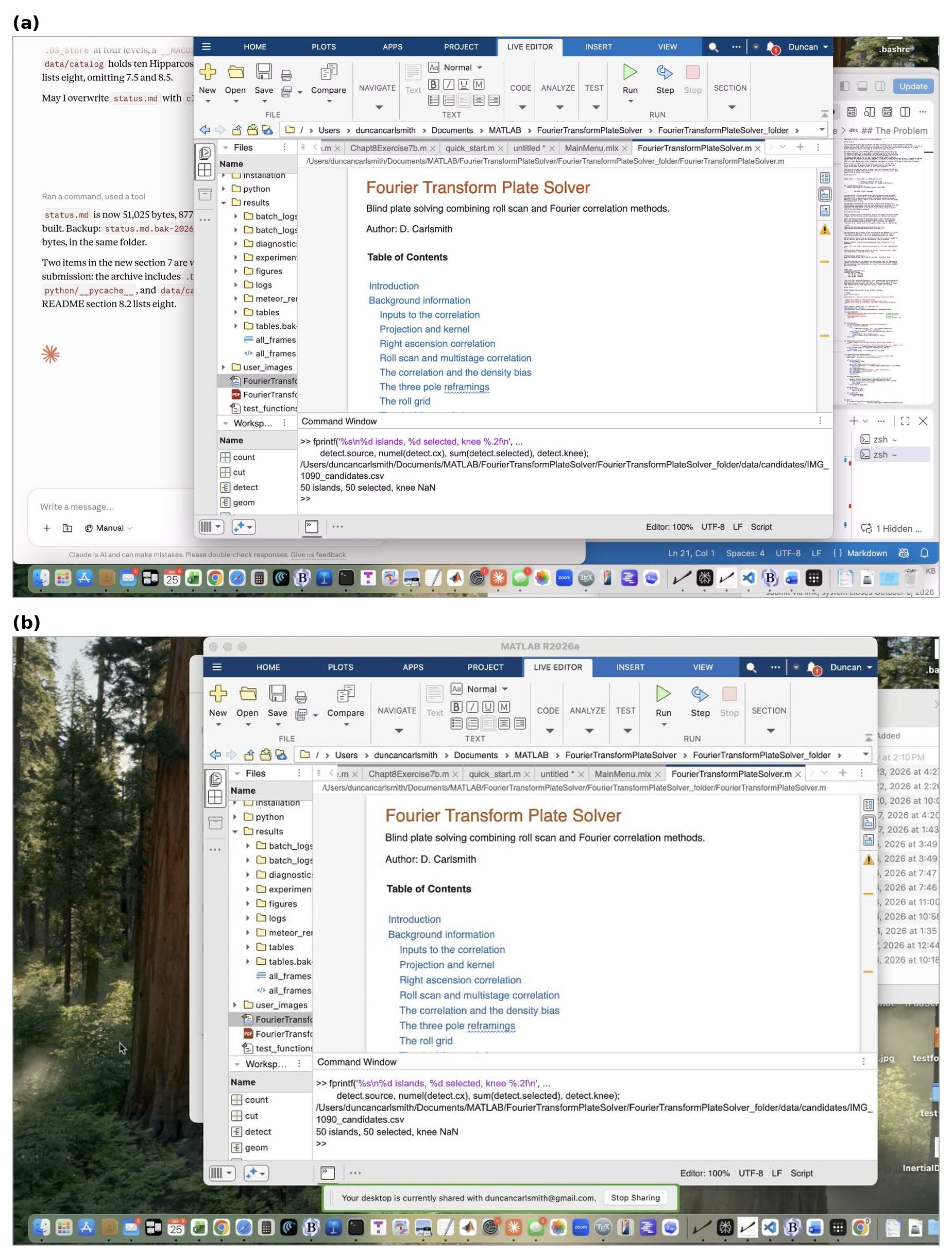
Figure 1. A Mac desktop displayed on an iPhone. (a) Screens, a VNC client, over Tailscale. (b) Chrome Remote Desktop in mobile Safari. MATLAB R2026a is open in the Live Editor in both.
Figure 1 shows iPhone screenshots (partly cropped for privacy) of two remote desktop applications, Screens and Chrome Remote Desktop, serving my MacBook Pro. The full desktop is provided in miniature. Each iPhone app has mechanisms for navigation and operation of macOS and its applications. A drag in Screens moves the whole desktop. Scrolling inside a MATLAB window uses the controls along the bottom of the Screens interface. Chrome Remote Desktop supplies a cursor to drag and click. These suffice for most simple operations. In particular, a Live Script renders in the Live Editor, with figures, equations, and formatted text in place. Tapping Run runs it. One can, of course, direct the AI to launch the laptop application you want beforehand. It is reassuring to see in real time that my laptop has not been hijacked by some wayward mechanism, and to watch a file transfer complete.
Chrome Remote Desktop is free. RealVNC Viewer is free and reaches the same port, but I’ve not tried it. The App Store lists other clients which, like Screens, may require a subscription.
The File Server
New here is an AI-built quick file-browser-viewer. It serves any designated folder over HTTP, and the folder appears in Safari. No file is copied, converted, or sent through the chat. That saves some token charges and headaches. Briefly described:
iPhone Safari -> http://100.x.y.z:8080/some/file.html
|
| WireGuard, encrypted end to end
| direct peer-to-peer, or relayed if NAT blocks it
v
Mac, tailnet address 100.x.y.z
python3 serve_folder.py ~/Documents/courses --port 8080
|
v
the actual folder, unchanged
Safari displays the folder, including subfolders, as easy-to-read clickable links; iPhone handles the display of common file types. HTML renders with its JavaScript, so interactive HTML5 appears instantly and is interactive. PDF, JPEG, PNG, and SVG all display. Markdown, plain text, and JSON display as text. MP3, WAV, and MP4 play in the page, and the back arrow returns to the listing. CSV, ZIP, and .m files download to the Files app, to iCloud Drive or to On My iPhone according to the setting in Settings, Safari, Downloads. A .m file opened from the Files app launches the MATLAB Mobile app, which runs it in the cloud. Cool!
Figure 2a shows what this looks like on iPhone, and Figure 2b shows an educational product I am developing to teach students physics and effective use of AI simultaneously. Figure 3 shows a pair of iPhone views of an HTML5 application at two display sizes, both fully interactive on a phone.
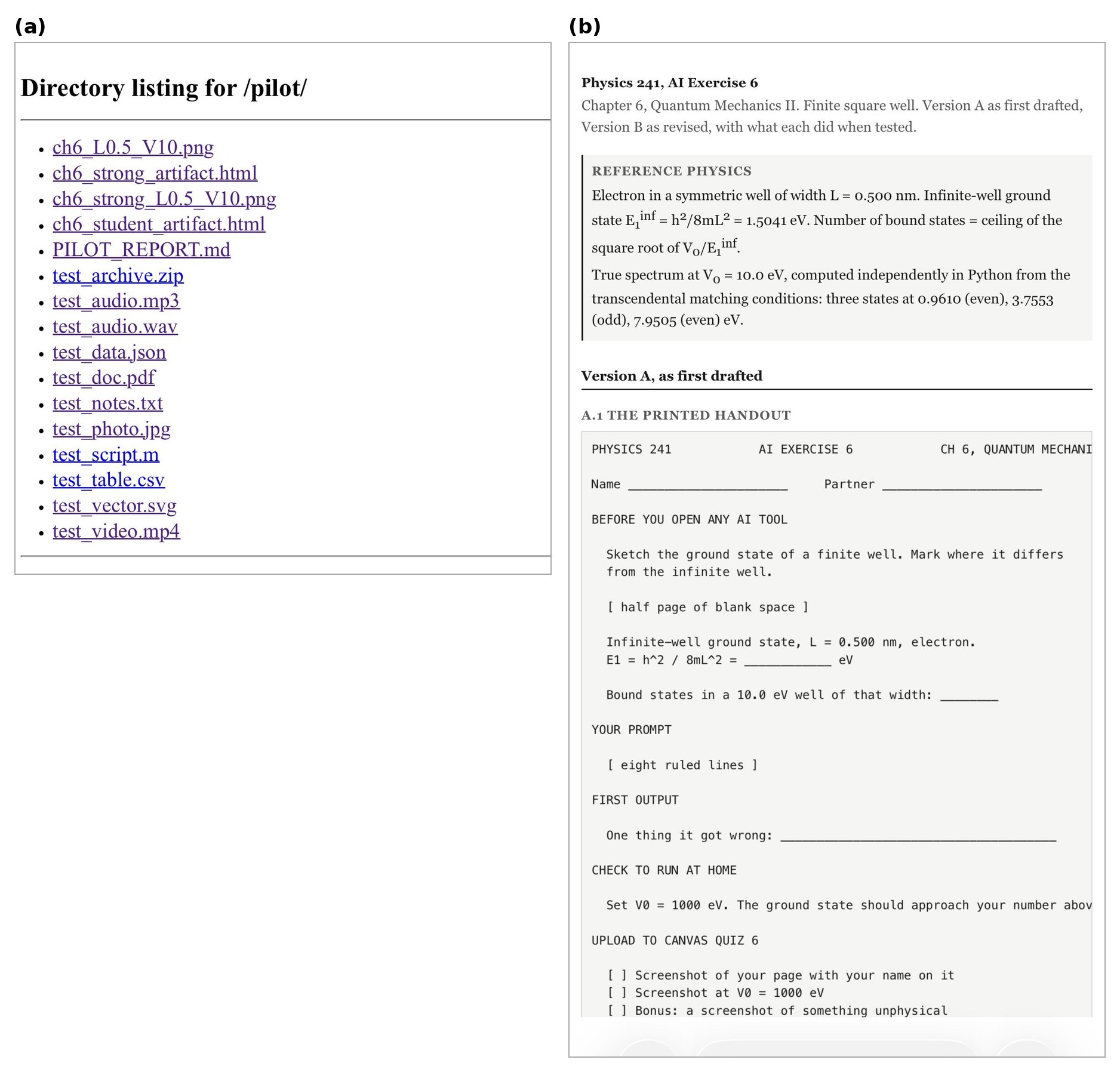
Figure 2. A served folder in Safari. (a) The listing for a subdirectory holding test files of various types. (b) An HTML file from that folder.
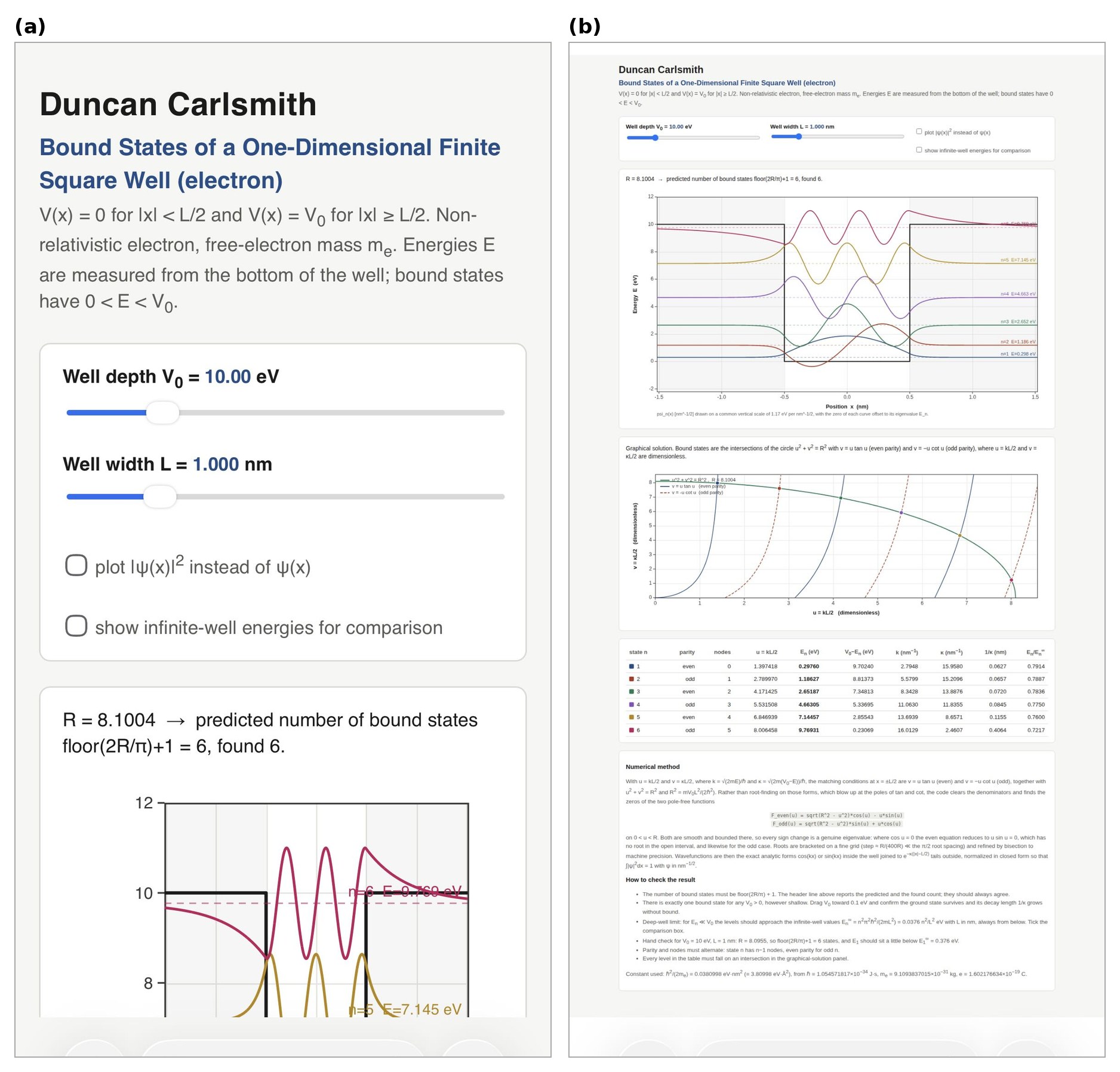
Figure 3. One HTML page in iPhone Safari at two display sizes. The sliders, checkboxes, plots, and table are the page's own controls and respond to touch in both.
Security
A server bound to the tailnet address answers tailnet devices and nothing else. Add a password when the folder holds anything you want protected, and check for dotfiles before serving a directory. Chrome Remote Desktop authenticates with a Google account, so enable two-factor authentication on it. Lock the phone, of course, when using any tool providing access to your stuff from anywhere.
Wrap up
Now back to work, coffee in hand, studying results of an interactive numerical quantum mechanics application built by a mock student (a Haiku-class subagent given one message, no code execution, no browser, no iteration, no references) to investigate the energy levels of a particle bound in a finite potential well, supervised by an instructor agent attempting to assess the subagent’s work. The mock student’s mock assignment submission page reports wrong energy levels which sit at the poles of the transcendental equations, not roots. Moreover, the mock student’s wavefunction parity sequence is wrong. A real student’s job will be to figure this out if and when this happens. My job is to somehow facilitate and assess that. There will be no test about that. The message is I am hoping to replace myself with AI. ;) Yes, it’s a crazy world we now live in. Oh no, my phone just went into power-saving mode, trying to tell me something! I think my coffee needs a refill.
Acknowledgments and disclaimer
The methods were assembled and tested by the author. This submission and the supplied code and installation descriptions were created with Claude's assistance.
The author has no financial interest in any company named here, and no product named here was supplied on special terms. Nothing in this post is endorsed by, sponsored by, or an official position of the University of Wisconsin-Madison, and the author's affiliation is given for identification only.
Product names are the property of their respective owners and are used for identification only. MATLAB, MATLAB Mobile and Live Editor are trademarks of The MathWorks, Inc. Claude and Cowork are trademarks of Anthropic PBC. Wispr Flow is a product of Wispr AI. Google, Google Chrome, Chrome Remote Desktop, Chromium and Android are trademarks of Google LLC. Apple, Mac, macOS, MacBook Pro, iPhone, iOS, iCloud Drive, Safari, Files, App Store and Keychain are trademarks of Apple Inc. Tailscale is a trademark of Tailscale Inc. WireGuard is a registered trademark of Jason A. Donenfeld. VNC and RealVNC are trademarks of RealVNC Ltd. Screens is a product of Edovia Inc. Jump Desktop is a product of Phase Five Systems. Python is a trademark of the Python Software Foundation. Microsoft, Windows and Playwright are trademarks of Microsoft Corporation. Linux is a registered trademark of Linus Torvalds. GitHub is a trademark of GitHub, Inc. ngrok is a trademark of ngrok, Inc. Octave is a trademark of the Free Software Foundation.
- - - - -
Appendix A. Tailscale
Required for Appendix B and Appendix D, not for Appendix C. Free for personal use up to 100 devices. Sign in with Google, Microsoft, GitHub or Apple, and use the same account on every device so they join one tailnet.
Tailscale builds a private network across your devices using WireGuard. Each device gets an address in the 100.64.0.0/10 range that belongs to the tailnet rather than to any physical network. The address follows the device across home wifi, cellular, hotel and campus, and does not change, so a bookmark keeps working.
On macOS, install and sign in, then confirm:
/Applications/Tailscale.app/Contents/MacOS/Tailscale status
/Applications/Tailscale.app/Contents/MacOS/Tailscale ip -4
Use that bundled path. A Homebrew CLI installed alongside the Mac App Store build fails with a socket error, because it looks for /var/run/tailscaled.socket, which the sandboxed App Store build does not create.
On iOS, install from the App Store, sign in with the same account, and toggle the VPN on. iOS asks to add a VPN configuration.
tailscale status lists every device. tailscale ping shows the route in use:
$ tailscale ping iphone-13-pro
pong from iphone-13-pro (100.67.204.58) via 10.0.1.9:41641 in 101ms
That reply came over the LAN with both devices at home. On cellular, Tailscale tries direct peer-to-peer through NAT hole punching and falls back to a relay. tailscale netcheck predicts which:
* UDP: true
* MappingVariesByDestIP: false
* Nearest DERP: Chicago
- ord: 37.3ms (Chicago)
- tor: 48.8ms (Toronto)
- iad: 66.4ms (Ashburn)
UDP: true with MappingVariesByDestIP: false means hole punching usually succeeds. When it fails, the relay carries WireGuard packets it cannot read.
Appendix B. Screen Sharing Over the Tailnet
macOS ships a VNC server. System Settings, General, Sharing, turn on Screen Sharing. The account name shown there and your login password are the credentials. Confirm the listener:
lsof -nP -iTCP:5900 -sTCP:LISTEN
Connect from any VNC client that reaches port 5900 at the address tailscale ip -4 reports. Screens, RealVNC Viewer and Jump Desktop all work, and the App Store lists others. Tailscale must be connected on the phone first.
Some clients speak only the legacy VNC handshake and reject a macOS account password. For those, open the information button beside Screen Sharing, then Computer Settings, and tick "VNC viewers may control screen with password". That password is limited to eight characters.
Display sleep and system sleep are separate settings:
$ pmset -g custom
AC Power:
displaysleep 60
sleep 0
Battery Power:
displaysleep 20
sleep 1
displaysleep blanks the panel and sleep suspends the machine. On AC power with sleep 0 the Mac stays reachable with the screen dark. On battery it sleeps after a minute idle. Stay plugged in, or hold system sleep off:
caffeinate -i &
Enable Wake for network access in System Settings, Battery, Options. Closing the lid sleeps a laptop regardless of caffeinate or pmset sleep 0, unless it is in clamshell mode with power and an external display. Lid open with the screen dark works.
Appendix C. Chrome Remote Desktop
The host on the Mac makes an outbound connection to Google's infrastructure and the phone reaches it through the same infrastructure. No VPN is involved.
On the Mac, in Chrome, go to remotedesktop.google.com/access and choose Set up Remote Access. Chrome downloads a package that installs the host at /Library/PrivilegedHelperTools/ChromeRemoteDesktopHost.app. Installing it requires an administrator password.
The installer requests Screen Recording and Accessibility for Chrome Remote Desktop Host. Both appear in System Settings, Privacy and Security, and both must be on. The Accessibility entry in that list is the permission to control the computer, not the System Settings, Accessibility pane of assistive features. The two permissions separate the view from the input. With Accessibility off the remote screen still draws and clicking a link does nothing. Restoring the permission restores the click.
Name the machine and set a PIN of at least six digits. The PIN is neither the Google password nor the macOS password. Confirm the host:
ps -Ao comm | grep remoting_me2me_host
Connect from the Chrome Remote Desktop app or from mobile Safari at remotedesktop.google.com. Sign in with the same Google account, tap the machine name, enter the PIN. The pmset and caffeinate notes in Appendix B apply here too.
Appendix D. The Tailnet File Server
serve_folder.py is listed in Appendix E. Python standard library only, no pip, no Node, no Docker.
tailscale_ip() supplies the default bind address. Binding to the tailnet address rather than 0.0.0.0 keeps the folder off the physical network the Mac is on.
send_head() refuses paths whose real location escapes the served root. SimpleHTTPRequestHandler blocks ../ traversal but follows symbolic links out of the tree. My skills folder holds six symlinks into ~/Developer, so serving ~/Documents without this check also serves part of ~/Developer.
hmac.compare_digest compares the credential in constant time, so a wrong first character and a wrong last character take equally long.
Run it on a folder of your own writing:
python3 serve_folder.py ~/Documents/courses/241-F26/AIExercises
serving /Users/duncancarlsmith/Documents/courses/241-F26/AIExercises
http://100.103.217.59:8080
auth OFF
Run it with a password on anything else. Store the password in the Keychain, so it is absent from the command line, the shell history and the script:
security add-generic-password -a "$USER" -s tailnet-files -w 'yourpassword' -U
python3 serve_folder.py ~/Documents --user duncan --keychain tailnet-files
On Linux or Windows, use the environment variable form:
export FILESRV_PW='yourpassword'
python3 serve_folder.py ~/Documents --user duncan --password-env FILESRV_PW
Background it and stop it:
nohup python3 serve_folder.py ~/Documents/courses > ~/Library/Logs/filesrv.log 2>&1 &
pkill -f serve_folder.py
On the phone, open http://100.x.y.z:8080 in Safari and bookmark it or add it to the Home Screen. With auth on, Safari asks once, offers to save the credential to Keychain, and stops asking. Basic Auth has no logout, so clearing website data for that host is how you forget it. Chrome on Android and any browser on a laptop behave the same.
Measured from an M1 MacBook Pro on residential internet in August 2026, a direct peer-to-peer ping with both devices on home wifi was 101 ms, and the nearest relay was Chicago at 37.3 ms. A request with no credentials against a server with auth on returns 401 with the Basic challenge, a wrong password returns 401, and the right password returns 200. A symlink pointing outside the root returns 404, as does /../.ssh/. Serving all of ~/Documents listed 235 entries without macOS TCC intervening, and a request with the Mac's display asleep returned 200.
tailscale serve publishes a directory over HTTPS with a certificate and a MagicDNS name, and it is the better tool where it runs. On this Mac it does not:
$ /Applications/Tailscale.app/Contents/MacOS/Tailscale serve --bg ~/Documents
The Tailscale GUI failed to start: The operation couldn't be completed.
(Tailscale.CLIError error 3.)
The installed app is the Mac App Store build. /Applications/Tailscale.app/Contents/_MASReceipt/receipt exists and the bundle identifier is io.tailscale.ipn.macos. That build runs inside a sandboxed network extension and cannot serve filesystem paths. The standalone build from tailscale.com/download fixes both this and the Homebrew CLI socket error.
Appendix E. serve_folder.py
#!/usr/bin/env python3
"""
serve_folder.py -- publish a folder to your Tailscale tailnet over HTTP.
python3 serve_folder.py ~/Documents/courses
python3 serve_folder.py ~/Documents --keychain tailnet-files
python3 serve_folder.py ~/Documents --port 8081 --password-env FILESRV_PW
Binds only to the Tailscale address, so the folder is reachable from your own
tailnet devices and from nothing else on whatever network you are on.
Optional HTTP Basic Auth. Symlinks that point outside the served root are
refused.
"""
import argparse, base64, hmac, os, subprocess, sys
from functools import partial
from http.server import SimpleHTTPRequestHandler, ThreadingHTTPServer
TAILSCALE_CANDIDATES = [
"/Applications/Tailscale.app/Contents/MacOS/Tailscale", # macOS app bundle
"/usr/local/bin/tailscale", # macOS standalone
"/opt/homebrew/bin/tailscale", # Homebrew
"tailscale", # Linux, Windows, PATH
]
def tailscale_ip():
"""First IPv4 address Tailscale reports for this machine."""
for exe in TAILSCALE_CANDIDATES:
try:
r = subprocess.run([exe, "ip", "-4"], capture_output=True,
text=True, timeout=10)
except (FileNotFoundError, subprocess.TimeoutExpired, OSError):
continue
if r.returncode == 0 and r.stdout.strip():
return r.stdout.strip().splitlines()[0].strip()
return None
def keychain_password(service):
"""Read a password from the macOS Keychain. Returns None elsewhere."""
try:
r = subprocess.run(["security", "find-generic-password", "-s", service, "-w"],
capture_output=True, text=True, timeout=10)
except (FileNotFoundError, subprocess.TimeoutExpired, OSError):
return None
return r.stdout.strip() if r.returncode == 0 else None
class Handler(SimpleHTTPRequestHandler):
token = None # base64 of "user:password", or None to disable auth
root = None # realpath of the served directory
def authorized(self):
if self.token is None:
return True
sent = self.headers.get("Authorization", "")
if sent.startswith("Basic ") and hmac.compare_digest(sent[6:], self.token):
return True
self.send_response(401)
self.send_header("WWW-Authenticate", 'Basic realm="files"')
self.send_header("Content-Length", "0")
self.end_headers()
return False
def send_head(self):
# Refuse anything whose real location escapes the served root.
target = os.path.realpath(super().translate_path(self.path))
if target != self.root and not target.startswith(self.root + os.sep):
self.send_error(404, "Not found")
return None
return super().send_head()
def do_GET(self):
if self.authorized():
super().do_GET()
def do_HEAD(self):
if self.authorized():
super().do_HEAD()
def main():
ap = argparse.ArgumentParser(description=__doc__,
formatter_class=argparse.RawDescriptionHelpFormatter)
ap.add_argument("folder")
ap.add_argument("--port", type=int, default=8080)
ap.add_argument("--user", default="me")
ap.add_argument("--keychain", metavar="SERVICE",
help="read the password from this macOS Keychain item")
ap.add_argument("--password-env", metavar="VAR",
help="read the password from this environment variable")
ap.add_argument("--bind", help="override the address to bind (default: Tailscale IP)")
args = ap.parse_args()
root = os.path.realpath(os.path.expanduser(args.folder))
if not os.path.isdir(root):
sys.exit(f"not a directory: {root}")
addr = args.bind or tailscale_ip()
if not addr:
sys.exit("No Tailscale IPv4 address. Is Tailscale connected?")
password = None
if args.keychain:
password = keychain_password(args.keychain)
if password is None:
sys.exit(f"no Keychain item named {args.keychain!r}")
elif args.password_env:
password = os.environ.get(args.password_env)
if not password:
sys.exit(f"environment variable {args.password_env} is empty")
Handler.root = root
if password:
Handler.token = base64.b64encode(
f"{args.user}:{password}".encode()).decode()
httpd = ThreadingHTTPServer((addr, args.port),
partial(Handler, directory=root))
print(f"serving {root}")
print(f" http://{addr}:{args.port}")
print(f" auth {'on, user ' + args.user if password else 'OFF'}")
try:
httpd.serve_forever()
except KeyboardInterrupt:
print("\nstopped")
if __name__ == "__main__":
main()
1 Comment
Time Descending
Addendum: For a session to have the MCP access suite available to a desktop Claude app, when prompted by iPhone Claude app, initiate the session with the desktop App.
Sign in to participate
Tags

