Quality and stability improvements
R2025b delivers quality and stability improvements, building on the new features introduced in R2025a.
Model and Architecture Design
Generate HDL code for models that contain AMD blocks by using Vitis Model Composer
You can now generate integrated HDL code for models that contain AMD® blocks by using Vitis® Model Composer 2024.1 and HDL Coder™. HDL Coder generates HDL code from the Simulink blocks and uses AMD Vitis Model Composer to generate HDL code for the AMD blocks. For more information about Vitis Model Composer, see Vitis Model Composer on the AMD website.
Using Vitis Model Composer with HDL Coder allows you to use various performance-optimized AMD HDL blocks. Use this integration to iteratively explore designs, validate system-level functionality, or implement complex algorithms on AMD devices. You can use this functionality on Windows® operating system. For more information, See Generate Code for AMD Blocks by Using AMD Vitis Model Composer.
You can also generate IP cores for Versal Adaptive SoC devices that include AI Engines. To learn how to model, partition, and deploy a design that leverages the processor, FPGA, and AI Engines on a Versal device, see Integrate HDL IP Core with Versal AI Engine.
Improved output port naming in HDL code
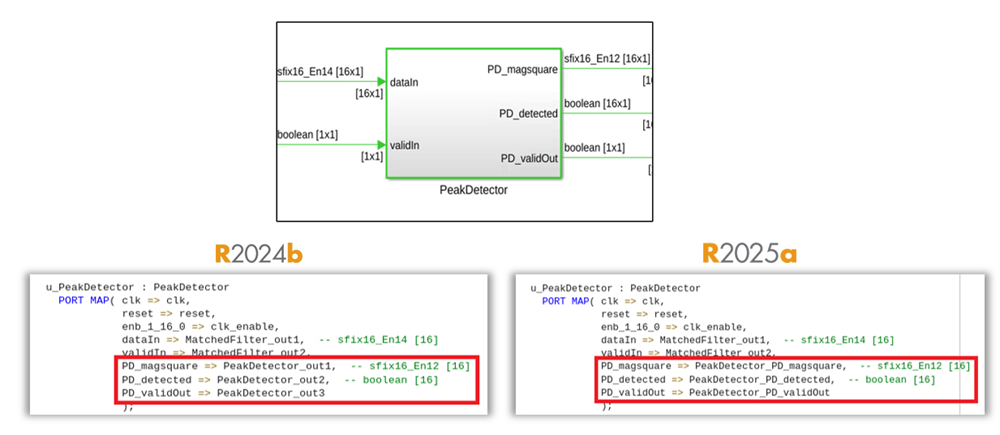
Output ports for subsystems in generated code now follow the naming format
<SubsystemName>_<PortName>. Previously, HDL Coder used
the format
<SubsystemName>_out<PortNumber>
for naming the output ports. This enhancement improves readability and provides more
descriptive names for the output ports in the generated HDL code.
HDL Coder uses this output port naming for these subsystems:
Subsystem
Model Reference
Subsystem Reference
Variant Subsystem
Triggered Subsystem
Resettable Subsystem
Enabled Subsystem
Use buses with matrix types as inputs to Matrix Concatenate and Selector blocks
You can now generate HDL code for Matrix Concatenate block and Selector block when their input signals are buses containing matrix types. You can also use arrays of buses and nested arrays of buses at the input ports.
Generate code into multiple libraries for model references with vector or matrix input types
Prior to R2025a, when generating VHDL® or SystemVerilog code for model references with vector or matrix input types at the model boundary, you must scalarize the ports in the generated code or generate the code into a single library.
Starting in R2025a, you can generate VHDL or SystemVerilog code for model references with vector or matrix input types at the boundaries without scalarizing the ports. To generate the code into multiple libraries and avoid name-type conflicts of vector ports, clear the Generate VHDL or SystemVerilog code for model references into a single library configuration parameter option.
Improved formatting in Code Generation Report
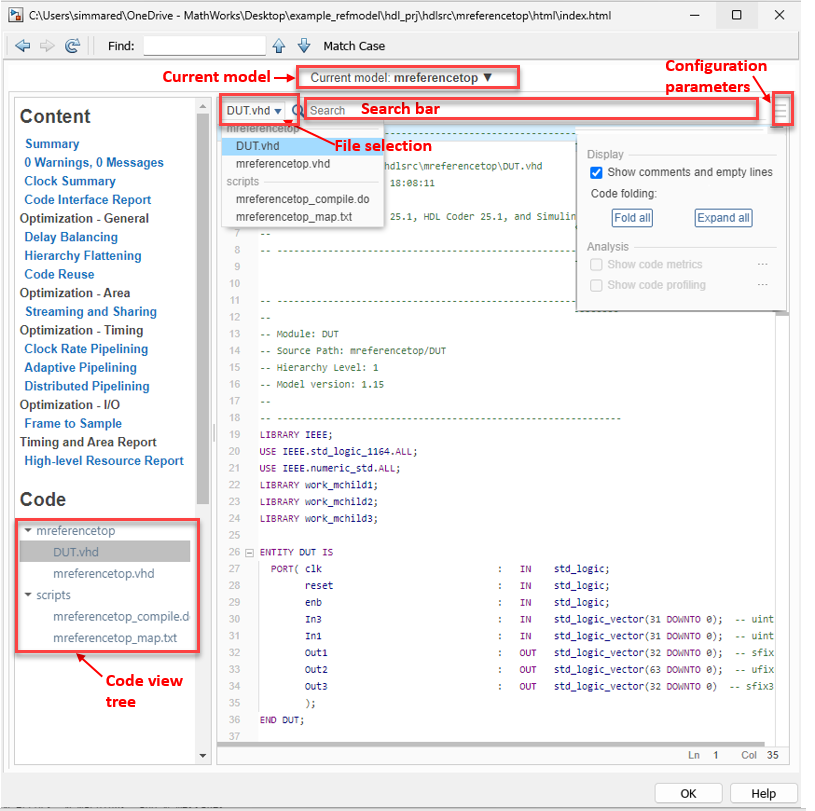
Starting in R2025a, the code generation report has improved formatting when you generate code for a top-level subsystem block. The report includes these improvements:
A new layout for generated code files that allows you to select files, including a file selector, a search bar, and a configuration parameters button
that displays filters for the report.The new configuration parameter pane, which you can use to:
Show comments and empty lines in the generated code.
Collapse or expand all sections in the generated code by using the Code folding option.
A new Current model file selector at the top of code generation report pane, which you can use to select the top-level subsystem. To select a referenced model, click the model name to view the model hierarchy and make your selection.
A new search bar at the top of the right pane, which you can use to find or highlight text in the code.
The code view tree panel in the left navigation pane, which lists the source code and script files generated for the top-level subsystem. When you select a source code file, the right pane displays the corresponding source code. Alternatively, use the new file selector at the top of the right pane to choose the file you want to view.
The left navigation pane, which you can adjust for better usability.
Block Enhancements
Control number of pipeline stages per iteration for blocks in HDLMathLib library and core math blocks
Blocks in the HDLMathLib library and core math blocks can now use a new
custom latency setting that enables you to control the pipeline stages for iterative
algorithms. Set the LatencyStrategy HDL block property to
Custom(PerIterations), then specify the number of pipeline
stages per iteration using the IterationsPerPipeline parameter. Use the
new setting to control the pipeline stages in the generated code and optimize the design for
speed and resource utilization. For more information, see IterationsPerPipeline.
This enhancement applies to all HDLMathLib library blocks and core
math blocks, including:
Set explicit breakpoints for n-D Lookup Table and Prelookup Table blocks
You can now generate HDL code for Prelookup and n-D
Lookup Table blocks that explicitly define breakpoint data. Set the
Breakpoints Specification parameter to Explicit
values and then specify the breakpoint data explicitly to each table
dimension of table data in Breakpoints row field. This enhancement
supports both fixed-point and floating-point data types for breakpoint data in n-D Lookup
Table blocks, and fixed-point data types in Prelookup blocks.
Additionally, HDL Coder improves the performance of Prelookup and n-D Lookup Table blocks
that use evenly spaced breakpoints. You can also use Linear
search and Binary search index search methods
for these lookup table blocks.
Use additional rounding modes for Divide and Reciprocal Blocks
You can now generate HDL code for additional settings of the Integer rounding
mode parameter of the Divide and Reciprocal blocks. Previously, HDL Coder
supported only the Zero and Simplest
settings for the Divide block and the Zero setting for the
Reciprocal block. You can now select from these additional rounding modes:
| Blocks | Integer Rounding Modes |
|---|---|
|
|
|
|
Select the appropriate rounding modes based on your design requirements to achieve optimal precision. The performance and hardware usage of each rounding mode vary.
Control vector input handling for RAM System blocks
Starting in R2025a, you can enable serial access for RAM System blocks by
setting the new Specify vector input access to
Serial. Enable serial access to design systems that can reconfigure
lookup operations after hardware deployment.
When you enable serial access and generate HDL code, the code generator does not scale up RAM consumption with the size of the vector input. Instead, it applies each operation of the input signals one at a time, starting with the first index. Enabling serial access allows you to leverage multicycle RAM access at a faster clock rate while modeling with a vector input at the data rate.
To enable Specify vector input access:
Clear the Model RAM with one cycle of delay parameter, or
Select the Use asynchronous read feature in target hardware parameter.
If the RAM System block exists in a clock-rate pipelining region, the serialization uses a clock-rate implementation instead of local multirate in the generated model.
For more information, see Manage How HDL Coder Maps RAM.
Functionality being removed or changed
HDL Reciprocal block has been removed
The HDL Reciprocal block has been removed. Instead, use the
Math Function block and set Function to
reciprocal. For more information, see the HDL Code
Generation section of the Math Function (R2025a) block.
Code Generation and Verification
Native floating-point for Stateflow charts
Native floating-point support in HDL Coder enables you to generate code from your floating-point design. If your design has complex math and trigonometric operations or has data with a large dynamic range, use native floating point. Starting in R2025a, HDL Coder supports code generation for Stateflow® charts with:
Floating-point constants
Floating-point inputs
Function calls with floating-point arguments
Floating-point arithmetic operations
These chart types are supported:
Classic charts
Mealy charts
State transition tables
Truth tables
Requirement tables
Conditionally triggered or enabled Stateflow charts and Moore charts are not supported.
For more information on generating HDL Code from your floating-point design, see Introduction to Stateflow HDL Code Generation and Native Floating Point Support for Simulink Blocks.
Generate HDL code with AMD and Intel floating-point libraries for MATLAB algorithms
You can now use the MATLAB to HDL Workflow Advisor to generate HDL code for your MATLAB® algorithms that utilize the AMD or Intel® floating-point operators and HDL Coder native floating point IPs. Use the AMD or Intel optimized floating-point operators to reduce your lookup table (LUT) and register resources. Before R2025a, you could only generate code that used AMD or Intel optimized floating-point IPs and HDL Coder native floating-point IPs from Simulink® models.
To generate code that incorporates both AMD or Intel floating-point operators and HDL Coder native floating-point operators, in the HDL Workflow Advisor:
Set the Synthesis tool parameter to
Xilinx Vivado,Altera Quartus II, orIntel Quartus Pro.Set the
VendorFloatingPointLibraryproperty of thecreateFloatingPointTargetConfigmethod toAMDFloatingPointOperatorsorAlteraFPFunctions.
Use this mixed-design approach to accommodate larger and more complex designs into your target device fabric. You can also use the AMD or Intel floating-point operators when you use the generic ASIC/FPGA workflow. See, Generate HDL Code from MATLAB Code by Using Native Floating-Point and Vendor Floating-Point Library IP.
New code generation reports for MATLAB-to-HDL code generation
Starting in R2025a, when you generate HDL code from MATLAB code, HDL Coder generates an HTML code generation report that contains information about:
Code interfaces
Adaptive and distributed pipelining
Delay balancing
Frame to sample
To enable code generation reports for MATLAB-to-HDL code generation, in the Workflow Advisor, enable these parameters in the Report Settings section:
Generate Report
Generate Resource report
Generate Optimization report
For more information about customizing the code generation reports, see Create and Use Code Generation Reports.
Alternatively, use the GenerateOptimizationReport and
GenerateResourceReport options for coder.config.
For more information, see coder.config, coder.HdlConfig, and Generate HDL Code from MATLAB Code Using the Command Line Interface.
Access code insights during MATLAB-to-HDL code generation
Use code insights during MATLAB-to-HDL code generation to facilitate better understanding and usage of the code. Code insights are messages about potential issues in the generated code, such as potential differences in behavior from MATLAB code or potential row-major issues. These messages appear in the Code Insights tab of the code generation report.
This image shows a code insight when you try and parallelize a non-parallelizable user-defined for-loop and there are no optimizations applied to the loop.

This image shows a code insight when you map to RAM and have a persistent variable access in a loop region.

Simulate HDL code generated from MATLAB algorithms in Vivado Simulator
You can now simulate HDL code generated from your MATLAB algorithms in the Vivado® Simulator environment. In the MATLAB-to-HDL Workflow Advisor, set the
Simulation Tool option to Xilinx Vivado
Simulator. HDL Coder generates the simulation scripts that you can use test your design in the
Vivado Simulator environment.
To test your design using the Vivado Simulator:
Set up the Xilinx Vivado synthesis tool using
hdlsetuptoolpathcommand.Open the HDL Workflow Advisor for your MATLAB HDL project.
In the Verification > Verify with HDL Test Bench step, select Generate test bench and Simulate generate test bench options and set the Simulation tool option to
Xilinx Vivado Simulator.To generate the test bench and simulate your design, click Run.
HDL Coder generates the simulation script that includes Tcl commands that load and compile the generated HDL code and test bench. It then uses the Vivado Simulator environment to execute these Tcl scripts and test your design. See Verify Code with HDL Test Bench.
Alternatively, you can run the generated simulation script directly on the Xilinx Vivado
tool. Select Tools > Run Tcl script. Browse to the folder that has
generated HDL and simulation script files, and select the
<projectName>_vivado_sim.tcl script. After the test completes, you
can view the simulation results in Vivado.
Use the Cadence Genus synthesis tool in the MATLAB-to-HDL workflow
You can now synthesize HDL code generated from your MATLAB algorithm by using the Cadence® Genus synthesis tool in the MATLAB-to-HDL Workflow Advisor.
To use the Cadence Genus Synthesis tool:
Use the
hdlsetuptoolpathcommand and specify Cadence Genus as the first argument and the path to the executable as the second argument.Open the HDL Workflow Advisor for your MATLAB HDL project.
In the HDL Workflow Advisor, in the Set Target > Set Target Device and Synthesis Tool step, to the right of Synthesis tool, click Refresh.
For more information on setting up HDL Workflow Advisor in MATLAB, see Workflows in HDL Workflow Advisor.
Speed and Area Optimizations
Improved latency budget checking for feedback loops
Starting in R2025a, if you enable pipelining within a feedback loop that has an insufficient latency budget, HDL Coder inserts the budgeted cycles of pipelines and generates a warning describing actions to take to increase the latency budget. The Delay Balancing report contains a table detailing the inserted pipelines and those pipelines which could not be inserted.
For more information on the delay balancing report, see Create and Use Code Generation Reports. For more information on modeling your design with latency, see Use Delay Absorption While Modeling with Latency.
Clock-rate pipelining support for Upsample block in multirate designs
In R2025a, when you use the clock-rate pipelining optimization, the Upsample (DSP System Toolbox) block does not act as a barrier to the optimization. As a result, clock-rate pipelining optimizes multirate designs more effectively by reducing the large amount of latency and unbalanced delays that could have previously occurred. For example, in previous releases, a multirate design with feedback loops might generate delay balancing errors when you enabled clock-rate pipelining. In R2025a, these designs do not generate delay balancing errors.
For more information, see Clock-Rate Pipelining.
Improved reuse detection between Simulink subsystems
Starting in R2025a, HDL Coder can better detect reuse conditions for subsystems that:
Link to same library block,
Have identical HDL block parameters, and
Implement any of following characteristics:
Non-bus data types
Non-virtual buses
Virtual buses with all elements of the same built-in data type
For more information, see Generate Reusable Code for Subsystems.
In R2025a, HDL code you generate may implement more reusable HDL modules compared to previous releases.
Enable sharing, streaming, and clock-rate pipelining optimizations concurrently
Prior to R2025a, if you enabled sharing, streaming, and clock-rate pipelining optimizations, the generated code applied only the optimizations for streaming and clock-rate pipelining. Starting in R2025a, the code generator concurrently applies the sharing, streaming, and clock-rate pipelining optimizations.
For more information on enabling optimizations, see Speed and Area Optimizations in HDL Coder.
In R2025a, HDL code you generate may have increased applications of optimization compared to previous releases.
Use streaming optimization for complex data type inputs
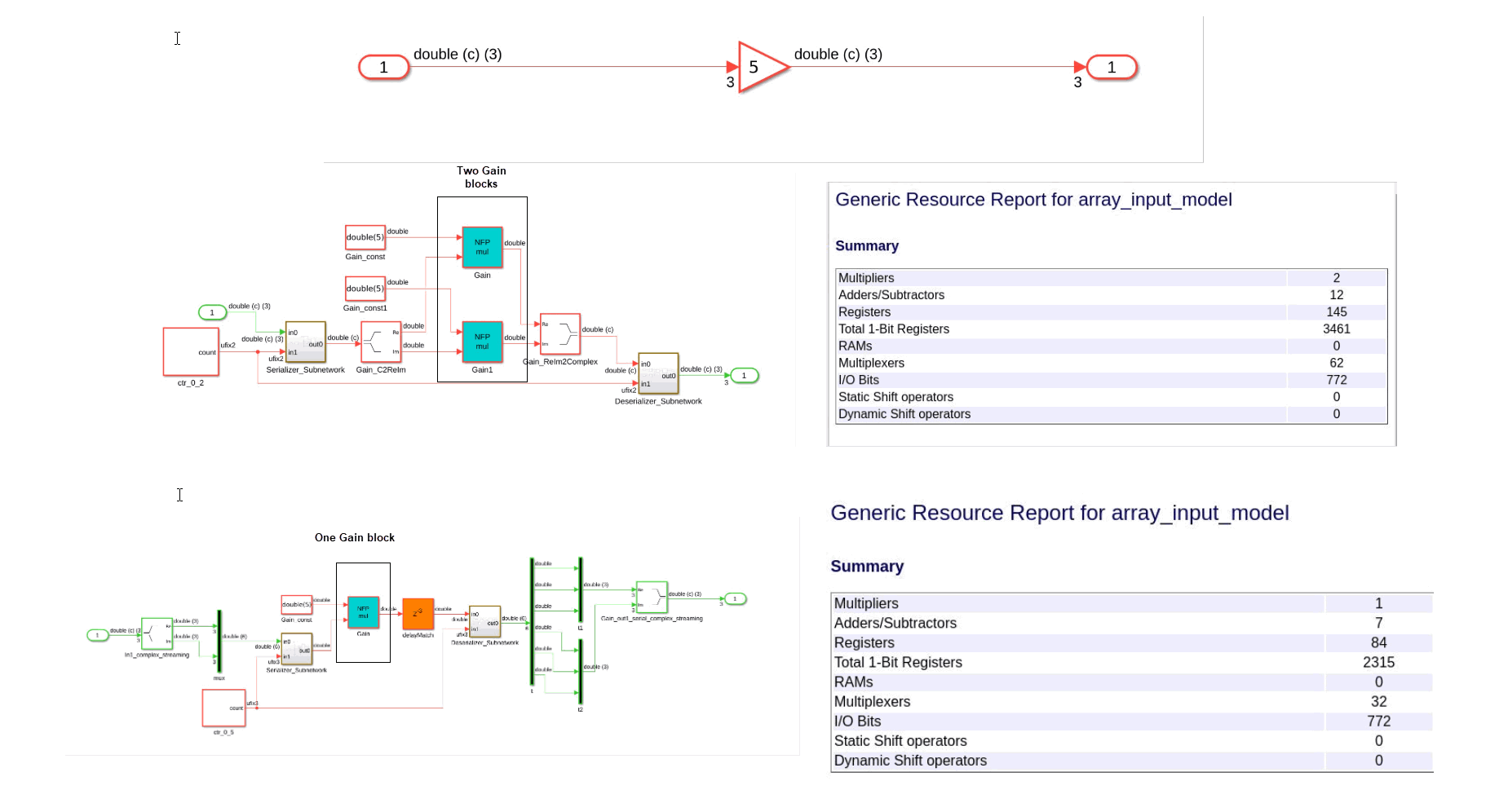
When you use the streaming optimization for complex data type inputs, the optimized model uses
fewer resources than in previous releases. When you set the StreamingFactor HDL block property to a value greater than or equal to twice the input
size, HDL Coder applies the streaming optimization to complex inputs. Previously, HDL Coder allocated resources separately for the real and imaginary components which
results in the generated code consuming approximately twice the resources as the generated
code in R2025a. In R2025a, both real and imaginary parts share the same resource requiring
fewer resources.
For example, before R2025a if a model has a Gain block that operates on complex data, the generated model contains two Gain blocks. For example, this image compares a model that uses the streaming optimization in R2025a and R2024b. The Simulink model contains a Gain block that uses complex data. In R2024b, the generated model contains two multiplier blocks. In R2025a, the generated model contains one multiplier block, which results in reduced resource usage.
Additionally, HDL Coder now supports these streaming operations for complex data types:
Complex data type inputs to a real-value Gain block
Complex data type inputs to a real-value Sum block
Real-value inputs to a complex data type Gain block
Real-value inputs to a complex data type Sum block
Addition of complex data types
I/O Optimizations
Improved external memory behavior for frame-to-samples optimizations in the case of multiple samples per cycle or 3-D frames
Prior to R2025a, for models with multiple samples per cycle or 3-D frames, HDL Coder created multiple unrelated external memories for the scalar values of each sample, equal to the samples per cycle multiplied by the frame depth.
Starting in R2025a, HDL Coder creates one external memory that stores a vector or matrix value on each cycle. This external memory does not reduce the total amount of storage, but it does reduce synchronization logic.
High-Level Synthesis Code Generation
Generate HLS IP Core with AXI4 Lite and external interfaces
In R2025a, you can generate a custom IP Core from a high-level design using HDL Coder. Further, you can deploy and run the custom IP core on all the AMD platforms.
To generate code using the IP Core workflow:
Setup the
Xilinx Vitis HLStool path by usinghdlsetuphlstoolpath(R2025a).Use the HDL Workflow Advisor to set the Set Target Interface task to map each input and output in the MATLAB design function to AXI4-Lite or external interfaces of the IP Core target.
Integrate the generated IP Core with Xilinx Vivado environment by using the Embedded System Integration task.
For more information, see Get Started with HLS IP Core Generation Workflow (R2025a).
Generate HLS code for MATLAB handle classes, value classes, and system objects
In R2025a, you can generate HLS code from MATLAB handle classes, value classes, and System object™. For more information, see MATLAB Classes (R2025a).
Functionality being removed or changed
Cadence Stratus renamed to Cadence Stratus HLS
Behavior change
In MATLAB to HLS code generation, the third-party HLS tool Cadence Stratus is renamed to Cadence Stratus HLS.
IP Core Generation and Hardware Deployment
Use multiple samples per cycle to enhance throughput in frame-to-sample IP core generation
Starting in R2025a, when you use AXI4 Stream interfaces, you can specify a value greater than one for the Samples per cycle model configuration parameter. HDL Coder packs the specified number of samples per cycle together and streams them in a single clock cycle when you use AXI4-Stream interfaces. For more information see, Stream Multiple Samples per Cycle.
Download Linux images and generate host interface scripts for Microchip devices
When targeting Microchip FPGA and SoC devices, you can:
Generate a host interface script when generating an IP core, which enables you to use the MATLAB FPGA I/O functions,
readPortandwritePort, to read from and write to the AXI registers. For more information, see Get Started with IP Core Generation for Microchip PolarFire SoC Devices.Download a Linux image for the Polarfire® SoC Icicle Kit to boot your Microchip device from the SD card. Guided Hardware Setup for Microchip Boards
Unified hardware setup for HDL Coder supported hardware
You can now configure your hardware boards with the Hardware Setup tool, which operates
independently of vendor-specific HDL Coder support packages. Use the hdlHardwareSetup function to launch the Hardware Setup tool directly from
the MATLAB command window.
You can now use the Hardware setup tool to select the desired FPGA vendor and hardware
board, configure your hardware, download third-party tools, establish Ethernet connection,
and write the firmware image. In the Select a Hardware
Board step of the Hardware Setup tool, you can specify your FPGA vendor as
AMD, Intel or
Microchip, and then select the desired hardware boards from
the list. See Guided Hardware Setup for AMD Boards.
HDL Coder Support Package for Xilinx FPGA and SoC Devices renamed to HDL Coder Support Package for AMD FPGA and SoC Devices
The HDL Coder Support Package for Xilinx® FPGA and SoC Devices is now the HDL Coder Support Package for AMD FPGA and SoC Devices. To download the support package, see Download and Install HDL Coder Support Package for AMD FPGA and SoC Devices.
For more information on supported hardware, see AMD FPGA and SoC Devices.
Upgrade to Intel Quartus Prime Standard 23.1
HDL Coder now supports Intel
Quartus® Prime Standard 23.1. You can set up this third-party synthesis tool by using
hdlsetuptoolpath function and target
devices that are supported with that tool.
For more information about supported synthesis tools, see HDL Language Support and Supported Third-Party Tools and Hardware.
Upgrade to Xilinx Vivado 2024.1
HDL Coder now supports Xilinx
Vivado 2024.1. You can set up this third-party synthesis tool by using hdlsetuptoolpath function and target devices that are supported with that
tool.
For more information about supported synthesis tools, see HDL Language Support and Supported Third-Party Tools and Hardware.
Upgrade to Microchip Libero SoC 2024.1
HDL Coder now supports Microchip
Libero® SoC 2024.1. You can set up this third-party synthesis tool by using hdlsetuptoolpath function and target devices that are supported with that
tool.
For more information about supported synthesis tools, see HDL Language Support and Supported Third-Party Tools and Hardware.
Perform back-annotation analysis when you use the Intel Quartus Pro synthesis tool
Starting in R2025a, you can perform back-annotation analysis when you use the Intel Quartus Pro as the synthesis tool. Back-annotation helps you to identify critical paths in your model. To perform this analysis in the HDL Workflow Advisor, follow these steps:
In task 1.1. Set target Device and Synthesis Tool, set the Synthesis tool to
Intel Quartus Pro.Complete all the tasks until task 4.2.3. Perform Place and Route.
In task 4.3. Annotate Model with Synthesis Result:
Set Critical path source to
pre-routeorpost-route.Set Critical path number to
1or2or3.Set Chose Model to Annotate to
original.Select one or more options from Show all paths, Show unique path, Show delay data, and Show ends only to visually highlight one or more critical paths in your model.
For more information, see Annotate Model with Synthesis Result.
Use enable-based multicycle path constraints to meet timing requirements with Cadence Genus
Starting in R2025a, you can enable multicycle path constraints on your model when you
generate code for generic ASIC/FPGA devices using Cadence Genus synthesis tool. To enable multicycle path constraints, enable the Enable-based constraints model configuration
parameter and set the Target workflow parameter to Generic
ASIC/FPGA and Synthesis tool parameter to
Cadence Genus in the HDL Workflow Advisor. The HDL Workflow Advisor
integrates these constraints into the synthesis TCL file, which reduces synthesis time by
relaxing the timing requirements on the synthesis tool. This approach helps achieve higher clock
rates and improves the timing of Simulink models that have multiple sample rates or that have speed and area optimizations
that insert pipeline registers. For more information, see Iteratively Meet Timing Requirements Using Multicycle Path Constraints for Cadence Genus.
Generate Synopsys SpyGlass Lint report using HDL Workflow Advisor
Starting in R2025a, you can use the Synopsys SpyGlass Lint tool to perform RTL lint checks on the generated HDL code within the generic ASIC/FPGA workflow. To generate a lint report using the HDL Workflow Advisor, do this:
In the 1.1. Set Target Device and Synthesis Tool task, set Target workflow to
Generic ASIC/FPGA.Complete tasks up to 3.1. Set HDL Options.
In the 3.2. Generate RTL Code and Testbench task, select the Generate RTL code and Generate RTL lint check report options.
In the 3.3. Generate RTL Lint Check Report task:
Set the Lint tool to
Synopsys SpyGlass. This action populates the latest tool version for the SpyGlass Lint tool available on the MATLAB path.To use a custom lint file, enter the its name in the Custom lint file box or use the Add custom lint file button. Then, click Run This Task.
View the generated SpyGlass lint script and report files in the Result pane.
For more information, see Generate RTL Lint Check Report Using HDL Workflow Advisor and Synopsys SpyGlass Lint Tool.
Generate cosimulation testbench for Synopsys VCS
When you perform HDL cosimulation using HDL Coder workflows, you now have the option to select the Synopsys® VCS® simulator to cosimulate the generated HDL.
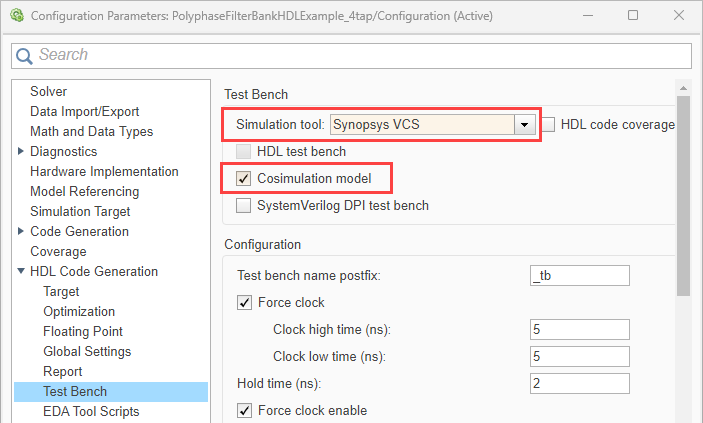
You can use this feature with Simulink in these scenarios:
When using the
makehdltbfunction to generate a testbench, set theGenerateCosimModelproperty toVCS. For example:makehdltb("hdl_cosim_demo1/MAC",targetlang="vhdl",GenerateCosimModel="VCS")When using the Simulink HDL Workflow Advisor, open the configuration parameters for your model, and on the left pane, expand HDL Code Generation and select Test Bench. Then set Simulation tool to
Synopsys VCS.
You can use this feature with MATLAB in this scenario:
When using the
coder.HdlConfigobject, set theCosimToolproperty toVCS. For example:hdlcfg = coder.config("hdl"); % Create a default "hdl" config hdlcfg.CosimTool = "VCS";
For more information, see Generate Cosimulation Model.
This feature requires an HDL Verifier™ license.
Stream data in free-running mode using FPGA-in-the-loop workflow
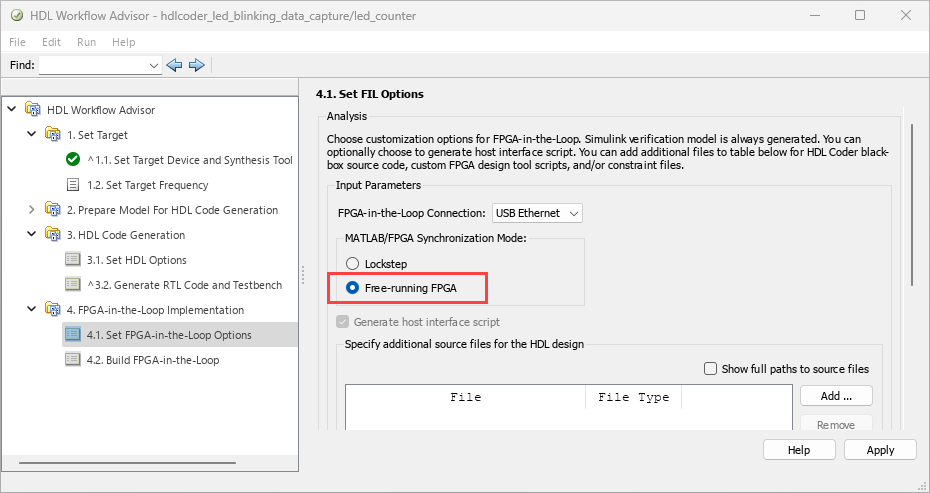
FPGA-in-the-loop in HDL Workflow Advisor supports free-running mode for streaming data between MATLAB and a DUT executing on an FPGA. This mode adds the option for the DUT to operate asynchronously with MATLAB.
To use this mode, in HDL Workflow Advisor, in the 4.1. Set FPGA-in-the-Loop Options step, under MATLAB/FPGA Synchronization mode, select Free-running FPGA.
The feature is supported on these SoC boards over an Ethernet or USB Ethernet interface:
ZedBoard™
AMD ZC702 Evaluation Kit
AMD ZC706 Evaluation Kit
AMD ZCU102 Evaluation Kit
AMD ZCU111 Evaluation Kit
AMD ZCU208 Evaluation Kit
AMD ZCU216 Evaluation Kit
AMD VCK190 Evaluation Kit
Intel Agilex® 7 SoC Development Kit (supported over Ethernet interface only)
Note
This feature works only when you use FIL with a MATLAB System object.
For more information, see Execute Free-Running FPGA-in-the-Loop Using HDL Workflow Advisor (HDL Verifier).
This feature requires an HDL Verifier license.
Generate host interface script for FPGA-in-the-loop workflow
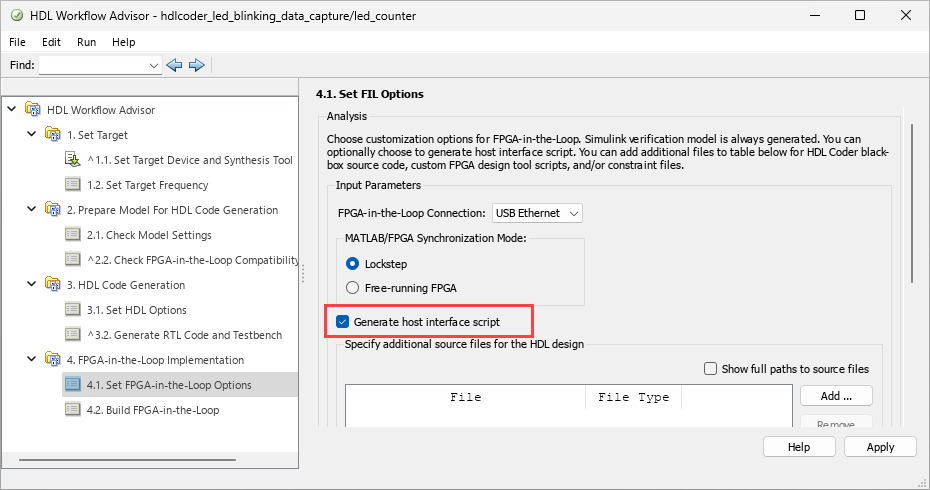
You can now generate a host interface script, gs_<DUTName>_interface_fil.m, when you use FPGA-in-the-loop in HDL Workflow Advisor.
This script creates a filObj object for interfacing with your FPGA from MATLAB. The interface script contains MATLAB commands that connect to your hardware and program the FPGA, and examples of how to exchange data with your algorithm as it runs on hardware.
To generate a host interface script, in HDL Workflow Advisor, in the 4.1. Set FPGA-in-the-Loop Options step, select Generate host interface script. For free-running mode, this option is selected by default.
This feature requires an HDL Verifier license.
Capture data over PS Ethernet and USB Ethernet interfaces using FPGA data capture
FPGA data capture in HDL Workflow Advisor now supports the PS Ethernet and USB Ethernet interfaces. To run FPGA data capture over a PS Ethernet interface, in the 1.2. Set Target Reference Design step, set FPGA Data Capture (HDL Verifier required) to PS Ethernet. To run FPGA data capture over a USB Ethernet interface, set FPGA Data Capture (HDL Verifier required) to USB Ethernet.
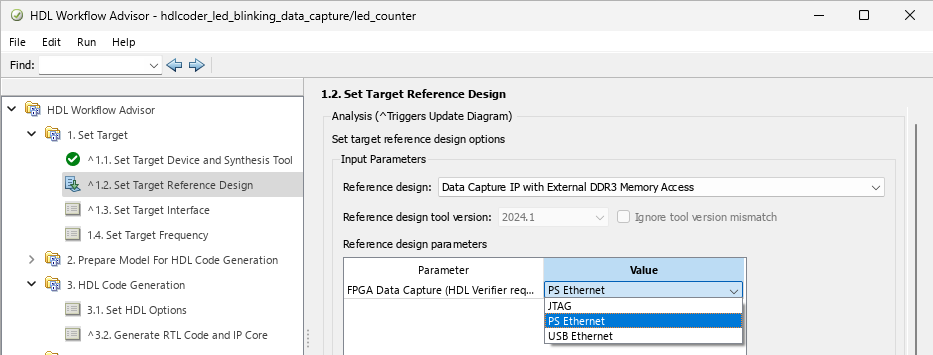
By default, the PS Ethernet and USB Ethernet options are available for these boards:
AMD ZCU102 Evaluation Kit (with the
Default system with data capture with external DDR4 memory accessreference design)AMD ZC706 Evaluation Kit (with the
Data Capture IP with External DDR3 Memory Accessreference design)ZedBoard (with the
Default systemreference design)
To enable these options for other boards, manually add the connection types in the
plugin_rd reference design definition file by using the addFPGADataCaptureInterface method before you start the HDL Workflow Advisor
tool.
You can enable PS Ethernet or USB Ethernet interface only when targeting these boards:
ZedBoard
AMD ZC702 Evaluation Kit
AMD ZC706 Evaluation Kit
AMD ZCU102 Evaluation Kit
AMD ZCU111 Evaluation Kit
AMD ZCU208 Evaluation Kit
AMD ZCU216 Evaluation Kit
For more detailed generation and data capture steps, see Data Capture Workflow (HDL Verifier).
This feature requires an HDL Verifier license.
Use external DDR memory to capture large data using FPGA data capture
FPGA data capture in HDL Workflow Advisor now supports external DDR memory to capture up to two gigasamples of large data. To expand the memory size for capturing the data, in the 3.2. Generate RTL Code and IP Core step, set FPGA Data Capture storage type to External memory and FPGA Data Capture buffer size to custom. Then, specify Custom Buffer Size as the required value, in powers of 2, 2N, where N is an integer from 7 to 31.
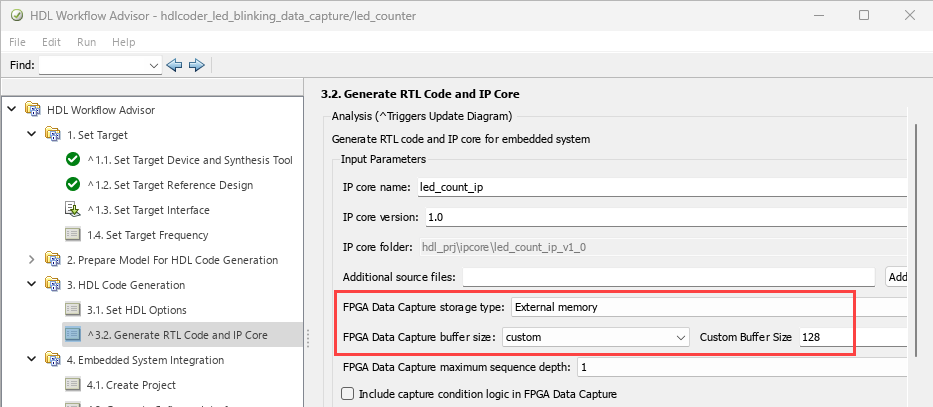
By default, the External memory option is available for these boards:
AMD ZCU102 Evaluation Kit (with the
Default system with data capture with external DDR4 memory accessreference design)AMD ZC706 Evaluation Kit (with the
Data Capture IP with External DDR3 Memory Accessreference design).
To enable this option for other boards, configure the plugin_rd
reference design definition file by using the addFPGADataCaptureInterface method before you start the HDL Workflow Advisor
tool.
Note
You can enable external memory only when targeting the AMD devices over a JTAG, PS Ethernet, or USB Ethernet interface.
For an example, see Debug IP Core Using FPGA Data Capture. For more detailed generation and data capture steps, see Data Capture Workflow (HDL Verifier).
This feature requires an HDL Verifier license.
Use AXI4 Master interface with an address width greater than 32 bits in reference designs
Starting in R2025a, you can use an AXI4 Master interface with an address width greater than
32 bits. This change allows the AXI4 Master interface on your IP core to access memory locations
with base addresses beyond the 32-bit (4 GB) range. You can define the address width for your
AXI4 Master interface in user-defined reference designs. For more information, see addAXI4MasterInterface.
Use reference design to access external LPDDR4 memory on Xilinx Versal AI core series VCK190 evaluation kit
You can now use the Default system with External LPDDR4 Memory Access reference design for the Xilinx Versal® AI core series VCK190 evaluation kit. Use this reference design to access external memory on Versal devices from your HDL Coder generated IP core.
For more information about this reference design, see Perform Large Matrix Operations Using External Memory.
Unmapped ports are not automatically assigned when switching synchronization modes
Starting in R2025a, in the HDL Workflow Advisor, when you set Processor/FPGA synchronization mode to Coprocessing -
blocking, HDL Coder no longer assigns unmapped ports to the default bus interface. You must
manually assign the unmapped ports.
If you use the
Coprocessing - blocking setting in a model prior to R2025a, do no
explicitly map the ports, and generate an IP core, the IP core you generate in R2025a may be
different than a core generated in earlier releases. You must explicitly map the ports to
the default bus interface before running IP core generation.
Generate HDL code and perform synthesis using Cadence Genus on ASIC devices
The Generate HDL Code and Perform Synthesis Using Cadence Genus on ASIC Devices example shows how to generate and synthesize HDL code for generic ASIC devices using the HDL Workflow Advisor and the Cadence Genus synthesis tool. This example guides you on how to use either the default synthesis settings or your own custom synthesis settings. For more information, see Generate HDL Code and Perform Synthesis Using Cadence Genus on ASIC Devices.
Generate host interface script for IP cores in MATLAB-to-HDL workflow
You can now generate a host interface and a setup script when you generate an IP core in the MATLAB-to-HDL Workflow Advisor.
To generate a host interface script in the Workflow Advisor, under the Embedded System Integration task, right-click the Generate Software Interface subtask and select Run This Task.
This subtask generates the interface script gs_<modelName>_interface.m
and the setup script gs_<modelName>_setup.m. These scripts set up and
interface with the generated and deployed IP core. You can use these scripts to perform read and
write operations to the AXI-accessible registers or transfer frames of data to IP core through
the DMA and AXI-4 Stream interface. For more information, see Get Started with IP Core Generation from MATLAB Function.
Real-Time Hardware Deployment
Simscape hardware-in-the-loop workflow: Reference applications
Real-Time Simulation of Modular Multilevel Converter for FPGA Deployment (R2025a)
This example shows how to model a modular multilevel converter (MMC) with half-bridge power modules by using generic switching function modeling approach, where the number of power modules is highly scalable. This example uses a hybrid plant model containing Simulink and Simscape™ blocks. You can generate HDL code and deploy onto a target hardware.
Enhancements to automatic replacement of Simscape components with optimized equivalents for FPGA deployment
Replacement of Simscape switches and converter blocks with their dynamic equivalents:
In a generated optimized model, gate ports of the replaced blocks now automatically connect to their respective sources. This enhancement supports scalar signals and gate inports that are directly connected to Simulink-PS Converter (R2025a) (Simscape) block.
Before R2025a, in the generated optimized model, you had to manually connect any gate signal inports of the replaced blocks to their respective sources and remove any additional Simulink-PS Converter (R2025a) (Simscape) blocks. For more information on replacing switches and converter blocks with their dynamic equivalents, see
sschdl.generateOptimizedModel(R2025a).Replacement of Simscape components with optimized equivalents:
On replacement of the Simscape PMSM (R2025a) (Simscape Electrical) block with an equivalent optimized PMSM block, the Simscape network splits and a secondary Solver Configuration (R2025a) (Simscape) block is now automatically added and connected. The
sschdl.generateOptimizedModelfunction automatically sets initial conditions for the optimized PMSM block based on the original Simscape model. You can tune the run-time parameters in the model and rerun thesschdl.generateOptimizedModelfunction to generate optimized PMSM block with updated initial conditions.Previously, when the Simscape network split, you had to connect a Solver Configuration block to the disconnected segment of the network manually and the optimized PMSM block was generated with the initial conditions computed for the original Simscape model. For more information, see Optimize Simscape Three-Phase PMSM Drive Model for Efficient HDL Code Generation and Synthesis (R2025a).
Improved FPGA bitstream generation from Simscape models with tunable run-time parameter values
The parameter tuning now supports linear time-invariant models with local solver set
to Trapezoidal Rule. You can modify the run-time parameter
values in the generated FPGA bitstream for your Simscape models and fine-tune any run-time configurable parameter values in the
generated FPGA bitstream without the need to rerun the synthesis for the generated HDL
implementation models. For more information, see sschdl.updateRuntimeParameters (R2025a).
Previously, you could tune Simscape run-time parameters only for Simscape models with
local solver set to Backward Euler.
Improved fixed-point data type support for nonlinear Simscape models
The Simscape hardware-in-the-loop (HIL) workflow now provides improved support for nonlinear Simscape models with fixed-point data type by using lookup table approximation. With this enhancement, you can achieve better timing and resource utilization for nonlinear Simscape models containing Trigonometric Function (R2025a) blocks . For more information about how to decide on using fixed-point data types for your plant models, see Use Fixed-Point Precision (R2025a).
HDL Code generation for Sine Wave block
The Simscape hardware-in-the-loop (HIL) workflow now supports HDL code generation for the Sine Wave (R2025a) block.
Model and Architecture Design
Generate HDL code for Bus elements with matrix type
You can now generate HDL code for Subsystem blocks that contain Bus Creator (R2024b), Bus Selector (R2024b), Bus Assignment (R2024b), In Bus Element (R2024b), or Out Bus Element (R2024b) blocks that use matrix type elements.
For more information, see Signal and Data Type Support (R2024b).
Use structures as initial values for Delay blocks
You can now generate HDL code for Delay (R2024b) blocks that use structures to specify the initial conditions. You also use structures as the initial values in other delay blocks, including the Unit Delay (R2024b), and Tapped Delay (R2024b) blocks. Using this enhancement, when you use bus input for a Delay block, you can set initial condition for the delay block with a structure value to initialize the bus delay.
To generate HDL code for a Delay block using initial conditions defined by structures:
Define a structure variable in the model workspace, MATLAB base workspace, mask workspace, or Simulink data dictionary.
Assign the initial condition value to this structure variable.
In the Block Parameters dialog for the Delay block, set the Initial Condition parameter to
Dialogand input the structure variable in the Value field.Generate the HDL code for your model.
For more information, see HDL Code Generation (R2024b).
Use virtual buses as inputs to resettable Delay blocks
You can now generate HDL code for Delay (R2024b) blocks that include an external reset port and that uses a virtual bus as an input. Using this enhancement, you can generate HDL code for these delay blocks that uses virtual bus as input:
Resettable Delay
Enabled Resettable Delay
Tapped Delay Resettable Synchronous
Tapped Delay Enabled Resettable Synchronous
Import VHDL code into the Simulink environment using importhdl
function
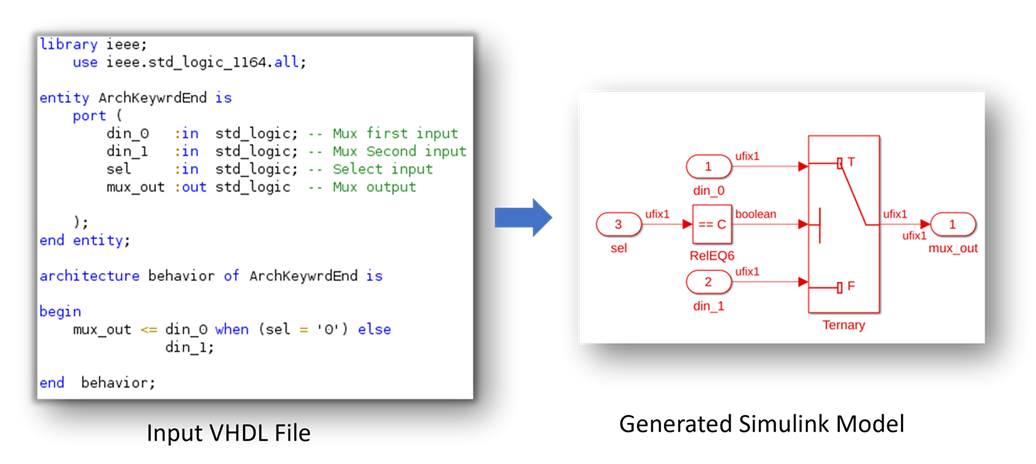
You can now import synthesizable VHDL code into the Simulink modeling environment. When you execute the importhdl (R2024b) function, the function analyzes the VHDL files and generates a corresponding Simulink model. This model visually interprets the VHDL code, showcases its functionality and behavior.
When you import the VHDL code, make sure that the constructs used in the HDL code are
supported by importhdl function. For more information, see Supported VHDL Constructs When Generating Simulink Models from VHDL Code (R2024b).
Use HDL Property Inspector to edit HDL Block Properties
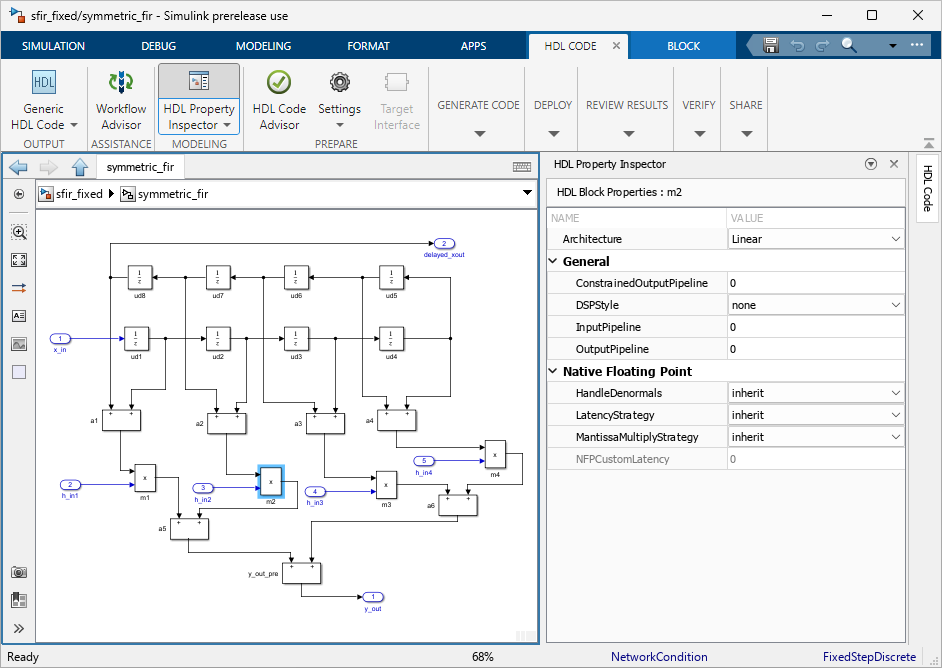
You can now edit the HDL block properties of a block or a subsystem by using HDL Property Inspector pane. When you use the HDL Property Inspector pane, you can set the HDL Properties as you work. The values take effect when you set them. For more information, see Set and View HDL Model and Block Parameters (R2024b).
To open the HDL Property Inspector pane from the Simulink Toolstrip, first open the HDL Coder app from the Apps menu. In the HDL Code tab, click HDL Property Inspector.
In the HDL Property Inspector, you can assign values to HDL block properties using the variables declared in MATLAB base workspace, mask workspace, or model workspace.
Multi-index input arguments into cell arrays by using
varargin
You can now use varargin (R2024b) in a MATLAB
Function block that has the HDL block property
Architecture set to MATLAB Datapath
and multi-index input arguments into cell arrays. For example, you can now generate HDL
code for this code
snippet:
[x, y] = varargin{1:2};Use Signal Editor block to generate HDL test bench with multiple test cases
Starting in R2024b, you can generate test bench code that includes multiple test cases by using the Signal Editor block. You can configure the block with multiple active scenarios and each containing multiple signals. By modeling multiple simulations, you can improve the test coverage of the HDL code, while simultaneously reducing the time and effort required to evaluate and validate a complex system.
For more information, see Signal Editor (R2024b).
Block Enhancements
HDL code generation for Array Processing Subsystem block
You can now generate HDL code for the Array Processing Subsystem (R2024b) block. The Array Processing Subsystem block applies an algorithm to each element of an input matrix and is optimized for large input matrices such as image data. Use the Array Processing Subsystem for element-wise image processing tasks and other element-wise operations for large inputs.
Generate HDL code for Trigonometric Function blocks that use the lookup table-based approximation method
You can now generate HDL code for the Trigonometric Function blocks
when the Approximation method parameter is set to
Lookup and the Function parameter is
set to sin, cos,
sincos, or cos + jsin.
For more information, see Trigonometric Function (R2024b).
Initialize RAM banks in RAM System blocks with unique initial values for vector data inputs
Prior to R2024b, RAM System blocks that use vector data inputs assume that the RAM banks are in parallel arrays and initialize these RAM banks with the same initial values.
Starting in R2024b, you can initialize RAM banks with unique initial values. To specify an initial value for the RAM System block, in the Block Parameters dialog box, enter a unique vector or matrix value for Initial output of RAM parameter.
You can initialize these RAM System blocks:
Single Port RAM System (R2024b)
Simple Dual Port RAM System (R2024b)
Dual Port RAM System (R2024b)
True Dual Port RAM System (R2024b)
Simple Tri Port RAM System (R2024b)
Write to RAM in columns of data using column-write operations in RAM System blocks
Starting in R2024b, you can use the column-write method to selectively modify specific parts of the memory without altering the remaining parts at a specified memory address. In this method, you conceptualize RAM as a collection of equally sized columns. During a write cycle, you can precisely control the writing process for each individual column. The data type and value of the write enable input, along with the data type of write data input, determine the width of each column and which columns you target for writing at the specified memory address.
You can use column-write with these RAM System blocks:
Single Port RAM System (R2024b)
Simple Dual Port RAM System (R2024b)
Dual Port RAM System (R2024b)
True Dual Port RAM System (R2024b)
Simple Tri Port RAM System (R2024b)
Choose the bit ordering for the Bits to Word or Word to Bits blocks as MSB or LSB first
You can now set the input bit order for the Bits to Word (R2024b) block to be the most significant bit (MSB) or least significant bit (LSB) first. You can select the bit order by using the Input bit order block parameter.
Similarly, you can choose the output bit order for the Word to Bits (R2024b) block. Select
the Output Bit order block parameter as MSB
first or LSB first.
In the Bits to Word block, you can also specify whether to consider the output as signed integer or unsigned integer. Use the Treat output integer as parameter to define the output signedness.
Generate HDL code for the Bit to Integer Converter and Integer to Bit Converter blocks
Generate a VHDL, Verilog®, or SystemVerilog code for Bit to Integer Converter (R2024b) and Integer to Bit Converter (R2024b) blocks. These blocks are available in the Logic and Bit Operations library in the HDL Coder library. Use these blocks to map input vector bits to vectors of integers, or to map vectors of integers to vector bits.
DSP System Toolbox (DST) Filter blocks participate in HDL optimizations
These DSP System Toolbox filter blocks now participate in HDL optimizations:
Biquad Filter (R2024b) (DSP System Toolbox)
Discrete FIR Filter (R2024b)
CIC Interpolation (R2024b) (DSP System Toolbox)
CIC Decimation (R2024b) (DSP System Toolbox)
FIR Interpolation (R2024b) (DSP System Toolbox)
FIR Decimation (R2024b) (DSP System Toolbox)
With this enhancement, you can now apply HDL optimizations like streaming, sharing, clock rate pipelining, and several other optimizations to these blocks to optimize your HDL code for area and speed.
All other architecture settings have been removed from the HDL block property
Architecture. These blocks now have their
Architecture property set to
HDLDataPath. These Architecture
settings have been removed from the Filter blocks:
| Block | Architecture Settings |
|---|---|
| Biquad Filter (R2024b) (DSP System Toolbox) |
|
| Discrete FIR Filter (R2024b) |
|
| CIC Interpolation (R2024b) (DSP System Toolbox) |
|
| CIC Decimation (R2024b) (DSP System Toolbox) |
|
| FIR Interpolation (R2024b) (DSP System Toolbox) |
|
| FIR Decimation (R2024b) (DSP System Toolbox) |
|
Use clock-rate pipelining with RAM System blocks
You can use a RAM System block inside a data rate feedback loop and use clock-rate pipelining optimization. This model design is helpful for applications that require programmable or tunable lookup tables without having to regenerate bitstreams.
You can use clock-rate pipelining optimization with these RAM System blocks:
Dual Port RAM System (R2024b)
Simple Dual Port RAM System (R2024b)
Single Port RAM System (R2024b)
True Dual Port RAM System (R2024b)
Simple Tri Port RAM System (R2024b)
These blocks have a new parameter, Model RAM with cycle of delay, that you can use to specify whether to model the RAM with one cycle of delay.
To enable this parameter, clear the Use asynchronous read feature in target hardware parameter.
Alternatively, you can use the hdl.RAM (R2024b)
System object to model delay in your simulation by specifying the new property
ModelRAMDelay:
hRAM = hdl.RAM("RAMType","Single port",... "ModelRAMDelay",true);
ModelRAMDelay
is true by default and is disabled when AsyncRead is true.For more information, see Getting Started with RAM and ROM in Simulink (R2024b).
Certain RAM blocks are not recommended
Starting in R2024b, the Dual Port RAM (R2024b), Simple Dual Port RAM (R2024b), and Single Port RAM (R2024b) blocks are not recommended. Instead, use the Dual Port RAM System (R2024b), Simple Dual Port RAM System (R2024b), and Single Port RAM System (R2024b) blocks, respectively.
The alternative blocks offer these additional features:
Use of asynchronous read feature in your target hardware
Specification of write output behaviour
Support for RAM banks
Support for modeling RAM by one cycle of delay
The Dual Port RAM, Simple Dual Port RAM, and Single Port RAM blocks will be removed in a future release.
Default architecture for the Math Function Reciprocal block is
ShiftAdd
When you set the Function block parameter of a Math Function (R2024b) block to reciprocal, the default setting for the
Architecture HDL block property is now
ShiftAdd. The HDL code generated by the
ShiftAdd architecture is more hardware-friendly than that
produced by other existing architectures. Using this architecture, you can now generate
code for the block when it uses floating-point inputs.
The Architecture block property setting,
Math, has been removed from the Math Function block
when the Function block parameter is
reciprocal.
Functionality being removed or changed
"html" and "librarymodel" input arguments
of hdllib function are not recommended
Still runs
Starting R2024b, these syntaxes are not recommended for the hdllib (R2024b) function:
hdllib("html")hdllib("librarymodel")
These syntaxes will be removed in a future release.
To view blocks that are compatible with HDL code generation, use the
hdllib syntax
instead:
hdllib
Alternatively, in the Apps tab, select HDL Coder. In the HDL Code tab, select HDL Property Inspector > Open HDL Block Library.
Parameter name changes for RAM System blocks
Behavior change
Block parameters for these RAM System blocks have been renamed:
Single Port RAM System (R2024b)
Simple Dual Port RAM System (R2024b)
Dual Port RAM System (R2024b)
True Dual Port RAM System (R2024b)
Simple Tri Port RAM System (R2024b)
| Previous Name | Current Name |
|---|---|
| Specify the type of RAM | Type of RAM |
| Enable asynchronous reads | Use asynchronous read feature in target hardware |
| Specify the output data for a write operation | Behavior for write output |
| Specify the RAM initial value | Initial output of RAM |
Code Generation and Verification
Generate HDL code for fixed-point data types with word lengths greater than 128 bits
You can now generate HDL code for fixed-point data types with word lengths up to 65535 bits. Prior to R2024b, the maximum word length was 128 bits.
With this support, you can efficiently model wide data buses and larger integers without the complexity of piecing together smaller bits.
For more information, see Supported MATLAB Data Types, Operators, and Control Flow Statements (R2024b).
HDL code generation support for multidimensional interpolation
You can now generate HDL code for lookup tables by using the MATLAB function hdl.interpn (R2024b). The function supports multidimensional interpolation using
the specified method of approximation. You can generate synthesizable HDL code for this
function and deploy onto FPGAs and ASICs.
To enable this functionality, run the hdl.interpn function at the
MATLAB command prompt. For example:
hdl.interpn(X1,X2,...,Xn,V,Xq1,Xq2,...,Xqn,interpolation,extrapolation);
Here, X1,X2,...,Xn contain the coordinates of the sample points in
each dimension; V contains the corresponding function values at each
sample point; Xq1,Xq2,...,Xqn contain the coordinates of the query
point; and interpolation and extrapolation specify
the approximation methods.
For the hdl.interpn function, the approximation methods supported
for code generation are "linear" for interpolation
and "linear" and "nearest" for
extrapolation.
For more information, see hdl.interpn (R2024b).
genhdltdb function: Generate timing databases for Cadence Genus and use technology library files as inputs
In R2024b, you can generate timing databases for Cadence Genus by using the genhdltdb (R2024b) function. Additionally, when using the
SynthesisDevicePart input argument, you can:
Pass technology library files
Pass the paths to the Cadence Genus tool and the technology library files as cell arrays
SystemVerilog DPI: Generate DPI testbench for SystemVerilog code generated from HDL Coder
You can now generate a DPI testbench for the SystemVerilog target language by using
the Configurations Parameters dialog box and/or makehdltb
function.
To generate a DPI testbench for the SystemVerilog code, follow these instructions:
Open the configuration parameters for your model.
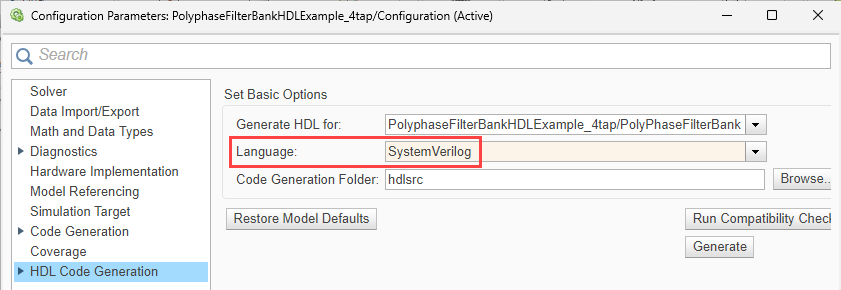
On the left pane, select HDL Code Generation. Set Language to
SystemVerilog.
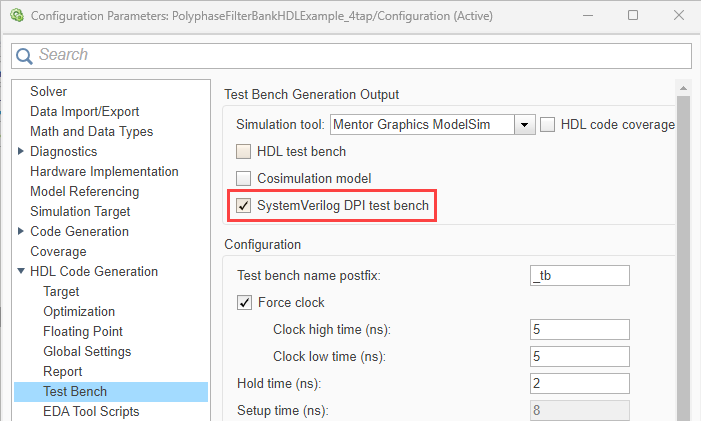
On the left pane, expand HDL Code Generation and select Test Bench. Select SystemVerilog DPI test bench.
Generate a DPI testbench by using the
makehdltb(R2024b) function. For example, use this command to generate the DPI testbench for thePolyphaseFilterBankHDLExample_4tap/PolyPhaseFilterBanksubsystem.makehdltb("PolyphaseFilterBankHDLExample_4tap/PolyPhaseFilterBank");
Alternatively, to perform steps 2 and 3, use the TargetLanguage (R2024b)
and GenerateSVDPITestBench (R2024b) arguments of the makehdltb
function, respectively. For example, use this command to set the target language to
SystemVerilog and generate the DPI testbench for the
PolyphaseFilterBankHDLExample_4tap/PolyPhaseFilterBank
subsystem.
makehdltb("PolyphaseFilterBankHDLExample_4tap/PolyPhaseFilterBank", ... "GenerateSVDPITestBench","Modelsim","TargetLanguage","SystemVerilog");
This feature requires an HDL Verifier license.
Speed and Area Optimizations
Enhancements to loop streaming
You can reduce area resources by using loop streaming to share the loop body. Starting in R2024b, you can stream loops:
Inside nested conditional loops
That have a loop increment value greater than one
That have a negative loop increment value
Additionally, you can use a System object in fully streamed loops. Starting in R2024b, you can use a System object in fully streamed loops that have no errors or warnings. For example, if you stream a loop with a factor that does not match the total number of loop iterations, you cannot use a System object in this loop. See Optimize MATLAB Loops (R2024b).
Leverage FPGA and SoC digital signal processing primitives usage in critical path estimation
Starting in R2024b, HDL Coder accounts for the FPGA and SoC digital signal processing primitive (DSP) resources during timing estimation, which results in an optimized timing database and critical path estimation report. You can use these methods and attributes to customize how HDL Coder synthesizes and accounts for DSPs in the timing report:
hasDSPs— Use this method to check if your device uses DSPs.countDSPs— Use this method to return the number of DSPs found during synthesis.dspSynthesisAttribute— Use this cell array attribute to force the multipliers to map to the DSPs.dontTouchSynthesisAttribute— Use this cell array attribute to not optimize signals that are connected to input and output pipeline registers during synthesis.
See Generate Custom Timing Database for Custom Tools and Devices (R2024b).
Use HDL optimizations for Stateflow blocks
You can now apply HDL optimizations to Stateflow blocks to enhance your HDL code in terms of speed and area. You can use optimizations for Chart (R2024b) (Stateflow) blocks that model Mealy charts or Classic charts, State Transition Table (R2024b) (Stateflow) blocks, Truth Table (R2024b) (Stateflow) blocks and Requirement Table blocks.
You can leverage these HDL optimizations:
Clock-Rate Pipelining (R2024b)
Delay Balancing (R2024b)
Resource Sharing (R2024b)
Adaptive Pipelining (R2024b)
Distributed Pipelining (R2024b)
Critical Path Estimation (R2024b)
InputPipeline (R2024b)
OutputPipeline (R2024b)
ConstrainedOutputPipeline (R2024b)
Additionally, you can use these optimizations for Classic charts and Mealy charts:
Constant Multiplier Optimization (R2024b)
GuardIndexVariables (R2024b)
InstantiateFunctions (R2024b)
LoopOptimization (R2024b)
Map Persistent Variables To RAM (R2024b)
HDL Pipeline Pragma (R2024b)
You can also observe the associated latency of the block in the generated model, which is indicated by the number of delays. For more information, see Introduction to Stateflow HDL Code Generation (R2024b).
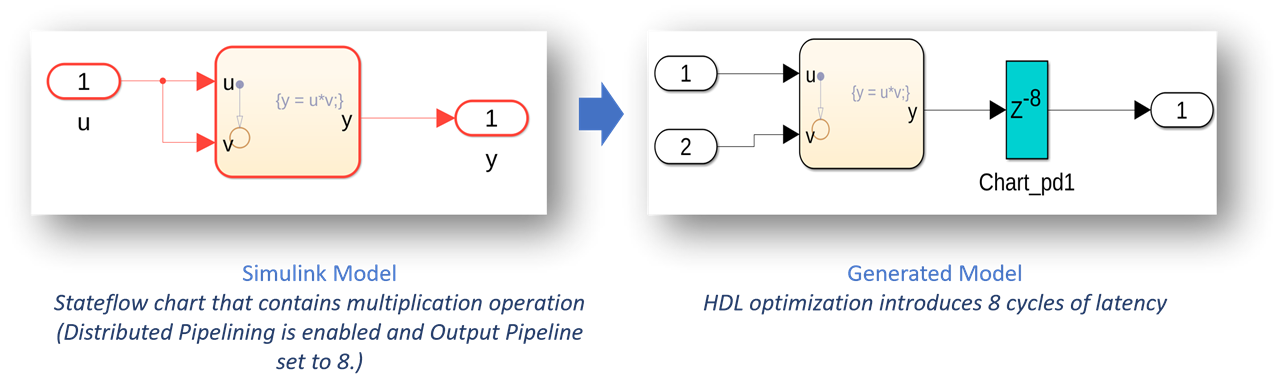
Optimization report includes delay balancing information
When you generate code for a design under test (DUT), HDL Coder produces optimization reports. Starting in R2024b, the Delay Balancing optimization report contains a new section with detailed information on blocks that introduce latencies due to optimization requests or the implementation of certain block architectures.
For more information on delay balancing in HDL Coder, see Delay Balancing (R2024b).
Improved distributed pipelining through the clock-rate pipelining hierarchy
Prior to R2024b, distributed pipelining could not distribute pipelines across multiple clock-rate pipelining (CRP) regions located at different levels of the subsystem hierarchy. The hierarchical arrangement provided suboptimal distributed pipelining and clock-rate pipelining performance by creating longer combinatorial paths that distributed pipelining could not optimize. To achieve better results from distributed pipelining in conjunction with clock-rate pipelining, you had to use hierarchy flattening to remove the presence of hierarchy during optimizations. However, this method can reduce the readability of both the generated model and HDL code by creating fewer and larger subsystems.
Starting in R2024b, distributed pipelining can optimize across multiple clock-rate pipelining regions within the hierarchy, eliminating the need to request hierarchy flattening. You can expect an automatic improvement in the quality of results without special modifications.
Additionally, distributed pipelining now always operates with the Pipeline
distribution priority parameter set to
Performance for clock-rate pipelining regions, even if
the global Pipeline distribution priority parameter is set to
numerical integrity. Since clock-rate pipelining regions
effectively have a slower data rate that is sampled by zero order holds, clock-rate
initialization cycle mismatches are not at risk, even when you use performance mode.
Distributed pipelining no longer considers certain blocks as blockers for the
optimization inside clock-rate pipelining regions, such as NOT operation or Lookup
tables.
This table compares the results of toggling hierarchy flattening on and off for a model that uses distributed pipelining and clock-rate pipelining in R2024a and R2024b.
| Metric | Flattening Off (R2024a) | Flattening On (R2204a) | Flattening Off (R2024b) | Flattening On (R2024b) |
|---|---|---|---|---|
| 1-bit Registers | 2279 | 4739 | 1452 | 1292 |
| Estimated critical path (ns) | 29.5 | 19.9 | 15.1 | 12.3 |
I/O Optimizations
Use design delays inside the frame-to-sample algorithm
Reduce the complexity of your frame-to-sample algorithm models by using design delays inside the frame-to-sample algorithm. Starting in R2024b, you can:
Use Unit Delay and Integer Delay blocks inside the frame-to-sample design under test (DUT) subsystem. The delays can be of any length and must not be enabled or resettable.
Use persistent variables to create unit and variable integer design delays in MATLAB Function blocks inside the frame-to-sample DUT subsystem.
Use the Delay size threshold for external memory (bits) model configuration parameter to map design delays to external memory. The parameter can be found in the Configuration Parameters window, in the HDL Code Generation > Optimization pane, click the Frame to Sample Conversion tab.
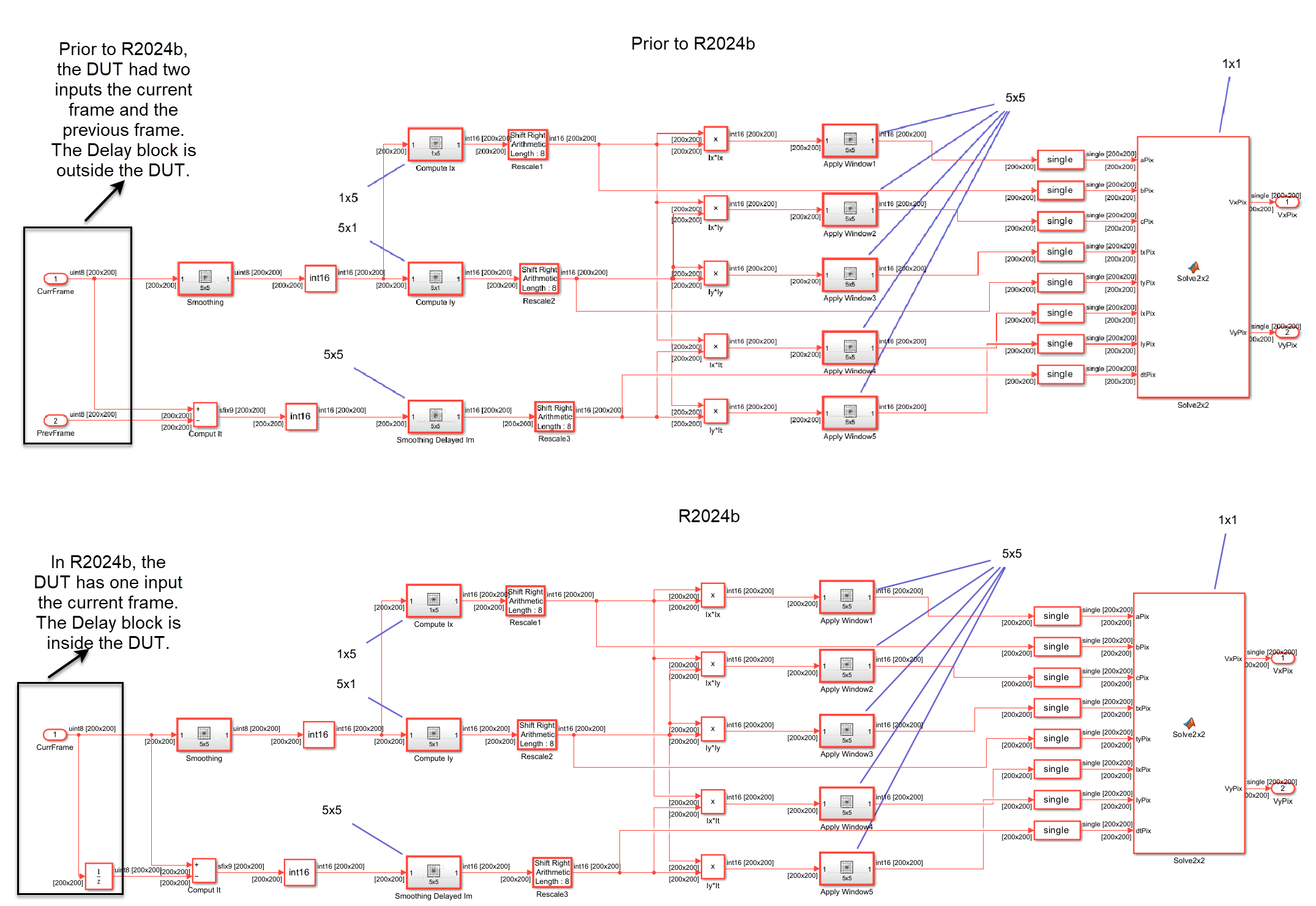
For example, this image shows the optical flow algorithm with the design delay outside the frame-to-sample DUT and the design delay inside the frame-to-sample DUT. Prior to R2024b, you modeled the current frame and the previous frame. In R2024b you model only the current frame and use a design delay inside the frame-to-sample DUT to represent the previous frame. The frame delays are mapped to external random access memory (RAM). See Generate HDL Code from Frame-Based Models by Using Neighborhood Modeling Methods (R2024b).
Exclude functions from fixed-point conversion with
coder.float2fixed.skip
Use the new coder.float2fixed.skip (R2024b) pragma to
designate functions that you do not want to convert to fixed point when using the
-float2fixed option with the codegen (R2024b)
command.
To exclude a function from fixed-point conversion, specify the function as a cell
array input to the pragma at the beginning of the code to be converted. You can specify
both custom and built-in functions. For example, exclude exp from
fixed-point conversion in designFunc, defined below.
function out = designFunc(inp) coder.float2fixed.skip({'exp'}); out = exp(inp); [...] end
Use 3-D matrices input for the neighborhood processing in frame-to-sample conversion
You can now perform neighborhood processing and element-wise or iterative operations on RGB images or 3-D matrices to generate synthesizable HDL code using the frame-to-sample conversion. You can use 3-D matrices as inputs for these neighborhood processing functions and blocks when you use the frame-to-sample conversion algorithm:
hdl.npufun (R2024b)
hdl.iteratorfun (R2024b)
Neighborhood Processing Subsystem (R2024b)
When you pass a 3-D matrix to the hdl.npufun function, the
function executes the kernel function on each sliding window in the input data. For each
plane of the 3-D matrix, the function carries out the sliding window operation based on
the defined kernel size. The function then maps the output of the kernel operation for
each plane to the corresponding pixels in that plane. See HDL Code Generation from Frame-Based Algorithms (R2024b).
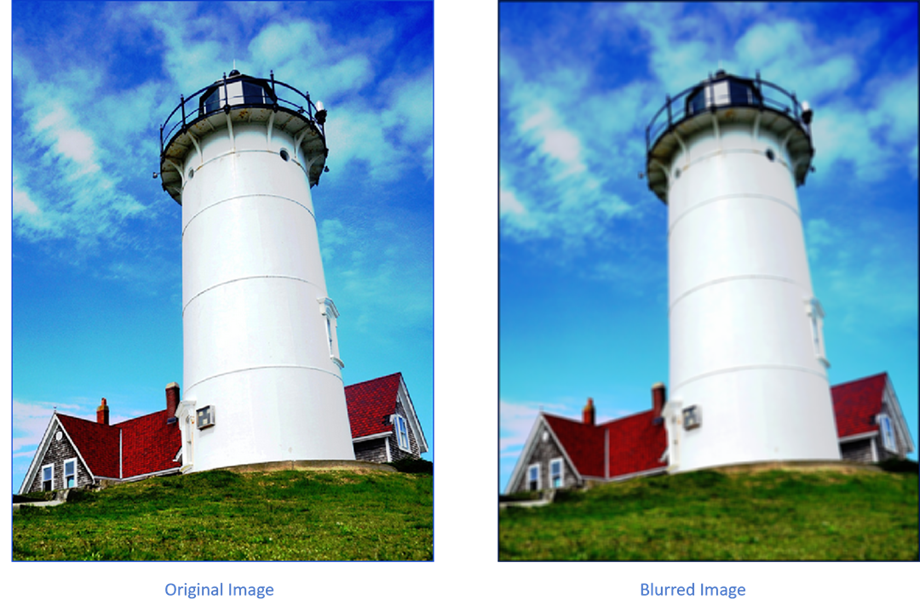
For example, perform the neighborhood processing algorithm to perform blurring operation on RGB image.
I_out = hdl.npufun(@blurringKernel, [5 5], I); function y = blurringKernel(N) out_R = sum(reshape(N(:,:,1)/25,[],1)); out_G = sum(reshape(N(:,:,2)/25,[],1)); out_B = sum(reshape(N(:,:,3)/25,[],1)); y = [out_R out_G out_B]; end
Use persistent variables with the hdl.npufun kernel function
during frame-to-sample optimization with multiple samples per cycle
During the frame-to-sample optimization, you can now use persistent variables in the
hdl.npufun (R2024b) kernel function when generating code with multiple samples
per cycle. Previously, you could use persistent variable only when generating code with
one sample per cycle.
To use persistent variables in hdl.npufun function, in the
Configuration Parameters dialog, set:
Input processing order to
RowMajorSamples per cycle to any value
Support for non-integer boundary constants in hdl.npufun
When using the hdl.npufun (R2024b) function, you can now specify the
BoundaryConstant argument value as a numeric scalar.
Previously, you could specify the value as an integer scalar only.
High-Level Synthesis Code Generation
Generate HLS code generation in row-major array layout
Starting from R2024b, you can choose to generate HLS code that uses row-major array layout. Row-major array layout can improve performance for certain algorithms and ease integration with other code that also uses row-major layout. Previously, the code generator produced HLS code using column-major array layout by default.
Consider the MATLAB function foo, which adds two vectors and returns the
sum.
% MATLAB code function y = foo(x) A = [1 2 3; 4 5 6]; y = A + x; end % MATLAB test bench x = [7 8 9; 10 11 12]; y = foo(x);
| Code Generation Commands | Generated HLS code |
|---|---|
MATLAB command to generate HLS code in row-major array layout. cfg = coder.config('hdl'); cfg.Workflow = "High Level Synthesis"; cfg.TestBenchName = "foo_tb"; cfg.RowMajor = true; codegen foo -config cfg -report |
class fooClass
{
public:
void foo(real_T x[2][3], real_T y[2][3])
{
static real_T t_2[2][3]={{1.0, 2.0, 3.0},{4.0, 5.0, 6.0}};
L1:
for (int32_T t_1 = 0; t_1 < 2; t_1 = t_1 + 1) {
L2:
for (int32_T t_0 = 0; t_0 < 3; t_0 = t_0 + 1) {
y[t_1][t_0] = t_2[t_1][t_0] + x[t_1][t_0];
}
}
}
}; |
MATLAB command to generate HLS code in column-major array layout. cfg = coder.config('hdl'); cfg.Workflow = "High Level Synthesis"; cfg.TestBenchName = "foo_tb"; cfg.RowMajor = false; codegen foo -config cfg -report |
class fooClass
{
public:
void foo(real_T x[3][2], real_T y[3][2])
{
static real_T A[3][2]={{1.0, 4.0},{2.0, 5.0},{3.0, 6.0}};
L1:
for (int32_T t_1 = 0; t_1 < 3; t_1 = t_1 + 1) {
L2:
for (int32_T t_0 = 0; t_0 < 2; t_0 = t_0 + 1) {
y[t_1][t_0] = x[t_1][t_0] + A[t_1][t_0];
}
}
}
}; |
Improvements in the HLS code generation workflow
Starting in R2024b, the HLS code generation workflow supports:
coder.hdl.literaltext(R2024b) pragma, which embeds custom pragma statements in the generated HLS code as:coder.hdl.literaltext("pragma statement");Structures as inputs and outputs at the top-level DUT ports for HLS code generation.
Arrays of structures as local variables inside the MATLAB design, but not at the inputs and outputs of the entry-point function.
ULP error FP tolerance strategy to handle floating-point tolerance errors during simulation of the generated HLS code. See, Tolerance Value (R2024b).
SaturateOnIntegerOverflowconfiguration option to handle integer overflow.External code integration. For more information, see Call Custom HLS Code from the Generated HLS Code (R2024b).
IP Core Generation and Hardware Deployment
Generate HDL code with AMD floating-point libraries for Xilinx devices
In R2024b, you can create designs and generate HDL code that utilizes the AMD floating-point library IPs. When you set the Synthesis Tool (R2024b) model
configuration parameter to Xilinx Vivado, you can set the
Vendor Specific Floating Point Library (R2024b) configuration
parameter to AMDFloatingPointOperators, which enables the
generation of code that incorporates both AMD floating-point IP blocks and HDL Coder native floating-point IP blocks.
See Generate HDL Code Using HDL Coder Native Floating Point and AMD Floating Point Library IP (R2024b).
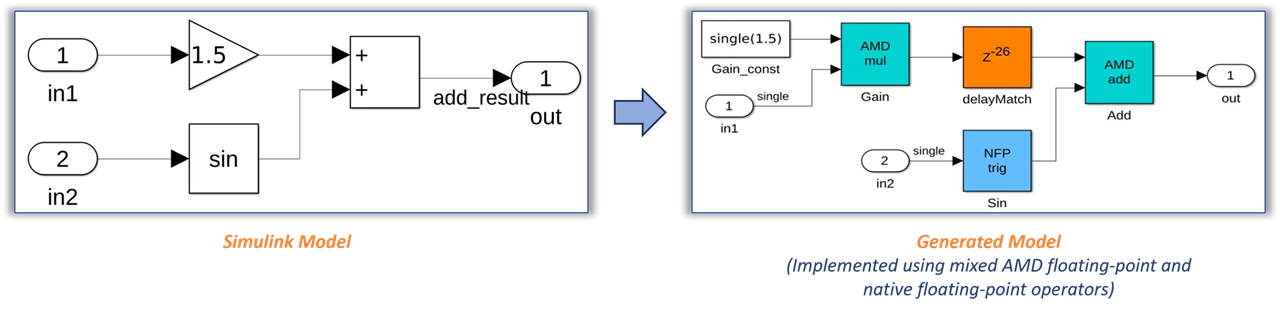
Because the AMD floating-point IP blocks are optimized for synthesis, you can map them to FPGA resources, including hardened DSP floating-point adder and multiplier (DSPFP32) primitives on Xilinx Versal devices. For other Xilinx device families, the generated HDL code uses the full DSP mode of the AMD floating-point operator. You can use this mixed-design approach to accommodate larger and more complex designs into the FPGA fabric. You can use this hybrid design with AMD floating-point libraries on Xilinx devices such as Versal, Zynq® UltraScale+™, and more. See hdlcoder.FloatingPointTargetConfig (R2024b).
In the HDL Workflow Advisor, you can generate the HDL code and IP core for your design with AMD floating-point IPs using the IP core generation workflow. You can also use the AMD floating-point library when you use the generic ASIC/FPGA workflow.
Optimize register interface timing by improving the read address decoder architecture
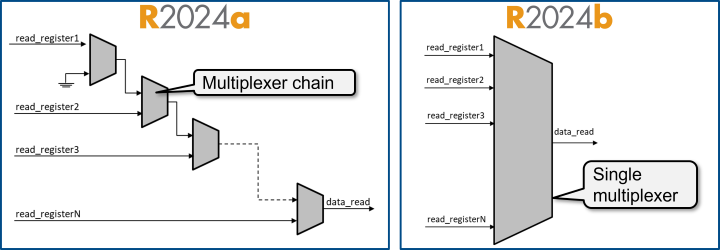
Prior to R2024b, mapping a large number of read registers to AXI4 or AXI4-Lite
interfaces when generating an IP core results in a long multiplexer chain that impacts
the maximum IP core frequency. Using the
AXI4SlavePortToPipelineRegisterRatio parameter to achieve the
target frequency, leads to a quadratic increase in resource usage due to the increase in
number of registers. In R2024b, HDL Coder replaces the long multiplexer chain with a single-case statement, which
improves the read address decoder critical path. See Optimize Timing on Register Interface (R2024b).
To control the structure of the read address decoder, use the Register interface read pipeline parameter in task 3.2 Generate RTL Code and IP Core of the HDL Workflow Advisor. Alternatively, use the Register interface read pipeline parameter in the Interface Settings tab of the IP Core Editor. During IP core generation, HDL Coder creates a multiplexer tree that distributes the specified pipeline registers. This image compares the address decoder architecture in R2024b and prior releases.
See The AXI4SlavePortToPipelineRegisterRatio HDL block property has been removed.
Upgrade to Intel Quartus Pro 23.3
HDL Coder now supports Intel Quartus Pro 23.3.
For more information about supported synthesis tools, see HDL Language Support and Supported Third-Party Tools and Hardware (R2024b).
Upgrade to Microchip Libero SoC 2023.2
HDL Coder now supports Microchip Libero SoC 2023.2.
For more information about supported synthesis tools, see HDL Language Support and Supported Third-Party Tools and Hardware (R2024b).
Map ports with complex data types to AXI and AXI-4 Lite interfaces
In R2024b, you can now map ports with complex data types to the AXI4 and AXI4-Lite interfaces.
For more information about mapping ports, see Map Complex Data Types to AXI4 Slave Interface (R2024b).
Support for Cadence Genus when generating custom synthesis workflows for Generic ASIC/FPGA devices
In R2024b, HDL Coder supports Cadence Genus when using a custom synthesis workflow and targeting generic ASIC/FPGA devices.
For more information about custom synthesis workflows, see ASIC Synthesis and Analysis Overview (R2024b).
Additional options for configuring hardware with the HDL Coder Support Package for Intel FPGA and SoC Devices
If you have the HDL Coder Support Package for Intel FPGA and SoC Devices (R2024b), you can now use the Hardware Setup Wizard to do these tasks:
Verify Ethernet connectivity on the host machine and check for an SD card reader and a writable SD card.
Choose the available hardware board within the support package.
Select between automatic or manual modes for downloading required third-party tools.
Install the Intel SoC FPGA Embedded Development Suite (EDS) tool for deploying and running Linux® ARM® applications on the Intel SoC Board.
Identify the SD card drive and write the firmware image to it.
Configure the hardware connections and adjust the jumper settings appropriately.
Confirm the hardware's connection to the host computer.
For more information, see Guided Hardware Setup (R2024b).
Download required third-party tools when configuring hardware
You can now automatically or manually download and install third-party tools for your board when you use the Hardware Setup Wizard in the HDL Coder Support Package for Xilinx FPGA and SoC Devices.
When you set Download Mode to
Automatic, the wizard downloads and installs the
necessary third-party tools from the internet to your host computer, which must have
internet connectivity.
For host computers without internet access, you can set Download Mode to Manual to manually download the third-party tools. The wizard provides step-by-step instructions for downloading the required third-party tools. You can use another computer with internet access to download these tools and then transfer and install them on your host computer.
For more information, see Guided Hardware Setup (R2024b).
View and edit bus element addresses in bus-mapped Inport and Outport blocks
Starting in R2024b, HDL Coder saves the address assignments for each bus element to the bus-mapped
Inport and Outport blocks in the design under test
(DUT) to the IOInterfaceMapping HDL block property. Use the
IOInterfaceMapping property or the
hdlset_param function to view and edit the address for any of
the bus elements.
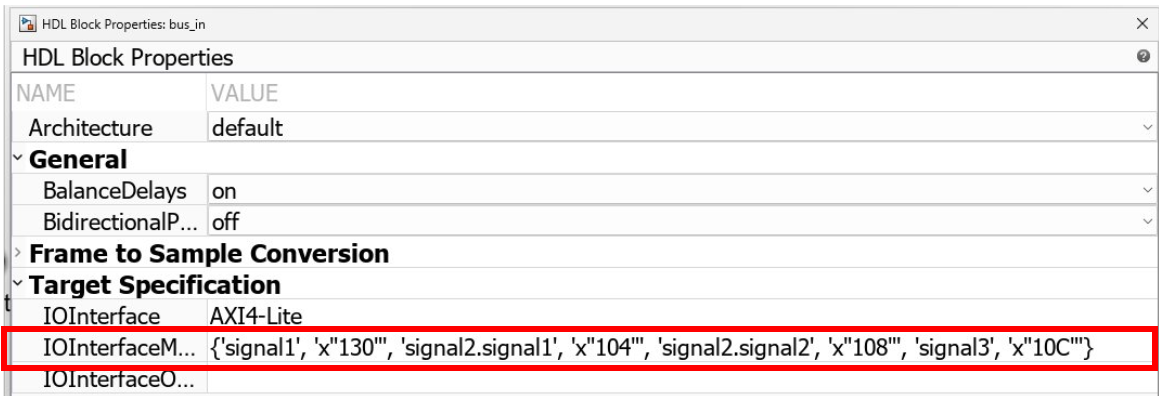
When you use the Target platform interface table in the Interface Mapping tab of the IP Core Editor or in task 1.3 Set Target Interface of the HDL Workflow Advisor, you still can view and edit only the address of the first bus element.
Define Custom Board and Reference Design for Zynq Ultrascale+ MPSoC Workflow
The Define Custom Board and Reference Design for Zynq Ultrascale+ MPSoC Workflow example shows you how to define and register a custom board and reference design for the Zynq UltraScale+ platforms. This example shows the workflow for the Xilinx Zynq UltraScale+ MPSoC ZCU104 evaluation kit in HDL Workflow Advisor.
For more information, see Define Custom Board and Reference Design for Zynq Ultrascale+ MPSoC Workflow (R2024b).
Functionality being removed or changed
The AXI4SlavePortToPipelineRegisterRatio HDL block property has been removed
Errors
The AXI4SlavePortToPipelineRegisterRatio HDL block parameter has been removed. Use the RegisterInterfaceReadPipeline HDL block parameter instead. If you open a model created in R2024a or earlier, HDL Coder ignores the value of the AXI4SlavePortToPipelineRegisterRatio HDL block parameter during IP core generation.
The IP repository parameter has been removed
The IP repository parameter has been removed from task 3.2 Generate RTL Code and IP Core and the General tab of the IP Core Editor.
The IPCoreRepository parameter will be removed
The IPCoreRepository property of the
hdlcoder.WorkflowConfig object will be deprecated in a future
release. To copy the generated IP core into an IP repository folder, use the
copyfile (R2024b) function.
Simscape Hardware-in-the-Loop Workflow
Simscape HDL Workflow Advisor: Improved fixed-point data type support
The fixed-point data type precision is now supported for Simscape models containing nonlinear Simscape networks. To learn more about how to decide on using fixed-point data types for your plant models, see Use Fixed-Point Precision (R2024b).
Previously, only linear Simscape networks supported fixed-point data type precision.
Simscape HDL Workflow Advisor: Simscape network selection for FPGA deployment
You can now generate a Simulink state-space equivalent model for any desired Simscape network of your plant model while retaining the additional networks in their original forms. This enhancement helps to effectively use the resources on FPGA boards by enabling you to select only the network that you want to deploy on the hardware and not the entire model. This functionality enables optimization of HDL code for hybrid plant models (containing Simulink and Simscape blocks).
Previously, you could generate a state-space equivalent only for the entire model.
For example, consider sschdlexBoostConverterMultiNetModel model. In
this model, you can select the FPGA Subsystem block and generate a state-space
equivalent for it.
To generate a state-space equivalent for the FPGA Subsystem, open the Simscape HDL
Workflow Advisor for it by running the sschdladvisor (R2024b) function at the MATLAB command prompt.
sschdladvisor("sschdlexBoostConverterMultiNetModel/FPGA Subsystem")
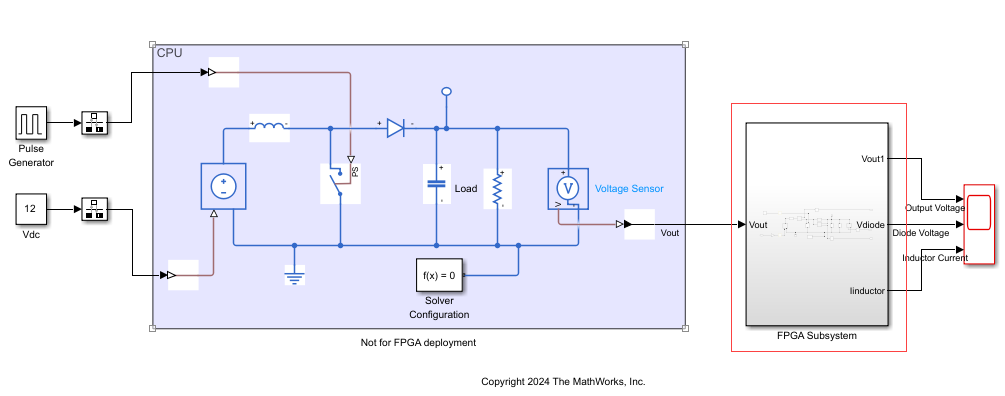
For more information, see Open Advisor for Subsystem (R2024b).
Tune run-time parameter values for multi-network Simscape models
The Simscape hardware-in-the-loop (HIL) workflow now supports parameter tuning for
Simscape models containing multiple Simscape networks. You can modify the run-time parameter values in the generated
FPGA bitstream for all the networks in the model. You can
fine-tune the parameter values of these networks without rerunning the synthesis for the
generated HDL implementation models. For more information, see sschdl.updateRuntimeParameters (R2024b).
Previously, you could tune Simscape run-time parameters only for Simscape models containing a single Simscape network.
Automatically replace Simscape components with optimized equivalents for FPGA deployment
Additional Simscape components are now supported for automatic replacement:
PMSM (R2024b) (Simscape Electrical)— You can now automatically replace Simscape PMSM block with an equivalent optimized PMSM block in your Simscape model and tune the run-time parameters. You can use this block to optimize your Simscape model and generate HDL code by using the Backward Euler and Trapezoidal Rule local solvers.
By using a Simulink PMSM block, you can:
Replace a Simscape PMSM block with similar simulation results
Get better resource utilization on FPGA boards
Model the block without dead time errors using Backward Euler local solver
Tune the run-time parameters (Simulink tunable parameters and Simscape run-time parameters) on the FPGA
To replace the Simscape PMSM blocks, run the
sschdl.generateOptimizedModel(R2024b) function at the MATLAB command prompt. For example:generatedModel = sschdl.generateOptimizedModel("input",ReplaceSwitches=0,ReplacePMSM=1);Here,
inputcan be either a Simscape model or a cell array of Solver Configuration (R2024b) (Simscape) block paths. The outputgeneratedModelis the optimized version ofinput. TheReplaceSwitchesargument specifies replacement of dynamic switches andReplacePMSMspecifies replacement of Simscape PMSM blocks. The default value ofReplaceSwitchesistrueandReplacePMSMisfalse.For more information, see Optimize Simscape Three-Phase PMSM Drive Model for Efficient HDL Code Generation and Synthesis (R2024b).
Averaged Switch— You can replace all Simscape switches with averaged dynamic switches.
To replace the Simscape switch blocks, run the
sschdl.generateOptimizedModel(R2024b) function at the MATLAB command prompt. For example:generatedModel = sschdl.generateOptimizedModel("input",AveragedSwitch=1);This replaces the Simscape switches in the model with the dynamic equivalents of Averaged Switch. Here, the default value of
AveragedSwitchisfalse.
For more information, see function sschdl.generateOptimizedModel (R2024b).
New blocks supporting HDL code generation for rapid control prototyping (RCP) and hardware-in-the-loop (HIL) simulation
Starting in R2024b, the HDL Coder block library has new blocks for designing your plant models required for real-time rapid control prototyping (RCP) and hardware-in-the-loop (HIL) simulation on FPGAs. You can use these HDL-supported blocks for generating HDL code from your Simscape models. These blocks are available in the HDL Coder > RCP and HIL library.
These are the blocks added to the library:
Sparse Matrix-Vector Product (R2024b)
PWM (R2024b)
HDL Combinatorial Logic (R2024b)
Discrete State-Space (R2024b)
Fixed-Point State-Space (R2024b)
Simscape hardware-in-the-loop workflow: Reference applications
Simscape HIL workflow provides two reference application examples:
Model Simscape Synchronous Buck Converter for Real-Time Simulation and Deployment (R2024b)
This example shows how to model a synchronous buck converter by using Simscape switches and dynamic switches. You can generate HDL code and deploy onto a target hardware.
Generate and Synthesize HDL Code for Resonant LLC Converter Using Fixed-Point Data Type (R2024b)
This example shows how to model a resonant LLC converter by using Simscape switches with fixed-point data type. You can generate HDL code and synthesize the results for real-time simulation.
Simscape HIL workflow provides one example to access synthesis results from a MAT file. For more information, see Synthesis Results for Simscape Hardware-in-the-Loop Workflow (R2024b).
Model and Architecture Design
Use 3-D arrays with frame-to-sample conversion in MATLAB-to-HDL code generation
You can now use 3-D arrays when using the frame-to-sample conversion optimization for MATLAB-to-HDL code generation. You can generate synthesizable HDL code for FPGA and ASIC implementation by creating a MATLAB algorithm that uses 3-D arrays and enabling the frame-to-sample conversion optimization.
The frame-to-sample conversion algorithm converts matrix inputs to smaller samples by streaming the input signal for HDL code generation, which reduces the I/Os that handle the large input signals. This functionality helps you optimize designs for hardware, especially for the applications that have large 3-D matrix inputs, such as image processing and signal processing.
For more information, see HDL Code Generation from Frame-Based Algorithms (R2024a).
Generate HDL code for models that use Simulink.ValueType objects as
ports and bus elements
You can now generate HDL code for models that use Simulink.ValueType
objects as ports and bus elements.
HDL Coder supports Simulink.ValueType objects for these blocks and
objects:
Inport (R2024a)
Outport (R2024a)
In Bus Element (R2024a)
Out Bus Element (R2024a)
Constant (R2024a)
Signal Specification (R2024a)
Simulink.Signal(R2024a)Simulink.Parameter(R2024a)
Enhancements in annotation and requirements comments
In R2024a, you can add Simulink annotations to Inport and Outport blocks and generate them as comments in the HDL code.
Additionally, you can assign requirements to a Subsystem block and generate them as comments in the HDL code.
For more information, see Generate HDL Code with Annotations or Comments (R2024a).
Generate HDL code for models with atomic subsystems and algebraic loops
In R2024a, you can generate HDL code for models that contain Subsystem (R2024a) blocks, For Each Subsystem (R2024a) blocks, and MATLAB Function (R2024a) blocks that have algebraic loops.
To generate HDL code for models, in the Configuration Parameters dialog box, click
Diagnostics and set the Algebraic
loop and Minimize algebraic loop parameters
to none or warning.
To generate HDL code for an atomic subsystems, open the block mask and select the Treat as atomic unit and Minimize algebraic loop occurrences parameters.
Functionality being removed or changed
Removed HDL Code Advisor checks
These checks have been removed from the Checks for blocks and block settings folder in the HDL Code Advisor.
| HDL Code Advisor Check | Check ID | Description |
|---|---|---|
| Identify disabled library links (R2024a) | mathworks.design.DisabledLibLinks | Removed check. |
| Identify unresolved library links (R2024a) | mathworks.design.UnresolvedLibLinks | Removed check. |
| Check Delay, Unit Delay and Zero-Order Hold blocks for rate transition (R2024a) | mathworks.design.ReplaceZOHDelayByRTB | Removed check. |
Block Enhancements
RAM system blocks support array of buses as inputs
You can now generate HDL code for these RAM system blocks when you specify the input data as an array of buses:
Dual Port RAM System (R2024a)
Simple Dual Port RAM System (R2024a)
Single Port RAM System (R2024a)
True Dual Port RAM System (R2024a)
Simple Tri Port RAM System (R2024a)
Half-precision and Boolean data type support for RAM system blocks and the HDL FIFO, Serializer1D, and Deserializer1D blocks
These blocks support HDL code generation for input data of type
half or Boolean:
Dual Port RAM System (R2024a)
Simple Dual Port RAM System (R2024a)
Single Port RAM System (R2024a)
True Dual Port RAM System (R2024a)
Simple Tri Port RAM System (R2024a)
Additionally, these blocks support HDL code generation for input data of type
half:
HDL FIFO (R2024a)
Serializer1D (R2024a)
Deserializer1D (R2024a)
Divide and Reciprocal blocks use ShiftAdd as default
architecture
The Architecture HDL block property is now
ShiftAdd by default for the Divide and Reciprocal blocks.
The code generated with the ShiftAdd setting is more
hardware-friendly than the other existing architectures. The other architectures, such
as Linear and
ReciprocalRsqrtBasedNewtonSingleRate are removed from the
Divide and Reciprocal blocks.
These settings were removed from the Architecture HDL block parameter in the Divide and Reciprocal blocks:
| Blocks | Architecture Settings |
|---|---|
| Divide | Linear |
| Reciprocal |
|
These blocks now use ShiftAdd architecture for HDL code
generation by default.
Use floating-point to fixed-point data type conversion with saturation on integer overflow
You can now use the floating-point to fixed-point data type conversion on blocks that have the Saturate on integer overflow parameter enabled. This enhancement helps you generate more efficient code that can handle saturation on integer overflow for the data type conversions such as:
Single to fixed-point
Double to fixed-point
Half to fixed-point
Generate code for Direct Lookup Table (n-D) blocks that output vectors or 2-D matrices
You can now generate a code for Direct Lookup Table (n-D) blocks that output vectors
or 2-D matrix data. To configure a Direct Lookup Table (n-D) block to output vector or
2-D matrix data, set the block parameter Inputs select this object from
table to Vector or 2-D
Matrix. For more information, see Direct Lookup Table (n-D) (R2024a).
This enhancement is supported for all the table dimensions. You can map the table data from the Direct Lookup Table (n-D) block to the block RAM on the hardware during synthesis.
Use streaming and sharing optimizations for blocks that use the
ShiftAdd architecture
You can now use the streaming or sharing optimizations for Product, Divide,
Reciprocal, and Math Function Reciprocal blocks that have the
Architecture HDL block parameter set to
ShiftAdd. You can apply streaming or sharing
optimizations for these blocks and generate area-optimized HDL code.
These blocks support streaming or sharing when the Architecture
HDL block property is ShiftAdd:
| Simulink Block | Optimization Supported |
|---|---|
| Product (R2024a) (*) | Streaming Sharing |
| Divide (R2024a) (/* or */) | Streaming Sharing |
| Reciprocal (R2024a) (/) | Sharing |
| Math Function Reciprocal (R2024a) | Sharing |
Use built-in integer data types for Remainder and Modulus functions of Math Function block
You can use the built-in data types such as unit8,
int8, uint16, int16,
uint32 and int32, for the Math Function (R2024a) blocks that have the Function parameter
set to rem or mod. HDL code
generation supports the built-in integer data types for Math Function
rem and mod blocks that have
the Architecture HDL block parameter set to
ShiftAdd. When you use the
ShiftAdd setting, the Math Function
rem and mod blocks are
implemented using multiple shift and add operations. Because
ShiftAdd is a pipelined implementation, it can introduce
additional latency in the generated code. When you use the
ShiftAdd setting, you can also set the latency strategy
by setting the LatencyStrategy parameter to
Min, Max,
Zero, or Custom.
Math Function blocks that use the remainder and modulus functions and the
ShiftAdd setting also support optimizations like
streaming, sharing, input and output pipelining, delay absorption, and clock rate
pipelining.
Improved performance for Atan2 block
HDL Coder has enhanced the design implementation of the Atan2 block. The generated code for Atan2 blocks now has more pipelined stages and can be operated at higher frequency. This graph compares maximum frequency and maximum latency of an Atan2 block that has a single-precision floating-point input between R2024a and R2023b.
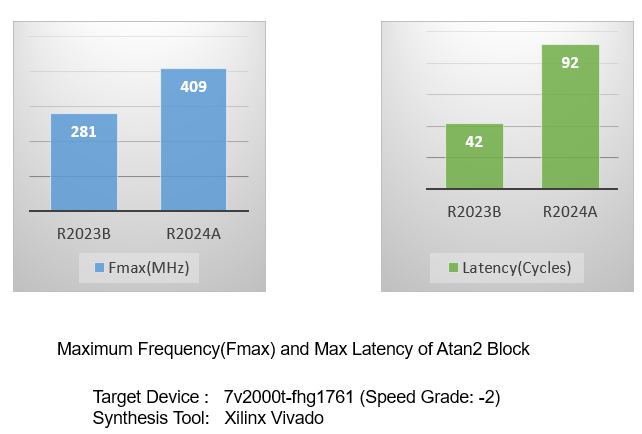
Use fixed-point data types with Magnitude-Angle to Complex blocks
You can now generate code for Magnitude-Angle to Complex block that uses fixed-point
data types as inputs. To generate code with fixed-point data types, set the
Input block parameter to Magnitude and
angle and the Approximation method parameter to
CORDIC. When using the CORDIC approximation method, you
can also enable Scale output by reciprocal of gain factor to scale
the real and imaginary parts of the complex output by a gain factor. For more
information, see Magnitude-Angle to Complex (R2024a).
Updated blocks that support preserving logic
HDL Coder previously removed logic connected to these blocks:
Sequence Viewer
Assertion
Check Discrete Gradient
Check Dynamic Gap
Check Dynamic Lower Bound
Check Dynamic Range
Check Dynamic Upper Bound
Check Static Gap
Check Static Lower Bound
Check Static Range
Check Static Upper Bound
Display
DocBlock
Record or XY Graph
Scope
Stop Simulation
To File
To Workspace
Proof Objective
Test Condition
Test Objective
Verification Subsystem
Starting in R2024a, you can preserve unconnected logic by using the PreserveUpstreamLogic HDL block property. For more information see, PreserveUpstreamLogic (R2024a).
Code Generation and Verification
Generate record or structure types when converting between virtual and non-virtual buses in model reference interfaces
In R2024a, you can generate HDL code with record or structure types when converting virtual to non-virtual or from non-virtual to virtual buses in model reference interfaces.
In the Configuration Parameters dialog, click HDL Code Generation > Global Settings and, under Additional settings, click the Coding Style tab. Under RTL Style, select Preserve Bus Structure in the generated HDL code.
For more information, see Generate HDL Code with Record or Structure Types for Bus Signals (R2024a).
Enhancements to the genhdltdb function
In R2024a, you can use the updated genhdltdb (R2024a) function to generate timing databases for new synthesis tools,
ignore characterization of native floating point, or perform synthesis and timing
analysis for a custom device using any tool.
You can now generate timing databases using synthesis tools such Altera QUARTUS II and
Intel Quartus Pro. You can use these values for the SynthesisToolName (R2024a) argument:
Altera QUARTUS IIIntel Quartus Pro
For example, to use the Altera QUARTUS II synthesis tool with a Stratix V target device, enter:
genhdltdb('SynthesisDeviceConfiguration', ... {'Stratix V','5SEE9F45C2'}, ... 'TimingDatabaseDirectory','C:\Work\Database', ... 'SynthesisToolName','Altera QUARTUS II', ... 'SynthesisToolPath','C:\intel\20.1.1\quartus\bin\quartus.exe');
To use Intel Quartus Pro with an Arria 10 target device, enter:
genhdltdb('SynthesisDeviceConfiguration', ... {'Arria 10','10AS066N3F40E2SG'}, ... 'TimingDatabaseDirectory','C:\Work\Database', ... 'SynthesisToolName','Intel Quartus Pro', ... 'SynthesisToolPath','C:\intel\21.3_pro\quartus\bin64\qpro.exe');
Ignore characterization of native floating point by using the new NativeFloatingPoint (R2024a) argument. Use this setting to save time when
generating timing databases for use with designs which do not contain floating point
logic. For example, to disable native floating point,
enter:
genhdltdb('SynthesisDeviceConfiguration', ... {'Arria 10','10AS066N3F40E2SG'}, ... 'TimingDatabaseDirectory','C:\Work\Database', ... 'SynthesisToolName','Intel Quartus Pro', ... 'SynthesisToolPath','C:\intel\21.3_pro\quartus\bin64\qpro.exe', ... 'NativeFloatingPoint','off');
You can perform synthesis and timing analysis for a custom device using any tool by
using the new TimingGenerator (R2024a) argument. Create your custom classes by inheriting from
hdlcoder.TimingGenerator (R2024a), which is a base class for using custom synthesis
tools with genhdltdb and provide static timing information when
reporting on the critical path estimation. For
example:
classdef MyTimingGenerator < hdlcoder.TimingGenerator methods function [status, logTxt] = synthesizeRTL(obj) % synthesize HDL and run detailed timing analysis % using any synthesis tool for genhdltdb characterization process ... ... ... end end end
genhdltdb to generate timing
information for Zynq target
device:tg = MyTimingGenerator; genhdltdb('SynthesisDeviceConfiguration', ... {%'add your custom device configuration'}, ... 'TimingDatabaseDirectory','C:\Work\Database', ... 'NativeFloatingPoint','off', ... 'TimingGenerator',tg);
For more information, see Generate Custom Timing Database for Custom Tools and Devices (R2024a).
Functionality being removed or changed
lcc-win64 compiler not supported
Errors
The lcc-win64 compiler is no longer supported. For information
about supported compilers, see Supported and Compatible Compilers - Windows.
Resource utilization and optimization reports generated by default
Behavior change
HDL Coder now generates resource utilization and optimization reports by default after generating code from a Simulink model.
If you do not want these reports, you can disable them. To disable the resource utilization report and optimization report, in the Configuration Parameters dialog box, clear these check boxes:
Generate resource utilization report (R2024a)
Generate optimization report (R2024a)
Alternatively, use hdlset_param to set these
parameters to off:
ResourceReportOptimizationReport
For more information about these reports, see Create and Use Code Generation Reports (R2024a).
Before R2024a, the Generate resource utilization report and Generate optimization report model configuration parameters were disabled by default. If you load a model saved before R2024a, Generate resource utilization report and Generate optimization report are enabled by default.
Name changes in MATLAB HDL Workflow Advisor
Behavior change
In the MATLAB HDL Workflow Advisor, these settings are renamed:
| Workflow Advisor Task | Previous Name | Current Name |
|---|---|---|
| HDL Code Generation > Clocks & Ports | Drive clock enable at | Clock enable rate |
| Verification > Verify with HDL Test Bench | Floating point tolerance check based on | Floating point tolerance check |
| Verification > Verify with Cosimulation | Cosimulate for use with | Cosimulation tool |
Speed and Area Optimizations
Improvements to delay balancing
HDL Coder has made these improvements to delay balancing optimization:
Previously, HDL Coder generated a delay balancing error when delays were scattered in the design. For example, delay absorption was unsuccessful on this design:
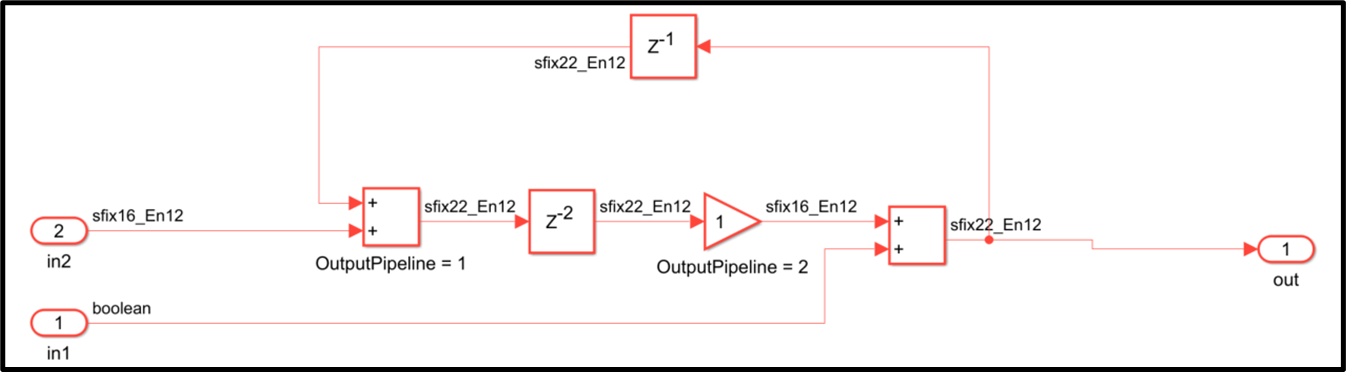
In R2024a, delays can now be used to absorb latency regardless of their locations within a feedback loop. For example:
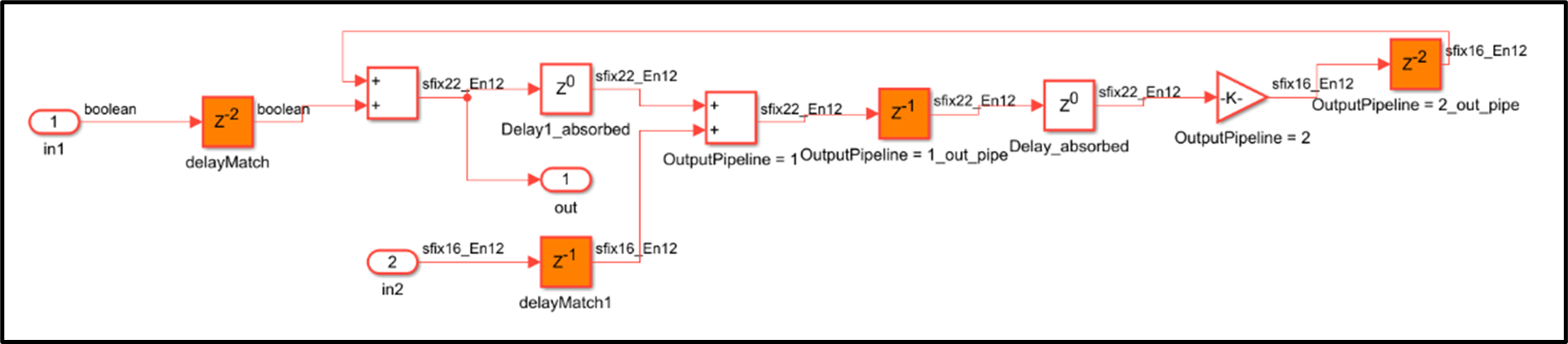
Previously, HDL Coder generated a delay balancing error when the code generator encountered fake loops in the design. A fake loop is a loop that appears in the design through hierarchy which when flattened is actually a feed-forward path. In this example, the two paths in the subsystem are actually data-dependent, and the loop is removed if we flatten away the subsystem.
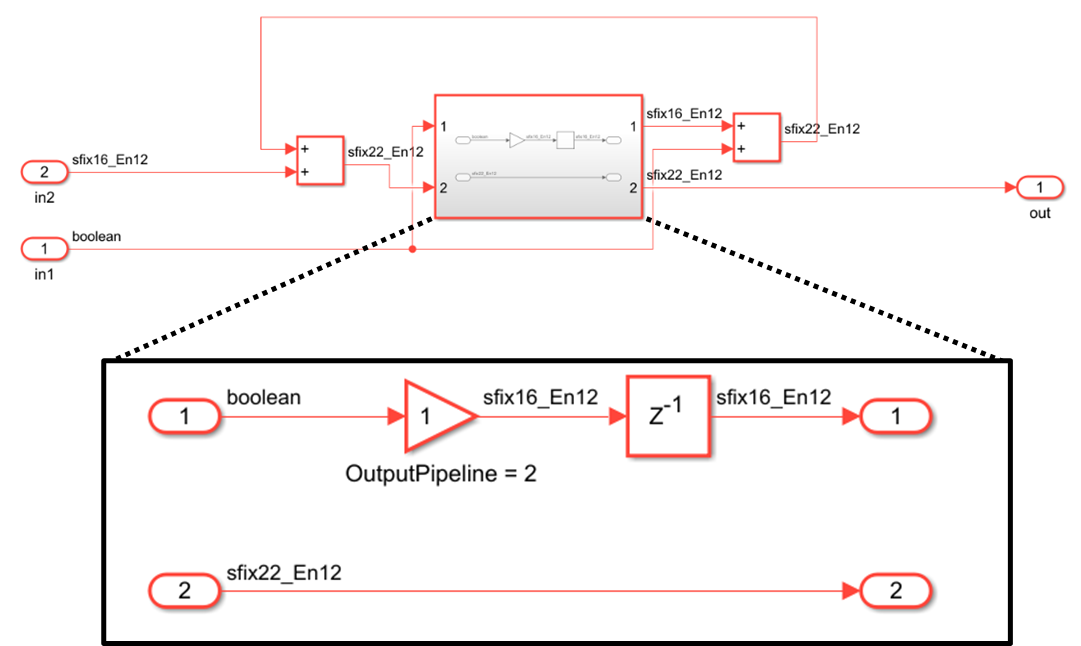
In R2024a, HDL Coder no longer errors out due to latency introduced in a fake loop. For example:
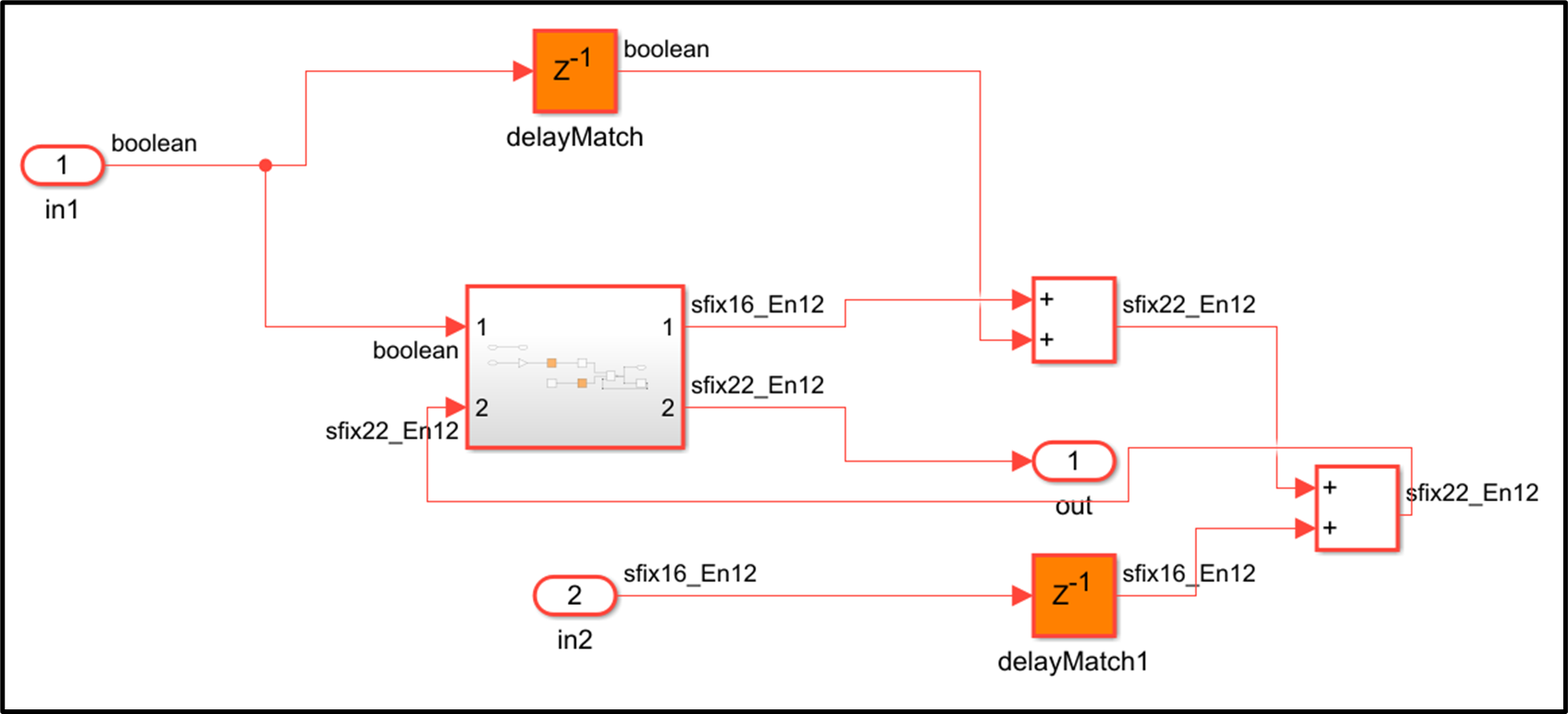
Removal of optimization limitations for masked subsystems
Previously, if your model had masked subsystems, HDL Coder had limited support for these optimizations:
Clock-rate pipelining
Hierarchy flattening
Streaming
Resource sharing
Unused port removal
You can now use these optimizations without limitations inside masked subsystems. To learn how these optimizations performed in your model during code generation, use the code generation reports. For more information, see Create and Use Code Generation Reports (R2024a).
Map nested conditional statement variables to RAM
Starting in R2024a, you can call System object in nested conditional statements. You can call a System object in separate branches of nested conditional statements. When you call multiple System objects in multiple branches of nested conditional statements, you must call them in the same order or there must be no dependencies between the calls. You can also map variables in nested conditional statements to random access memory (RAM).
Enhancements to single-rate sharing, streaming latency, and throughput
Previously, you had to design single-rate models so that the latency was equal to a
stable serialization time or the streaming/sharing factor plus a stable computation
time. These settings led to a large oversampling factor, which resulted in reduced
throughput. Starting in R2024a, the minimum latency required for your single-rate models
is the number of cycles for which your input must be stable or the streaming/sharing
factor. For example, prior to R2024a, this model required an oversampling factor of 29.
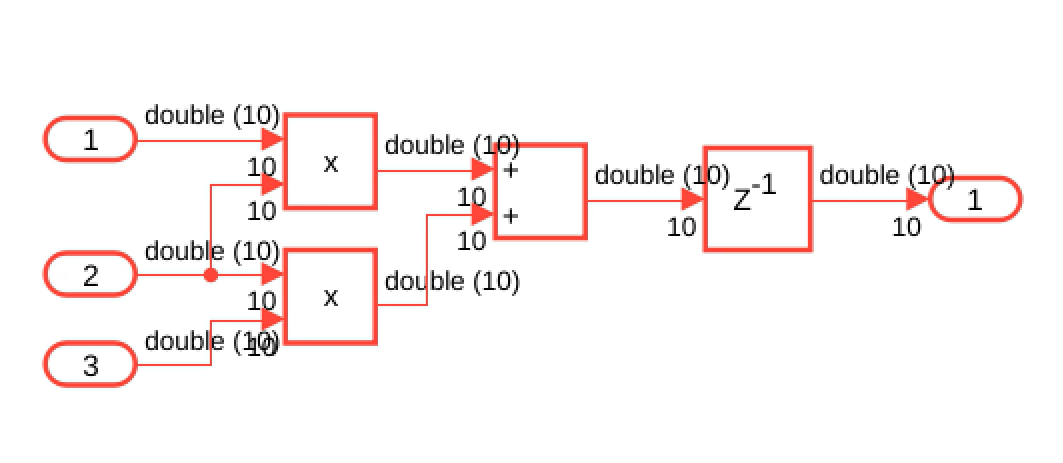
In R2024a, this model requires an oversampling factor of 10.
Reduced RAM usage for non-streamed signals when using frame-to-sample optimization
Starting in R2024a, HDL Coder uses more optimized scheduling logic during the frame-to-sample optimization. HDL Coder improves the scheduling logic for values that do not change during the duration of a frame, such as threshold values or image histograms, which reduces RAM usage.
Improvements to resource sharing
HDL Coder has made these improvements to resource sharing optimization:
Previously, HDL Coder moved and renamed the design delays anywhere in a subsystem level where sharing was requested with sharing candidates in a loop. For example:
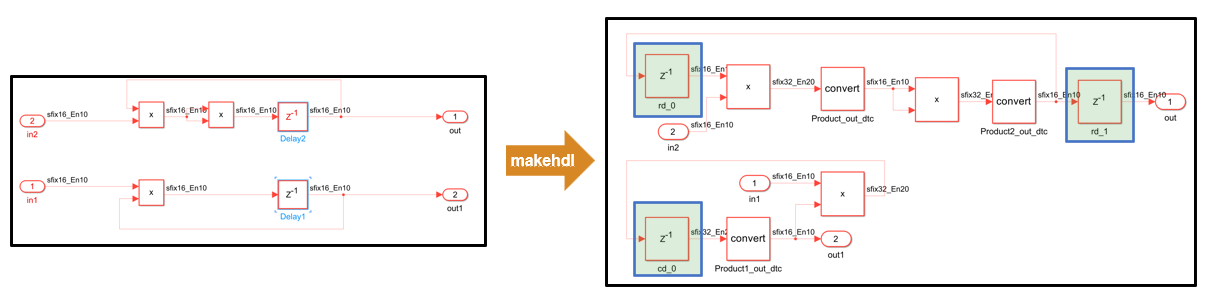
In R2024a, resource sharing no longer moves and renames delays.
Resource sharing utilizes delays on feedback signals as latency budget for sharing in feedback loops more reliably. For more information, see Use Delay Absorption While Modeling with Latency (R2024a).
Functionality being removed or changed
Removal of BalanceDelays HDL block property
Errors
The HDL block property BalanceDelays for subsystems has
been removed. In the Configuration Parameters dialog, the diagnostic option
Check for presence of unbalanced delays in the generated HDL
code
(TreatBalanceDelaysOffAs) has also been removed. The
BalanceDelays option introduced functional
differences between the generated HDL code and the original model. To use delay
absorption to avoid extra latency, see Use Delay Absorption While Modeling with Latency (R2024a). To control
the scope of the delay balancing, see Control the Scope of Delay Balancing (R2024a).
I/O Optimizations
Use persistent variables with hdl.npufun during frame-to-sample
optimization
During the frame-to-sample optimization, you can now use persistent variables in the
hdl.npufun (R2024a) kernel functions. You cannot use System objects as persistent
variables. To use persistent variables in hdl.npufun functions, in
the Configuration Parameters dialog, set:
Input processing order is
RowMajor.Samples per cycle is
1.
For more information, see Generate HDL Code from Frame-Based Model by Using Neighborhood Processing with States (R2024a).
Use replicate boundary method in hdl.npufun
The hdl.npufun (R2024a) kernel function has a new input argument,
BoundaryMethod, that you can use to set the value of pixels
outside the image based on the nearest in-bounds pixel. Use this argument to enable
border replication during frame-to-sample conversions.
You can set BoundaryMethod to constant
(default) or replicate. To specify the boundary method,
use:
output_data = hdl.npufun(@kernelFun,kernelSize,input_data, ... 'BoundaryMethod','replicate')
If you do not set BoundaryMethod to constant,
the BoundaryConstant argument has no effect.
The input_data and KernelArg arguments
must now be placed before the name-value arguments. For example, this command was
allowed in previous
releases:
hdl.npufun(@kernel, [3 3], img, 'BoundaryConstant', 5, 'KernelArg', 2)
hdl.npufun(@kernel, [3 3], img, 'KernelArg', 2, 'BoundaryConstant', 5)
High-Level Synthesis Code Generation
Control inlining of MATLAB functions for High-Level Synthesis code generation
In R2024a, you can control the inlining of the MATLAB functions in the High-Level synthesis (HLS) workflow. By default, all functions are inlined into the top-level function, resulting in improved synthesis Quality of Results (QoR).
To disable function inlining, use one of these options:
In the MATLAB Command Window, set the configuration parameter
InstantiateFunctionstotrue.hdlcfg.InstantiateFunctions = true;
In the HDL Coder App, in the HLS Code Generation step, on the Advanced tab, select Generate instantiable code for functions.
For more information, see coder.inline (R2024a).
Simulate High-Level Synthesis code using MATLAB Host
In R2024a, HDL Coder introduces new workflow to simulate the High-Level Synthesis (HLS) code from
MATLAB code using MATLAB host. To simulate the generated code,
you must install the SystemC™ 2.3.3 library without the need for other third-party
electronic design automation simulation tools.
To simulate the generated code follow these steps:
Install SystemC 2.3.3 library. You can download it from https://accellera.org.
Set up the SystemC library path in MATLAB by using the
hdlsetuphlstoolpathfunction.hdlsetuphlstoolpath('ToolName','SystemC',... 'SystemCIncludePath','/usr/local/systemc-2.3.3/include',... 'SystemCLibraryPath','/usr/local/systemc-2.3.3/lib-linux64');
Simulate the generated HLS code in the MATLAB Host environment using one of these options:
At the MATLAB command prompt, enter the following commands:
cfg.SimulateGeneratedCode = true; cfg.SimulationTool = "MATLAB Host";In the HDL Coder App, during the Select Code Generation Target step, enter
MATLAB Hostas the Simulation Tool.
Simulating HLS code using MATLAB Host and the SystemC 2.3.3 library is supported only on Linux and Windows platforms.
For more information, see Verify Generated HLS Code Using MATLAB Desktop Host (R2024a).
Enhanced capabilities of MATLAB to High-Level Synthesis workflow
In R2024a, the High-Level Synthesis (HLS) code generation process is enhanced to include:
External code integration for HLS — Integrate external code with existing code in the HLS workflow using
coder.ceval(R2024a).Code traceability — The code generation report supports tracing your generated HLS code back to the original MATLAB code. This provides a clearer understanding of the code's origin and facilitates debugging and analysis. See, HLS Code Generation Report (R2024a)
Support for floating-point data types — HLS code generation supports both double- and single-precision floating-point data types, enabling accurate and efficient representation of real data types.
Updates to line buffer interface of High-Level Synthesis code generation
In R2024a, the hdl.WorkingSet (R2024a)
class and coder.hdl.interface (R2024a) pragma are enhanced for improved High-Level Synthesis
(HLS) code generation. Use this syntax:
hdl.WorkingSet(image,workingSetSize,Name=Value)coder.hdl.interface(inputVar,"Line Buffer",ImageSize,Name=Value)
Instead of passing values as input arguments, use name-value arguments to specify the
values for Origin, FillMethod, and
FillValue as specified in this table.
| Name | Value |
|---|---|
Origin
| Origin of the working set, specified as a 2 element row vector of positive integers. |
FillMethod
|
|
FillValue
| The constant value to be filled in the working set for the pixels falling outside the image. |
Additionally, three new public functions are added to the hdl.WorkingSet class:
nextWorkingSet(R2024a) — Returns the next working set.currentWorkingSet(R2024a) — Returns the current working set or last generated working set.hasNextWorkingSet(R2024a) — Returnstrueif there is a next working set and returnsfalseotherwise.
The table shows the usage of the coder.hdl.interface (R2024a) pragma in the MATLAB design and hdl.WorkingSet class in the MATLAB test bench with the FillMethod set to
"Wrap".
| MATLAB Code | MATLAB Test Bench |
|---|---|
function out = line_buffer_average(in1) coder.hdl.interface(in1, "Line Buffer", [20, 20], FillMethod="Wrap"); sum = 0; for i = 1:size(in1,1) for j = 1:size(in1,2) sum = sum + in1(i,j); end end out = sum / numel(in1); end |
image = rand(20, 20); ws = hdl.WorkingSet(image, [3 3], FillMethod="Wrap"); [ws, workingSet] = ws.nextWorkingSet(); while ws.hasNextWorkingSet() out = line_buffer_average(workingSet); [ws, workingSet] = ws.nextWorkingSet(); end |
Use these new definitions in the MATLAB code to avoid MATLAB simulation errors.
Functionality being removed or changed
SystemC renamed to High-Level Synthesis
Behavior change
In MATLAB to SystemC™ code generation, SystemC is renamed to High-Level Synthesis.
IP Core Generation and Hardware Deployment
Use Cadence Genus synthesis tool to target generic ASIC/FPGA devices
You can now use the Cadence Genus synthesis tool in the HDL Workflow Advisor. You can generate HDL code and test benches for any MATLAB algorithm or HDL-compatible Simulink model, perform FPGA synthesis, and prototype on generic ASIC/FPGA platforms.
In the HDL Workflow Advisor task 1.1. Set Target Device and Synthesis
Tool, set Target workflow to
Generic ASIC/FPGA , Synthesis
tool to Cadence Genus, and
Tool version to 19.16.

Enable clock domain-crossing for AXI4-Lite interfaces
Previously, you could not connect different clock signals to the IP core design under test (DUT) and the AXI4-Lite interface registers, which prevented you from running the algorithm and AXI4-Lite interface in different clock domains.
Starting in R2024a, when you enable the insertion of clock domain-crossing logic, you
can connect different clock signals to the generate IP core DUT algorithm and the
AXI4-Lite interface registers. HDL Coder inserts clock domain-crossing logic during IP core generation. See, Enable Clock Domain Crossing on AXI4-Lite Interfaces (R2024a). To enable the
insertion of clock domain-crossing logic, enable
ClockDomainCrossingOnRegisterInterface in step 3.2
Generate RTL Code and IP Core of the Simulink HDL Workflow Advisor. In R2024a, HDL Coder supports clock domain-crossing for:
Scalar data type signals mapped to AXI4-Lite interfaces.
Xilinx Vivado IP core generation.
For more information, see Use Clock Domain Crossing to Run DUT Algorithm and AXI4-Lite Interface at Different Frequencies (R2024a).
Upgrade to Intel Quartus Prime Standard 22.1.1
HDL Coder now supports Intel Quartus Prime Standard 22.1.1.
For more information about supported synthesis tools, see HDL Language Support and Supported Third-Party Tools and Hardware (R2024a).
Upgrade to Xilinx Vivado 2023.1
HDL Coder now supports Xilinx Vivado 2023.1.
For more information about supported synthesis tools, see HDL Language Support and Supported Third-Party Tools and Hardware (R2024a).
4KB boundary handling for AXI4-Master interfaces
The AXI4 interface protocol has a limitation that bursts should not cross a 4 kilobyte (KB) boundary. Starting in R2024a, the AXI4-Master interface splits bursts so that the 4KB boundary is not crossed.
Use memory and SoC peripheral blocks
HDL Coder now supports using memory and peripheral blocks from SoC Blockset™. For an example, see Use IP Core Generation Workflow with SoC Models (R2024a) (SoC Blockset).
HDL Coder Support Package for Xilinx FPGA and SoC Devices: Target and generate code for Xilinx devices using one support package
You can now use the combined HDL Coder Support Package for Xilinx FPGA and SoC Devices to target Xilinx FPGA, Zynq, MPSoC, RFSoC and Versal devices. You can select the FPGA and SoC device, map your algorithm I/O to the onboard interfaces, generate an HDL IP core, synthesize the generated code with the target reference design, and deploy your design on Xilinx hardware. For more information, see Targeting FPGA & SoC Hardware (R2024a).
Previously, HDL Coder had three hardware support packages that targeted Xilinx devices:
HDL Coder Support Package for Xilinx FPGA Boards
HDL Coder Support Package for Xilinx Zynq Platform
HDL Coder Support Package for Xilinx RFSoC Devices
The HDL Coder Support Package for Xilinx FPGA and SoC Devices combines the functionality of these support packages. The hardware boards and reference designs, examples, hardware targeting infrastructure, and the hardware setup wizard from these support packages are now available in HDL Coder Support Package for Xilinx FPGA and SoC Devices. For more information, see Xilinx FPGA and SoC Devices (R2024a).
HDL Coder Support Package for Intel FPGA and SoC Devices: Target and generate code for Intel devices using one support package
You can now use the combined HDL Coder Support Package for Intel FPGA and SoC Devices to target Intel FPGA and SoC devices. You can select the FPGA and SoC device, map your algorithm I/O to the onboard interfaces, generate an HDL IP core, synthesize the generated code with the target reference design, and deploy your design on Intel hardware.
Previously, HDL Coder had two hardware support packages that targeted Intel devices:
HDL Coder Support Package for Intel FPGA Boards
HDL Coder Support Package for Intel SoC Devices
The HDL Coder Support Package for Intel FPGA and SoC Devices combines the functionality of these support packages. The hardware boards and reference designs, the examples, the hardware targeting infrastructure, and the hardware setup wizard from these support packages are now available in HDL Coder Support Package for Intel FPGA and SoC Devices. For more information, see Intel FPGA and SoC Devices (R2024a).
Improved workflow for the Hardware Setup Wizard in the HDL Coder Support Package for Xilinx FPGA and SoC Devices
After you download and install HDL Coder Support Package for Xilinx FPGA and SoC Devices, the Hardware Setup Wizard guides you to configure your hardware, download the firmware image, and establish an Ethernet connection. The Hardware Setup Wizard now guides you to:
Check the host interface machine to ensure Ethernet connectivity and check for the presence of an SD card reader and writable SD card.
Select the available hardware board in the support package.
Download and install required third-party tools.
Select the SD card drive and write the firmware image.
Set up the hardware connections and jumper settings.
Verify the hardware connection with the host computer.
Perform custom actions post IP core generation
You can now specify a custom callback function to perform actions after you generate a custom IP core. For more information, see PostGenerateIPCoreFcn (R2024a).
Use MATLAB FPGA I/O Host Interface to Communicate with FPGA on Zynq-Based Radio
The Use MATLAB FPGA I/O Host Interface to Communicate with FPGA on Zynq-Based Radio example shows how to prototype an FPGA design on a Xilinx Zynq-based radio and communicate with hardware by using MATLAB as the host computer. For more information, see Use MATLAB FPGA I/O Host Interface to Communicate with FPGA on Zynq-Based Radio (R2024a).
Functionality being removed or changed
Turnkey workflow in the HDL Workflow Advisor has been removed
The FPGA Turnkey workflow has been removed from the HDL Workflow Advisor. You can no longer use the boards supported by the FPGA Turnkey workflow:
Altera® Arria® II GX FPGA development kit
Altera Cyclone® III FPGA development kit
Altera Cyclone IV GX FPGA development kit
Altera DE2–115 development and education board
XUP Atlys Spartan®-6 development board
Xilinx Spartan-3A DSP 1800A development board
Xilinx Spartan-6 SP605 development board
Xilinx Virtex®-4 ML401 development board
Xilinx Virtex-4 ML402 development board
Xilinx Virtex-5 ML506 development board
Xilinx Virtex-6 ML605 development board
To target FPGA and SoC devices, use the IP core generation workflow. For more information, see Targeting FPGA & SoC Hardware (R2024a).
Simscape Hardware-in-the-Loop Workflow
Simscape HDL Workflow Advisor: Support for fixed-point data type in state-space representation
The Simscape hardware-in-the-loop (HIL) workflow now automatically determines the dynamic range of state-space matrices, and computes the appropriate fraction lengths and full precision integer rounding modes by using the specified word length. This reduces resource utilization and improves FPGA sampling frequency by reducing the oversampling factor.
To enable this feature through Simscape HDL Workflow Advisor, in the
Generate implementation model task pane, select
Fixed-point from the Data type
precision drop-down list. Once you select the
Fixed-point option, you can specify the word length in
the Fixed-point word length text box. This generates the HDL
implementation model in fixed-point data type with the specified word length. The
fixed-point data type is supported for Simscape models with single Simscape network that use the Backward Euler or Trapezoidal Rule local
solvers.

Generate FPGA bitstream for Simscape models with tunable run-time parameter values
Simscape run-time parameters allow you to change parameter values between
simulations and in generated code without recompiling your model. You can now modify the
run-time parameter values in the generated FPGA bitstream for your Simscape models. This enhancement allows you to fine-tune any run-time configurable
parameter values in the generated FPGA bitstream without the need to rerun the synthesis
for the generated HDL implementation models. The parameter tuning supports linear
time-invariant models with local solver set to Backward
Euler. For more information, see About Simscape Run-Time Parameters (R2024a) (Simscape).
To learn about how to tune the run-time parameter values, see sschdlupdateRuntimeParameters (R2024a) and Generate FPGA Bitstream for Two-Phase DC-DC Converter with Tunable Run-Time Parameters (R2024a).
Simscape HDL Workflow Advisor: Report achievable target frequency without running synthesis
The Simscape HDL Workflow Advisor now estimates and reports the optimal frequency that you want your Simscape models to achieve on FPGA without running synthesis. The estimation is based on the Sample time you specify in the Solver Configuration (R2024a) (Simscape) block of your model. If the calculated FPGA sample time matches the specified sample time, the Advisor automatically sets Target Frequency (MHz) in the Configuration Parameters dialog box and treats the model rates as hardware rates. However, if the FPGA sample time does not match the specified sample time, the Advisor displays a warning message for the generated HDL implementation model. This method of estimation helps to run the model on the hardware without any mismatches and provides information about whether the Simscape model can achieve the required time step on FPGA without running synthesis. This enhancement is supported for Simscape models containing a single Simscape network.
Consider the sschdlexHalfWaveRectifierExample.slx model from the
half wave rectifier (R2024a) example
on a Windows 11
Intel
Xeon® W-2133 CPU @3.60GHz test system with target device family set to
Xilinx
Vivado
Virtex 7. If you specify Simscape sample time as 1e-6. The
estimated achievable FPGA sample time calculated by the Advisor is 0.15
µs. After running the synthesis, the true value of the FPGA sample time is
0.116 µs.
For more information, see Estimate Achievable Target Frequency Without Running Synthesis (R2024a).
Improved sharing factor value for specific target device family
The Simscape HDL Workflow Advisor now provides an improved value of the sharing factor
for the target device family that you specify. The Advisor calculates the optimal
sharing factor value for a model based on the target details you provide in the
Set target task in the Implementation model
generation folder. If you specify a target device family with a device
part that is not supported, then a supported part of that family is used for calculating
the optimal sharing factor. If you do not specify the target hardware, the device part
xc7k325t in the Xilinx
Vivado
Kintex®-7 device family is used by default for calculating the optimal sharing
factor. This enhancement provides an accurate value of the sharing factor for your
specified target hardware. This also reduces synthesis overhead and optimizes resource
utilization before generating HDL code for your model. For the list of supported FPGA
device family, see Optimal Sharing
Factor Supported FPGA Device Families (R2024a).
For example, on a Windows 11
Intel
Xeon W-2133 CPU @3.60GHz test system, consider the
ViennaRectifier_HDL.slx model from the vienna rectifier (R2024a) example.
The table shows the improvements in sharing factor value and resource utilization for
R2024a and R2023b.
| Release | Device Family | Device Part | Value of Sharing Factor | Resource Utilization (LUTs) | |
|---|---|---|---|---|---|
| R2024a | Xilinx Vivado Zynq UltraScale+ | xczu11eg-ffvc1760-3-e | 3 | ~38% | |
| R2023b | Xilinx Vivado Zynq UltraScale+ | xczu11eg-ffvc1760-3-e | 6 | ~30% | |
Before R2024a, when you specified a device part that was not supported, the Advisor
used the device part xc7k325t in the Xilinx
Vivado
Kintex-7 device family for calculating the optimal sharing factor.
Automatically replace switching blocks with dynamic switches optimized for FPGA deployment
You can now automatically replace common Simscape switches and converter blocks with their dynamic equivalents from the
SimscapeFPGAHIL_lib library. The supported blocks are:
Switches — Switch (R2024a) (Simscape), Ideal Semiconductor Switch (R2024a) (Simscape Electrical), Diode (R2024a) (Simscape Electrical), Diode (R2024a) (Simscape), IGBT (Ideal, Switching) (R2024a) (Simscape Electrical), and MOSFET (Ideal, Switching) (R2024a) (Simscape Electrical).
Converter blocks — Bidirectional DC-DC Converter (R2024a) (Simscape Electrical), Boost Converter (R2024a) (Simscape Electrical), Buck Converter (R2024a) (Simscape Electrical), Buck-Boost Converter (R2024a) (Simscape Electrical), Converter (Three-Phase) (R2024a) (Simscape Electrical), Rectifier (Three-Phase) (R2024a) (Simscape Electrical), and Three-Level Converter (Three-Phase) (R2024a) (Simscape Electrical).
This enhancement allows you avoid adding the blocks manually and reduces errors.
To enable this functionality, run the sschdl.generateOptimizedModel (R2024a) function at the MATLAB command prompt. For example:
generatedModel = sschdl.generateOptimizedModel(input);
Here, input can be either a Simscape model or a cell array of Solver Configuration (R2024a) (Simscape) block paths. You can specify a
Solver Configuration block attached to the
Simscape network that you want to optimize within the model. The output
generatedModel is the linearized version of the
input. Once the optimized version is available, you can view the
list of replaced blocks in the MATLAB Command Window. You can verify the connections and use the optimized model
for your required application.
Before R2024a, you had to manually replace the switching elements in your plant model with their dynamic equivalents.
To learn about dynamic switch optimization, see Generate HDL Code for Simscape Models by Using Linearized Switch Approximation (R2024a).
HDL code generation support for PWM and Pulse Generator blocks
The Simscape hardware-in-the-loop (HIL) workflow now supports HDL code generation for Simscape models with these blocks:
PWM (R2024a)
Pulse Generator (R2024a)
Model and Architecture Design
Improved code generation for multidimensional arrays by using For-Generate loops
You can now generate HDL code for multidimensional arrays by using
For-Generate loops. For a model that has vector or matrix input
and output, the generated code for a model requires fewer lines and is easier to read.
With this enhancement, the code generation time for a model that has large vectors or
matrices is significantly reduced.
Enhancements in custom file header and footer comments
You can now insert custom comments in generated HDL code. You can print these comments in your generated code:
Model version
Model name
File name
You can use these macros to insert model version, model name, and file name comments in the generated code.
| Argument | Macro Syntax |
|---|---|
| Model Version | __MODELVERSION__ |
| Model Name | __MODELNAME__ |
| File Name | __FILENAME__ |
To enter these comments in your generated code, use Custom file header
comment or Custom file footer comment configuration
parameter settings in HDL Code Generation > Global settings >
Comments tab.
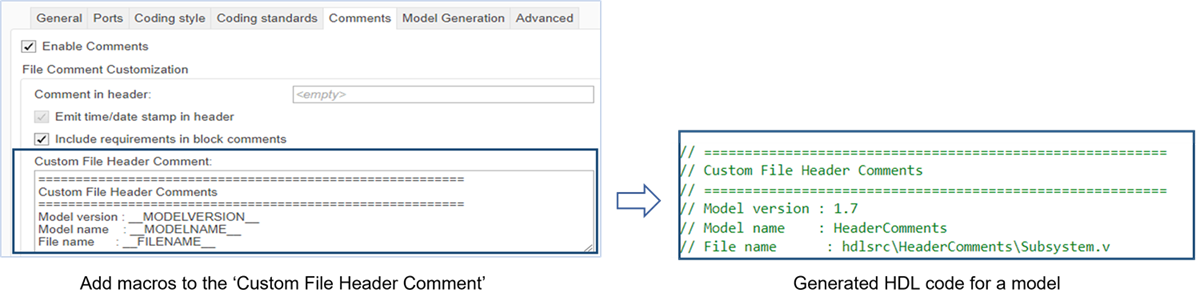
From R2023b, HDL Coder also prints the Simulink release version along with MATLAB, and HDL Coder release versions in default header comments. You can also print input and output port descriptions of a MATLAB Function (R2023b) block in the generated HDL code.
Generate code for Boolean array with MSB-to-LSB convention
You can now generate code for an array of boolean data in most significant bit (MSB)
to least significant bit (LSB) convention. For example, a subsystem with boolean input
and output data, the generated VHDL code with the DOWNTO convention
has this form:
ENTITY Subsystem IS
PORT( In1 : IN std_logic_vector(4 DOWNTO 0); -- boolean [5]
Out1 : OUT std_logic_vector(4 DOWNTO 0) -- boolean [5]
);
END Subsystem;Functionality being removed or changed
MulticyclePathInfo configuration parameter has been
removed
The MulticyclePathInfo option to generate multicycle path
constraints information has been removed. To generate multicycle path constraints,
use Enable-based constraints. For more information, see Multicycle Path Constraints Parameters (R2023b).
Block Enhancements
New RAM Architecture blocks and types for hdl.RAM System
object
In R2023b, you can use two new RAM architecture types for the hdl.RAM
System object and two new RAM blocks to map your design to vendor-specific RAM hardware
more efficiently. The new RAM architecture types are:
Simple Tri Port RAM System, which has two read ports and one write port.
True Dual Port RAM System, which has two write ports. Each write port also performs a read operation.
When generating HDL code from Simulink, you can add these RAM types to your Simulink design by using one these options:
The Simple Tri Port RAM System (R2023b) block or the True Dual Port RAM System (R2023b) block in the HDL Coder > HDL RAMs library.
A MATLAB System block with the System object name parameter set to
hdl.RAMand the Specify the type of RAM property set toTrue dual portorSimple tri port.A MATLAB Function block with code that defines a
hdl.RAMSystem object with the propertyRAMTypeset to'Simple tri port'or'True dual port'. For more information, seehdl.RAM(R2023b).
When generating HDL code from MATLAB, you can add these RAM types to your MATLAB function by using the hdl.RAM
System object with the property RAMType set to 'Simple tri
port' or 'True dual port'. For more information on how
to generate HDL code from the hdl.RAM
System object in MATLAB, see HDL Code Generation from hdl.RAM System Object (R2023b).
For the RAM blocks Single Port RAM System, Simple Dual Port RAM System, Dual Port RAM System and Simple Tri Port RAM System, you can select the Enable asynchronous reads parameter to use the asynchronous read feature in your target hardware. Boards that support asynchronous read allow the hardware to execute a read instruction immediately instead of waiting one cycle.
For information on how to map persistent variables to the new RAM architecture types, see the release note Map persistent variables to specific RAM types using the coder.hdl.ramconfig pragma.
For more information on generating HDL code with a System object, see HDL Code Generation for System Objects (R2023b).
Specify vector input for Variable Integer Delay block
You can now generate HDL code the Variable Integer Delay (R2023b) block when you specify the data input port as a
vector. You can generate HDL code for a Delay (R2023b) block when you set the Delay length parameter to
Input port and specify the d input port as a
vector.
You can use these data types for the Delay blocks with vector input:
Signed and unsigned integers
Fixed-point types
Floating-point types
Enumerated types
Complex types
The Variable Integer Delay block does not support bus and matrix inputs for HDL code generation.
Use bus inputs for RAM system blocks
You can now generate HDL code for these RAM system blocks when you specify the input data as a bus.
Single port RAM System
Simple dual port RAM System
Dual port RAM System
True dual port RAM System
Simple tri port RAM System
You can use non-virtual bus at the data port of the RAM system blocks and generate HDL code.
Synchronous and asynchronous reset using Triggered and Resettable Subsystem
You can now generate code for a model that has a triggered subsystem inside resettable subsystem. You can use trigger-as-clock functionality to model the trigger port from a Triggered Subsystem (R2023b) as a clock and use Resettable Subsystem (R2023b) to model external reset port. In earlier releases, you can generate HDL code only for a model that has a resettable subsystem nested inside a triggered subsystem. With this enhancement, you can generate synchronous and asynchronous external resets for your Simulink model.
For a synchronous external reset, place a resettable subsystem inside the triggered subsystem. The reset signal in the generated code is a synchronous reset.
For a asynchronous external reset, place a triggered subsystem inside the resettable subsystem. The reset signal in the generated code is an asynchronous reset.
For a synchronous and asynchronous external reset, create the subsystem hierarchy as Resettable Subsystem > Triggered Subsystem > Resettable Subsystem.
Latency strategy and Custom latency for Reciprocal Square Root block
You can now choose the latency strategy for Reciprocal Square Root (R2023b) and HDLMathLib
rSqrt (R2023b)
blocks. These blocks support these latency strategies:
Minimum latency
Maximum latency
Custom latency
Zero latency
To set the custom latency value of these blocks, set Latency
strategy to Custom. The block supports
custom latency values between zero and the maximum latency.
Reduced latency and hardware resources for Reciprocal blocks
The Reciprocal, Math Function Reciprocal and HDLMathLib
Reciprocal blocks, now have reduced latency and uses fewer hardware resources when you
specify custom output data types.
For example, the latency of a Reciprocal block with an input data type of
fixdt(1,20,10) and an output data type as
fixdt(1,20,18) is 52 in R2023a and
34 in R2023b. This figure shows all the performance improvements
for this block.
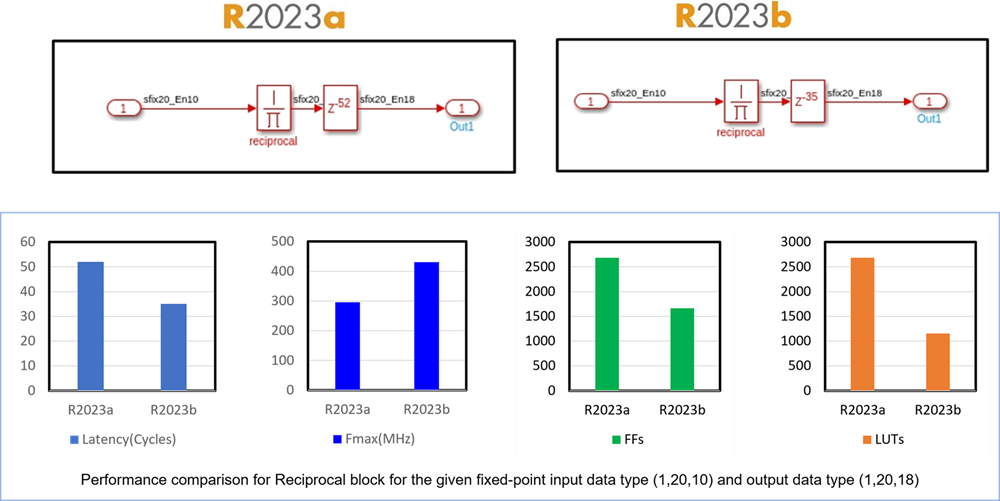
Minimum latency strategy for core Math and HDLMathLib blocks
You can now specify the minimum LatencyStrategy (R2023b) for core mathematical function blocks. You can also specify minimum latency strategy for blocks that use fixed-point data types.
Math Blocks
Product (R2023b)
Divide (R2023b)
Reciprocal (R2023b)
Math Function Reciprocal (R2023b)
Reciprocal Square Root (R2023b)
Trigonometric Function Blocks
Sin (R2023b)
Cos (R2023b)
SinCos (R2023b)
Cos + jSin (R2023b)
Atan2 (R2023b)
HDLMathLib Blocks
Generate multiple clocks in black-box architecture
You can now generate multiple clocks and clock enables for your black-box architecture. For more information, see Generate Black Box Interface for Subsystem (R2023b).
In previous releases, In previous releases, you can specify only a single clock and a single rate in the black-box architecture. From R2023b, if your black-box architecture has multiple clock signals, you can generate different clock signals in the generated HDL code of black-box subsystem. For a black-box that has different sampling rates, you can generate multiple clock enable signals in the generated code of black-box subsystem.
You can specify the clock signal and clock enable names by setting the ClockInputPort and ClockEnableInputPort parameters of your black-box subsystem. You can also generate multiple resets for your black-box subsystem and specify the reset names in the ResetInputPort parameter of your black-box subsystem. For more information, see Customize Black Box or HDL Cosimulation Interface (R2023b).
Fixed-point data types for n-D Lookup Table block
HDL code generation now supports fixed-point data types for n-D Lookup Table (R2023b) block. You can use fixed-point data types for all the dimensions in the n-D Lookup Table block. You can use this functionality with these parameter values:
Interpolation method:
FlatandLinear point-slopeExtrapolation method:
ClipBreakpoints specification:
Explicit valuesandEven spacingIndex search methods:
Evenly spaced points
Generate synthesizable code for Multiport Switch block with mixed floating-point data inputs
You can now generate the synthesizable HDL code for the Multiport Switch (R2023b) block with mixed floating-point data types, such as
half, single, and double,
at the data ports. HDL code generation also supports vector and matrix inputs for the
Multiport Switch block with mixed floating-point types. Using this enhancement for a
Multiport Switch block, you can generate the synthesis report and simulate your design
on an HDL simulator, such as ModelSim™ or Vivado Simulator.
Functionality being removed or changed
Removed Reciprocal and
ReciprocalRsqrtBasedNewton architectures from Math
Function Reciprocal block and ReciprocalRsqrtBasedNewton
architecture from Reciprocal block
These HDL architectures has been removed from the Math Function Reciprocal (R2023b) block:
ReciprocalReciprocalRsqrtBasedNewton
You can use the Math or
ShiftAdd architectures of the Math Function
Reciprocal block instead.
HDL Coder has also removed ReciprocalRsqrtBasedNewton
architecture from the Reciprocal (R2023b) block.
Code Generation and Verification
HDL code generation support for MATLAB value classes, name-value arguments, nested functions, and strings
In R2023b, you can now generate HDL code from a MATLAB function or Simulink model that has a MATLAB Function block that contains these programming constructs:
MATLAB value classes. For more information, see Generate Code for MATLAB Value Classes (R2023b).
Name-Value arguments in a function. For more information, see Name=Value in Function Calls (R2023b).
Nested functions.
Strings.
You cannot generate HDL code if the MATLAB Function block or MATLAB function:
Converts from floating-point to fixed-point data types.
Contains string functions, such as the string compare function
strcmp.
Generate SystemVerilog code for the model
You can now generate System Verilog code for your model using HDL Coder. To generate the code for your model, specify the target language as
System Verilog. To select the target language, open
HDL Coder Properties, click HDL Code
Generation and then specify the Language as
SystemVerilog.
You can also set the target language when you generate the code using makehdl (R2023b) function. Select the subsystem for which you want to generate
code, and then run this command in the MATLAB command window.
makehdl(gcb,TargetLanguage=“SystemVerilog”)
You can generate System Verilog code for the MATLAB-to-HDL and Simulink-to-HDL workflows. HDL Coder generates code with these System Verilog constructs:
ANSI-style declaration for modules, ports, and parameter declarations
SystemVerilog data types for ports and parameters
Vector or array ports at the module interface which results in more compact code then Verilog
Structure data types for buses
Structure, enumeration declarations and
typedefdeclarationsStatements such as
GenvarandGenerate
Design the model with blocks that are compatible with HDL code generation and generate synthesizable System Verilog code. Generate the System Verilog test bench using HDL Coder and verify the functionality. To synthesize the generated code on a target device, use the HDL Workflow Advisor. You can also apply coding styles and make the code conform to industry coding standards.
SystemVerilog cosimulation data-type enhancements
Cosimulation of Simulink and SystemVerilog now supports these port types:
Simulink vector signal - can now map to an unpacked array of SystemVerilog signals.
Simulink enumerated signal - can now map to a SystemVerilog enumerated data type.
SystemC code generation report
You can now access additional reports, such as conformance report and resource utilization report, in addition to SystemC code generation report.
The code generation report allows you to:
Find more information on the Summary tab, including code generation settings. The Summary tab also links to the additional reports.
View Code Insights to identify potential issues that might occur in the generated code.
See how the code generator determines and propagates type information for variables and expressions in your MATLAB code.
For more information see, SystemC Code Generation Report (R2023b).
Functionality being removed or changed
lcc-win64 compiler will be removed
Warns
The lcc-win64 compiler will be removed in a future release. For information
about supported compilers, see Supported and Compatible Compilers - Windows.
Speed and Area Optimizations
Treat Simulink model rates as actual hardware rates
Starting in R2023b, HDL Coder can set an oversampling factor for you during HDL code generation when you
select the model configuration parameter Treat Simulink
rates as actual hardware rates (R2023b) in the Clock Settings
section of HDL Code Generation > Global Settings pane. In order for HDL Coder to treat your Simulink model rates as data rates of the actual target hardware, set this
parameter after you set the Target Frequency (MHz) parameter to a
target clock rate greater than 0.
When you select Treat Simulink rates as actual hardware rates, you can make changes to your design data and clock rates without manually calculating and updating the Oversampling factor parameter. For example, if you express your data rate in terms of Simulink model rates and clock rate in terms of theTarget Frequency (MHz) parameter, you do not need to manually specify the ratio between the two as the Oversampling factor. Additionally, select this parameter if you have complex feedback loops with multiple optimizations enabled for your model and you want the fastest data rate possible while allowing the optimizations to perform.
When you select Treat Simulink rates as actual hardware rates, you cannot change the Oversampling factor parameter. To set the Oversampling factor manually, clear the Treat Simulink rates as actual hardware rates checkbox.
New clock-rate pipelining report
In R2023b, when you enable the model configuration parameter Generate optimization report (R2023b) and generate an optimization report, HDL Coder generates a new Clock-Rate Pipelining Report section in the report. You can use the Clock-Rate Pipelining section to gain more insight on how the clock-rate pipelining optimization performed in your model. The Clock-Rate Pipelining section includes:
Whether clock-rate pipelining and its associated optimizations ran successfully in the model
The oversampling factor used in the model
The clock rate used for clock-rate pipelining
A list of the clock-rate pipelining obstacles and a link that highlights the clock-rate pipelining obstacles in the original and generated models
The suggested oversampling factor, if possible
Latency budgets for loops, if possible
For more information on clock-rate pipelining, see Clock-Rate Pipelining (R2023b). For more information on how to create and use the code generation report, see Create and Use Code Generation Reports (R2023b).
Updated delay absorption optimization options
In R2023b, you can use updated optimization options to control both distributed pipelining and delay absorption that previously only controlled distributed pipelining. Both optimizations move existing design delays in your model to improve timing.
These configuration parameters now control both distributed pipelining and delay absorption:
The Allow design delay distribution (R2023b) configuration parameter enables distributed pipelining and delay absorption to move and absorb design delays in the model. This parameter was previously named Preserve design delays.
The Pipeline distribution priority (R2023b) configuration parameter prioritizes either numerical integrity or performance for distributed pipelining and delay absorption. This parameter was previously named Distributed pipelining priority.
The updated HDL block property AllowPipelineDistribution now
allows delay absorption and distributed pipelining to run across a black box subsystem
when the HDL block property Architecture is set to
BlackBox for the black box subsystem in the DUT.
Previously, this property was named
AllowDistributedPipelining.
Additionally, Delay and Unit Delay blocks have a new HDL
block property, AllowDelayDistribution (R2023b), that controls whether distributed pipelining or
delay absorption moves that specific design delay. The default value for
AllowDelayDistribution, inherit,
follows the model-level option set by the Allow design delay
distribution configuration parameter. If you set
AllowDelayDistribution to on or
off, the setting takes priority over the model-level
setting. For example, if a Delay block has the HDL block property
AllowDelayDistribution set to off
but the model configuration parameter Allow design delay
distribution is enabled, distributed pipelining and delay absorption
cannot move that Delay block but can move other design delays in the
model that have the HDL block property AllowDelayDistribution set
to on or inherit.
For more information on delay absorption, see Delay Absorption During Delay Balancing (R2023b). For more information on distributed pipelining, see Distributed Pipelining (R2023b).
New delay absorption section in the delay balancing report
In R2023b, when you enable the model configuration parameter Generate optimization report (R2024a) and generate an optimization report, HDL Coder generates a new Delay Absorption section in the Delay Balancing section of the report. You can use the Delay Absorption section to gain more insight on how delay absorption performed in your model. The Delay Absorption section includes:
Whether the latency budget of the model was fully used
The design delays absorbed during delay absorption
The design delays excluded from delay absorption
A list of delay absorption blockers
A link that highlights the delay absorption blockers and design delays excluded from delay absorption in the original and generated models
For more information on delay absorption, see Use Delay Absorption While Modeling with Latency (R2023b). For more information on how to create and use the code generation report, see Create and Use Code Generation Reports (R2023b).
Streaming and sharing optimization improvements
Starting in R2023b, when you enable streaming or resource sharing optimizations for your design and use clock-rate pipelining, the generated HDL code uses fewer lookup tables (LUTs) and registers in hardware. Additionally, when you enable distributed pipelining and streaming or resource sharing, there is a timing improvement for the generated HDL code on hardware. For example, before R2023b, for a model that has streaming, clock-rate pipelining, and distributed pipelining enabled, the synthesis resource summary for a Zynq UltraScale+ board shows that 67.46% of LUT resources and 46.10% of the registers on the board were used. The synthesis timing summary shows a maximum clock frequency of 129.86 MHz.
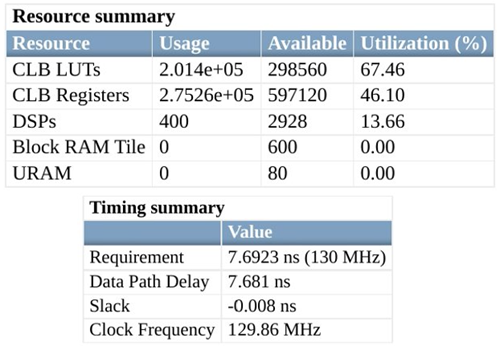
For the same model and target hardware in R2023b, the synthesis resource summary shows only 29.45% of the LUTs and 27.42% of the registers on board are used. The synthesis timing summary shows a higher maximum clock frequency of 138.40 MHz.
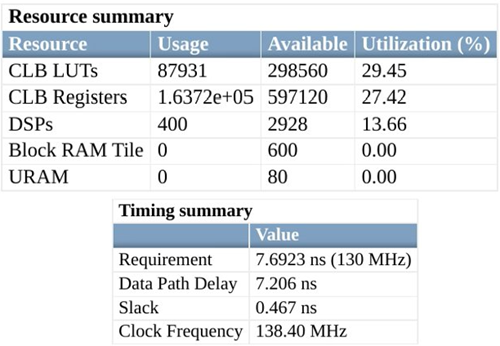
For more information on streaming, see Streaming (R2023b). For more information on resource sharing, see Resource Sharing (R2023b).
Improved bus support for HDL code generation with delay balancing
In R2023b, delay balancing results in minimal or optimal latency in the presence of buses. As a result, delay balancing can now work more reliably with buses in feedback loops. You can now generate HDL code without code generation errors for a model that has feedback loops inside the DUT containing bus signals or bus related blocks such as Bus Creator blocks.
For example, before R2023b, for a model that has delay balancing enabled and buses in a feedback loop, where the feedback loop is outside of the DUT, the synthesis resource summary shows these resources on the target hardware were used.
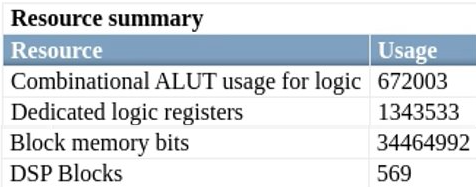
For the same model, but with the feedback loop inside the DUT, and same target hardware in R2023b, the synthesis resource summary shows a reduction in LUTs and an overall reduction in resources which hold state, such as block RAM and registers. This reduction comes from the ability to delay balance elements of buses instead of delay balancing the entire bus signal.
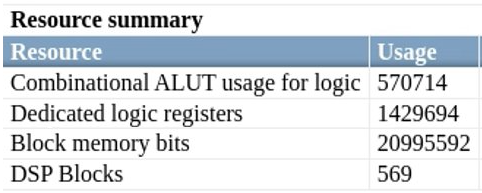
For more information on bus support for HDL code generation, see Signal and Data Type Support (R2023b). For more information on delay balancing, see Delay Balancing (R2023b).
Map persistent variables to specific RAM types using the
coder.hdl.ramconfig pragma
Previously, when you generated HDL code from a MATLAB Function block in Simulink or from a MATLAB function and you enabled the HDL block property MapPersistentVarsToRAM for the MATLAB Function block or the Map persistent array variables to RAMs option in the MATLAB HDL Workflow Advisor, the persistent array variables only mapped to Simple Dual-Port RAM architecture.
In R2023b, you can map persistent array variables to different RAM architecture types,
such as the simple tri port RAM or the dual port RAM architecture types by using the new
pragma coder.hdl.ramconfig (R2023b) in your MATLAB Function block or
MATLAB function. You can use the coder.hdl.ramconfig pragma
to set default RAM mapping for persistent variables that meet the RAM mapping threshold
or to turn RAM mapping on for one or more variables and set the RAM mapping
configuration for those variables.
You can use the coder.hdl.ramconfig pragma only after you define
and assign the persistent variables in the code. For more information and examples, see
coder.hdl.ramconfig (R2023b).
For more information on the new RAM architecture types, see the release note New RAM Architecture blocks and types for hdl.RAM System object.
For more information on RAM mapping, see Apply RAM Mapping to Optimize Area (R2023b).
I/O Optimizations
Map multiple large delays to external ports when generating code from a frame-based algorithm
When using the frame-to-sample conversion optimization, you can now map multiple large integer delays to input and output device under test (DUT) ports to offload the delays to external memory outside of your FPGA and save resources that would otherwise be used to store the delays. When you set the model configuration parameter Delay size threshold for external memory (R2023b) to a delay size threshold value in kilobytes, delays greater than this threshold are moved to external memory. For more information on the frame-to-sample optimization, see HDL Code Generation from Frame-Based Algorithms (R2023b).
Support for fixed-point conversion in frame-to-sample conversion
Fixed-Point Designer (R2023b) now supports the use of function handles in automated fixed-point conversion.
This feature enables use of the functions hdl.npufun (R2023b) and hdl.iteratorfun (R2023b) in the Fixed Point Tool. You can now
convert floating-point data to fixed point when generating HDL code from Simulink models with frame-to-sample conversion enabled. For more information on
frame-to-sample conversion, see HDL Code Generation from Frame-Based Algorithms (R2023b).
To see an example of automated fixed-point conversion in the frame-to-sample workflow, see Convert Frame-Based Model to Fixed Point and Generate HDL Code (R2023b).
Use 3-D matrices in frame-to-sample conversion optimization
You can now use 3-D arrays in the frame-to-sample conversion algorithm. You can use frame-to-sample conversion optimization for the input ports that use 3-D arrays and generate synthesizable HDL code for your model. The frame-to-sample conversion algorithm converts matrix inputs to smaller samples by streaming the input signal for HDL code generation to reduce the I/O that handles a large input signal. You can use this enhancement in image processing applications and generate synthesizable HDL code for FPGA and ASIC implementation. For more information, see HDL Code Generation from Frame-Based Algorithms (R2023b).
To enable frame-to-sample conversion for input ports with 3-D array input, enable the
input port by setting the ConvertToSamples parameter to
on. Then, select Enable frame to sample
conversion in HDL Code Generation > Optimization > Frame To
Sample Conversion. For more information, see Frame to Sample Conversion Parameters (R2023b).
IP Core Generation and Hardware Deployment
IP core generation and custom reference design using the Simulink Toolstrip
Previously, to generate an IP core and custom reference design for your Simulink model, you could only use the HDL Workflow Advisor. When you make changes to the model or the settings in the HDL Workflow Advisor, you must re-run all subsequent steps in the advisor.
Starting in R2023b, you can configure the target interface for your hardware and generate an IP core using the Simulink Toolstrip, which makes it easier to perform design iterations and make frequent, incremental updates. You use the HDL Code tab in the Simulink Toolstrip to generate an IP core and use the IP Core Editor (R2023b) and the Configuration Parameters dialog box to configure the HDL and IP core settings. This diagram shows how you can rapidly prototype, generate an IP core, and iterate on your design using the Simulink Toolstrip.
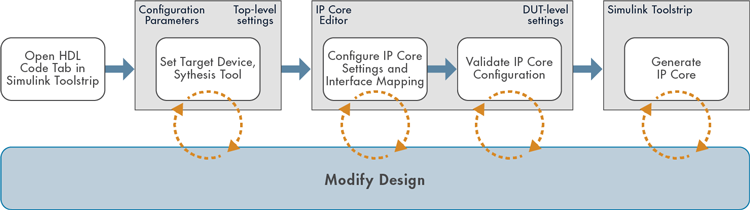
You can also use the HDL Code tab in the Simulink Toolstrip to generate, validate, and deploy an IP core with a reference design by using the Build Bitstream drop-down button. You can also generate a host interface script to verify your design on hardware by using the Host Interface Script button and generate a software interface model by using the Software Interface Model button. You can now generate a host interface script and software interface model without generating an IP core.


For more information on about how to perform HDL Workflow Advisor tasks using the Simulink Toolstrip, see Comparison of IP Core Generation Techniques (R2023b). For an example on how to use the Simulink Toolstrip to generate an IP core, see Getting Started with Targeting Xilinx Zynq Platform (R2023b).
Updates to methods for FPGA I/O memory interface
You can now use the readMemoryOffset (R2023b) and writeMemoryOffset (R2023b) functions to read and write data to memory regions in
FPGA or SoC hardware. In addition, you can:
Access interfaces on
fpgaobjects that have the same mapped port names by using the new input argument,InterfaceID, with thereadPortandwritePortfunctions. For example, you can read and write ports on different IP cores with overlapping port names. See Read From a DUT with Overlapping Port Names (R2023b) and Write to a DUT with Overlapping Port Names (R2023b).Access interfaces on
fpgaobjects that have overlapping address spaces by using the new input argument,InterfaceIDwith thereadMemoryandwriteMemoryfunctions. For example, you can read from or write to the same memory location using both Ethernet and JTAG interfaces. See Read from Overlapping Memory Locations (R2023b) and Write to Overlapping Memory Locations (R2023b).
In addition, HDL Coder now configures the direct memory access modules (DMA) when you create or configure an AXI4-Stream interface. By doing this, HDL Coder prevents a situation where a DMA read could receive data before it is configured, which can cause packets to be dropped.
AXI4-Lite interface protocol for the Intel Platform
You can now use the AXI4-Lite interface protocol with Intel Quartus Pro and Intel Quartus Standard synthesis tools in the HDL Workflow Advisor. You can now use the AXI4-Lite protocol in your design and evaluate the design on hardware boards using Intel Quartus Pro and Intel Quartus Standard tools.
You can also use this functionality in the MATLAB-to-HDL workflow in Workflow Advisor. You can also use the AXI4-lite interface to create a reference design in the IP core generation workflow. For more information, see Define Custom Board and Reference Design for Intel SoC Workflow (R2023b).
Generate host interface script and access data from DUT ports for Versal devices
You can now generate the host interface script for the Xilinx Versal AI Core Series VCK190 Evaluation Kit target platform. Using the host interface script, you can rapidly prototype and test the HDL IP core on the targeted Versal hardware. The script contains design-under-test (DUT) ports interface mapping information, which HDL Coder uses to create the AXI drivers and access the HDL IP core. For more information, see Generate and Manage Host Interface Scripts (R2023b).
Reference design with AXI4 stream interface for Versal device
You can now use Default system with AXI4-Stream interface reference designs for the Xilinx Versal AI Core Series VCK190 Evaluation Kit.
For more information, see Default System with AXI4-Stream Interface Reference Design (R2023b).
Intel hard floating point in IP core generation workflow using Intel Quartus Pro
HDL Coder now supports the Intel hard floating-point (HFP) library when you generate an IP core using the
HDL Workflow Advisor. You can use the ALTERAFPFUNCTIONS library, for
your model and generate an HDL IP core with this library. You can generate this IP core
with HFP using the Intel
Quartus Pro synthesis tool. With this enhancement, you can implement your design
with the HFP library, generate an HDL IP core, and integrate your design on the
Intel
Quartus Pro supported target hardware, such as Intel
Stratix® 10, Intel
Cyclone 10, and Intel
Arria 10 SoC devices.
You can also generate an IP core with mixed native floating point (NFP) and HFP.
AXI manager and FPGA data capture in HDL Workflow Advisor support Versal ACAP devices via JTAG
AXI manager and FPGA data capture in the HDL Workflow Advisor tool now support Xilinx Versal ACAP devices over a JTAG interface.
To add and connect the AXI manager IP or the data capture IP for a Versal device to your FPGA design, follow these steps in the HDL Workflow Advisor tool.
In 1.1. Set Target Device and Synthesis Tool, set Target workflow to
IP Core Generationand Target platform toXilinx Versal AI Core Series VCK190 Evaluation Kit.In 1.2. Set Target Reference Design, to add an AXI manager IP, set Insert AXI Manager (HDL Verifier required) to
JTAG. To add a data capture IP, set FPGA Data Capture (HDL Verifier required) toJTAG.In 1.3. Set Target Interface, for AXI manager, map each DUT signal that you want to access to the
AXI4orAXI4-Liteinterface. For FPGA data capture, map each DUT signal that you want to capture to theFPGA Data Captureinterface.
For more information, see Data Capture Workflow (R2023b) (HDL Verifier).
To use this feature, you must install the HDL Verifier Support Package for Xilinx FPGA Boards. To access supported hardware for HDL Verifier software, see HDL Verifier Supported Hardware (R2023b) (HDL Verifier).
Upgrade to Intel Quartus Pro 22.4
HDL Coder now supports Intel Quartus Pro 22.4. HDL Workflow Advisor is tested with Intel Quartus Pro 22.4. You can set up this third-party synthesis tool and start the workflow. HDL Workflow Advisor generates the list of devices that are supported with that tool.
For more information about supported synthesis tool, see HDL Language Support and Supported Third-Party Tools and Hardware (R2023b).
Support package documentation moved into HDL Coder documentation
HDL Coder Support Package for Xilinx FPGA Boards updates
Starting in R2023b, the HDL Coder Support Package for Xilinx FPGA Boards documentation is included in the HDL Coder product documentation and all support package updates are announced in the HDL Coder release notes. In previous releases, the support package documentation installs with the support package software. To access the release notes archive of previous support package releases, see Xilinx FPGA Boards R2023a Release Notes (R2023a).
HDL Coder Support Package for Xilinx Zynq Platform updates
Starting in R2023b, the HDL Coder Support Package for Xilinx Zynq Platform documentation is included in the HDL Coder product documentation and all support package updates are announced in the HDL Coder release notes. In previous releases, the support package documentation installs with the support package software. To access the release notes archive of previous support package releases, see Xilinx Zynq Platform R2023a Release Notes (R2023a).
HDL Coder Support Package for Intel FPGA Boards updates
Starting in R2023b, the HDL Coder Support Package for Intel FPGA Boards documentation is included in the HDL Coder product documentation and all support package updates are announced in the HDL Coder release notes. In previous releases, the support package documentation installs with the support package software. To access the release notes archive of previous support package releases, see Intel FPGA Boards R2023a Release Notes (R2023a).
HDL Coder Support Package for Intel SoC Devices updates
Starting in R2023b, the HDL Coder Support Package for Intel SoC Devices documentation is included in the HDL Coder product documentation and all support package updates are announced in the HDL Coder release notes. In previous releases, the support package documentation installs with the support package software. To access the release notes archive of previous support package releases, see Intel SoC Devices R2023a Release Notes (R2023a).
HDL Coder Support Package for Microchip FPGA and SoC Devices updates
Starting in R2023b, the HDL Coder Support Package for Microchip FPGA and SoC Devices documentation is included in the HDL Coder product documentation and all support package updates are announced in the HDL Coder release notes. In previous releases, the support package documentation installs with the support package software. To access the release notes archive of previous support package releases, see Microchip FPGA and SoC Devices R2023a Release Notes (R2023a).
Functionality being removed or changed
Removed FPGA targeting for USRP N210 platform from HDL Workflow Advisor
You can no longer target the USRP™ N210 platform in the HDL Workflow Advisor tool. To target a USRP® N210 board, see Register a Custom Board (R2023b).
Simscape Hardware-in-the-Loop Workflow
Simscape HDL Workflow Advisor: Combined tasks in State-space conversion
To get the state-space parameters from your model, the Simscape HDL Workflow Advisor now combines the extraction and discretization tasks into one new Extract discrete equations task. This enhancement streamlines the workflow by simplifying the conversion of your Simscape model to a state-space representation. It does not impact the HDL code generation results.
Previously, Extract equations and Discretize equations were two different tasks under State-space conversion.
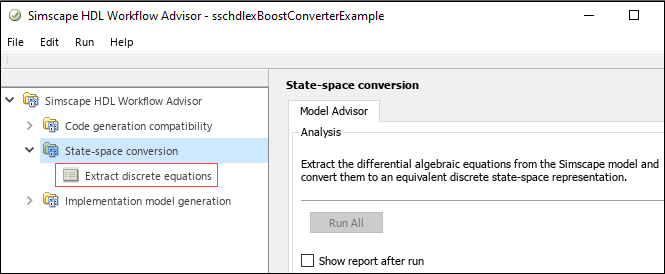
Simscape HDL Workflow Advisor: Improved reports from workflow tasks
The Simscape HDL Workflow Advisor now displays an enhanced report for the Extract discrete equations task. Running this task produces a report summary. The summary now shows the Simulation stop time and Number of solver iterations in addition to details related to the Simscape network.
Previously, Simulation stop time was in the Extract equations task pane and Number of solver iterations was in the Generate implementation model task.
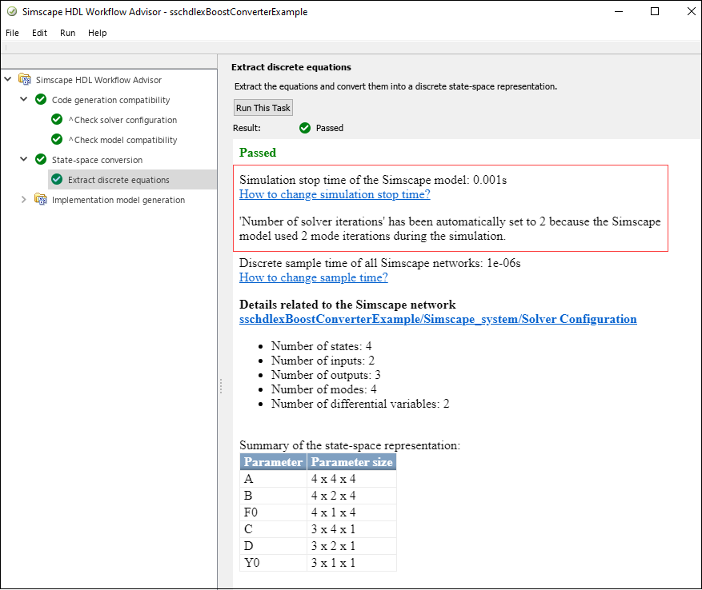
Improved FPGA simulation time step
The Simscape HDL Workflow Advisor now automatically sets an optimal value of the Oversampling factor for your HDL implementation model. This improves the simulation time step on the hardware. You can then generate HDL code from the HDL implementation model and run your design at an optimal achievable target frequency.
Previously, the Advisor set an optimal value for the Oversampling factor for your Simscape models only with the local solver set to Backward Euler or Partitioning solver.
Use single tasking to reduce validation mismatches in FPGA Simulation
The Simscape HDL Workflow Advisor now helps you prevent validation mismatches occurring in your HDL implementation models. Validation mismatch may occur when you enable multitasking. Multitasking is not supported for HDL code generation.
To avoid the validation mismatches, in the Configuration Parameters dialog box, under Solvers > Solver details > Tasking and sample time options, clear the Treat each discrete rate as a separate task checkbox.
Updating your model with these configurations may expose rate transitions that Simscape previously handled automatically. You may need to add explicit rate transitions to your system for these cases before you can generate HDL code.
For more information, see Troubleshoot Validation Errors in Simscape Hardware-in-the-Loop Workflow (R2023b).
Simscape to HDL Workflow Reference Applications
Generate HDL Code for Simscape Models by Using Linearized Switch Approximation (R2023b)
The example shows how you can use linearized switch approximation method to convert
the Simscape three-phase permanent magnet synchronous motor (PMSM) drive model to an
HDL implementation model for HDL code generation. The linearized switch approximation
method provides an improved FPGA sample rate, reduced resource utilization, and dead
time stability, and prevents validation errors. You can simulate the
sschdlexPMSMLinearizedSwitches.slx model, generate HDL code,
synthesize the results, and deploy it onto a hardware.
Model and Architecture Design
Use native floating point and vendor-specific floating point in same design
Previously, you could either use native floating point (NFP) to generate target-independent HDL code or use a vendor-specific FPGA floating point library to generate target-specific HDL code. You could not use both native floating point and a vendor-specific floating point design together.
Starting in R2023a, you can create a design and generate code that uses both HDL Coder native floating-point and vendor-specific FPGA floating-point IP. Using both IPs together more efficiently uses resources on the FPGA, such as hardened DSP floating point adder or multiplier primitives, which allows you to fit a bigger design into the FPGA fabric. This mixed design is advantageous for large and complex models. Additionally, you can now map blocks that are unsupported by the vendor library to native floating point and use the vendor library to map other blocks to vendor-specific floating point resources. See Floating Point IP Library Parameters (R2023a).
You cannot use both native floating-point and vendor-specific libraries when generating HDL code for MATLAB function designs.
In R2023a, you cannot use only vendor-specific floating-point libraries. You can use either only native floating-point libraries or native floating-point and vendor-specific floating-point libraries. If you load a model created before R2023a or a command-line script that creates an vendor-only floating-point IP configuration object, the object is converted to use both the vendor-specific and the native floating point libraries, and the native floating-point settings use the default settings.
If you export an R2023a Simulink model that uses both native floating-point and vendor-specific floating-point libraries to an earlier version of Simulink, the configuration becomes a native floating-point only configuration and the vendor-specific settings are removed, such as the
VendorLibrary,VendorLibrarySettings, andVendorIPConfigsettings.
Support for external timing controller in single clock input mode
Previously, when you set the model configuration parameter Clock
inputs to Single and generated HDL code from a
multirate model, HDL Coder generated a timing controller in a separate HDL file and instantiated it in
the DUT at the top level. Starting in R2023a, you can set the configuration parameter
Timing controller
architecture (R2023a) to external to prevent the
creation of a timing controller inside the DUT during HDL code generation, which allows
you to integrate your own custom external timing controller into the design. This option
moves the timing controller externally and exposes the clock enable signals from the
top-level design that you can use to integrate your own timing controller.
Check if DUT pin count exceeds I/O threshold
In R2023a, you can specify the type of message generated when the DUT pin count in the
generated code exceeds the maximum number of I/O pins set by the Max number of I/O pins
for FPGA deployment (R2023a) parameter. To specify the type of message, use the new
Check for DUT pin count
exceeding I/O Threshold (R2023a) parameter. The parameter default is set to
Error as the message type and can be changed to
Warning or None. If you generate a
warning or error message, the message appears in the HDL Code Generation Check Report or
the HDL Conformance Report.
Generate record types for array of buses
In R2023a, HDL Coder has improved the functionality for generating record types for bus signals. You can now generate:
An array of records for a Simulink model that has an array of bus at the interface
Record types for bus signals and an array of bus at a model reference interface
Record types for a nested bus that has an array of bus
Generating an array of records significantly reduces the number of ports in an entity.
| Generated code without array of records (R2022b) | Generated code with array of records (R2023a) |
|---|---|
Entity Subsystem IS
Port( clk : IN std_logic;
reset : IN std_logic;
enb : IN std_logic;
In1_1 : IN SubBuslogicType_record;
In1_2 : IN SubBuslogicType_record;
In1_3 : IN SubBuslogicType_record;
In1_4 : IN SubBuslogicType_record;
Out1_1 : IN SubBuslogicType_record;
Out1_2 : IN SubBuslogicType_record;
Out1_3 : IN SubBuslogicType_record
Out1_4 : IN SubBuslogicType_record;
);
END Subsystem; |
Entity Subsystem IS
Port( clk : IN std_logic;
reset: IN std_logic;
enb : IN std_logic;
In1 : IN vector_of_SubBuslogicType_record(0 TO 3);
Out1 : IN vector_of_SubBuslogicType_record(0 TO 3);
);
END Subsystem; |
The record type is the useful for simplifying interfaces and maintaining a large number of signals at the entity level. To generate code with record types for bus signals, enable Generate Record Type for Bus option in the configuration parameter settings. For more information, see Generate VHDL Code with Record Types for Bus Signals (R2023a).
Enhanced code generation of 3-D matrices for Simulink blocks
You can now generate HDL code for these Simulink blocks with a 3-D matrix as input:
For Each Subsystem (R2023a)
Assignment (R2023a)
Selector (R2023a)
Code generation for 2-D and 3-D matrices in MATLAB-to-HDL workflow
In R2023a, HDL Coder has added 2-D and 3-D matrix support in MATLAB-to-HDL workflow. You can generate code for an MATLAB function that contains
2-D or 3-D matrix operations. For example, the MATLAB function t_mul performs the multiplication operation on
the input variable a, where a is a 3-D array of
dimension (2 x 2 x
2).
function y = t_mul(a)
y = a.*a;HDL Coder in MATLAB Online
HDL Coder is now available in MATLAB Online. You can generate HDL code for your MATLAB algorithm in MATLAB Online. For more information, see HDL Code Generation from MATLAB (R2023a).
Block Enhancements
Support for index output port in For Each block in For Each Subsystem block
You can now generate HDL code from a model that contains a For Each
Subsystem block that has the Show partition index output port
(zero-based indexing) parameter enabled on the For Each block.
When enabled, the parameter displays the iteration index of the for
loop. For more information, see Show partition index output port (zero-based indexing) (R2023a).
Optimization support for Tapped Delay blocks with large delay lengths
Previously, if your design contained a Tapped Delay block with a delay length of 20 or greater, HDL Coder prevented HDL optimizations from being applied to the block during HDL code generation. Starting in R2023a, HDL optimizations support the Tapped Delay block regardless of delay length as long as the block is not in a conditional subsystem, such as an Enabled, Triggered, or Resettable subsystem. HDL optimizations are now compatible with large Tapped Delay blocks without causing performance issues, such as long code generation time.
Improved optimization compatibility for CORDIC operations
Starting in R2023a, resource sharing and streaming HDL optimizations now support
CORDIC operations, such as a Trigonometric Function block with the Approximation
method parameter set to CORDIC.
For example, suppose that you generate HDL code from the model in the image below,
which contains a subsystem that has a Trigonometric Function block with the
Function parameter set to sin and the
Approximation method parameter set to
CORDIC and no area optimizations applied. The resource report
shows the following area usage:
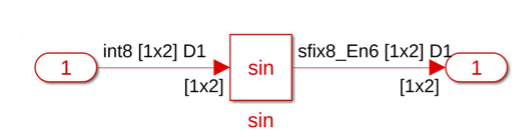
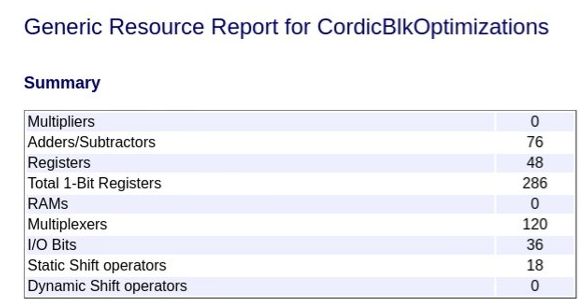
If you then set the subsystem StreamingFactor parameter to
2, the streaming applied to the Trigonometric Function
block reduces the Adders and Subtractors, Multiplexers, and Static Shift operators used by
the design by half.
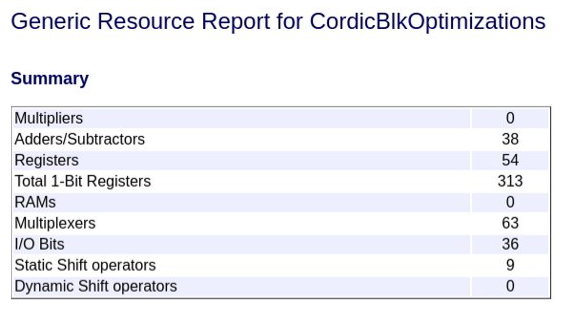
For more information on resource sharing and streaming, see Resource Sharing (R2023a) and Streaming (R2023a).
Use vector, matrix, and bus inputs in HDLMathLib blocks
HDLMathLib blocks now support vectors, matrices, and bus as input.
You can simulate the following HDLMathLib blocks with latency and
generate HDL code for them using vectors, matrices, and buses as inputs:
Limitation: Divide block does not support matrix inputs.
Enable and reset ports for Tapped Delay blocks
In 2023a, you can use the Tapped Delay (R2023a) block with enable and reset ports and generate HDL code. The Tapped Delay block delays an input by the specified number of sample periods and provides an output signal for each delay.
These tapped delay blocks support enable or reset functionality:
These blocks use synchronous semantics, which are more compatible with hardware. The blocks are available in the Simulink Library Browser under HDL Coder > Discrete.
Support for sample time inside triggered subsystems
For a triggered subsystem with synchronous semantics, you can now specify the sample time for the blocks in the subsystem. The sample time specified in the triggered subsystem can be propagated in the entire model.
With this enhancement, you can specify a Sample time value other than inherit (-1) for the blocks in the triggered subsystem. Then, simulate the blocks at the required sample time and generate HDL code.
HDL code generation for Inherit Complexity block
Using HDL Coder, you can now generate HDL code for the Inherit Complexity (R2023a) (DSP System Toolbox) block. This block is available in the Simulink Library Browser under DSP System Toolbox > Signal Management > Signal Attributes. The block changes the complexity of input data to match with the reference input. For example, if the data is complex and the reference is real, then the imaginary part of the input is removed. Use the block in digital signal processing applications where you want to control the complexity of the input signal.
The Inherit Complexity block supports HDL code generation for these input types:
Input complexities, such as real or complex, at the data and reference port
Fixed-point and floating-point input data types
Vector, matrix, and bus inputs
Convert word to bits and bits to word
In R2023a, two new blocks, Bits to Word and Word to Bits, are available in the HDL Coder library. You can access these blocks from the Simulink Library Browser under HDL Coder > Logic and Bit Operations.
The Bits to Word (R2023a) block converts the N-sized input vector of one bit to the N-bit integer. The output of the block is an unsigned integer that has word length of N.
The Word to Bits (R2023a) block converts the integer of word length N to the output vector of one bit. The output of the block is a vector of size specified in the block parameter Maximum Word length.

The blocks have the following limitations:
You cannot use floating-point input for these blocks.
The Word to Bits block does not support vector, matrix, and bus inputs.
The Bits to Word block does not support matrix inputs.
Improved code generation for Multiport Switch block
You can generate the code for a Multiport Switch (R2023a) block whose data ports are represented with specific port indices. In previous releases, code generation supports only enumerated types at the control input. In R2023a, you can now use the following input data types for the control input:
Fixed-point and floating-point types
Signed and unsigned integer types
Vector, matrix, and bus types
Using this enhancement, you can specify indices to input ports other than zero-based indexing and one-based indexing. The value of the control input determines which data input passes to the output.
To configure the Multiport Switch block with specify indices mode, set the
Data port order block parameter to Specify
indices. Then, enter the port indices in the Data port
indices block parameter.
Functionality being removed or changed
Removed cascade architecture from Sum of Elements and Product of Elements blocks
In R2023a, HDL Coder no longer has the Cascade
architecture option for Sum of Elements and Product of Elements blocks. You can use the
Linear or Tree architecture
option for these blocks. For the old models that uses Cascade
architecture for Sum of Elements and Product of Elements blocks, HDL Coder converts the block architecture to Tree during
HDL implementation.
In your old model that has Sum of Elements blocks with
Cascade architecture and using Accumulator data
type other than Inherit: Inherit via internal
rule, change the Accumulator data type to
Inherit: Inherit via internal rule for HDL code generation.
Code Generation and Verification
Infinite samples times resolve to discrete rates during HDL code generation
Previously, when generating HDL code from a model design that contained infinite sample times, you could not apply optimizations that added or handled latency in your design, such as streaming, sharing, clock-rate pipelining, or delay balancing. Starting in R2023a, you can generate HDL code from a Simulink model with optimizations that add latency and contain infinite sample times that do not propagate to the DUT output. During HDL code generation, the infinite sample times are resolved to discrete rates in the generated model and HDL code. For more information, see Use Discrete and Finite Sample Time for Constant Block (R2023a).
Generate test bench simulation scripts for Xilinx Vivado Simulator
In R2023a, HDL Coder can generate scripts to simulate the generated HDL code in a Xilinx Vivado Simulator environment. HDL Coder generates simulation script files that can run on Xilinx Vivado Simulator and test your design. The following simulation script files are generated for the DUT model and are compatible with Xilinx Vivado Simulator:
DUT_compile.tcl– Compilation script to compile and load the generated modelDUT_tb_compile.tcl– Compilation script to compile and load the generated test benchDUT_tb_sim.tcl– Simulation script to execute the simulationDUT_vivado_sim.tcl– Simulation script to create a new project and then run compile scripts
To test your design with Xilinx Vivado Simulator:
In the Configuration Parameters window, click HDL Code Generation > Test Bench and set Simulation tool to
Xilinx Vivado Simulator.Set the tool path to Xilinx Vivado by using the
hdlsetuptoolpath(R2023a) function.Generate HDL code and a test bench for your Simulink model by using the
makehdl(R2023a) andmakehdltb(R2023a) functions.Change directory to folder path where simulation scripts are generated.
To run the simulation script, enter this command in the MATLAB Command Window.
!vivado -mode batch -source DUT_vivado_sim.tclAfter the script runs a message appears in the MATLAB Command Window to indicate whether the test passed or failed.
You can also open Xilinx Vivado Simulator and run the script file. To run the script,
click Tools and then click Run Tcl script.
Go to the folder path that contains the HDL and script files and select the Tcl script,
DUT_vivado_sim.tcl. The script runs, and the simulation window in
Xilinx Vivado shows the simulation results.
Improved back-annotation in HDL Workflow Advisor
HDL Coder has enhanced the functionality of annotating a model with synthesis results. Using the Annotate Model with Synthesis Result task in the HDL Workflow Advisor, you can analyze the critical path in your model. Starting in R2023a, you can perform the annotation on the original as well as generated model. In prior releases, annotation was performed only on the original Simulink model.
Use the Choose Model to Annotate option in the Annotate Model with Synthesis Result task to select between the original and generated model. Using this feature, you can visualize the critical path in your original or generated model. To see the critical path, run the workflow to synthesis and then open the timing reports. The critical paths are highlighted in your model. Analyzing the timing information and critical paths helps you to optimize your design.
The Annotate Model with Synthesis Result task is not available when you select Intel Quartus Pro or Microchip Libero SoC as the synthesis tool. For more information, see HDL Code Generation and FPGA Synthesis from Simulink Model (R2023a).
Check model parameters for unconnected ports and lines
Using HDL Model Advisor Check for model parameter suited for HDL
code generation, you can now check the parameter settings for unconnected
ports and lines in your model. For a model that contains the unconnected ports or lines
and set the configuration parameters Unconnected block input
ports, Unconnected block output ports, and
Unconnected lines to None. When you run
Check for model parameter suited for HDL code
generation for your model, the check displays the warning for these model
parameters. For HDL code generation, set these parameters to
error or warning.
New layout and added functionalities for MATLAB to HDL workflow
In R2023a, the configuration parameter dialog box for coder.HdlConfig (R2023a) and coder.FixPtConfig (R2023a) has a new layout. The
dialog box also has added functionalities, including search, informative tooltips, and an
option for generating equivalent MATLAB script.
You can open the configuration dialog box from the command line interface.
cfg = coder.config('hdl') % or cfg = coder.config('fixpt') open cfg
Alternatively, you can double-click the configuration object variable in the MATLAB workspace.
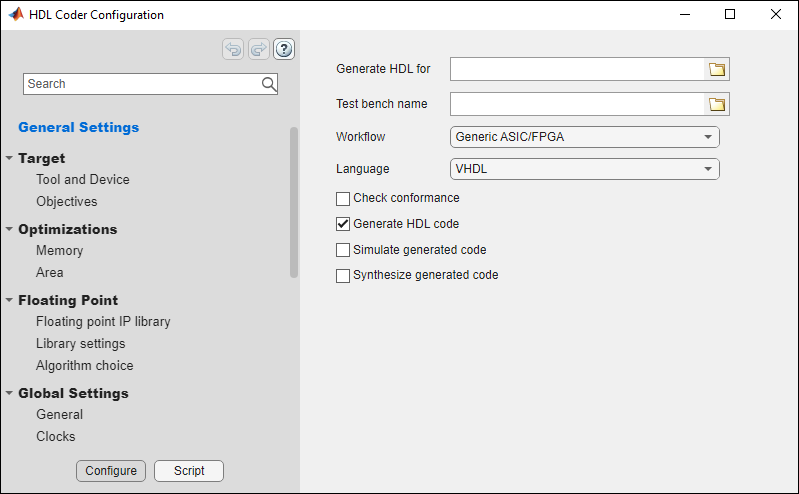
For more information, see Edit Configuration Parameters for HDL Coder (R2023a) and Edit Configuration Parameters for Fixed-Point Code Generation (R2023a).
Line buffer interface support for MATLAB to SystemC Workflow
Starting in R2023a, you can use the coder.hdl.interface (R2023a) pragma and the hdl.WorkingSet (R2023a)
class to provide specifications to the line buffer interface and generate working sets
from the input image.
coder.hdl.interface pragma lets you map the input variable to the
line buffer interface in Cadence Stratus HLS. You can specify properties of the line
buffer interface as arguments to the pragma.
hdl.WorkingSet class provides an interface for MATLAB simulation to generate and return working sets from the input image.
This table shows the usage of coder.hdl.interface and
hdl.WorkingSet in the MATLAB design and MATLAB test bench.
| MATLAB Design | MATLAB Test Bench |
|---|---|
function out = line_buffer_average(in1) % in1 is the working set of size 3 coder.hdl.interface(in1, 'Line Buffer', ... [20 20], [2 2], 'ConstantFill', 0); sum = 0; for i = 1:size(in1,1) for j = 1:size(in1,2) sum = sum + in1(i,j); end end out = sum / numel(in1); end |
image = rand(20, 20); ws = hdl.WorkingSet(image, [3 3], [2 2], -1); for x = 1:20 for y = 1:20 workingSet = ws.getWorkingSet(x, y); out = line_buffer_average(workingSet); end end |
Functionality being removed or changed
lcc-win64 compiler will be removed
Still runs
The lcc-win64 compiler will be removed in a future release. For
information about supported compilers, see Supported and Compatible Compilers - Windows.
Speed and Area Optimizations
Distributed pipelining applies through subsystem hierarchy by default
Starting in R2023a, hierarchical distributed pipelining is now enabled by default as
part of the distributed pipelining optimization. Distributed pipelining can now move
delays across hierarchical boundaries within a subsystem while preserving the subsystem
hierarchy. This removes the model configuration parameter Hierarchical
distributed pipelining. As a result, the removed parameter simplifies
applying distributed pipelining to your model by no longer having a separate parameter to
enable hierarchical distributed pipelining after you enable Distributed
pipelining for the model. If you have a top-level device under test (DUT)
that contains a subsystem hierarchy, such as lower-level subsystems, and you want
distributed pipelining to run throughout the DUT and the lower-level subsystems, enable
the model configuration parameter Distributed
pipelining (R2023a) and leave the HDL block property DistributedPipelining (R2023a) as inherit for the DUT
and all lower-level subsystems.
To prevent distributed pipelining from running in a specific lower-level subsystem in
the DUT, set the HDL block property DistributedPipelining to
off for that subsystem.
Distributed pipelining across subsystem hierarchy does not occur between a lower-level subsystem that is a conditional, shared subsystem, or a model reference and its parent subsystem. If there is hierarchy inside the lower-level subsystem however, pipelines can be distributed across hierarchical boundaries inside of the conditional subsystem, shared subsystem, or model reference.
For more information, see Distributed Pipelining (R2023a).
Specify two RAM mapping thresholds to define shape of mapped data
Previously, when mapping delays or persistent array variables to random access memory (RAM) with the configuration parameter RAM mapping threshold (bits) (R2023a), you could specify only a single integer to define the RAM mapping threshold.
In R2023a, you can specify two thresholds for the RAM mapping threshold parameter, one for delay length (for delays) or array size (for persistent array variables) and one for word length or bit width of the data type. Setting both thresholds excludes mapping delays or persistent arrays that inefficiently map to block RAM on your target hardware. This setting allows you to selectively map data that has a shape similar to the specific block RAM configuration on your target hardware. For more information, see Apply RAM Mapping to Optimize Area (R2023a).
Use delay absorption in feedback loops and conditional subsystems
In R2023a, delay absorption can occur in feedback loops and inside conditional subsystems. Delay absorption occurs during delay balancing and allows you to use design delays from the original model in place of pipeline delays introduced from optimizations, which prevents extra delays from being added to your design.
Delay absorption in feedback loops prevents delay balancing errors caused by extra delays and enables you to model your design with latency. For example, you can model a feedback loop at the clock rate with some of amount of latency expressed as design delays to absorb the extra delays introduced from native floating-point operators or optimizations. For more information, see Use Delay Absorption While Modeling with Latency (R2023a).
Delay absorption can also take place inside conditional subsystems to remove extra delays and generate a functionally equivalent generated model. You must enable the model parameter Use trigger signal as clock (R2023a) for delay absorption to take place inside a triggered subsystem.
Unique global scheduling counters for clock-rate pipelining
Previously, the generated model and HDL code of a design contained scheduling logic that had one scheduling counter per clock-rate pipelining region of the design, even if the design had multiple regions that required the same size counter, when generating HDL code with these conditions:
Clock-rate pipelining is enabled for the model
Streaming or resource sharing is enabled for the model
The model has an oversampling factor greater than or equal to the streaming or sharing factor
For example, this is a generated model that has two clock-rate pipelining
regions formed from two parallel paths that operate at the same rate in the original model
when streaming is enabled. Each enabled subsystem, crp_temp_streamed
and crp_temp_streamed1, acts as clock-rate pipelining regions and has
their own global scheduling counter that counts to 299 for the enable control of the
regions. For more information on scheduling logic, see Single-Rate Resource Sharing Architecture (R2023a).
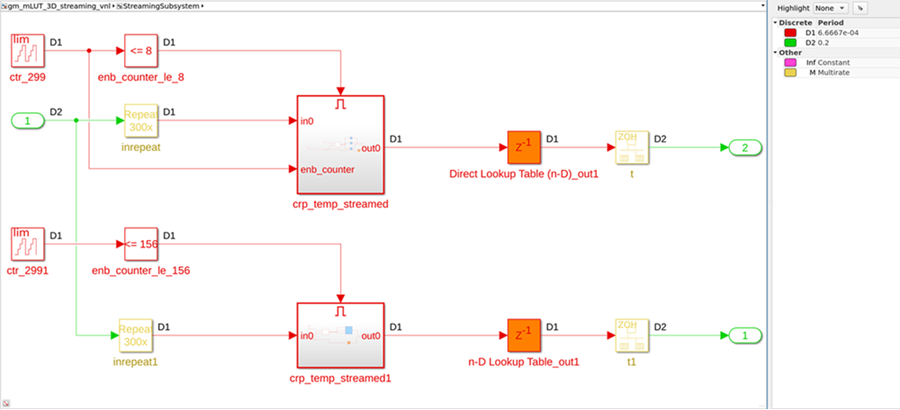
Starting in R2023a, in order to avoid generating identical counters, HDL Coder generates only one global scheduling counter per model for all clock-rate pipelining regions that require the same size counter. For example, this image shows the new generated model. The model contains only one counter that goes up to 299, which the model uses as the enable control for both enabled subsystems.
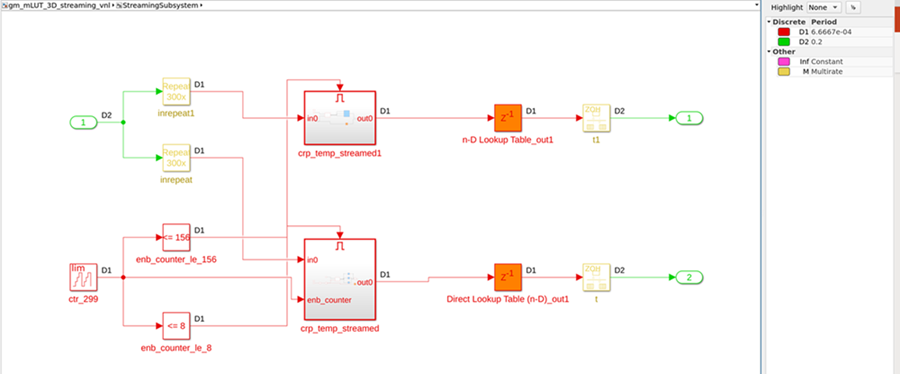
This change allows you to reduce area and resource usage previously needed to store multiple counters of the same size. Additionally, using a single counter instead of multiple counters can improve the reliability of the design on hardware because it removes the possibility that a glitch could occur in one counter that causes a misalignment with other counters of the same size.
I/O Optimizations
Output statistical characteristics when generating HDL code from frame-based algorithms
Previously, when you generated code using the frame-to-sample optimization, you could not create a frame-based algorithm streamed to a sample-based algorithm that outputted statistical characteristics of the frame-based input. For example, if you applied a histogram equalization algorithm to a frame-based image, you could output the frame-based histogram-equalized output image, but not any statistical characteristics of the image, such as the image histogram.
Starting in R2023a, you can output statistical characteristics of a frame-based input when generating code from frame-based algorithms.
As a result, you can output information from algorithms such as:
Histogram vectors from a frame-based input
Minimum or maximum pixel or scalar values of a frame-based input
The sum or product of the elements of a frame-based input
An array or scalar input that does not go through the frame-to-sample conversion, but is used in the algorithm design
For an example, see Compute Image Characteristics with a Frame-Based Model for HDL Code Generation (R2023a).
Switch between row-major and column-major ordering when generating code from frame-based algorithms
Previously, when generating HDL code from a frame-based model by using the frame-to-sample conversion optimization, you could only traverse the input data using row-major ordering, which traverses the data from left to right and then top to bottom across your matrix. You can now choose between row-major and column-major ordering by using the new Input processing order (R2023a) property. For an example, see Optimize Area Usage For Frame-Based Algorithms with Tall Array Inputs (R2023a).
This new option allows you to use the frame-to-sample optimization for many applications that commonly use column-major ordering, such as digital signal processing and audio applications. For example, column-major ordering is ideal when processing multi-channel audio signals where each column is a different channel.
Map large delays to external ports when generating code from a frame-base algorithm
Frame-based algorithms often need to store large amounts of data during computations
for future processing by using delays needed for pipeline computations performed by the
hdl.iteratorfun and hdl.npufun functions. When
using the frame-to-sample conversion optimization, you can now map large integer delays to
input and output device under test (DUT) ports to offload the delays to external memory
outside of your FPGA and save resources on your FPGA that would otherwise be used to store
the delay. When you set the new model configuration parameter Delay size threshold
for external memory (R2023a) to a delay size threshold value in bits, delays
greater than this threshold are moved to external memory.
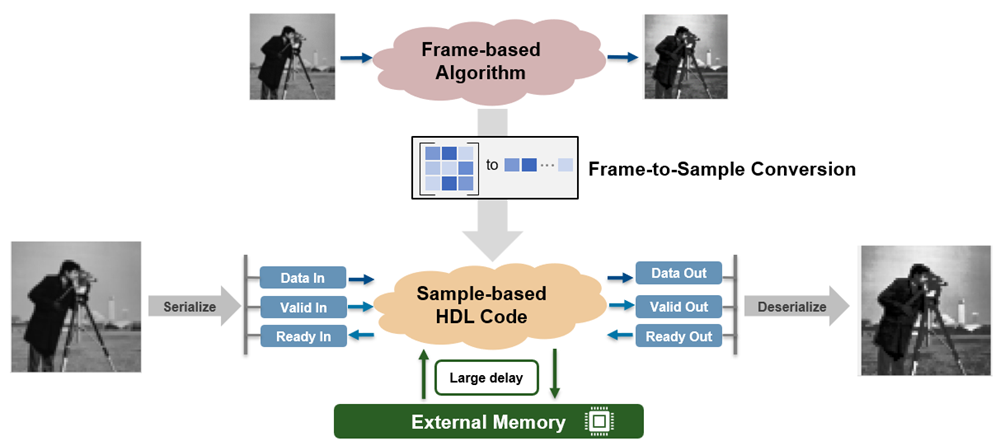
For information on deploying large delays to external memory for IP core generation, see the External memory access when generating an IP core from a frame-based algorithm release note.
IP Core Generation and Hardware Deployment
External memory access when generating an IP core from a frame-based algorithm
Frame-based algorithms often need to store large amounts of data during computations
for future processing by using delays for pipeline computations performed by the
hdl.iteratorfun and hdl.npufun functions.
Storing delays on an FPGA increases BRAM utilization and a typical FPGA does not have
enough resources to store large delays onboard. In R2023a, when you generate an IP core
and use the frame-to-sample conversion optimization and a delay is above the threshold set
by the Delay size threshold
for external memory (R2023a) parameter, this delay is mapped to external memory.
The external memory connects to your IP core through an AXI4 master interface and does not
require modeling the simplified AXI4 master protocol. For an example, see Offload Large Delays from Frame-Based Models to External Memory (R2023a).
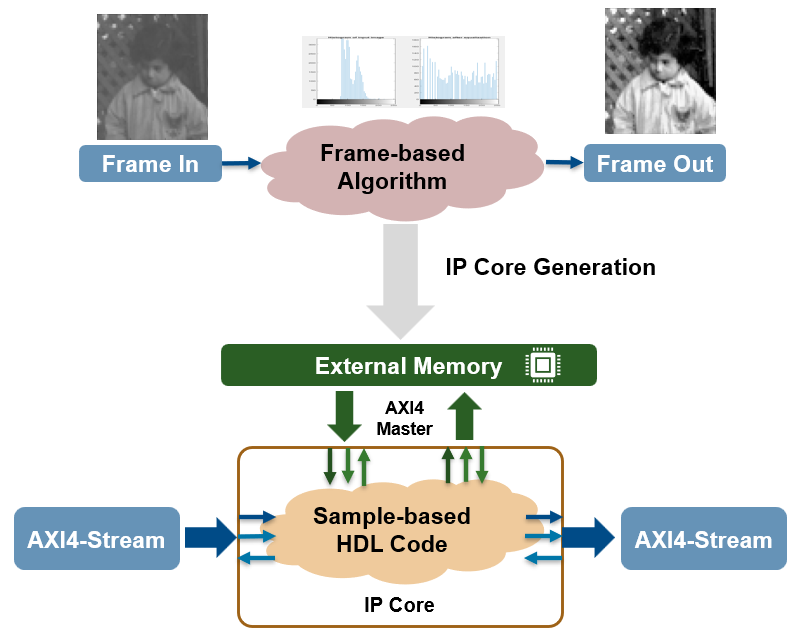
For more information on enabling external memory for large delays, see the Map large delays to external ports when generating code from a frame-base algorithm release note.
Map matrix ports to AXI4-Stream video interfaces
In R2023a, you can map matrix ports to AXI4-Stream video interfaces by using the frame-to-sample conversion optimization. Use the frame-to-sample conversion optimization to:
Prototype programmable vision algorithms in Simulink by using frame-based modeling.
Test functionality on live video input and output.
Enable the IP core wrapper to insert a video porch and handle the start-of-frame (SOF) signal.

See Deploy Frame-Based Models with AXI4-Stream Video Interfaces in Zynq-Based Hardware (R2023a).
Generate HDL IP core using generic platform
In prior releases, to generate register transfer logic (RTL) code and intellectual
property (IP) core using HDL Workflow Advisor, you have to setup the third-party synthesis
tool, such as Xilinx
Vivado, Intel
Quartus, or Microchip
Libero SoC, using the hdlsetuptoolpath (R2023a) function. Starting in
R2023a, you can set Target Platform to Generic
Platform to generate IP core and RTL code without setting the third-party
synthesis tool. You can set the Target Platform to
Generic Platform only when you set the Target
Workflow to IP Core Generation.
To generate RTL code and IP core using the generic platform, open the HDL Workflow Advisor and follow these steps:
In step 1.1 Set Target Device and Synthesis Tool, set Target workflow to
IP Core Generation. Then, set the Target platform toGeneric Platform. Synthesis tool and target device information are not required when you set this target platform.In step 1.2. Set Target Interface, set Target Platform Interfaces for the input and output ports. You can choose
AXI4as well asexternal portas the target interface for the ports.Perform all the tasks in the HDL Workflow Advisor until step 3.1. Set HDL Options.
In step 3.2. Generate RTL Code and IP Core, run this task to generate RTL code and IP core for your model. The generated code can be integrated on the hardware.
You can also generate HDL IP cores for generic platforms using the MATLAB command-line interface (CLI) mode for HDL Workflow Advisor.
For more information, see Generate Board-Independent HDL IP Core from Simulink Model (R2023a).
Define Custom Board and Reference Design for Microchip Pure FPGA Platform
The Define Custom Board and Reference Design for Microchip Pure FPGA Platform example shows how to define and register a custom board and reference design for the Microchip Pure FPGA platform. This example shows the workflow for the Microchip PolarFire Splash kit in HDL Workflow Advisor. For more information, see Define Custom Board and Reference Design for Microchip Pure FPGA Platforms (R2023a).
Set target frequency for Microchip boards in Generic FPGA and ASIC workflow
HDL Workflow Advisor now enables you to set the target frequency for your Microchip design in the generic ASIC or FPGA workflow. To set the target frequency for your design in HDL Workflow Advisor:
Set up the Microchip Libero SoC tool path by using the
hdlsetuptoolpath(R2023a) function and then open HDL Workflow Advisor.In step 1.1. Set Target Device and Synthesis Tool, set Target Workflow to
Generic ASIC/FPGA.In step 1.2. Set Target Frequency, set the Target frequency to the required value in MHz.
Complete all the HDL Workflow Advisor tasks to generate the HDL code for your Simulink model and implement your design on target hardware at the desired target frequency.
Upgrade to Xilinx Vivado 2022.1
HDL Coder now supports Xilinx Vivado 2022.1. HDL Workflow Advisor is tested with Xilinx Vivado 2022.1. You can set up this third-party synthesis tool and start the workflow. HDL Workflow Advisor generates the list of devices that are supported with that tool.
For more information on supported synthesis tools, see HDL Language Support and Supported Third-Party Tools and Hardware (R2023a).
Upgrade to Intel Quartus Standard 21.1
HDL Coder now supports Intel Quartus Prime Standard 21.1. HDL Workflow Advisor is tested with Intel Quartus Prime Standard 21.1. You can set up this third-party synthesis tool and start the workflow. HDL Workflow Advisor generates the list of devices that are supported with that tool.
For more information on supported synthesis tools, see HDL Language Support and Supported Third-Party Tools and Hardware (R2023a).
Upgrade to Microchip Libero SoC 2022.1
HDL Coder now supports Microchip Libero SoC 2022.1. HDL Workflow Advisor is tested with Microchip Libero SoC 2022.1. You can set up this third-party synthesis tool and start the workflow. HDL Workflow Advisor generates the list of devices that are supported with that tool.
For more information on supported synthesis tools, see HDL Language Support and Supported Third-Party Tools and Hardware (R2023a).
Support for greater than 32-bit widths and double data types on AXI4 slave interfaces
Starting in R2023a, you can map ports with double data types and bit widths greater than 32 bits to AXI4 and AXI4-Lite interfaces. See Map Double Data Types and Data Larger than 32 bits to AXI4-Slave Interfaces (R2023a).
Prototype FPGA designs that access memory using the AXI4 master interface from MATLAB
In R2023a, when you use MATLAB to prototype your FPGA designs for Xilinx platforms, you can access memory using the AXI4 master interface. When using a reference design that has an AXI4 master interface connected to your memory, you can generate a host interface script with an interface to memory from MATLAB. In task 4.3. Program Target Device of HDL Workflow Advisor, select Generate host interface script. The generated script contains example commands that show you how to read from and write to memory locations from MATLAB. You can use these commands to exchange data with the same memory regions accessed by the AXI4 master interface of the design under test (DUT).
In the HDL Workflow Advisor, when you set task
1.2. Set Target Reference Design to Default
System with External DDR Memory Access, the reference design contains an
AXI4 master interface to external memory. This option is available only for the
Xilinx
Zynq-7000 SoC ZC706 board. For an example that uses this reference design, see
Perform Matrix Operation Using External Memory (R2023a). This is an example code
snippet from the generated host script
file:
%% Write/read memory locations % Uncomment the following lines to write/read memory locations % that are also accessible by AXI4 Master interfaces on the generated IP core. % Update the example addresses with intended memory locations % Update the example data in the write commands with meaningful data to write to memory %% AXI4 Master - DDR dataLen = 100; readAddress = 0x40000000; writeAddress = 0x41000000; writeMemory(hFPGA, writeAddr, zeros([1 dataLen], "uint32")); readMemory(hFPGA, readAddr, dataLen);
In R2023a, you can use these new fpga (R2023a) object
functions to access memory locations that are also accessible by AXI4 master interfaces on
the generated IP core:
addMemoryInterface— Use this method to create a memory interface on thefpgaobject that you can use to access memory locations from MATLAB. See,addMemoryInterface(R2023a).writeMemory— Use this method to write data to the FPGA memory by using MATLAB. SeewriteMemory(R2023a).readMemory— Use this method to read data from FPGA memory by using MATLAB. SeereadMemory(R2023a).
To author your own reference designs with memory access capability, specify the memory access properties for the AXI4 master interface by using the:
HasMemoryConnectionname-value argument to indicate whether the AXI4 master has a connection to the memory. See HasMemoryConnection (R2023a).ProcessorAccessibleMemoryRegionname-value argument to specify the regions of memory that are accessible to the processor, such as processing system (PS), programmable logic (PL), or host computer. See ProcessorAccessibleMemoryRegion (R2023a).
If you are using device tree generation with your reference design, you can also use
the DeviceTreeMemoryRegionNode name-value argument to refer to the
name of the corresponding memory region node in the registered device tree. This code
example shows how to author a reference design with the memory access
capability:
hRD.addAXI4MasterInterface(... ... % Hardware (FPGA) properties 'InterfaceID', 'AXI4 Master', ... 'ReadSupport', true, ... 'WriteSupport', true, ... 'MaxDataWidth', 1024, ... 'AddrWidth', 32, ... 'DefaultReadBaseAddr', hex2dec('40000000'), ... 'DefaultWriteBaseAddr', hex2dec('41000000'), ... 'InterfaceConnection', 'axi_interconnect_1/S01_AXI',... 'TargetAddressSegments', {{'mig_7series_0/memmap/memaddr',hex2dec('80000000'),... hex2dec('40000000')}}, ... ... % Software (Processor) properties 'HasMemoryConnection', true, ... 'ProcessorAccessibleMemoryRegion', [0x80000000, 0x6400000], ... 'DeviceTreeMemoryRegionNode', "&plmem");
Note
You can only create FPGA designs that access memory using the AXI4 master interface when developing for Xilinx platforms.
Program FPGA from MATLAB using generated host interface script
In R2023a, the generated host interface script includes commands to program your FPGA from MATLAB. The commands demonstrate how to program your FPGA with the generated bitstream and corresponding device tree. This code example shows a code snippet from the generated host script file:
hProcessor = xilinxsoc; programFPGA(hProcessor,... "hdl_prj\vivado_ip_prj\vivado_prj.runs\impl_1\system_top_wrapper.bit",... "devicetree_axilite.dtb");
Note
You can only program FPGAs from MATLAB when generating code for SoC boards and not pure FPGA boards.
Simscape Hardware-in-the-Loop Workflow
Optimal value of sharing factor for Simscape models
The Simscape HDL Workflow Advisor automatically sets an optimal value of the
SharingFactor for the Matrix Multiply (Product)
blocks in your HDL implementation model. To enable this functionality, select the
Share adders and multipliers option in
Generate implementation model task pane. The optimal sharing factor
value for a model is calculated based on the target details provided in the Set
target and frequency task in the Implementation model
generation folder of the Simscape HDL Workflow Advisor. If you do not specify target hardware, by default the
target platform Xilinx
Vivado
Kintex-7 xc7k325t IO334 part is used for calculating the optimal
sharing factor. You can then generate HDL code from the model and run your design at an
optimal achievable target frequency. Automatic setting of sharing factor reduces synthesis
overhead and optimizes resource utilization before generating HDL code for your model. To
learn more, see Generate Implementation Model (R2023a).
Support for Simulink-PS Converter block with input filtering using Partitioning and Trapezoidal Rule solver
The Simscape hardware-in-the-loop workflow now supports HDL code generation for
Simulink-PS Converter (R2023a) (Simscape) blocks in
Simscape models with input filtering using the Partitioning and Trapezoidal Rule
solver. To enable this feature, you must select the Use local solver
check box in the Solver Configuration (R2023a) (Simscape) block settings
and set the Solver type parameter to
Partitioning or Trapezoidal Rule.
Then, double-click the Simulink-PS Converter block and set
the Input signal unit parameter.
Previously, HDL code generation from Simulink-PS Converter blocks with input filtering was supported only for the Backward Euler solver.
Specify target hardware settings in Simscape HDL Workflow Advisor
The Simscape hardware-in-the-loop workflow now provides an option to add target hardware information before the generation of the HDL implementation model. This option helps to incorporate the HDL optimizations required for the hardware deployment.
To use this option, open Simscape HDL Workflow Advisor for your model and run through
the steps until you reach the State-space conversion folder. Then,
under the Implementation model generation folder, click the
Set target and frequency task. This opens the Target
Hardware Settings in the right pane. You can specify the
Synthesis Tool, target FPGA part details, and the
Target Frequency (MHz) for generating the HDL implementation
model.
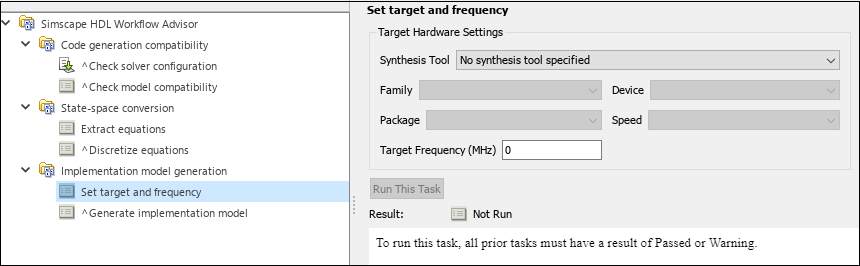
Once you specify the Target Hardware Settings in the Simscape HDL Workflow Advisor for generating an HDL implementation model, you can see the same information when you click on the HDL Code Generation > Target option in the Configuration Parameters dialog box of your generated model.
Similarly, these hardware specifications are set in the HDL Workflow Advisor window when you open it from the generated HDL implementation model.
For more information, see Simscape HDL Workflow Advisor Tasks (R2023a).
Enhancements in HDL code generation for tablelookup
function
You can generate HDL code for your Simscape model that has a custom block or a
Simscape library block containing the tablelookup (R2023a) (Simscape) function. For the tablelookup
function, additional extrapolation methods are now supported for code generation. The
approximation methods supported for code generation are interpolation =
linear and extrapolation = linear, clip,
and error.
Previously, only linear extrapolation was supported.
Support for Simscape models containing real-valued modes
The Simscape hardware-in-the-loop workflow now supports HDL code generation for Simscape models that have real-valued modes.
For HDL code generation, double-click the Solver Configuration (R2023a) (Simscape) block in the model, select the Use local
solver check box, and then set the Solver type parameter
to Partitioning.
Previously, only integer mode was supported.
Support for Trapezoidal Rule solver
The Simscape hardware-in-the-loop workflow now supports HDL code generation for your Simscape models with Trapezoidal Rule solver. With the local solver set to Trapezoidal Rule, you can simulate your models for a larger time step and with increased accuracy. The Trapezoidal Rule local solver can capture oscillations more accurately at larger time steps but is less stable than Backward Euler solver.
To use the Trapezoidal Rule, on the Solver Configuration (R2023a) (Simscape) block, select the Use local
solver check box and set the Solver type parameter to
Trapezoidal Rule, then run the Simscape HDL Workflow
Advisor.
For details on how to generate HDL code and deploy onto the hardware, see Generate HDL Code for Simscape Models by Using Trapezoidal Rule Solver (R2023a).
To learn more, see Release Notes for Simscape (Simscape).
Support for real-valued event variables
The Simscape hardware-in-the-loop workflow now supports HDL code generation from the
Simscape models with blocks containing real-valued event variables. For more
information, see events (R2023a) (Simscape).
Model and Architecture Design
Max number of I/O pins for FPGA deployment
In R2022b, you can specify the maximum number of I/O pins for your target FPGA. If the DUT pin count in the generated code exceeds the maximum number of I/O pins set by this parameter, HDL Coder generates a warning. This warning is generated in the HDL Conformance Report if you are generating HDL code from MATLAB or in the HDL Code Generation Check Report if you are generating HDL code from Simulink. Review the Resource Report for the actual I/O pin count from the DUT, labeled as I/O Bits in the Resource Report Summary. For more information, see Max number of I/O pins for FPGA deployment (R2022b).
Generate record types for bus
You can now generate code with VHDL construct record types for bus signals at design under test (DUT) interface and different subsystem-level interfaces. Record types are supported only for the VHDL target language. When you enable this option during code generation, HDL Coder creates a record type for the bus signals, which can be used in entity declaration and signal declaration in your generated VHDL code. Generating record types for a bus improves code readability, reduces code size, and enables you to easily maintain a large number of signals at the entity and block levels.
HDL code generation supports records types for:
Bus signals at DUT interfaces, BlackBox interfaces and controlled subsystems interfaces
Nested bus signals
Bus signals that have different data types
The configuration parameter Generate Record Types for Bus (R2022b) is now available in the HDL Code Generation > Global Settings > Coding style tab.
You can also enable this option in the MATLAB command window by using hdlset_param (R2022b) and makehdl (R2022b) functions. For example, generate a record type for a bus signal in
the myModel model.
hdlset_param ("myModel",GenerateRecordType="on");
Improved 3-D array code generation
You can now generate HDL code for the Simulink blocks that support 3-D arrays with fixed-point and floating-point data types as input. You can use this functionality in a design under test (DUT) interface and model reference. You can also generate a test bench for a model that has 3-D arrays as inputs.
This figure shows an HDL code snippet for the Add block with an input of size [2-by-2-by-2].
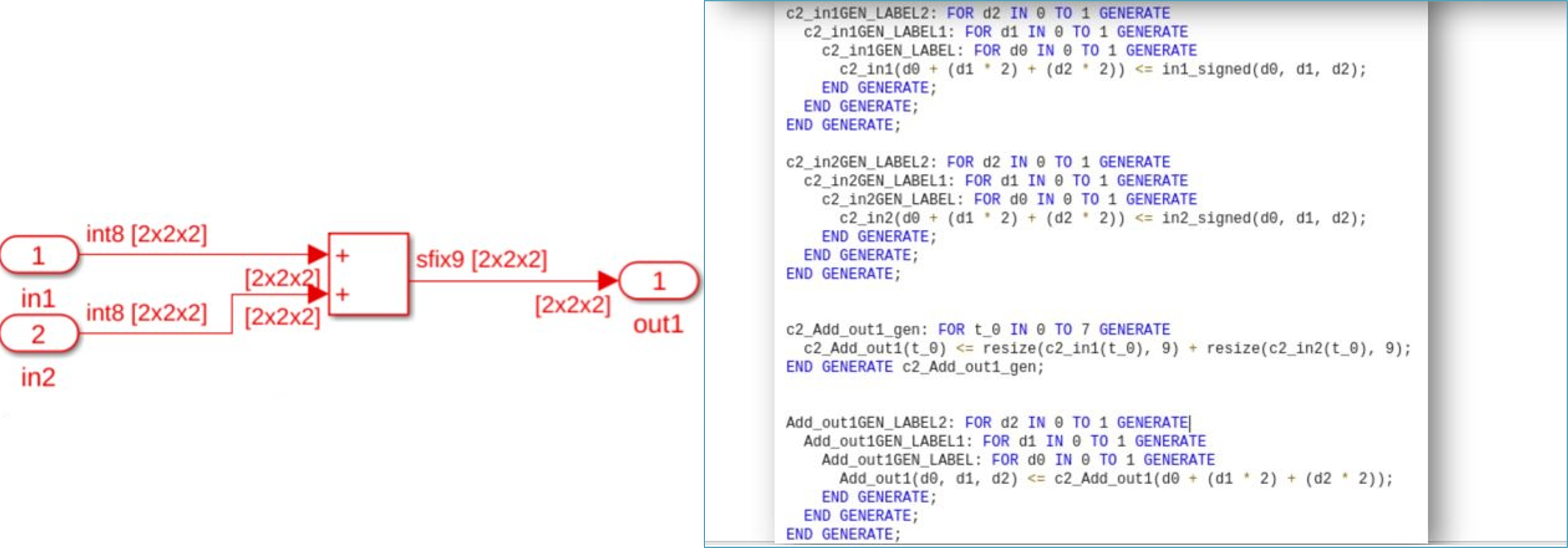
These blocks support this functionality:
Simulink Blocks
| Add (R2022b) | Product (element-wise) (R2022b) | Selector (R2022b) | Reshape (R2022b) | Gain (R2022b) |
| Concatenate (R2022b) | Multiport Switch (R2022b) | Switch (R2022b) | Complex to Real-Imag (R2022b) | Real-Imag to Complex (R2022b) |
| Integer Delay (R2022b) | Unary Minus (R2022b) | Rate Transition (R2022b) | Relational Operator (R2022b) | Constant (R2022b) |
| Abs (R2022b) | Logical Operator (R2022b) | Data Type Conversion (R2022b) | Trigonometric Function (R2022b) | Math Function (R2022b) |
| Sqrt (R2022b) | Decrement Real World (R2022b) | Decrement Stored Integer (R2022b) | Decrement To Zero (R2022b) | Increment Real World (R2022b) |
| Increment Stored Integer (R2022b) | Bit Shift (R2022b) | Bit Slice (R2022b) | Bit Rotate (R2022b) | Bit Reduce (R2022b) |
| Bit Set (R2022b) | Extract Bits (R2022b) | Saturation Dynamic (R2022b) | Dead Zone Dynamic (R2022b) |
HDL Coder in Simulink Online
HDL Coder is now available in Simulink Online. You can use these HDL Coder features in Simulink Online:
Generate HDL code for a Simulink model.
Generate HDL test bench for a design under test (DUT).
Perform various HDL optimizations on your Simulink design, such as distributed pipelining, clock rate pipelining, streaming, sharing, and critical path estimation.
Generate reports, such as a code generation report, a traceability report, a optimization report.
Run Model Advisor Checks on your Simulink design.
Limitations
MATLAB to HDL workflow is not supported in Simulink Online.
You cannot use HDL Workflow advisor in Simulink Online.
You cannot set up third-party tools in Simulink Online.
To use Simulink Online, go to Simulink Online.
Block Enhancements
Enable clock-driven outputs for Moore Stateflow charts
In R2022b, you can enable clock-driven outputs for Stateflow charts by using the HDL block property ClockDrivenOutput. Clock-driven outputs prevent combinatorial logic from driving the output and allow an immediate output update when the clock signal and state change. This option is available only for Moore charts. For more information, see Enable Clock-Driven Outputs of Stateflow Charts (Moore Charts Only) (R2022b).
Model Clock and Reset signal using triggered and resettable subsystem
In R2022b, HDL Coder has improved clock and reset signal generation functionality for Triggered and Resettable subsystems. Using these improvements, you can use trigger as clock functionality to model trigger port from Triggered Subsystem as a clock and use Resettable Subsystem to model reset port from Simulink. The enhancements are listed below:
You can now use a Triggered Subsystem with synchronous semantics, which are more compatible with hardware. You can include a Resettable Subsystem inside the Triggered Subsystem to model a clock and reset signal from Simulink.
You can now generate a code with a single clock and reset for a nested Resettable Subsystem inside a Triggered Subsystem by Use trigger signal as a clock and Minimize global reset functionality.
You can also generate code that has multiple clock and reset signals for a model consisting of multiple Triggered and Resettable subsystem.
You can use Unit Delay Enabled Synchronous block inside the Triggered Subsystem. You can model a Unit Delay Resettable Synchronous block in the Triggered Subsystem by adding the Unit Delay block to a Resettable Subsystem with synchronous semantics and placing the Resettable Subsystem inside Triggered Subsystem.
You can use synchronous delay blocks such as the Unit Delay Enabled Synchronous, Unit Delay Resettable Synchronous, and Unit Delay Enabled Resettable Synchronous blocks, inside a Resettable Subsystem.
For more information, see Using Triggered Subsystems for HDL Code Generation (R2022b).
Half and double data type support for Simulink blocks
You can now use these blocks with half-precision or double-precision data types when you generate HDL code in native floating point mode.
Supported blocks with half-precision data type
Bus to Vector (R2022b)
Dot Product (R2022b)
Logical Operator (R2022b)
Multiply-Add (R2022b)
Signal Conversion (R2022b)
Probe (R2022b)
Terminator (R2022b)
Supported blocks with double-precision data type
Logical Operator (R2022b)
Multiply-Add (R2022b)
Probe (R2022b)
For more information, see Simulink Blocks Supported by Using Native Floating Point (R2022b).
Reciprocal square root block in HDL Math Library
The rSqrt block is available in the HDL Math Library. To use this block in your model, open HDL math library by using this command.
open_system('HDLMathLib') Reciprocal Sqrt Architectures
| Architecture | Latency |
|---|---|
| RecipSqrtNewton | Number of Iterations + 2 |
| RecipSqrtNewtonSingleRate | (Number of Iterations x 4) + 5 |
This figure shows the simulation results for an rSqrt block with the RecipSqrtNewton architecture and three iterations. The output of the block changes at 5 s, which is equal to latency of the block.
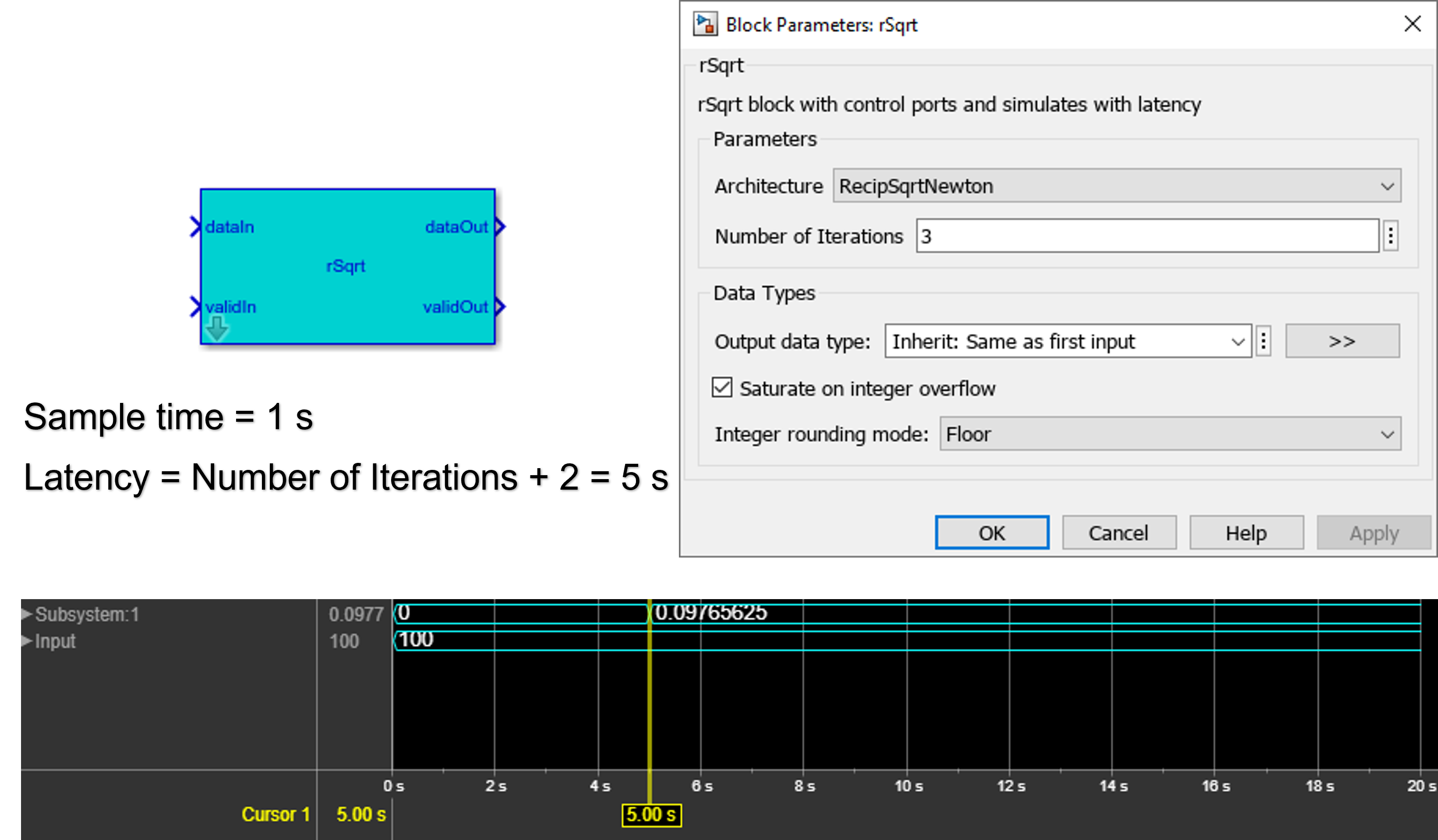
For more information, see Implement Control Signals-Based Mathematical Functions by Using HDL Coder (R2022b).
Support for nonzero initial values of output ports in controlled subsystems
HDL code generation now supports nonzero initial values of output ports in these controlled subsystems.
Enabled Subsystem (R2022b)
Triggered Subsystem (R2022b)
Switch Case Action Subsystem (R2022b)
If Action Subsystem (R2022b)
Using this enhancements, you can include the blocks inside the controlled subsystem that requires nonzero initial values at output ports. You can specify the nonzero Initial Output value for a single output port or multiple output ports in the subsystem and generate HDL code. Code generation also supports nonzero vector values at Initial Output block parameter for output ports.
Generate HDL code with all Variant Choices from Variant Subsystem
Starting in R2022b, you can generate HDL code that contains both active and inactive choices of a Variant Subsystem block. In the generated HDL code, the variant control variable is a tunable port. You can set the active choice by providing the value of the variant control variable at the model startup. For more information, see Variant Subsystem: Using Variant Subsystems for HDL Code Generation (R2022b).
Code Generation and Verification
Highlight dead blocks removed in generated code
In R2022b, you can use the new Highlight dead blocks removed in generated code parameter to generate a MATLAB script during HDL code generation to highlight the unused blocks in your model that are removed from the generated code. For more information, see Highlight dead blocks removed in generated code (R2022b).
Improved generated HDL code for enumerated data used in a Stateflow chart
In R2022b, you can now specify the enumeration type used to monitor state activity for
a Stateflow chart that contains only literals that correspond to every state, without an
extra literal for specifying the None state. The default value of the
enumeration type can correspond to one of the states in the chart. By having an
enumeration type that specifies only as many literals as there are states in the
Stateflow chart, you can generate HDL code that requires less area. For more
information, see Enumeration type for active state monitoring in a Stateflow chart with no default
value (R2022b).
Cosimulation workflow support for Vivado simulator
When you perform HDL cosimulation, you now have the option to select Vivado simulator to cosimulate the generated HDL.
You can use this feature with Simulink or MATLAB in these scenarios:
When using the
makehdltb(R2022b) function to generate a test bench, set theGenerateCosimModelproperty toVivado Simulator. For example:makehdltb('hdl_cosim_demo1/MAC',targetlang="vhdl",GenerateCosimModel="Vivado Simulator")When using the Simulink HDL Workflow Advisor, open the configuration parameters for your model, and on the left pane, expand HDL Code Generation and select Test Bench. Then set Simulation tool to
Xilinx Vivado Simulator.When using MATLAB HDL Coder app, in the Verify with Cosimulation step, set the Cosimulate for use with parameter to
Xilinx Vivado Simulator.
This feature requires an HDL Verifier license.
Support for any order of enumerated types in Stateflow charts
In prior releases, when you defined the enumerated types for states in Stateflow charts, you can generate HDL code only for enumerated types defined in monotonically increasing order. HDL Coder now supports any ordering of enumerated types in Stateflow charts. You can use this functionality for the Verilog target language in Mealy and Moore state machines.
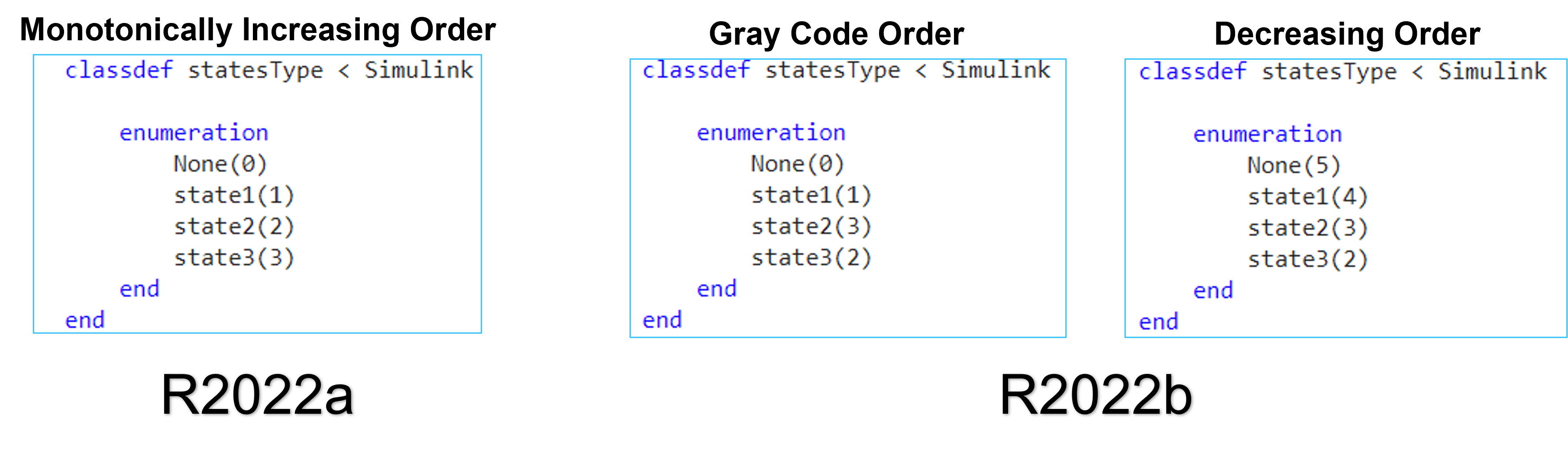
Speed and Area Optimizations
HDL code generation from frame-based algorithms
Generate synthesizable HDL code from frame-based algorithms that was previously not synthesizable due to the large amount of I/O required by using the new frame-to-sample conversion optimization. The frame-to-sample optimization converts matrix inputs to smaller-sized samples in the generated HDL code to reduce the FPGA I/O needed to handle large input and output signals. You can use the frame-to-sample conversion to optimize designs for hardware for various use cases in domains that have large inputs, such as image processing, digital signal processing, radar applications, and audio processing. For more information, see HDL Code Generation from Frame-Based Algorithms (R2022b).
MATLAB-to-HDL optimization improvements
In R2022b, these optimizations are supported for HDL Coder in the MATLAB-to-HDL workflow:
Clock-rate pipelining
Native floating-point mode
Frame-to-sample conversion optimization
You can apply each optimization and its related parameters to your MATLAB function by using the MATLAB HDL Workflow Advisor or by setting the corresponding
coder.HdlConfig object property.
To enable native floating-point mode or frame-to-sample conversion for your design, first enable the Aggressive Dataflow Conversion parameter in the Optimizations tab of the HDL Code Generation task in the MATLAB HDL Workflow Advisor.
The Aggressive Dataflow Conversion parameter transforms the control flow algorithm of the MATLAB code inside the MATLAB function to a dataflow representation and can apply these new supported optimizations to your design. If you have a Simulink license, when you enable Aggressive Dataflow Conversion, you can use the Generate Simulink Model parameter in the Advanced tab of the HDL Code Generation task in the MATLAB HDL Workflow Advisor to generate a functionally equivalent Simulink model of your MATLAB function design. For an example, see Optimize Feedback Loop Design and Maintain High Data Precision for HDL Code Generation (R2022b).
You can also apply clock-rate pipelining with or without Aggressive Dataflow Conversion. Clock-rate pipelining applied to a design with Aggressive Dataflow Conversion enabled can handle latency added in feedback loops that use persistent variables.
Simplified distributed pipelining workflow for DUT with subsystem hierarchy
In R2022b, the default setting for the subsystem HDL block property
DistributedPipelining is Inherit instead
of Off. As a result, you can enable or disable distributed
pipelining for your entire HDL design by using the new global option Distributed
pipelining. You can use this property to enable distributed pipelining for an
entire device under test (DUT) with a single option. For example, if your DUT subsystem
has subsystem hierarchy, meaning it contains lower-level subsystems, you can set the model
parameter Distributed pipelining to on and
enable the model parameter Hierarchical distributed pipelining to
have distributed pipelining run through the entire DUT, including in lower-level
subsystems, without needing to enable DistributedPipelining for the
DUT and each subsystem inside the DUT. You can still specifically enable or disable
distributed pipelining for a lower-level subsystem if you set the HDL block property
DistributedPipelining to On or
Off for the subsystem. For more information, see Distributed Pipelining (R2022b).
Required oversampling factor reported in clock-rate pipelining error messages
An error or warning message now appears in the HDL Code Generation Check Report with
suggestions for setting the Oversampling factor (R2022b) property if you have a latency budget issue
caused by clock-rate pipelining in a feedback loop in your design. For clock-rate
pipelining in a feedback loop that is over-budget in latency:
A warning message displays the amount of latency that exceeds the budget in clock cycles for the feedback loop that caused the issue.
A delay balancing error message suggests an optimal Oversampling factor setting for the entire model.
For clock-rate pipelining in a feedback loop that is under budget in latency, meaning that not all of the extra clock cycles allocated by the Oversampling factor property are used, a message in the HDL Code Generation Check Report suggests how to use the extra clock cycles or reduce the extra clock cycles and unused latency budget by decreasing the Oversampling factor property to an optimal value.
Reduce matching delays for stable inputs and test point outputs
Stable paths are paths where the initial inputs to the path are constant or not changing. In R2022b, you can disable delay balancing to prevent HDL Coder from inserting matching delays into stable paths for:
Input ports in your device under test (DUT) subsystem with a stable input signal outside of the DUT by disabling the HDL block property BalanceDelays on the DUT-level Inport block. For more information, see Disable Delay Balancing for Constant Sources (R2022b).
Input ports generated for tunable parameters by disabling the model parameter Balance delays for generated DUT input ports after selecting the Enable HDL DUT input port generation for tunable parameters model parameter in the Configuration Parameters dialog box. For more information, see Balance delays for generated DUT input ports (R2022b).
Preventing matching delays on constant paths in the DUT reduces the amount of resources needed for your design.
You can also disable delay balancing and prevent matching delays inserted on the path to output ports generated for test points by:
Treating a manually added output port as a test point and disabling the HDL block property BalanceDelays on the DUT-level Outport block.
Automatically creating an output port from a test point in your generated model by using the model parameter Enable HDL DUT output port generation for test points and disabling the model parameter Balance delays for generated DUT output ports in the Configuration Parameters dialog box. For more information, see Balance delays for generated DUT output ports (R2022b).
Enhanced delay absorption
There is now an enhanced delay absorption optimization that occurs during delay balancing of the model to absorb design delays more efficiently than in previous releases. Previously, delay absorption could only occur if a design delay was directly adjacent to an operator that required delays. In R2022b, delay absorption can absorb design delays separated by any component that does not take zero input and output a non-zero value, such as a NOT Logical Operator block. For example, before R2022b, this model produced this generated model and synthesis resource summary using the Xilinx Vivado synthesis tool:
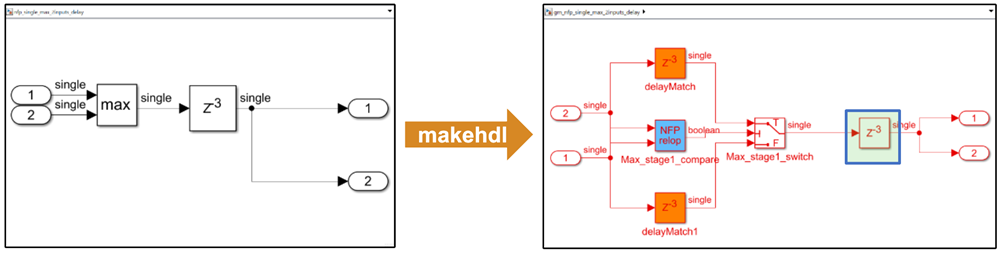

In R2022b, the same model produces this generated model with the design delay absorbed into the delays needed for the NFP relop block and a synthesis resource summary that shows a reduction in registers used:
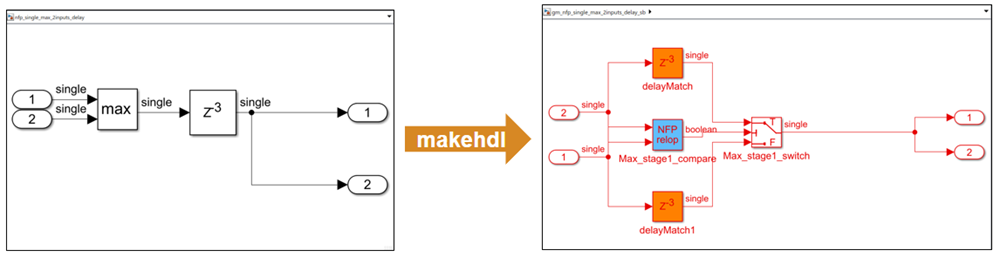

For more information on delay absorption, see Latency Considerations with Native Floating Point (R2022b).
Clock-rate pipelining support for rate transition blocks in multi-rate designs
Clock-rate pipelining no longer treats Rate Transition, Downsample, or Repeat blocks as clock-rate pipelining barriers. As a result, clock-rate pipelining optimizes multi-rate designs more effectively by reducing the large amount of latency and unbalanced delays that could have previously occurred as a result of these rate transition blocks acting as clock-rate pipelining barriers. For example, in previous releases, a multi-rate design with feedback loops might generate delay balancing errors when clock-rate pipelining was enabled. In R2022b, these designs do not generate delay balancing errors.
Synchronize clock-rate pipelining of output ports with a valid signal interface
In R2022b, you can use the new optimization parameter Balance clock-rate
pipelined DUT output ports when Allow clock-rate pipelining of DUT
output ports is enabled. The Allow clock-rate
pipelining of DUT output ports parameter allows outputs to be ready as soon
as possible, even if one output is ready before another. To synchronize the outputs while
still satisfying the highest-latency requirements of the outputs, you can enable the
Balance clock-rate pipelined DUT output ports parameter. For more
information, see Balance clock-rate pipelined DUT output ports (R2022b) and Clock-Rate Pipelining for DUT Output Ports (R2022b).
Enhancements in Multicycle Path (MCP) constraints generation
In prior releases, you could generate the MCP constraints only between registers whose
clock enables are driven by the phase_0 clock enable signal. For
example, consider a multirate model that has Discrete FIR filter. When you select
enable-based constraints in the model, the timing controller logic generates three enable
phase registers: phase_0, phase_1, and
phase1_1. However, the MCP constraints are generated only for the
phase_0 register. Because you could not generate the MCP constraints
for all the phase registers, the FPGA synthesis tool could not provide accurate setup and
hold requirements for the combinational path. For more information on MCP constraints, see
Meet Timing Requirements Using Enable-Based Multicycle Path Constraints (R2022b).
You can now generate MCP constraints for all the phase registers, including registers that operate at different rates. This figure shows the generation of the MCP constraints are derived for all the phase registers in a multirate model.

You can use this functionality for the VHDL and Verilog target language. This support is available only for the Xilinx Vivado synthesis tool.
Use enable-based constraints to generate the MCP constraints for a multirate model. Synthesis tools, such as Xilinx Vivado, use MCP constraints to relax the setup and hold timing on multicycle paths in your design. HDL Coder generates a set of enable signals that drive the clock enables of the registers operating at different rates and different phases. The MCP constraints should be generated for all the different phases and rate. For an example, see Use Multicycle Path Constraints to Meet Timing for Slow Paths (R2022b).
Optimize generated SystemC code by using pragmas in MATLAB code
In R2022b, you can use these pragmas in your MATLAB code to specify additional optimizations that can improve the speed and area of the generated SystemC code.
coder.hdl.stable(R2022b) lets you define stable inputs in your MATLAB code. It helps in hardware area optimization as the stable inputs are not stored in registers.coder.hdl.loospec(‘pipeline’)lets you specify thefor-loops to be pipelined in the generated SystemC code. Pipelining offor-loops enables effective utilization of hardware resources by resource sharing, thus improving the throughput of the design. For more information, seecoder.hdl.loopspec(R2022b).coder.hdl.arraydistance(R2022b) enables you to specify the minimum and maximum distance between memory read and memory write inside a pipelined for-loop. This ensures safety in pipeline scheduling offor-loops.
The below table shows how to use these pragmas in the MATLAB code and its equivalent generated SystemC code.
MATLAB Code | Generated SystemC Code |
function out = f(in1, in2) persistent arr1; if isempty(arr1) arr1 = int8(zeros(1,100)); end coder.hdl.stable('in2'); coder.hdl.loopspec('pipeline',1); for i = 4:100 coder.hdl.arraydistance('arr1', 'min',1); coder.hdl.arraydistance('arr1', 'max',2); y = arr1(i-3) + in2; arr1(i) = in1; end out = y; end |
class fClass
{
public:
int8_T f_arr1[100];
void f_initialize_ram_vars()
{
int32_T t_0;
L1:
for (t_0 = 0; t_0 < 100; t_0 = t_0 + 1) {
f_arr1[t_0] = 0;
}
}
int8_T f(int8_T in1, int8_T in2)
{
int8_T out;
L2:
for (int32_T i = 0; i < 97; i = i + 1) {
HLS_PIPELINE_LOOP( HARD_STALL, 1, "L2" );
HLS_CONSTRAIN_ARRAY_MIN_DISTANCE(f_arr1,1);
HLS_CONSTRAIN_ARRAY_MAX_DISTANCE(f_arr1,2);
out = (sc_fixed<8,8,SC_TRN,SC_SAT>)((sc_int<9>)f_arr1[i] + (sc_int<9>)in2);
f_arr1[i + 3] = in1;
}
return out;
}
}; |
For more information on pipelining of for-loops during SystemC code generation, see Pipelining of for-Loops (R2022b).
IP Core Generation and Hardware Deployment
Map complex vector, matrix, and complex matrix ports to AXI4-Stream interfaces
In R2022b, you can map vectors and matrices ports to AXI4-Stream interfaces by using the frame-to-sample conversion optimization. When you use this optimization, HDL Coder creates the necessary logic for handling the streamed data into your frame-based designs. Use this optimization to eliminate the need for extra-modeling steps, such as adding serializer and deserializer blocks to your model. You can map these data types to AXI4-Stream interfaces:
Vector
Complex vector
Matrix
Complex matrix
Do not enable the frame-to-sample conversion if you want to model the control signals of the AXI4-Stream interface as you have access to only the data port. When you enable the frame-to-sample conversion, HDL Coder generates and maps the Valid, Ready, and TLAST control signals. See Deploy a Frame-Based Model with AXI4-Stream Interfaces (R2022b).
Mixed HDL languages for black box subsystem in IP Core Generation workflow
Previously in R2022a, when you used black box subsystem in the IP core generation workflow that consists of HDL source files of different languages, the support for adding source files were limited to the files that have language same as the code generation target language. HDL Coder did not allow you to add source file of language other than the target language in the IP Core Generation workflow.
You can now add source files that have a language other than the target language to a black box subsystem when you generate an IP core. With this enhancement, you can integrate third-party IPs that are written in different languages into your model. This support is available for these third-party tools:
Xilinx Vivado
Intel Quartus Pro
Intel Quartus Prime Standard
Microchip Libero SoC
You can add the HDL source file to the IP core generation by using a graphical user interface (GUI) or the MATLAB Command Window. For more information, see Generate RTL Code and IP Core (R2022b).
Generate Board-Independent HDL IP Core for Microchip Platform
The Generate Board-Independent HDL IP Core for Microchip Platform example shows how to generate an HDL IP core for the generic Microchip platform. The example also shows how to integrate the IP core it into Microchip target platform of your choice. See, Generate Board-Independent HDL IP Core for Microchip Platforms (R2022b).
Upgrade to Intel Quartus Prime Pro 21.3
HDL Coder has been tested with Intel Quartus Prime Pro 21.3. For more information, see HDL Language Support and Supported Third-Party Tools and Hardware (R2022b).
Upgrade to Cadence Stratus HLS 21.2
HDL Coder now supports Cadence Stratus HLS 21.2 for SystemC code generation. HDL Workflow Advisor is tested with Cadence Stratus HLS 21.2. You can set up this third-party synthesis tool and start the workflow. HDL Workflow Advisor generates the list of devices that are supported with that tool.
For more information on supported synthesis tools, see HDL Language Support and Supported Third-Party Tools and Hardware.
Support DSP58 architecture for Xilinx Versal Devices
You can now generate HDL code for the DSP58 architecture of Xilinx Versal Devices.
AXI manager in HDL Workflow Advisor supports Ethernet connection for Xilinx boards
You can now access on-board memory locations in your FPGA design over an Ethernet connection for Xilinx boards by using the HDL Workflow Advisor tool. This feature provides faster performance than the AXI manager over a JTAG connection, which previous releases of the software support.
You can now automatically add the UDP AXI Manager IP into your FPGA design and connect
the added IP to the DUT IP by setting the Insert AXI Manager (HDL Verifier
required) parameter to Ethernet in the HDL
Workflow Advisor tool. The UDP AXI Manager IP connects to subordinate memory
locations on the board using the AXI4 or AXI4-Lite interface. The IP also responds to the
read and write commands from MATLAB or Simulink.
To automatically add and connect the UDP AXI Manager IP to your FPGA design, follow these steps in the HDL Workflow Advisor tool.
In 1.1. Set Target Device and Synthesis Tool, set Target workflow to
IP Core Generation.In 1.2. Set Target Reference Design, set Reference design to
Default Systemand Insert AXI Manager (HDL Verifier required) toEthernet. Set the IP address of your target board using Board IP Address.Note
By default, the
Ethernetoption is available for only the Artix®-7 35T Arty, Kintex-7 KC705, and Virtex-7 VC707 boards. To enable this option for other boards that have the Ethernet physical layer (PHY), manually add the Ethernet media access controller (MAC) Hub in theplugin_boardfile using theaddEthernetMACInterface(R2022b) method before you launch the HDL Workflow Advisor tool.
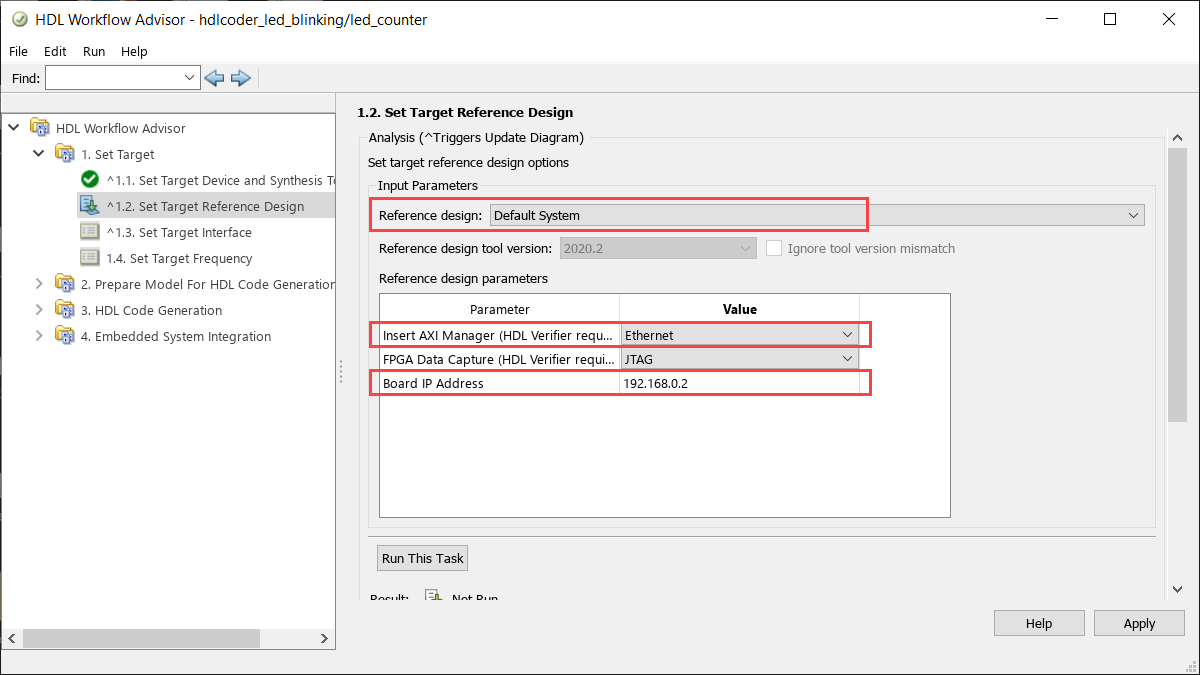
In 1.3. Set Target Interface, map each DUT signal that you want to access to the
AXI4orAXI4-Liteinterface.
To use this feature, you must install the HDL Verifier Support Package for Xilinx FPGA Boards. To access supported hardware for HDL Verifier software, see HDL Verifier Supported Hardware (R2022b) (HDL Verifier).
FPGA data capture in HDL Workflow Advisor supports Ethernet connection for Xilinx boards
You can now capture a window of signal data from the FPGA and return the data to MATLAB or Simulink over an Ethernet connection for Xilinx boards by using the HDL Workflow Advisor tool. This feature provides faster performance than the FPGA data capture over a JTAG connection, which previous releases of the software support.
To automatically add and connect the data capture IP to your FPGA design for an Ethernet connection, follow these steps in the HDL Workflow Advisor tool.
In 1.1. Set Target Device and Synthesis Tool, set Target workflow to
IP Core Generation.In 1.2. Set Target Reference Design, set Reference design to
Default Systemand FPGA Data Capture (HDL Verifier required) toEthernet. Set the IP address of your target board using Board IP Address.Note
By default, the
Ethernetoption is available for only the Artix-7 35T Arty and Kintex-7 KC705 boards. To enable this option for other boards that have the Ethernet physical layer (PHY), manually add the Ethernet media access controller (MAC) Hub in theplugin_boardfile using theaddEthernetMACInterface(R2022b) method before you launch the HDL Workflow Advisor tool.
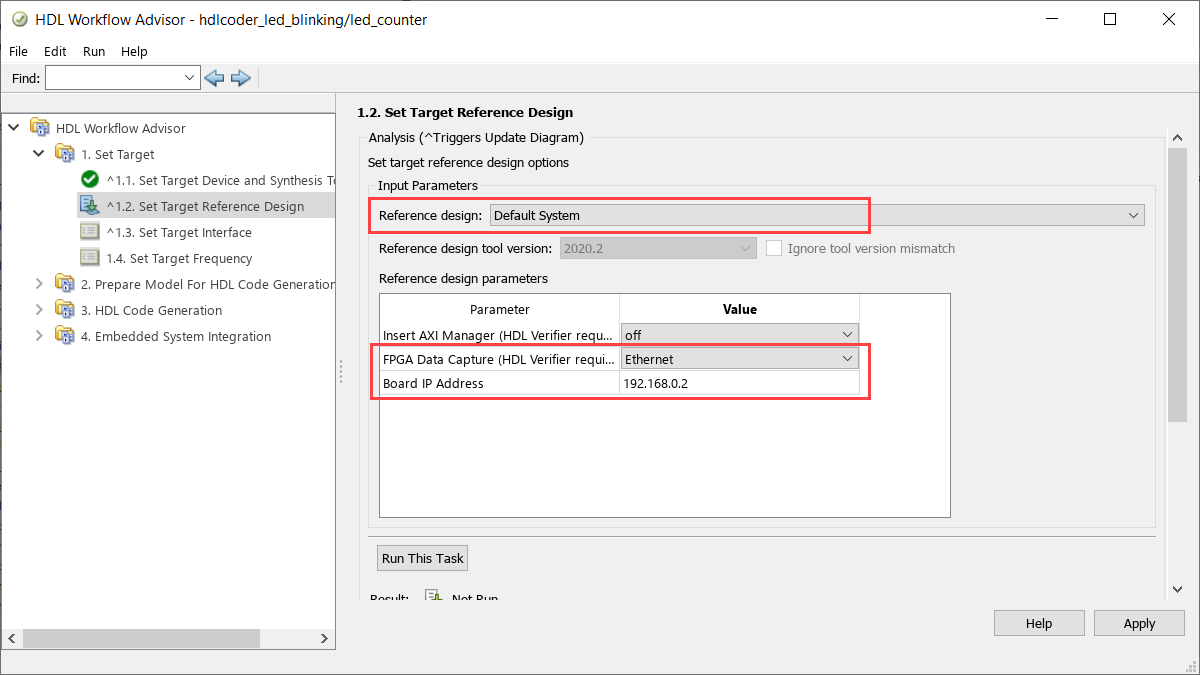
In 1.3. Set Target Interface, map each DUT signal that you want to capture to the
FPGA Data Captureinterface.
For more information, see Data Capture Workflow (R2022b) (HDL Verifier Support Package for Xilinx FPGA Boards).
To use this feature, you must install the HDL Verifier Support Package for Xilinx FPGA Boards. To access supported hardware for HDL Verifier software, see HDL Verifier Supported Hardware (R2022b) (HDL Verifier).
FPGA data capture in HDL Workflow Advisor supports capture condition logic
FPGA data capture in the HDL Workflow Advisor now supports the capture condition logic. Include the capture condition logic in the HDL IP core to use a capture condition to control which data to capture from the FPGA. The HDL IP core evaluates the capture condition at each clock cycle and captures only the data that satisfies the capture condition. For more information on capture conditions, see Capture Conditions (R2022b) (HDL Verifier Support Package for Xilinx FPGA Boards).
To include the capture condition logic in the HDL IP core, select the Include capture condition logic in FPGA Data Capture parameter in the Generate RTL Code and IP Core task while generating the IP core using the HDL Workflow Advisor tool.
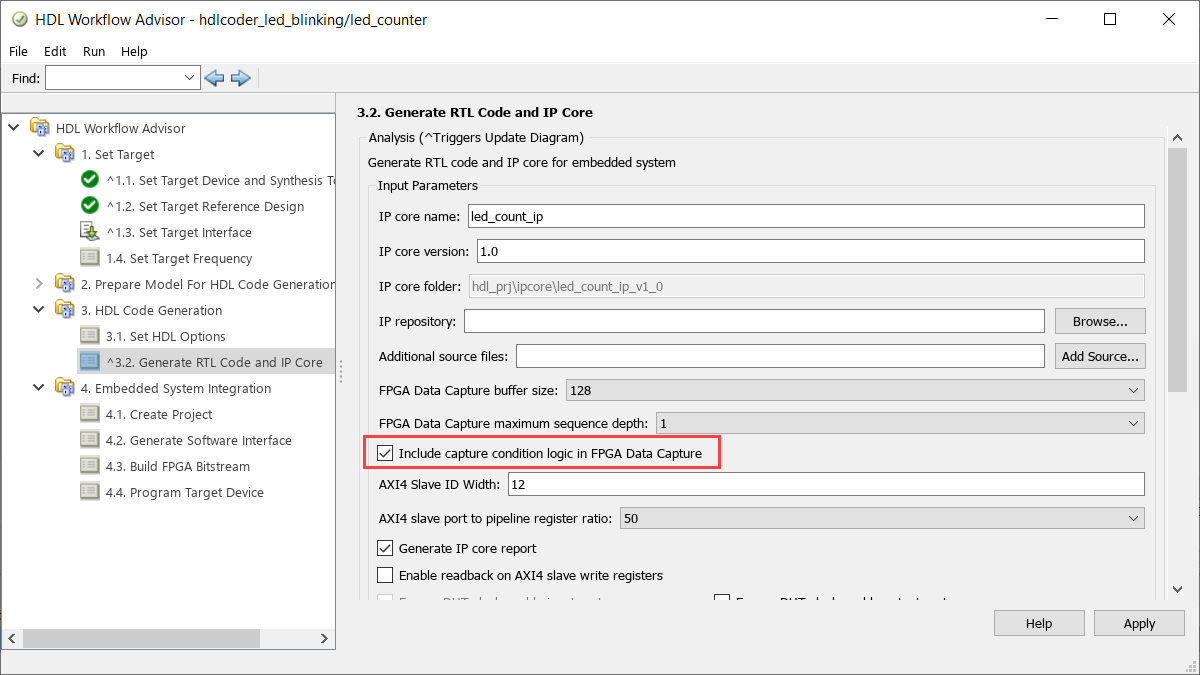
Then, set up a capture condition in the FPGA Data Capture
tool, the hdlverifier.FPGADataReader
System object, or the FPGA Data Reader block.
For more information, see Data Capture Workflow (R2022b) (HDL Verifier Support Package for Xilinx FPGA Boards).
To use this feature, you must install the HDL Verifier Support Package for Xilinx FPGA Boards or HDL Verifier Support Package for Intel FPGA Boards. To access supported hardware for HDL Verifier software, see HDL Verifier Supported Hardware (R2022b) (HDL Verifier).
Define Custom Board and Reference Design for Microchip Platform
The Define Custom Board and Reference Design for Microchip Platform example shows how to define and register a custom board and reference design for Microchip Platform. This example shows workflow to define custom board and reference design for Microchip SmartFusion2 development board in HDL Workflow Advisor. See Define Custom Board and Reference Design for Microchip Workflow (R2022b).
Functionality being removed or changed
Microsemi Libero SoC renamed to Microchip Libero SoC
Behavior change
The synthesis tool name Microsemi Libero SoC has been
changed to Microchip Libero SoC. You can see the new
synthesis tool name in the HDL Workflow Advisor and configuration parameter settings.
You can also set up the synthesis tool name Microchip Libero SoC by
using HDL Coder functions.
Insert JTAG AXI Manager renamed to Insert AXI Manager
Behavior change
When you generate an IP core with the HDL Workflow Advisor, the Insert JTAG AXI Manager (HDL Verifier required) parameter has been renamed to Insert AXI Manager (HDL Verifier required). Set this parameter to one of these options.
off— Disable insertion of the AXI manager IP.JTAG— Enable AXI manager IP insertion for the JTAG connection. This option inserts the AXI Manager IP into your reference design.Ethernet— Enable AXI manager IP insertion for the Ethernet connection. This option inserts the UDP AXI Manager IP into your reference design.
FPGA Data Capture - JTAG renamed to FPGA
Data Capture
Behavior change
When you generate an IP core with the HDL Workflow Advisor, the FPGA
Data Capture - JTAG target platform interface has been renamed to
FPGA Data Capture. Use this interface to capture test point
signals and signals at the DUT output ports while your design runs on the FPGA. This
interface captures data over a JTAG connection when you set FPGA Data Capture
(HDL Verifier required) to JTAG in the
Set Target Reference Design task. This interface captures
data over an Ethernet connection when you set FPGA Data Capture (HDL Verifier
required) to Ethernet in the Set
Target Reference Design task.
Properties of hdlcoder.ReferenceDesign class renamed
AddJTAGMATLABasAXIMasterParameter renamed to
AddMATLABAXIManagerParameter
Still runs
The AddJTAGMATLABasAXIMasterParameter property of the hdlcoder.ReferenceDesign (R2022b) class has been renamed to AddMATLABAXIManagerParameter (R2022b). Using the
AddJTAGMATLABasAXIMasterParameter property is not recommended
and will be removed in a future release.
JTAGMATLABasAXIMasterDefaultValue renamed to
MATLABAXIManagerDefaultValue
Errors
The JTAGMATLABasAXIMasterDefaultValue property of the hdlcoder.ReferenceDesign (R2022b) class has been renamed to MATLABAXIManagerDefaultValue (R2022b). Using the
JTAGMATLABasAXIMasterDefaultValue property generates an error,
use MATLABAXIManagerDefaultValue instead.
Simscape Hardware-in-the-Loop Workflow
Optimal value of solver iterations for nonlinear Simscape models
Starting in R2022b, the Simscape HDL Workflow Advisor automatically sets an optimal number of solver
iterations for your HDL implementation models that contain nonlinear networks with the
Partitioning solver. To enable this functionality, run the Advisor for your Simscape model
and deselect (disable) the Use fixed-cost runtime consistency
iterations option in the Solver Configuration (R2022b) (Simscape) block settings, which automatically sets the
Number of solver iterations. You can then generate HDL code from
the model and run your design at an optimal achievable target frequency. With this
enhancement, the sschdlexHalfWaveRectifierExample.slx model now
generates HDL code for the target platform Xilinx
Vivado
Kintex-7 xc7k325t IO334 part with a switching frequency of
4.76 MHz.
Previously, the Number of solver iterations was set to a default
value of 5 on the HDL implementation model containing nonlinear
blocks.
Optimization of mapping mode vector to index subsystem to achieve higher clock frequency for nonlinear Simscape networks
In R2022b, the Simscape to HDL workflow optimizes the mapping of mode vectors to index subsystems
for the nonlinear Simscape networks in your HDL implementation models. You can then generate HDL code
and deploy onto Speedgoat® FPGA I/O modules. This optimization helps to achieve higher clock frequency.
With this optimization, the sschdlexSwissRectifierExample.slx model now
generates HDL code for the target platform Xilinx
Vivado
Kintex-7 xc7k325t IO334 part with a Target
Frequency of 100 MHz.
Previously, the optimization was supported only for switched linear Simscape networks.
Simscape to HDL Workflow Reference Applications
Deploy Simscape DC Motor Model to Speedgoat FPGA IO Module (R2022b)
The example shows how to design and deploy the buck converter model for linear and
nonlinear Simscape networks. You can generate HDL code for the buck converter with fixed
resistor as load (linear) and another model with DC motor as load (nonlinear). You can
simulate these models ee_buck_converter_hdl.slx and
ee_buck_converter_dc_motor_hdl.slx, and deploy onto a Speedgoat FPGA I/O module.
HDL code generation support for Simscape
tablelookup function
Starting in R2022b, you can generate HDL code for your Simscape model that has a custom block or a Simscape library block containing the tablelookup (R2022b) (Simscape) function. For the
tablelookup function, the approximation methods supported for code
generation are interpolation = linear and extrapolation =
linear. The tablelookup function supports up to
four-dimensional lookup tables. For more information about systems of equation in the
Partitioning solver, see Understanding How the Partitioning Solver Works (R2022b) (Simscape).
HDL code generation from Simulink-PS Converter block with input filtering
The Simscape to HDL workflow supports HDL code generation for Simulink-PS Converter (R2022b) (Simscape) blocks in Simscape models with input filtering. To enable this feature, you must select the
Use local solver check box in the Solver Configuration (R2022b) (Simscape) block settings and then set the Solver
type parameter to Backward Euler. Then,
double-click the Simulink-PS Converter (R2022b) (Simscape) block and set the Input
signal unit parameter. For more information, see Release Notes for Simscape (Simscape).
HDL code generation from PS-Simulink Converter block with unit conversion
The Simscape to HDL workflow supports HDL code generation for PS-Simulink Converter (R2022b) (Simscape) blocks in Simscape models with unit conversion. To enable this feature, you must select the
Use local solver check box in the Solver Configuration (R2022b) (Simscape) block settings and then set the Solver
type parameter to Backward Euler or
Partitioning. Then, double-click the PS-Simulink Converter (R2022b) (Simscape) block and set the Output
signal unit parameter. For more information, see Release Notes for Simscape (Simscape).
HDL code generation support for Simscape integer-valued events and mode charts
Starting in R2022b, the Simscape to HDL workflow supports HDL code generation for Simscape models that have integer-valued events and mode charts.
For HDL code generation, double-click the Solver Configuration (R2022b) (Simscape) block in the model, select the Use
local solver check box and then set the Solver type
parameter to Partitioning. To learn more about HDL code
generation, see Generate HDL Code for Two-Speed Transmission Model Containing Mode
Charts (R2022b).
For more information, see Release Notes for Simscape (Simscape).
HDL code generation support for Simscape converter blocks with averaged switches
The Simscape to HDL workflow supports HDL code generation for Simscape models that have converter blocks with averaged switches.
For HDL code generation, double-click the converter block to open the settings, and set these parameters:
Set the Switching device parameter to
Averaged Switch.Set the Integer for piecewise constant approximation of gate input (0 for disabled) parameter to a value greater than
0.
Then, double-click the Solver Configuration (R2022b) (Simscape) block, select the Use local
solver check box and set the Solver type parameter to
Partitioning.
To learn more about how to generate HDL code, see Generate HDL Code for Simscape Three-Phase PMSM Drive Containing Averaged Switch (R2022b).
For more information, see Release Notes for Simscape (Simscape) and Release Notes for Simscape Electrical (Simscape Electrical).
Clock-rate pipelining optimization enhancements for HDL code generation from Simscape models
To generate optimized HDL code from your Simscape models, you can apply new clock-rate pipelining enhancements that:
Support feedback loops with multiple rates. For more information, see Clock-rate pipelining support for rate transition blocks in multi-rate designs.
Achieve maximum real-time performance by providing HDL Code Generation Check Report that suggests the optimal values of Oversampling factor. For more information, see Required oversampling factor reported in clock-rate pipelining error messages.
Do not require flattening the subsystem hierarchy. For more information, see Hierarchical clock-rate pipelining improvements.
All these enhancements in optimization enable you to use multiple Simscape network architectures in your model efficiently. These enhancements help in optimized HDL code generation while achieving higher clock frequency.
Model and Architecture Design
HDL optimized arithmetic operations
In R2022a, the functions hdl.treesum and
hdl.treeprod use a tree architecture to sum or multiply elements,
rather than a linear architecture that the functions sum and
prod use. The tree architecture summation and multiplication yield
shorter critical paths, which leads to reduced latency when generating HDL code from a
MATLAB Function block. When generating HDL code, the functions
hdl.treesum and hdl.treeprod reduce the amount
of matching delays needed to sum or multiply elements compared to the
sum and prod functions. See hdl.treesum (R2022a) and hdl.treeprod (R2022a).
When the MATLAB Function block HDL block property
Architecture is set to MATLAB Datapath,
the functions hdl.treesum and hdl.treeprod can
use HDL Coder optimizations that you set for a model. For more details, see Use MATLAB Datapath Architecture for Enhanced HDL Optimizations (R2022a).
Additional functions for MATLAB function blocks that have MATLAB Datapath architecture
In R2022a, HDL Coder provides more MATLAB functions for HDL code generation for MATLAB
function blocks that have the HDL block property
Architecture set to MATLAB Datapath.
You can use functions that use the input argument varargin.
Additional checks have been added to the function checkhdl to
determine if cell arrays are accessed and initialized correctly using
varargin. For more information, see varargin (R2022a).
In R2022a, you can use functions defined inside of packages for HDL code generation. For more information on user-defined packages, see Packages Create Namespaces (R2022a).
Counter reuse from serialization
In R2022a, for models that have multiple deserializer outputs, HDL Coder generates one common counter that is shared between the serializer and deserializer. This counter reduces resource utilization and supports scalar, vector, and matrix inputs. During your hardware implementation, the counter might prevent these safety concerns:
Electrical surges might cause a value mismatch between multiple separate counters.
Reset timing of serializer and deserializers are different during an asynchronous reset potentially causing a phase difference between the separate serializer and deserializer counters.
This image shows the comparison in the generated code before R2022a and in R2022a.
Generated model before R2022a
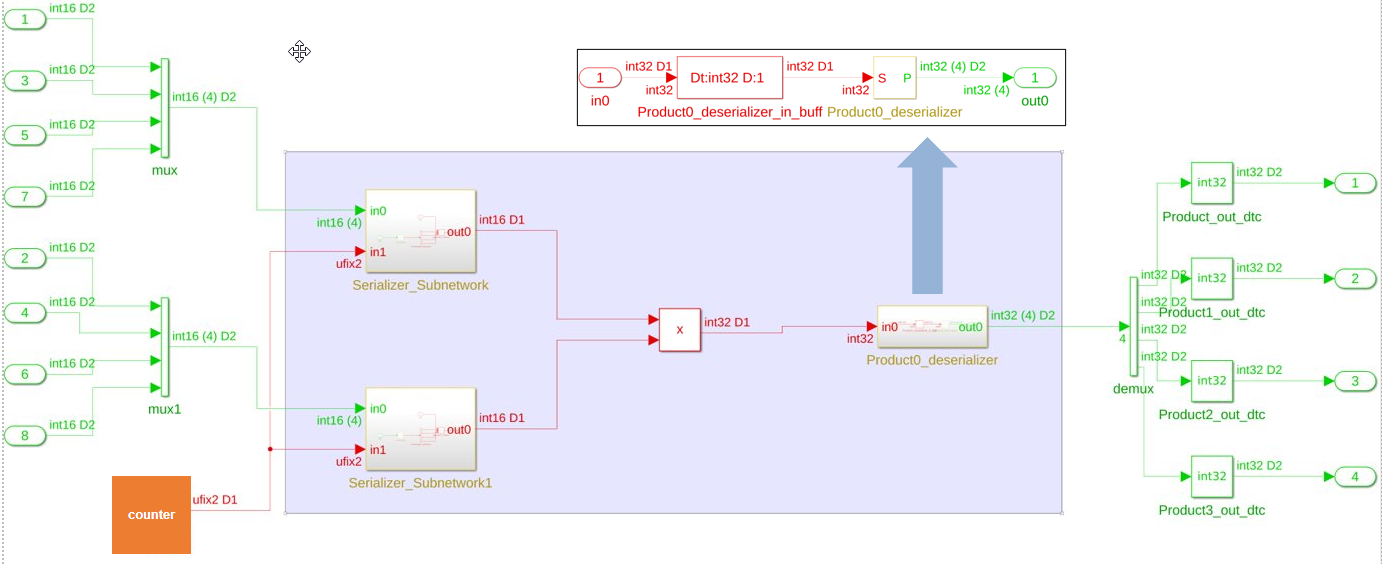
R2022a Generated model
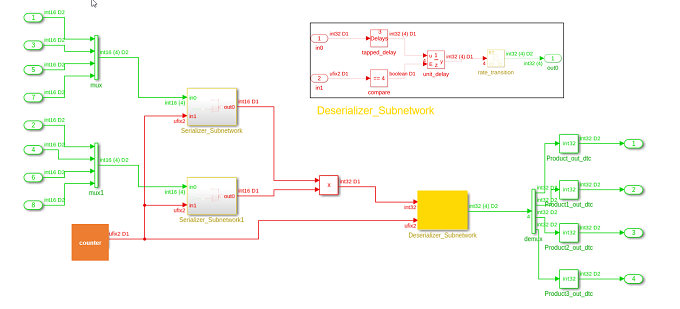
In this image, the code inside the Deserializer_Subnetwork is shown
in detail in the box titled Deserializer_Subnetwork.
Inside Deserializer_Subnetwork, the enabled delay driven by the
same counter used for serializer output is produced by the multiplier when the counter
counts to a value equal to the sharing factor. In this example, the sharing factor is
four.
This image shows the resource utilization report comparison for the generated model without counter sharing and the generated model with counter sharing.
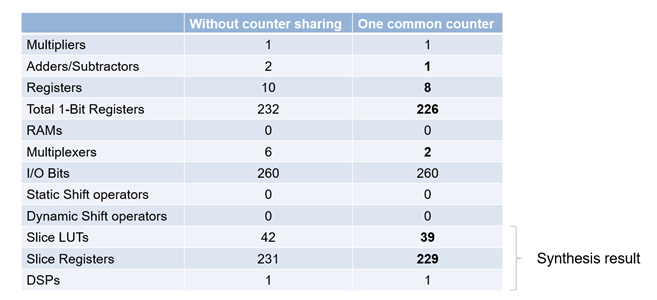
Changes in HDL coding standards
In R2022a, HDL Coder has made changes in HDL coding standards. When you select the HDL
coding standard as Industry:
You can use the reset names as
reset_NandRST_Nfor reset signals that have negative logic. You can specify these names in Reset input port configuration parameters in HDL Code Generation > Global Setting. The HDL Model Advisor Check clock, reset, and enable signals (R2022a) passes when you specify these reset names for a reset port. Previously in R2021b, this check displays a warning when you used these reset names and set the HDL coding standard toIndustry.You cannot specify a prefix to the instance name. The Instance Prefix configuration parameter in the HDL Code Generation > Global Setting > General tab is not available. You cannot add instance prefix, such as 'u_', to the instance name when the HDL coding standard is
Industry.The configuration parameters, such as PackagePostfix, MinimizeClockEnables, MinimizeGlobalResets and InstancePrefix, are ignored. The HDL Code Generation Check Report displays a warning for these ignored parameters.
Enhanced HDL Model Advisor checks
In R2022a, HDL Coder has enhanced these Model Advisor checks:
For a Subsystem that has BlackBox HDL Architecture, you cannot generate HDL code when you select those subsystems as a top-level subsystem. You check these subsystems by using the HDL Model Advisor Check for invalid top level subsystem (R2022a). This check now displays a warning when you select the BlackBox Subsystem as a top-level subsystem.
You cannot generate HDL code for a Trigger (R2022a) Block that has Trigger type set to
function-callormessage. The HDL Model Advisor Check for unsupported blocks (R2022a) now displays a warning for these Trigger blocks.
Block Enhancements
Option for preserving logic connected to Terminator block
HDL Coder removes logic connected to Terminator blocks. This logic is referred to as unconnected logic. Unconnected logic is removed from the generated HDL code because it does not contribute to the output ports of the device under test (DUT).
In R2022a, you can preserve unconnected logic. You can control the removal of unconnected logic in HDL code generation for each individual Terminator block in your design by using the PreserveUpstreamLogic HDL block property. This property is available for Terminator blocks only. For more information, see PreserveUpstreamLogic (R2022a). For an example, see the "Upstream Logic Preservation of Unused Port" section of Optimize Unconnected Ports in HDL Code for Simulink Models (R2022a).
MinMax block streaming and min and max function vector inputs
In R2022a, you can use vector inputs for the min and
max functions when you use them in a MATLAB function
block that has the HDL block property Architecture set to
MATLAB Datapath. These min and
max functions and the MinMax block are available for
streaming to reduce the amount of resources for the min or max comparison. For more
information, see Streaming (R2022a), MinMax (R2022a), min (R2022a), and max (R2022a).
If and Switch Case Action blocks support
In R2022a, HDL Coder supports code generation for these blocks:
If
If Action Subsystem
Merge
Switch Case
Switch Case Action Subsystem
HDL Coder turns these blocks into constructs suitable for hardware by using multiplexers.
HDL code generation for variable integer Delay block
Starting in R2022a, you can generate HDL code for the Variable Integer Delay block.
You can now generate code for Delay (R2022a) block that has Delay length set through the
Input port. You can set the delay length by specifying the
constant value at the 'd' Input port of Delay block.
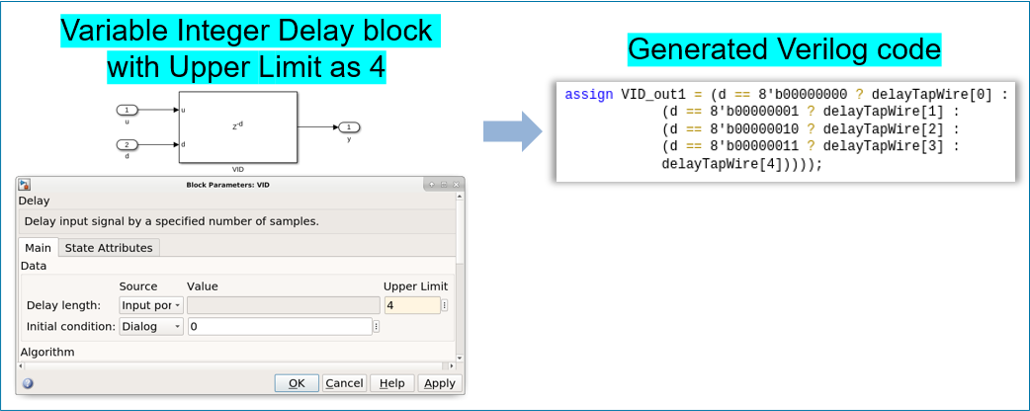
For a Simulink model consisting of multiple Delay blocks that have same delay length, you can specify the delay length of all the Delay blocks by using a constant instead of setting the delay length of each block. You can use enable and reset ports for the variable integer Delay block. For more details, see HDL Code Generation (R2022a).
HDL Property 'RAMDirective' for HDL FIFO block
In R2021b, HDL Coder added mapping large memory blocks, such as ultra from the
Xilinx family and M144k from the Quartus family on FPGAs. You can map FPGA memory blocks by specifying synthesis
attribute value in the HDL Block Property RAMDirective for Simulink
blocks. You can map FPGA memory blocks for Random Access Memory (RAM) blocks. For more
information, see RAMDirective (R2022a).
In R2022a, you can map FPGA memory blocks for HDL FIFO (R2022a) block. To specify these attributes in Simulink, configure appropriate attribute values for the RAMDirective in HDL Block properties of the HDL FIFO block.

To specify these attributes at the MATLAB command line, use the RAMDirective parameter name value
pair for hdl.RAM (R2022a) instantiation or use hdlset_param (R2022a) function. You can set the RAMDirective by
using either of these
commands:
hRam = hdl.RAM(‘RAMType’, ‘Dual port’, ‘RAMDirective’, ‘ultra’); or hdlset_param(<ram_block_name>, ‘RAMDirective’, <attribute_value>)
| Synthesis Tool | RAM Style Attribute | RAM Directive Values |
| Quartus | ramstyle | logic| M9K| M10K| M20K| M144K| MLAB |
| Xilinx | ram_style | block| distributed| register| ultra |
| Microsemi™ | syn_ramstyle | block_ram| registers| lsram| uram |
HDL Block Property 'AsyncRTAsWire' added for Rate Transition block
A new HDL Block Property AsyncRTAsWire is added for the Rate Transition (R2022a) block. For a Rate Transition block, when Output port
sample time has noninteger values, it is considered as asynchronous rates.
Enable the AsyncRTAsWire option to generate a wire when such
asynchronous rates are present for the Rate Transition block. This option is available
only when the Ensure data integrity during data transfer and
Ensure deterministic data transfer parameters are set to
off. 
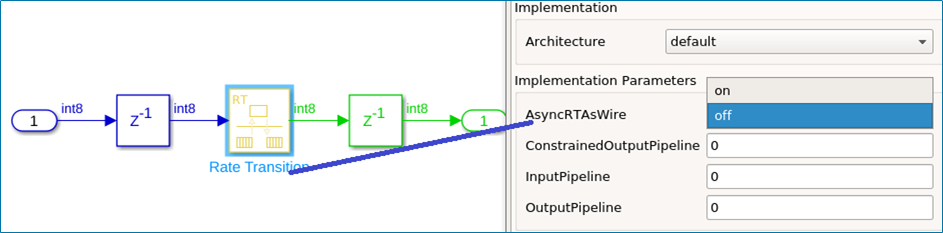
Local Reset Port for HDL FIFO block
A new block parameter Local reset port has been added for HDL FIFO (R2022a) block. By enabling this option, you can insert an additional reset port for the HDL FIFO block. The generated HDL code for HDL FIFO block now has a reset port. When the reset port receives a value of 1, it resets the Empty, Full, and Num outputs of the HDL FIFO block.
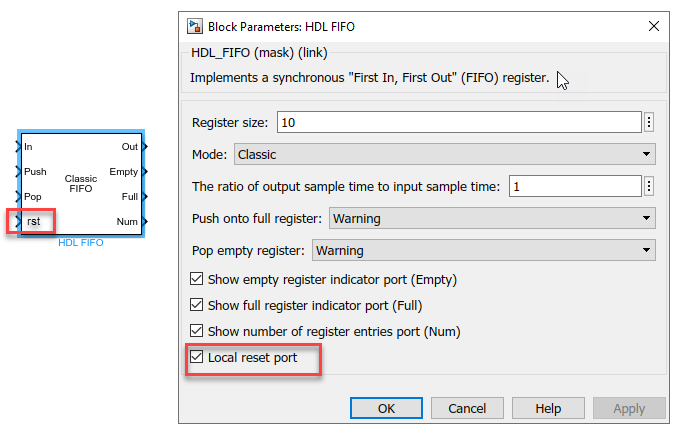
For-Generate loops for Selector block
In R2022a, the coding style for Selector (R2022a) blocks has been improved. The generated HDL code for Selector block has these coding style enhancements:
The HDL code is generated by using
For loopswhen you select the target language asVHDL.By default, the loop unrolled code is generated when the target language is
Verilog.
For example, this image shows VHDL code generated for the Selector block by using
For loops. The generated HDL code has better code readability,
reduced lines of code, and reduced code generation time. For more details, see Unroll For-Generate Loops in VHDL code (R2022a).
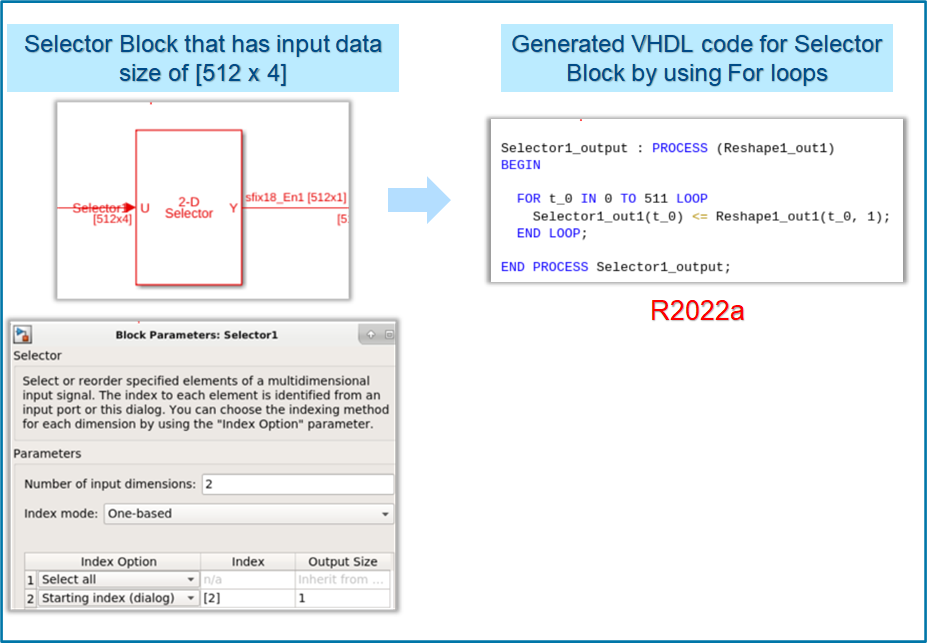
n-Dimensional lookup table
HDL Coder has improved the code generation for n-D Lookup Table (R2022a) and Direct Lookup Table (n-D) (R2022a) blocks. You can now generate code for n-D lookup
table and Direct lookup table blocks that have a table dimension between 1 to 30. You can
generate code for half, single, and double floating-point data types for all table
dimensions in the lookup tables. You can generate code for n-D lookup table block for all
table dimensions that have Parallel or Serial area
optimization.
Enhancements in trigonometric blocks that use CORDIC-based approximation method
HDL Coder has improved the performance of the trigonometric blocks, such as Sin,Cos,
Cos+jSin and SinCos and atan2 that use CORDIC-based approximation method. HDL code
generation has improved the bit accuracy and minimized the precision loss for the
trigonometric blocks that have Approximation Method as
CORDIC.
Enhancements in HDL Math library blocks
The blocks in the HDL Math library perform the math and trigonometric operations.
These blocks have control ports, such as Valid_In and
Valid_out. For more information on HDL Math library blocks, see Implement Control Signals-Based Mathematical Functions by Using HDL
Coder (R2022a).
In R2022a, HDL Coder has provides these enhancements to the HDL Math library blocks:
The block parameters Latency strategy and Custom latency are added for the blocks in Block Parameter UI.
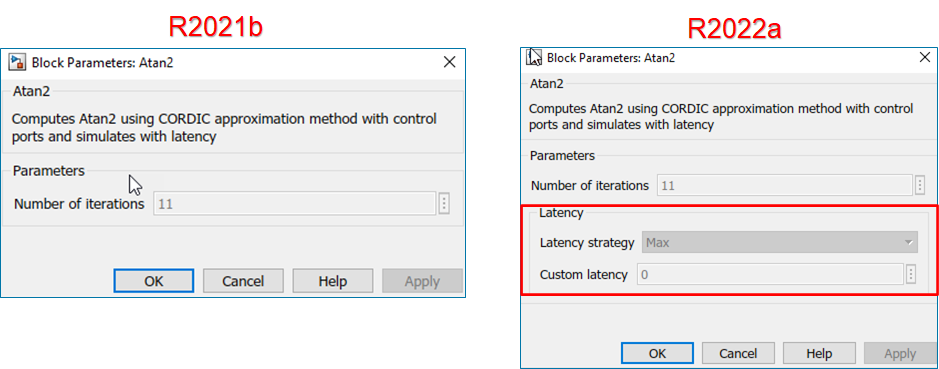
For Sqrt, Divide, and Reciprocal blocks in HDL Math library, the block parameters Output data types, Integer rounding mode, and Saturate on integer overflow are added to the Block Parameter UI.
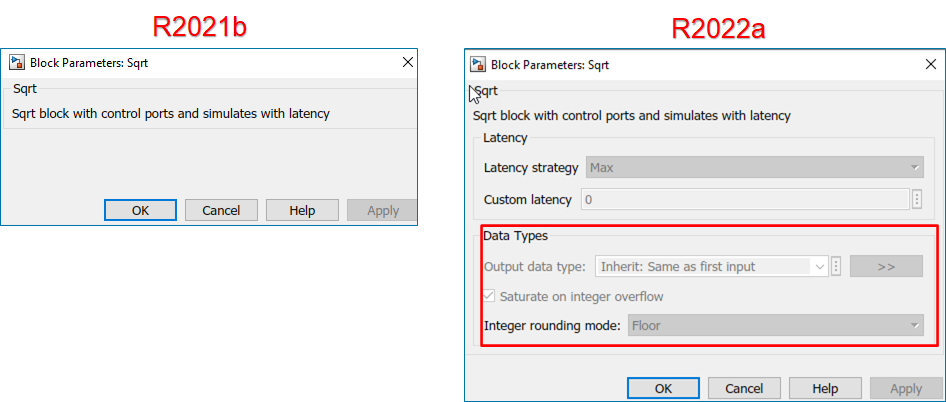
Improved HDL code generation for Serializer1D and Deserializer1D blocks
In R2022a, HDL Coder has enhanced code generation for the Serializer1D (R2022a) and Deserializer1D (R2022a) blocks. HDL code generation uses For-Generate
looping constructs for realizing Serializer1D and Deserializer1D blocks. You can now
generate code for Serializer1D and Deserializer1D blocks that have high-dimensions vector
inputs. For more details, see Unroll For-Generate Loops in VHDL code (R2022a).
For example, the figure shows the difference between generated HDL code for Deserializer1D block. In R2021b, the scalarization logic for Deserialzer1D block was re-implemented in a top-level subsystem based on the input vector size. In R2022a, scalarization logic is implemented in a Deserializer sub-network and it is instantiated in a top-level subsystem by using port mapping. The generated code has better code readability, reduced lines of code and reduced code generation time.
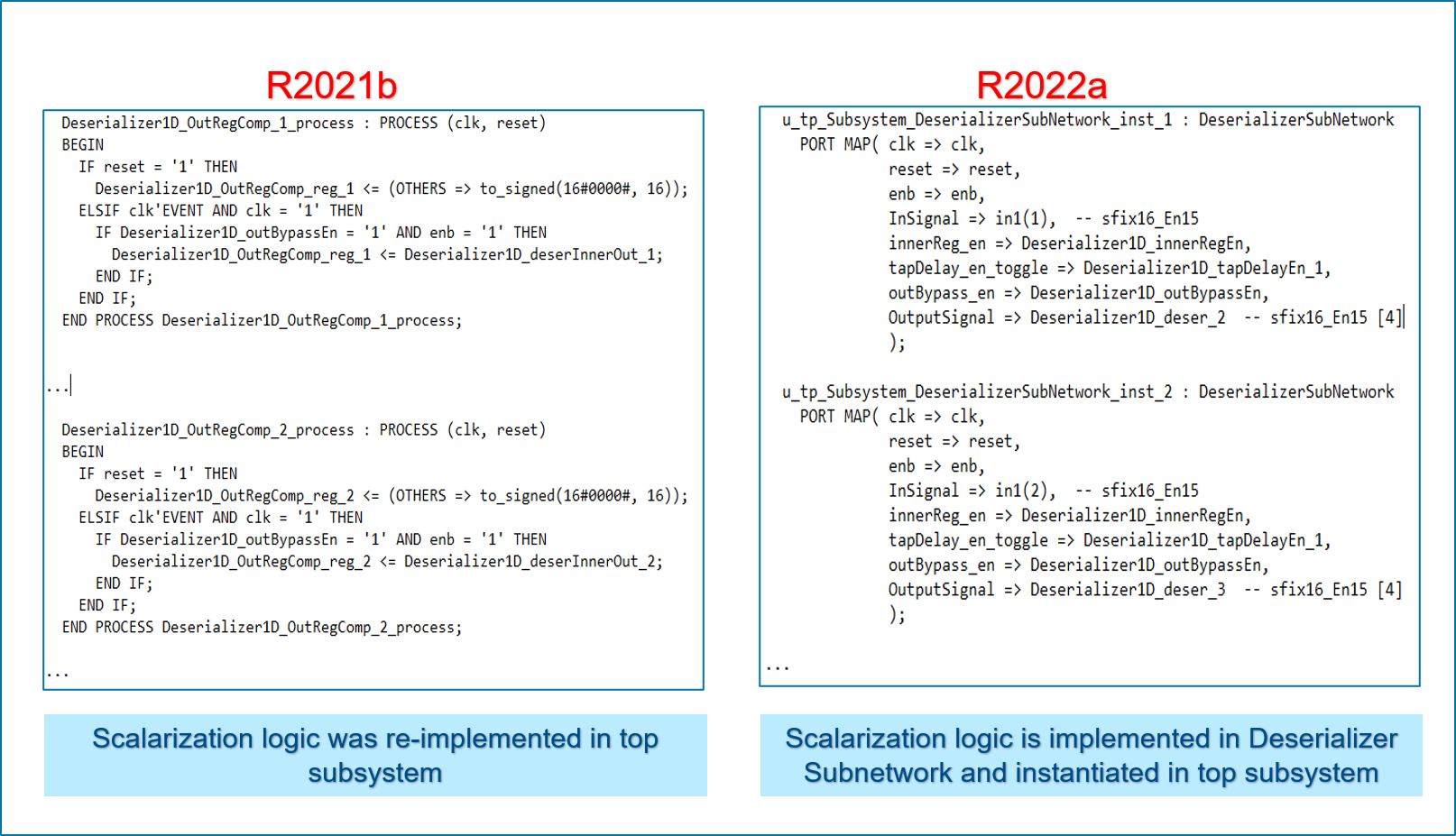
Matrix types support for design under test (DUT)
HDL Coder supports matrix types for various Simulink blocks. In R2021b, when you used these blocks in DUT subsystem, HDL code generation did not support matrix types at the DUT interface. To use matrix types inputs and outputs, you have to convert matrices to vectors at the DUT interface by using additional Reshape or Concatenate blocks.
Starting in R2022a, HDL Coder supports matrix types inputs and outputs at the DUT interface. This enhancement reduces the overhead of adding Reshape and Concatenate blocks inside the DUT and also improves readability of the generated HDL code.
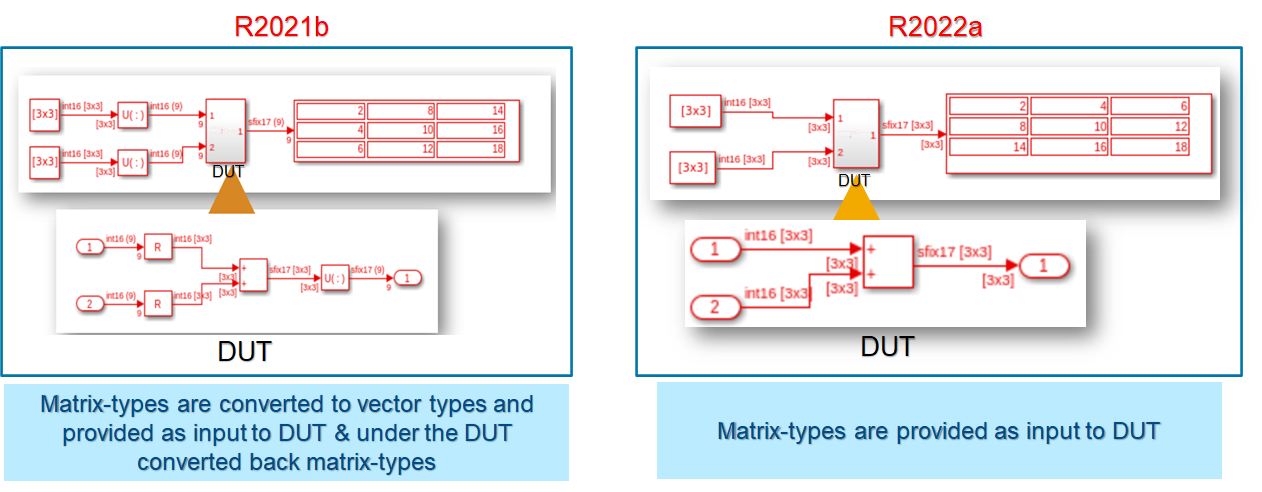
Shift-Add architecture for reciprocal function in Math Function Block
The reciprocal function in Math Function (R2022a) block now supports Shift-Add architecture. You can use the
HDL architecture as ShiftAdd in HDL
Block Properties for the reciprocal function in the Math Function block. Use Shift-Add
architecture to perform reciprocal operation on fixed-point data types by using a
nonrestoring division algorithm that performs multiple shift and add operations to compute
the reciprocal.
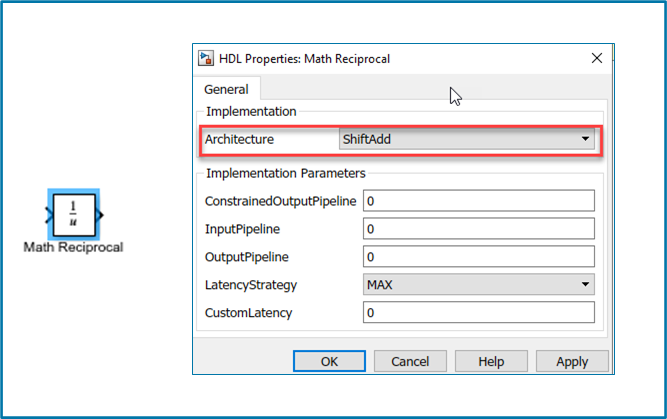
Logic guarding index access preservation
In R2022a, during simulation if you get a fatal error, for example
Fatal:(vsim-3421), you can enable an option that prevents temporary
variables for array indices being removed from conditional loops. When you enable this
option, the generated code might be inefficient for your target hardware. For more
information, see GuardIndexVariables (R2022a).
Code Generation and Verification
Clock frequency specification in MATLAB to HDL Workflow Advisor
In R2022a, you can specify the target clock frequency in the Generic
ASIC/FPGA, FPGA Turnkey, and the
IP Core Generation workflows in the MATLAB to HDL Workflow
Advisor. To specify the target frequency, open the MATLAB HDL Workflow Advisor >
Select Code Generation Target task. Adaptive pipelining takes into
account the target frequency that you set to improve the frequency of your design. For
more information, see the TargetFrequency property in coder.HdlConfig (R2022a).
Indexing for scalarized port naming
In R2022a, you can specify the starting index for the names of scalarized vector ports
as Zero-based or One-based. You can control the
starting index name to match other indexing schemes in other parts of your design. For
more information, see Indexing for scalarized port naming (R2022a).
Generation of traceability report in Japanese language
Previously in R2021b, when you viewed the traceability report in the Japanese language, the generated report has text in English and Japanese languages. It is inconvenient to view the report in the mixed languages. In R2022a, HDL Coder has improved the readability of the generated reports. You can now view the complete report in the Japanese language.
Improved critical path estimation
You can compute the critical path of your design by generating the high-level timing critical path report. For more information, see Critical Path Estimation Without Running Synthesis (R2022a).
In R2022a, HDL Coder has improved the critical path report to provide a more accurate timing estimation of the critical paths in your design. These enhancements are:
Blocks that supports custom latency for fixed-point and floating-point data types now participate in critical path estimation.
Blocks that use half-precision floating-point data types are marked as
'Block not characterized'. These blocks do not participate in critical path estimation.
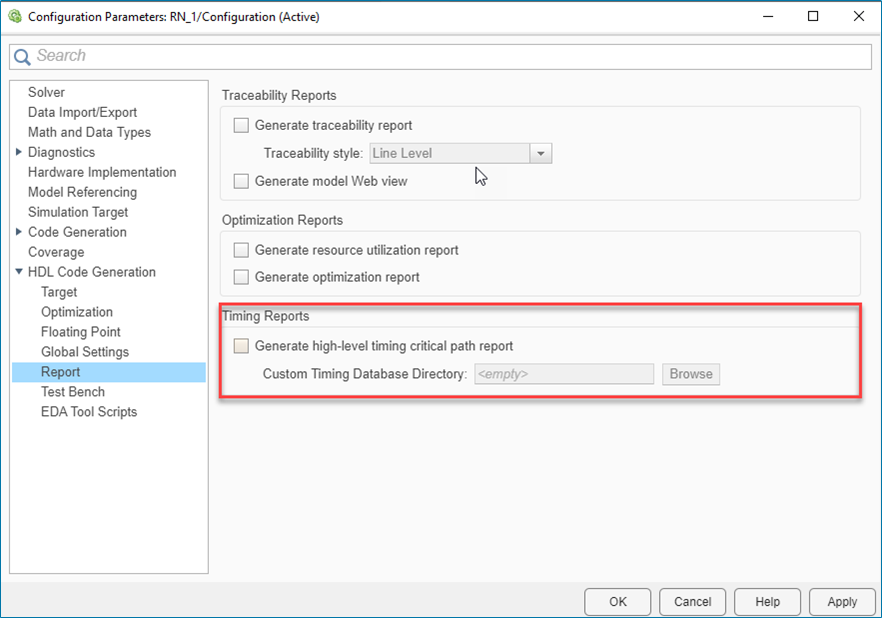
Enhancements to the genhdltdb function
You can generate the timing databases for the target device by using the genhdltdb (R2022a) function. In R2022a, HDL Coder has made these enhancements to the genhdltdb function:
A new name-value input argument
SynthesisDeviceConfigurationhas been added. You can now assign values such asDevice Family,Device Name,Device Package, andDevice Speed Gradein the single argument.For example, consider a Xilinx Artix - 7 target device, you can now specify target-specific information, such as device family, device name, device package and device speed grade, by using
SynthesisDeviceConfigurationargument ingenhdltdb.genhdltdb('SynthesisDeviceConfiguration',{'Artix7','xa7a100t','csg324','-1I'}, ... 'TimingDatabaseDirectory','C:\Work\Database', ... 'SynthesisToolName','Xilinx Vivado', ... 'SynthesisToolPath','C:\Xilinx\Vivado\2019.2\bin\vivado.bat');
Similarly, for a Xilinx Kintex UltraScale+ target device, where the device name includes device package and device speed grade. You can specify device family and device name, by using
SynthesisDeviceConfigurationargument ingenhdltdb.genhdltdb( 'SynthesisDeviceConfiguration',{'Kintex Ultrascale+','xcku11p-ffva1156-1-e'}, ... 'TimingDatabaseDirectory','C:\Work\Database', ... 'SynthesisToolName','Xilinx Vivado', ... 'SynthesisToolPath','C:\Xilinx\Vivado\2019.2\bin\vivado.bat');
The Custom Timing Database Directory in the HDL Configuration Parameters dialog box has command-line parameter name as
TimingDatabaseDirectory. To make the output path argument consistent with the Custom Timing Database Directory, the argument nameOutputPathhas changed toTimingDatabaseDirectory.The MAT files are generated in the path specified in
TimingDatabaseDirectoryargument value.
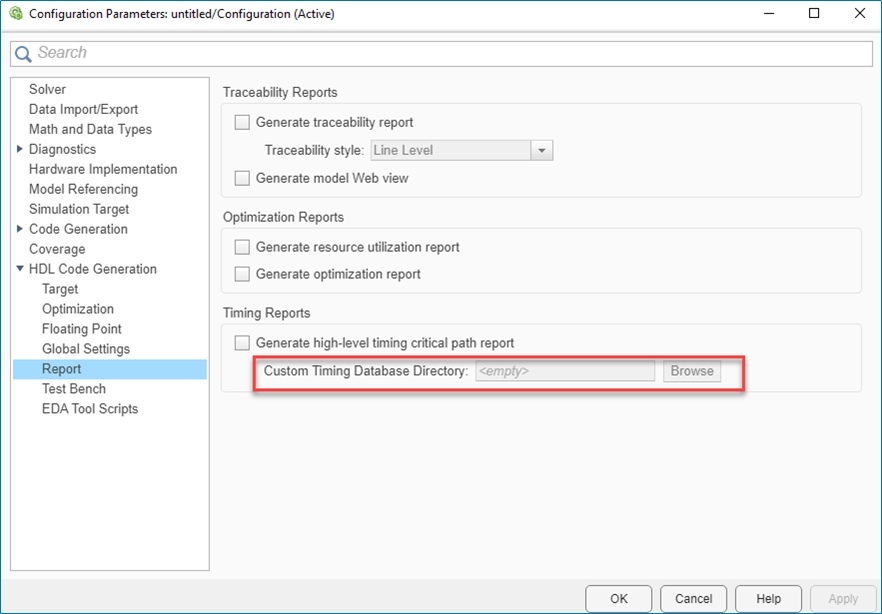
The argument name OutputPath is renamed to
TimingDatabaseDirectory.
Out-of-bounds error suppression during ModelSim simulation
Prior to R2022a, array indices might go out of bounds causing simulation to fail.
Array indices might go out of bounds due to the way ModelSim handles delta time step propagations. This image shows how a delta time step
propagation results in an out-of-bounds index value of -1 for the
variable idx.
In R2022a, during simulation if you get a fatal error, for example
Fatal:(vsim-3421), you can enable an option to generate additional
logic that runs during simulation time to prevent array indices from going out of bounds.
See Suppress out-of-bounds access errors by generating simulation-only index
checks (R2022a).
SystemC Code Generation from MATLAB Code
Starting in R2022a, a new workflow MATLAB to SystemC is introduced in HDL Coder. The workflow generates SystemC code from MATLAB code and synthesizes it by using the High-Level Synthesis (HLS) tools.
You can generate SystemC code by using command-line interface, as described in Get Started with MATLAB to SystemC Workflow Using the Command Line Interface (R2022a). Alternatively, you can use the HDL Workflow Advisor as described in Get Started with MATLAB to SystemC Workflow Using HDL Coder App (R2022a).
You can optimize the generated SystemC code to save design space in the target hardware by using RAM mapping functionality. For more information see, Map Persistent Variables to RAM for Histogram Equalization (R2022a).
Speed and Area Optimizations
Streaming and sharing area optimization improvements
In R2022a, the streaming and resource sharing optimizations have been improved:
For resource sharing, data type conversion is optimized when sharing signals with different fraction lengths.
Before R2022a, when sharing only signed signals with different fraction lengths, resource sharing produced an additional bit in the generated model and HDL code. Now, no additional bit is added when sharing only signed signals. For example, the synthesis results for a model sharing signed signals with different fraction lengths show a reduced number of dedicated logic registers used.
| Resource | Usage | |
|---|---|---|
| Before R2022a | R2022a | |
| Combinational Adaptive Look-Up Tables (ALUTs) | 36 | 36 |
| Dedicated logic registers | 622 | 611 |
| DSP blocks | 1 | 1 |
Before R2022a, when sharing only unsigned signals that had different fraction lengths,
resource sharing converted the unsigned signals to signed signals with
0 fraction length in the generated model and HDL code. Now, the
unsigned to signed conversion does not happen and the number of hardware resources used
are reduced. For example, the synthesis results for a model sharing unsigned signals with
different fraction lengths show a reduced number of dedicated logic registers and DSP
blocks used.
| Resource | Usage | |
|---|---|---|
| Before R2022a | R2022a | |
| Combinational ALUTs | 36 | 36 |
| Dedicated logic registers | 556 | 510 |
| DSP block 18-bit elements | 4 | 2 |
For resource sharing, you can now share signals with different signs and different word lengths through multiplier promotion.
For example, before R2022a, a generated model unable to share through multiplier promotion signals with different signs and word lengths looked like this figure.
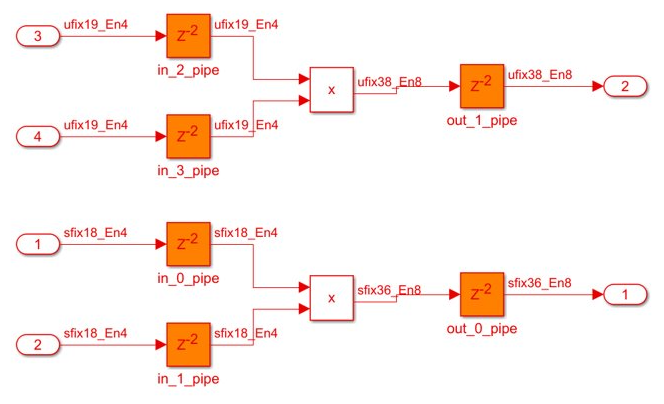
Now, when you can share signals with different signs and word lengths through multiplier promotion, the generated model looks like this figure.
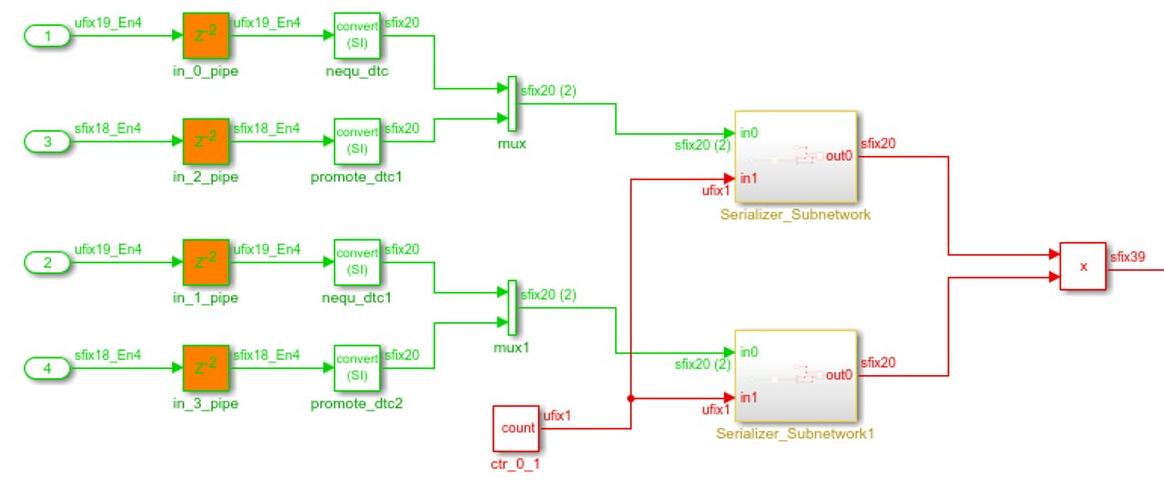
The synthesis results of the same model show that the number of DSP slices used is reduced from 2 to 1.
| Resource | Usage | |
|---|---|---|
| Before R2022a | R2022a | |
| Slice Look-up Tables (LUTs) | 68 | 121 |
| Slice Registers | 244 | 338 |
| DSPs | 2 | 1 |
To enable sharing through multiplier promotion, enable resource sharing for
multipliers for your subsystem and set the Multiplier promotion
threshold to an integer greater than 0, depending on the
word length difference between the signals that you want to share. For more information,
see the multiplier promotion threshold section of Resource Sharing Parameters for Adders and Multipliers (R2022a).
For streaming, more hardware resources are saved by not creating a streaming subnetwork for constant inputs. Now, constant inputs are not included in the streaming partition of the generated model and HDL code. For example, the resource utilization summary that HDL Coder estimated for a model with constant inputs and streaming enabled shows a reduction in multiple hardware resources used.
| Resource | Usage | |
|---|---|---|
| Before R2022a | R2022a | |
| Multipliers | 1 | 1 |
| Adders/Subtractors | 6 | 5 |
| Registers | 18 | 14 |
| Total 1-Bit Registers | 600 | 416 |
| Multiplexers | 22 | 17 |
For more information, see Resource Sharing (R2022a), Resource Sharing Settings for Various Blocks (R2022a), and Streaming (R2022a).
Synthesis timing estimates for distributed pipelining
When applying distributed pipelining to a subsystem, HDL Coder calculates an approximate propagation delay for each component in your design to determine where to place the added delays.
Before R2022a, when you enabled distributed pipelining for a subsystem, HDL Coder calculated propagation delay for the components in the subsystem by assigning each component an equal weight, except for wire components, such as Selector blocks and Bit Concat blocks, that were assigned zero propagation delay.
Starting in R2022a, you have the option to use synthesis timing estimates for distributed pipelining to determine more accurate propagation delays for each component. Different weights are assigned to varying components, which more accurately reflects how the components function on hardware. HDL Coder can better distribute pipelines in your design for HDL code generation and hardware deployment by enabling the model configuration parameter Use synthesis estimates for distributed pipelining, located in HDL Code Generation > Optimization > Pipelining tab. For more information, see Distributed Pipelining Using Synthesis Timing Estimates (R2022a) and Use synthesis estimates for distributed pipelining (R2022a).
Adaptive Pipelining for MATLAB to HDL Workflow
In R2022a, Adaptive Pipelining is an available optimization option for the MATLAB to HDL workflow. Enable adaptive pipelining for your design to insert pipeline registers to the blocks in your design, reduce the area usage, and maximize the achievable clock frequency on the target FPGA device. For more information, see Optimize Clock Speed for MATLAB Code by Using Adaptive Pipelining (R2022a) and AdaptivePipelining (R2022a).
Automatic iterative optimization by using critical path estimation
Automatic iterative optimization helps improve clock frequency by inserting pipeline registers to break and shorten the critical path.
Previously, the hdlcoder.optimizeDesign function implemented this
optimization by using synthesis to determine the critical path of the design. Running this
automatic iterative optimization can take a long time due to synthesis. For example, when
using the hdlcoder.optimizeDesign function, synthesis can occupy
nearly 94% of the run time of this function.
In R2022a, the hdlcoder.optimizeDesign function has an option to
choose critical path estimation as the timing strategy. Critical path estimation runs
faster than synthesis because it can estimate the critical path without running synthesis
on the design.
When you use CriticalPathEstimation as the
TimingStrategy, the time to run
hdlcoder.optimizeDesign is significantly shorter. To use this
timing strategy, see Automatic Iterative Optimization (R2022a), hdlcoder.optimizeDesign (R2022a), and hdlcoder.OptimizationConfig (R2022a).
Optimizations support for Counter blocks
Starting in R2021b, counter blocks now participate in optimizations. You can now configure different speed and area optimizations on a subsystem that has counter blocks. For more information, see Speed and Area Optimizations in HDL Coder (R2022a).
Hierarchical clock-rate pipelining improvements
In R2022a, you can now use clock rate pipelining more widely across subsystem boundaries without having to flatten the hierarchy. Preserving the subsystem hierarchy:
Improves the modularity of your design by making navigation through the generated model easier to understand and use for debugging, especially in large designs with complex hierarchies.
Improves readability of the generated HDL code by creating multiple Verilog or VHDL files for the various subsystem blocks in your design.
While flattening the subsystem hierarchy is no longer required to use clock rate pipelining, flattening the subsystem hierarchy can be useful when you want to perform certain system-level optimizations, such as sharing or distributed pipelining. See Guidelines 3.2: Clock Rate Pipelining and Distributed Pipelining (R2022a).
IP Core Generation and Hardware Deployment
HDL Coder Support for Xilinx Versal Devices: Generate IP core and deploy reference designs on Xilinx Versal devices
HDL Coder enables the generation of IP cores that can integrate into Xilinx Versal devices. You can:
Generate standalone IP core for Versal devices.
Map your design to any interface supported by HDL Coder, such as AXI4 Slave, AXI4-Stream, AXI4 Master, AXI4-Stream Video, and External Port interfaces.
The generated HDL code is packaged as a Vivado IP core that has corresponding interfaces. You can manually integrate the IP core into any Versal block design.
The HDL Coder Support Package for Xilinx Zynq Platform includes a reference design for the Xilinx Versal AI Core Series VCK190 Evaluation Kit. Using the support package, you can:
Generate an IP core and programmable device image (PDI) for the VCK190 board.
Map your design to AXI4 Slave and board interfaces (push button, DIP switch, LED).
The generated IP core is integrated into a default system reference design. You can then build a PDI and program the Versal device.
You can author new reference designs for the VCK190 board. For example, you can:
Reuse the VCK190 board plugin.
Create Vivado block designs.
Write new reference design plugin files.
Use the default system reference design as a template.
You can author new board plugins for other Versal boards. For example, you can:
Write new board plugin files.
Use the VCK190 board plugin as a template.
Author reference designs for a new board.
HDL Coder Support Package for Microchip FPGA and SoC Devices: Generate IP core and deploy reference designs on Microchip FPGA and SoC devices
The HDL Coder Support Package for Microchip FPGA and SoC Devices supports the generation of IP cores that you can integrate into FPGA designs by using the Microsemi Libero Design Suite.
This support package includes reference designs for Microchip development kits so that can generate HDL code and port mappings to I/O and AXI registers. It supports the HDL Coder custom reference design API so that you can develop reference designs for a variety of boards based on Microchip devices.
For complete documentation of the support package, see HDL Coder Support Package for Microchip FPGA and SoC Devices (R2022a).
Reference design workflow for Microsemi Libero SoC
The reference design workflow was supported for Xilinx and Intel based reference designs. HDL Coder has now added this reference design workflow for Microchip platforms. You can now use this reference design workflow on Microchip platforms, such as Polarfire SoC FPGA boards.
In R2021b, HDL Coder had added the IP Core Generation workflow support for the Microsemi Libero
SoC tool. It was supported only for Generic Microchip Platform
which generates IP core for a target-independent platform. In R2022a, you can now generate
IP core for a target-specific Microchip platform, such as Microchip PolarFire
SoC Icicle Kit, by using the reference design workflow.
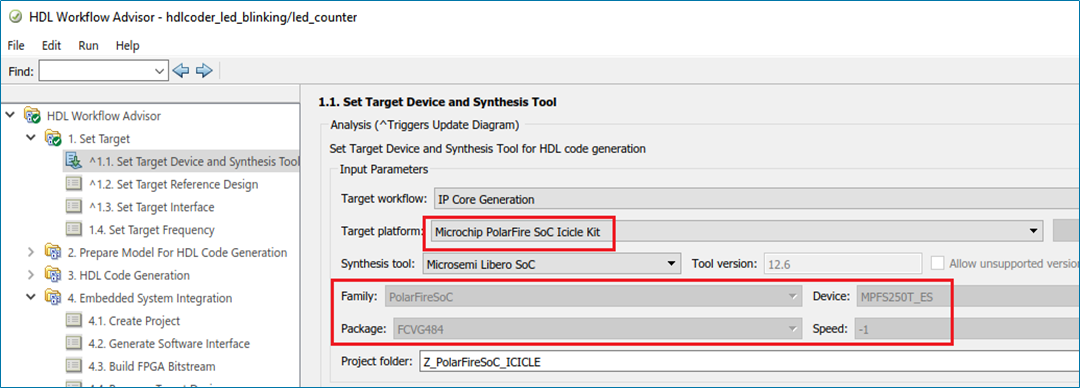
In the HDL Workflow Advisor task Set Target Device and Synthesis
Tool, you can now select the Target platform as
Microchip PolarFire SoC Icicle Kit for IP Core Generation
target workflow. For the Microchip PolarFire SoC Icicle Kit target platform, you can use
the Reference Design as the Default
System in task Set Target Reference Design.
The figure shows the block design of default system reference design for the Microchip PolarFire SoC Icicle Kit target platform. The reference design workflow integrates your generated IP core with the other IPs such as processors and interfaces in the reference designs. You can generate bitstream for your design under test (DUT) and program the Polarfire SoC board for testing your DUT.
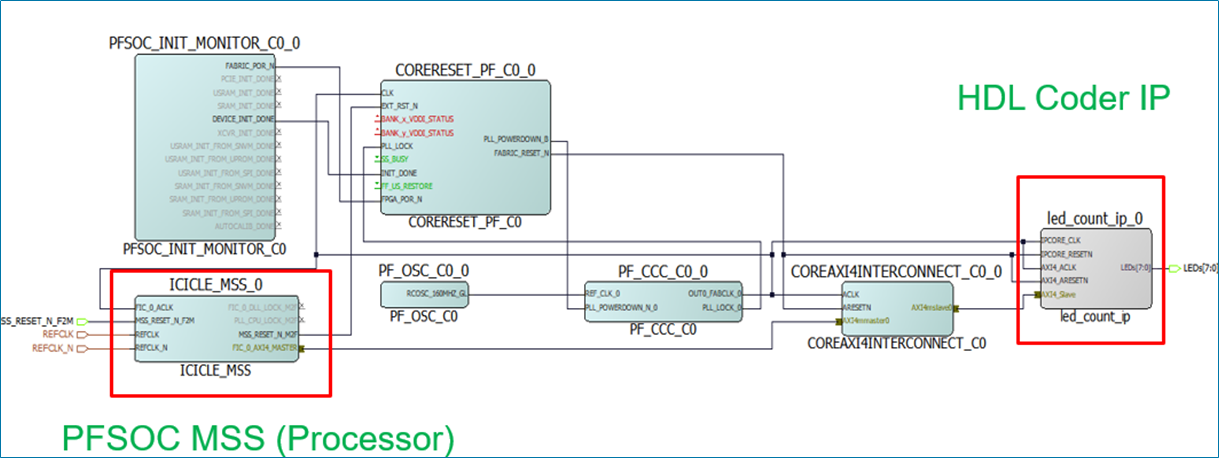
HDL IP core on the Microchip PolarFire SoC Icicle kit
An example is added that shows the step-by-step guide, which helps you use HDL Coder to generate and integrate a custom HDL IP core on the Microchip PolarFire SoC Icicle kit. Using this example, you can insert your generated IP core into an embedded system reference design, generate an FPGA bitstream, and download the bitstream to the Polarfire SoC hardware. For more details, see Integrate HDL IP Core with Microchip PolarFire SoC Icicle Kit Reference Design (R2022a).
FPGA and SoC hardware object and FPGA programming workflow
In R2022a, you can use a new set of hardware object services to:
Connect to your SoC board from MATLAB.
Perform basic Linux shell operations, such as system commands and file operations.
Program your FPGA at the MATLAB command-line.
For more information, see the hardware processor objects xilinxsoc (R2022a) and intelsoc (R2022a).
ID signals in AXI4 Master Interface in IP core generation workflow
In R2022a, you can use ID signals for the Simplified AXI4 Master Protocol in the IP core generation workflow. Use ID signals to:
Allow multiple modules to share the same AXI Master Interface.
Enable out-of-order requests for data. ID signals allow an AXI Master to issue requests without waiting for a prior request to finish.
Reduce the amount of AXI4 Master Interfaces needed for a Simulink model.
To use ID signals for an AXI4 Master read request, you need to model additional
signals rd_arid and rd_rid. To use ID signals for an
AXI4 Master write request, you need to model additional signals wr_awid
and wr_bid.
For more information, see Model Design for AXI4 Master Interface Generation (R2022a).
Readback of AXI4 registers for the individual ports in HDL Workflow Advisor
In the HDL Workflow Advisor, you can read back the AXI4 registers by using Enable readback on AXI4 slave write registers option in the task Generate RTL Code and IP Core. The readback is applied on the ports that are mapped to AXI4 registers.
In R2022a, HDL Coder has enhanced the AXI4 register readback functionality. You can now enable readback on AXI4 registers for the individual port. For better analysis of a complex design that has multiple ports, you can apply the readback option on selected ports to read values of the AXI4 write register. Use the Enable write register readback option for the individual port in HDL Workflow Advisor > Set Target Interface > Interface options to read values of the AXI4 write register.
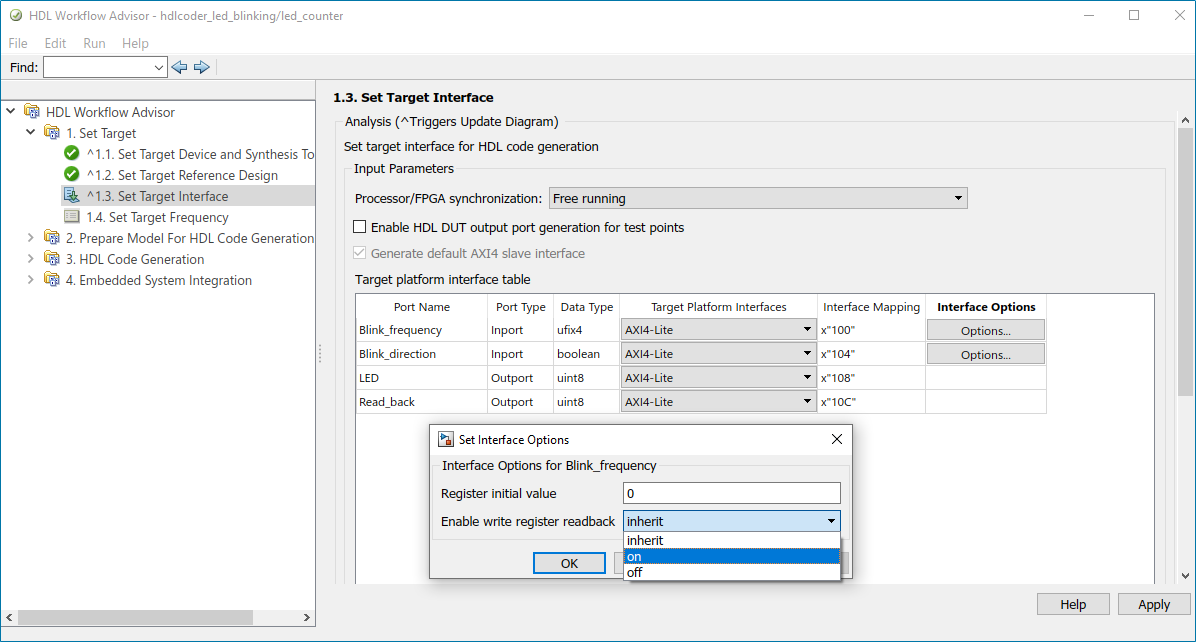
The Enable write register readback has these dropdown
options: inherit, on, and off.
The table lists the actions while using the Enable readback on AXI4 slave
write registers and Enable write register
readback options in the HDL Workflow Advisor.
Enable Readback on AXI4 Slave Write Registers (Global Readback Option) | Enable Write Register Readback (Port-Level Readback Option) | Readback Action for Individual Port |
| On | On | Enable |
| On | Off | Disable |
| Off | Inherit | Disable |
| Off | On | Enable |
| Off | Off | Disable |
| On | Inherit | Enable |
For more details, see Inspect the Written Values of AXI4 Slave Registers by Using the Readback Methods (R2022a).
Supported FPGA synthesis tools
HDL Coder has been tested with these third-party FPGA synthesis tools:
Xilinx Vivado 2020.2
Intel Quartus Standard 20.1.1
Microsemi Libero SoC 12.6
For more details, see HDL Language Support and Supported Third-Party Tools and Hardware (R2022a).
Half-Precision data types for AXI4 interfaces in IP core generation workflow
Half-Precision data types are widely used in deep learning and control system applications. These data types require fewer FPGA resources compared to the single-precision. You can now use half-precision data types for various Simulink blocks.
In R2022a, HDL Coder provides half-precision support in IP Core Generation workflow. You can now
use half-precision data types for AXI4, AXI4-Lite, and AXI4 stream interfaces. In the
HDL Workflow Advisor > Set Target Interface, you can map the
half data types for the port with Target Platform
Interface set to AXI4,
AXI4-Lite, or AXI4 stream.
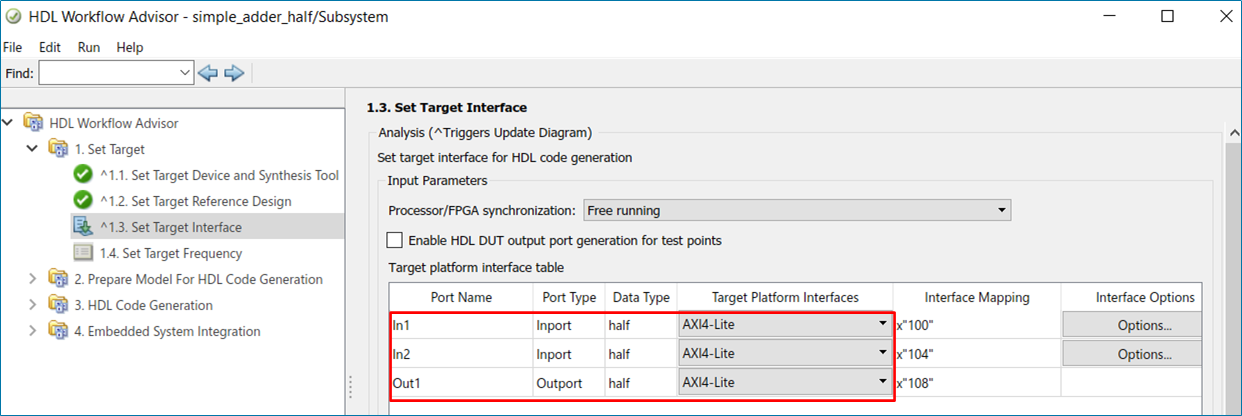
You can generate RTL code and an IP core for your design that use half-precision data types for AXI4, AXI4-Lite, and AXI4 stream interfaces. The half-precision data types for AXI4 interfaces are supported in Xilinx, Intel, and Microsemi IP core generation workflow. Ports that have bus or vector types also support half-precision data types for AXI4 and AXI4-Lite interfaces.
Single-Precision data types for AXI4 stream interface in IP core generation workflow
You can now use single-precision data types for ports that are mapped to the AXI4
stream interface. In the HDL Workflow Advisor > Set Target Interface,
you can use single data types for the ports that have
Target Platform Interface set to AXI4
stream. You can generate RTL code and an IP core for your design that use
single-precision data types for the ports mapped to AXI4 stream interface. The
single-precision data types for AXI4 stream interface are supported in Xilinx, Intel, and Microsemi IP core generation workflow. Ports that have bus or vector types also
support single-precision data types for AXI4 stream interface.
Automated workflow to access memory-mapped locations on FPGA using HDL Workflow Advisor
Use the HDL Workflow Advisor tool to generate a host interface model. The host interface model enables you to write and read from the memory-mapped locations on the target hardware over a JTAG cable by using the AXI Manager Write and AXI Manager Read blocks. To create a host interface model, follow these steps in the HDL Workflow Advisor tool.
In step 1.1. Set Target Device and Synthesis Tool, set Target workflow to
IP Core Generation.In step 1.2. Set Target Reference Design, set Insert JTAG AXI Manager (HDL Verifier required) to
on.In step 1.3. Set Target Interface, map each DUT signal that you want to capture to the
AXI4orAXI4-Liteinterfaces.In step 4.2. Generate Software Interface, set Host target interface to
JTAG AXI Manager (HDL Verifier).In step 4.2. Generate Software Interface, generate the host interface model by selecting Generate host interface model.
For an example, see Use JTAG AXI Manager to Control HDL Coder Generated IP Core (R2022a).
To use this feature, you must install the HDL Verifier Support Package for Intel FPGA Boards or HDL Verifier Support Package for Xilinx FPGA Boards. To access supported hardware for the HDL Verifier product, see HDL Verifier Supported Hardware (R2022a) (HDL Verifier).
Xilinx Zynq Linux image for Zynq custom boards
An example is added that describes how to create a Xilinx Zynq Linux image for the Zynq custom boards. Using this example, you can create the Linux image for booting up a Zynq custom board with Linux operating system by using the MathWorks Buildroot system. For more details, see Author a Xilinx Zynq Linux Image for a Custom Zynq Board by Using MathWorks Buildroot (R2022a).
Functionality being removed or changed
Target Platform name for Altera Arria 10 SoC Development kit is changed
Behavior change
In the IP core generation workflow, the Target Platform
Altera Arria 10 SoC Development kit is renamed to
Intel Arria 10 SoC Development kit.
Synthesis tool name for Microsemi Libero SoC will be changed
Behavior change in future release
In future releases, the synthesis tool name Microsemi Libero
SoC will be changed to Microchip Libero
SoC.
Software interface script renamed to host interface script
Behavior change
In the IP core generation workflow, the Generate MATLAB software interface
script parameter is renamed to Generate host interface
script, and the GenerateSoftwareInterfaceScript
property is renamed to GenerateHostInterfaceScript.
For more information on the host interface script, see Generate Host Interface Script to Probe and Rapidly Prototype HDL IP Core (R2022a).
Simscape Hardware-in-the-Loop Workflow
Optimal value of oversampling factor for nonlinear Simscape models
Previously, when you ran the Simscape HDL Workflow Advisor, the Oversampling
factor was set to a default value of 200 on the
HDL implementation model containing nonlinear blocks that had a partitioning solver. When
you used this value to generate HDL code from the model, delay balancing was sometimes
unsuccessful. You had to increase this value to accommodate the latency introduced by the
floating-point operations. In some cases, to run your design at the maximum achievable
target frequency on the target design, you had to further adjust the oversampling
factor.
Starting in R2022a, the Simscape HDL Workflow Advisor automatically sets an optimal value for the Oversampling factor for your HDL implementation model that contains nonlinear blocks. You can then generate HDL code from the model and run your design at an optimal achievable target frequency.
Optimization of mode vector to index subsystem for higher clock frequency
In R2022a, the Simscape to HDL workflow optimizes the mapping of mode vector to index subsystem in the switched linear implementation models that require deployment onto FPGA. This optimization helps to achieve a higher clock frequency.
Previously, the Simscape to HDL workflow used sequential comparison of mode vectors. This comparison resulted in a long critical path in the hardware that degraded the clock frequency and took a significant amount of time to compare the mode vectors.
Simscape to HDL Workflow Reference Applications
Simscape to HDL Workflow provides two examples:
Deploy Simscape Grid Tied Converter Model to Speedgoat IO Module Using HDL Workflow Script (R2022a)
This example shows how you can deploy a three-phase two-level voltage source converter connected to a low voltage grid modeled in Simscape onto a Speedgoat IO334 Simulink-programmable I/O module. This converter topology uses subcycle averaging and runs with higher pulse width modulation (PWM) resolution while still capturing switching events.
You can simulate the model
sschdlexThreePhaseConverterWithGridExample.slxand deploy it onto a Speedgoat FPGA I/O module.Generate HDL Code for Nonlinear Simscape Models by Using Partitioning Solver (R2022a)
This example illustrates how you can generate HDL code for a nonlinear Simscape model by using Partitioning solver. You can then deploy the generated HDL code onto a Speedgoat FPGA I/O module.
Model and Architecture Design
RAM style attributes for Intel/Altera and Microchip
You can now map large memory blocks such as ultra from the
Xilinx family and M144k from the Quartus family on FPGAs during synthesis. To map these memory blocks, specify
different attribute values for the synthesis attribute RAM style. To specify these
attributes in the Simulink HDL workflow, configure appropriate attribute values for
RAMDirective in HDL Block properties. For more information, see
RAMDirective (R2021b).
To specify these attributes in the MATLAB HDL workflow, use the RAMDirective parameter value pair
for hdl.RAM instantiation or use hdlset_param.
You can set the RAMDirective by using either of these commands:
hRam = hdl.RAM(‘RAMType’, ‘Dual port’, ‘RAMDirective’, ‘ultra’);
hdlset_param(<ram_block_name>, ‘RAMDirective’, <attribute_value>);
HDL code check for trigonometric blocks
A Model Advisor check is added for trigonometric blocks that use the LUT-based
approximation method. This check runs on trigonometric blocks such as
cos, sin, cos+jsin, and
sincos. Set the approximation method to
Lookup. This Model Advisor check determines that code
generation is not supported for these trigonometric blocks with the LUT-based
approximation. You can change the functionality of the blocks for successful code
generation.
Timestamp macro in custom file header comments
You can now include the arguments such as date, time, and timestamp in your generated HDL code. In the custom file header and footer comments, these macros are supported for the arguments listed in this table.
| Argument | Macro Syntax | Output Format |
| Date | __DATE__ | DD-MM-YYYY |
| Time | __TIME__ | hh:mm:ss |
| Timestamp | __TIMESTAMP__ | DD-MM-YYYY hh:mm:ss |
For more information, see Custom File Header Comment (R2021b).
Enhanced multiple enumeration in Verilog
In R2021b, HDL Coder supports Verilog code generation for multiple enumerations that have the same element names but different element values. For example, for these enumeration definitions:
classdef(Enumeration) Colors < Simulink.IntEnumType enumeration Red(1), Blue(2), Green(4), Yellow(8), Purple(16), Orange(32), Black(64) end end
classdef(Enumeration) ColorsAlternate < Simulink.IntEnumType enumeration Red(10) end end
This is the generated code:
parameter ColorsAlternate_red = 4'd10; parameter Colors_Red = 7'd1, Colors_Blue = 7'd2, Colors_Green = 7'd4, Colors_Yellow = 7'd8, Colors_Purple = 7'd16, Colors_Orange = 7'd32, Colors_Black = 7'd64;
HDL Coder can now generate Verilog code from a design that contains two enumeration classes,
Color and ColorsAlternate, that both contain the
same element name Red that have different element values,
1 and 10 respectively.
HDL Industry Coding Standard check for the presence of assignments to the same variable in multiple cascaded conditional regions
In R2021b, HDL Coder provides a coding standard to check for assignments to the same variable in multiple cascaded control regions within the same process block. HDL Coder points to the blocks that can generate such a coding style. If the style is not recommended for use in your production workflow, consider an alternative coding style or replace the block pointed to by the rule. For more information, see Cascaded Conditional Region Variable Assignments (R2021b).
Layout choices for model generation
Starting in R2021b, the Layout style configuration parameter has been added to the Model generation pane in HDL Coder properties. You can now select the layout style for your generated model. The layout style has the options listed in this table:
| Layout Style | Description |
None | The generated model has no layout |
Default | The model is generated using the default HDL Coder layout |
AutoArrange | The model is generated using the Simulink layout |
For better layout visualization of your generated model, choose the appropriate layout style option based on the design complexity. You can identify these layout style effects in the generated model when you configure any optimization on your input model. For more information, see Layout Style (R2021b).
For example, see the generated layout of the input model that uses different layout style options.
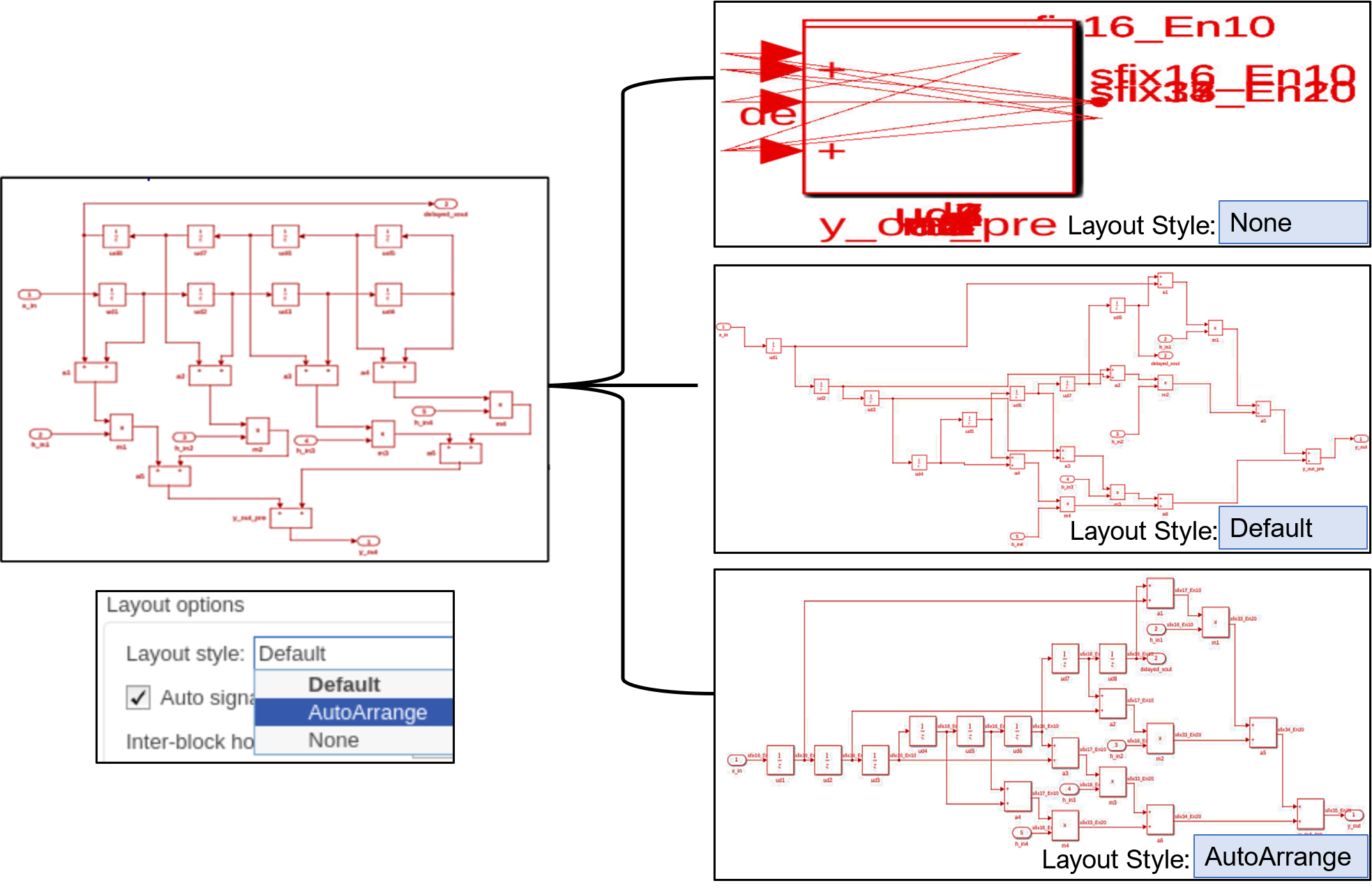
Block Enhancements
Newton-Raphson algorithm for Math Reciprocal block
HDL Reciprocal block functionality is now added to the Math Function
block with reciprocal function. The Math Function
block now supports the Newton-Raphson algorithm method. You can
use following algorithm method and related HDL architecture for the Math
Function block.
| Algorithm Method (Block Parameters) | Architecture (HDL Block Properties) |
Exact
| Math |
Reciprocal | |
ReciprocalRsqrtBasedNewton | |
ReciprocalRsqrtBasedNewtonSingleRate | |
Newton-Raphson
| ReciprocalNewton |
ReciprocalNewtonSingleRate |
Starting in R2021b, it is recommended to use the Math Function block with the Newton-Raphson algorithm method instead of the HDL Reciprocal block. For details, see HDL Code Generation in Math Function (R2021b).
Magnitude square function in Math Function block
HDL code generation now supports the magnitude square function in
the Math Function block. Magnitude Square block is used in
signal processing applications and supports fixed-point data types. It also supports
single and double floating-point data types. You
can use complex data types for the Magnitude Square block.
Half-precision data types for MATLAB Function block
HDL Coder now supports half-precision data types for the MATLAB Function block. The half-precision support is added for the basic arithmetic and logical functions used in the MATLAB Function block.
Double-Precision data types for Logarithmic block
HDL code generation now supports double-precision data types for the
Log function in the Math Function block and the
MATLAB Function block.
For-Generate loops for Reshape and Concat blocks
In R2021b, the coding style for Reshape and Concat blocks has been improved. The generated HDL code has these coding style enhancements:
For Reshape and Concat blocks, the HDL code is generated with For-Generate loops when you select the target language as
VHDLorSystem Verilog.By default, the loop unrolled code is generated for the Reshape block the when target language is
Verilog.
The generated code has better code readability, reduced lines of code and reduced code
generation time. For example, this image shows code generated for the Reshape block with
For-Generate loops and without For-Generate
loops.

For more information, see Unroll For-Generate Loops in VHDL code (R2021b).
Fixed-point output types for Divide block and Reciprocal block
In R2021b, HDL Coder extends the support for the Divide and
Reciprocal blocks. Prior to R2021b, these blocks supported only output
data types as Inherit: Inherit via internal rule. You can now
use these output data types for the blocks:
Inherit: Keep MSBInherit: Match scalingInherit: Inherit via back propagationInherit: Same as first inputInteger types (uint8,int8,uint16,int16,uint32,int32,uint64,int64)Fixed point types
To use these output data types for Divide and Reciprocal
blocks, select Architecture to
ShiftAdd. For more information, see Divide (R2021b).
Limitation: Floating-point output data types are not supported for these blocks.
Enhanced HDL math library
HDLMathLib blocks now have enhanced output handling, where outputs are held to the previous value and do not change when the validOut is low.
4-D and 5-D lookup table support
In R2021b, HDL Coder enhances the support for the direct lookup table and the
n-D lookup table. The code generation now supports 4-D and 5-D lookup
tables. 4-D and 5-D lookup tables supports half,
single, and double data types. You can also use
flat or linear interpolation for 4-D and 5-D lookup tables. Linear interpolation is not
supported for half data types. You can also use fully parallel and serial implementation
for 4-D and 5-D lookup tables. For more information, see n-D Lookup Table (R2021b).
Improved denormal optimizations for half-precision data types
Half-precision types have a lower dynamic range, so it is beneficial to always have
denormal logic generated for the operation. When your design uses half-precision data
types and Handle Denormals is off, not having
denormal logic sometimes can cause numeric issues for very small values. To avoid such a
scenario, make sure that denormals logic is on for the half-precision
data types.
In R2021b, HDL coder enhances the functionality of denormals logic for the
floating-point library. A new parameter value Auto is added for
denormals logic. The default value for Handle Denormals is set to
Auto. This option maps the denormal to
on when your design uses half-precision data types. It maps
denormal to off for single and
double data types. The cost of adding denormal logic in hardware for
half-precision types is very low. You can control the option by explicitly turning the
denormal logic on or off. For more information, see
Handle Denormals (R2021b).
Improved multiplier partitioning DSP QoR
In R2021b, HDL Coder enhances the multiplier partitioning optimization for signed inputs. If you apply Multiplier partitioning threshold on your model that has signed inputs, the multiply operations are reduced by one when the inputs are signed to a partitioned multiplier. This enhancement reduces the digital signal processor (DSP) consumption and improves frequency.
This enhancement is not applicable for a model that contains a subsystem with
Distributed pipelining turned on and
DP priority set to NumericalIntegrity.
In such cases, optimization is performed by using an additional 2-bit multiply
operation.
Reset minimization in Native Floating-Point (NFP) for ASIC
In R2021a, when you set MinimizeGlobalResets to
on for a subsystem that had NFP IP blocks and
NoResetInitializationMode was set to None. The
generated code did not have reset port. No registers were initialized. When both settings
were specified, the output propagated 'X' logic for the simulation
instead of a few initial clock cycles for NFP IP blocks. The number of initial clock
cycles for which output showed ‘X’ logic depended on the latency of the
NFP IP blocks.
In R2021b, HDL Coder enhances the algorithm for MinimizeGlobalResets for
Native Floating-Point IP blocks. Now, when you specify the preceding settings,
'X' logic is propagated until only the latency of the block.
Set-Reset (SR) flip-flops
In R2021b, HDL Coder supports code generation for an S-R flip-flop block. See S-R Flip-Flop (R2021b).
HDL Code Generation for Discrete State-Space block
In R2021b, HDL Coder supports code generation for the fixed-point Discrete State-Space block. See Discrete State-Space (R2021b).
Trigger and event modes for subsystems, MATLAB Function blocks, and Stateflow blocks
Previously, HDL Coder supported only the rising and falling edge modes for blocks that support input triggers and events. In R2021b, HDL Coder supports either mode for blocks that support input triggers and events, such as:
Trigger ports of subsystems. For more information, see Triggered Subsystem (R2021b).
Input events for Stateflow charts. For more information, see Activate a Stateflow Chart by Sending Input Events (R2021b) (Stateflow).
Input events for MATLAB Function blocks. For more information, see Update method (R2021b).
Wireless HDL Toolbox Reference Applications: Implement 5G NR SIB1 recovery, WLAN receiver, and DVB-S2 PL header recovery
The NR HDL SIB1 Recovery (R2021b) (Wireless HDL Toolbox) reference application builds on the NR HDL MIB Recovery (R2021b) (Wireless HDL Toolbox) design and shows how to implement system information block type 1 (SIB1) decoding. The NR HDL Downlink Receiver MATLAB Reference (R2021b) (Wireless HDL Toolbox) example (renamed from "NR HDL Cell Search and MIB Recovery MATLAB Reference") now includes cell search, MIB recovery, and SIB1 recovery.
The HDL Implementation of WLAN Receiver (R2021b) (Wireless HDL Toolbox) example is an extension to the WLAN HDL Time and Frequency Synchronization (R2021a) example that was introduced in R2021a. The HDL Implementation of WLAN Receiver example detects frame format and decodes signal and data fields according to wireless local area network (WLAN) standards. This example supports a single-input single-output (SISO) 20 MHz bandwidth option for non-high-throughput (non-HT), high-throughput mixed mode (HT-MM), and very-high-throughput (VHT) frame formats.
The DVB-S2 HDL PL Header Recovery (R2021b) (Wireless HDL Toolbox) example implements Digital Video Broadcasting Satellite Second Generation (DVB-S2) receiver synchronization and a physical layer (PL) header recovery system that can handle radio frequency (RF) impairments to support DVB-S2 waveforms. The example shows how to perform frame synchronization and time, frequency, and phase offset estimation and correction. It also shows how to decode the PL header information.
These examples support HDL code generation and are ready for deployment to hardware.
Wireless HDL Toolbox Blocks: Model WLAN LDPC decoder, CCSDS RS decoder, DVBS2 symbol demodulator, and APP decoder
The WLAN LDPC Decoder (R2021b) (Wireless HDL Toolbox) block implements layered belief propagation with min-sum approximation and normalized min-sum approximation algorithms for decoding low-density parity-check (LDPC) codes according to these WLAN standards: 802.11n, 802.11ac, 802.11ax, and 802.11ad.
The CCSDS RS Decoder (R2021b) (Wireless HDL Toolbox) block decodes and recovers messages from a Reed-Solomon (RS) codeword according to the Consultative Committee for Space Data Systems (CCSDS) standard. The block supports RS codewords (255, k), where k is a message length of 239 or 223. The block also supports shortened message lengths and interleaving depth values 1, 2, 3, 4, 5, and 8.
The DVBS2 Symbol Demodulator (R2021b) (Wireless HDL Toolbox) block demodulates complex constellation symbols to a set of log-likelihood ratio (LLR) values. The block supports π/2-BPSK, QPSK, 8-PSK, 16-APSK, and 32-APSK modulation types. It also supports multiple code rates according to the DVB-S2 standard. You can configure the modulation type and code rate during runtime while using this block.
The APP Decoder (R2021b) (Wireless HDL Toolbox) block decodes coded LLR values using the maximum a-posteriori probability (MAP) decoding algorithm and serves as a basic building block to implement a turbo decoder. The block accepts soft inputs and provides soft outputs, which can be useful for iterative decoding. The block supports terminated and truncated modes and these decoding rates: 1/2, 1/3, 1/4, 1/5, 1/6, and 1/7.
These blocks provide an interface and architecture for HDL code generation with HDL Coder.
Multipixel-Multicomponent Video Streaming: Implement color space conversion and demosaic interpolation algorithms for high-frame-rate color video
The Color Space Converter (R2021b) (Vision HDL Toolbox) and Demosaic Interpolator (R2021b) (Vision HDL Toolbox) Vision HDL Toolbox™ blocks now support multipixel-multicomponent streams.
The HDL implementation replicates the algorithm for each pixel in parallel.
The Color Space Converter block supports input matrices of
NumPixels-by-3 values and output matrices of
NumPixels-by-NumComponents values, where
NumComponents is 3 or 1. The Demosaic Interpolator
block accepts an input vector of NumPixels-by-1 values and returns an
output matrix of NumPixels-by-3 values. The ctrl
ports remain scalar, and the control signals in the pixelcontrol bus
apply to all pixels in the matrix.
You can simulate System objects with a multipixel streaming interface, but System objects that use multipixel streams are not supported for HDL code generation. Use the equivalent blocks to generate HDL code for multipixel algorithms.
Reflection Padding: Pad image frames by reflecting around the edge pixel
Pad the edge of a frame by reflecting around the edge-pixel value. This padding method helps reduce edge contrast effects and can improve results for machine learning while maintaining the original frame size.
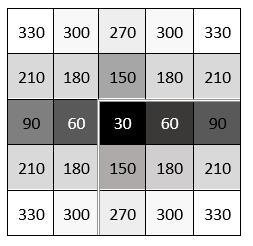
To use this feature, set the Padding method parameter to
Reflection on any of these blocks.
Line Buffer (R2021b) (Vision HDL Toolbox)
Image Filter (R2021b) (Vision HDL Toolbox)
Bilateral Filter (R2021b) (Vision HDL Toolbox)
Median Filter (R2021b) (Vision HDL Toolbox)
Corner Detector (R2021b) (Vision HDL Toolbox)
For more information on padding methods, see Edge Padding (R2021b) (Vision HDL Toolbox).
Code Generation and Verification
Code View: View your generated HDL code directly in Simulink model window
You can now view your generated HDL code alongside your model by using the Code view. Use this integration between code and model to:
Quickly navigate from model elements to their generated code. When you click on a block in the model, the Code view highlights the code for the block and scrolls to the highlighted code lines.
Trace lines of code to the model elements from which they were generated. In the Code view, click the line number hyperlink or code comment link to highlight the block that the code line traces to.
Customize your generated code and verify that the results are correct by viewing the code and the model at the same time.
After you generate HDL code for your model, the Code view displays the generated code to the right of your model. To manually open the Code view, on the Simulink toolstrip, click the View Code button. At the top of the Code view, select the file that you want to display. You can dock or undock the Code view from the editor and minimize or expand the Code view. You can also use rich text capabilities such as code folding and hiding comments.
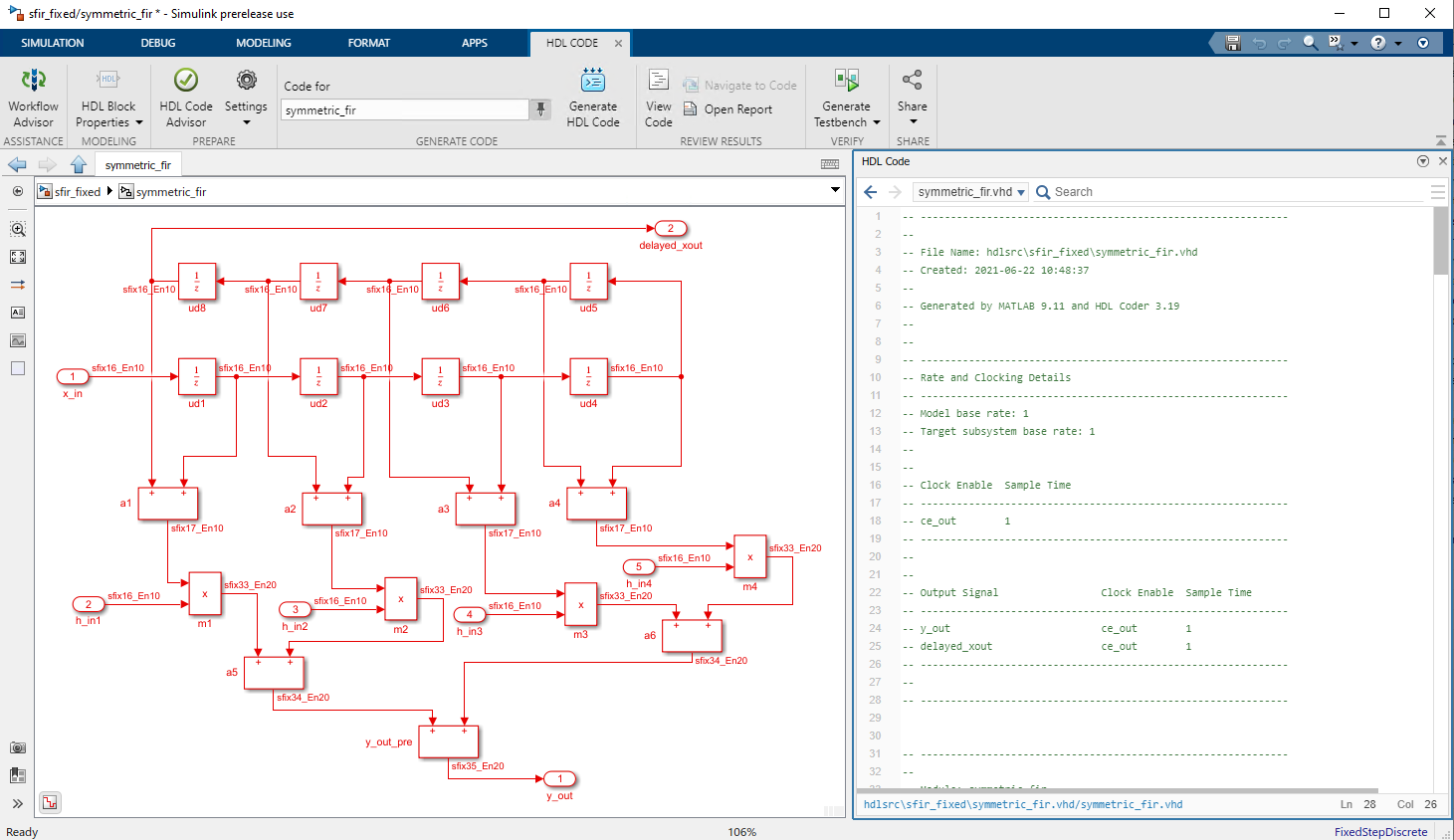
Stateflow multicycle path enhancements
In R2021a, when you sourced enable-based multicycle-path (MCP) constraints in the FPGA synthesis tool to relax the timing constraints on multicycle data paths, you saw that the MCP constraints were not applied in the generated HDL code. Because HDL Coder generates MCP with timing controller logic, the synthesis tool optimizes this timing controller logic to convert it to the single clock domain design. The MCP constraints are not applied in the generated HDL code.
HDL Coder has improved the enable-based constraints algorithm to generate an MCP
constraints file. Starting in R2021b, when you source enable-based MCP constraints, the
attribute direct_enable is added to all the enable signals in your
generated timing controller HDL code. Due to the direct_enable
attribute, the synthesis tool preserves the timing control logic and the MCP constraints
are applied in your design. This attribute is added to timing controller logic in both the
Verilog and VHDL designs. The attribute is supported in synthesis tools such as Xilinx
Vivado, Intel
Quartus, and Intel
Quartus Pro.
Register-to-register path info option not recommended in HDL Coder
In R2021b, it is not recommended to use Register-to-register path info for generating multicycle path information. Use Enable-based constraints to meet the timing requirement of the multicycle paths in your model. For more information, see Multicycle Path Constraints Parameters (R2021b).
The Register-to-register path info option is removed from the Optimization pane in HDL Coder Properties. You can still enable this option in the MATLAB command-line interface by using hdlset_param or makehdl commands. HDL Coder will remove this functionality in future releases. It is recommended to use Enable-based constraints for generating multicycle path information.
Execute chart at initialization option for Stateflow charts
In R2021b, HDL Coder supports disabling the Stateflow chart option Execute (enter) chart at initialization.
This option is useful for when you want your chart to begin executing from a known
configuration. This Stateflow option is available for Mealy and Classic charts, but not for Moore charts.
For more information, see Execute (enter) chart at initialization (R2021b) (Stateflow).
HDL code generation performance improvement for matrix multiplication
HDL code generation for Simulink models that perform matrix multiplication operations by using the
DotProductStrategy property set to Fully Parallel
(default) now has significant performance improvement when you generate HDL
code. For example, HDL code generation time for a 16-by-16 fixed-point matrix
multiplication now takes 17 seconds, whereas it previously took 328 seconds.
In R2021b, HDL Coder generates concise code by vectorizing matrix multiplication inner products
to create for-generate constructs and reduces the size of the generated model. For
example, when you have two matrices of size m-by-n and n-by-p, the generated model has one
product block with m*n*p vector size and n-by-1 adder blocks in a
linear form that have m*p vector size. Prior to R2021b, the generated
model had m*n*p individual product blocks and
(n-1)*m*p individual adder blocks. To minimize multiplier and adder
DSP consumption for Fully Parallel (default) matrix multiplication, set
a streaming factor for the parent subsystem. A streaming factor of
m*n*p results in a full serialization of the multiplication operators
and near full serialization of the addition operations. Adding a sharing factor of n-1 can
fully share the data-dependent addition operations.
In R2021b, when you set the DotProductStrategy property to
Fully Parallel, you cannot use a sharing factor for successful
resource sharing. Use a streaming factor instead. The Serial
Multiply-Accumulate and Parallel Multiply-Accumulate
settings for DotProductStrategy are not affected by the new
optimization.
To replicate the old Fully Parallel behavior, use the new
Fully Parallel Scalarized option. This new option for the legacy
behavior is recommended for only smaller matrix sizes.
Speed and Area Optimizations
Enhanced sharing and streaming optimizations for matrix-types
You can now configure sharing and streaming optimizations at the same time on a model that has matrix type inputs. To enable these optimizations on your input model, specify sharing and streaming factors in HDL block properties.
User control for tunable parameter processing and improve code generation time
You can now disable the design under test (DUT) port generation for tunable parameters
by disabling Enable HDL DUT Port Generation for Tunable Parameters.
Optimize your code generation time by disabling the DUT inport generation for tunable
parameters and DUT output port generation for test points.
Improved zero-protection in Simulink-to-HDL
In R2021b, HDL Coder inserts zero-protection switches that prevent input zeros from pipeline
initial values reaching blocks that do not work well with zero values. For example,
consider the following DUT and block-specific properties:
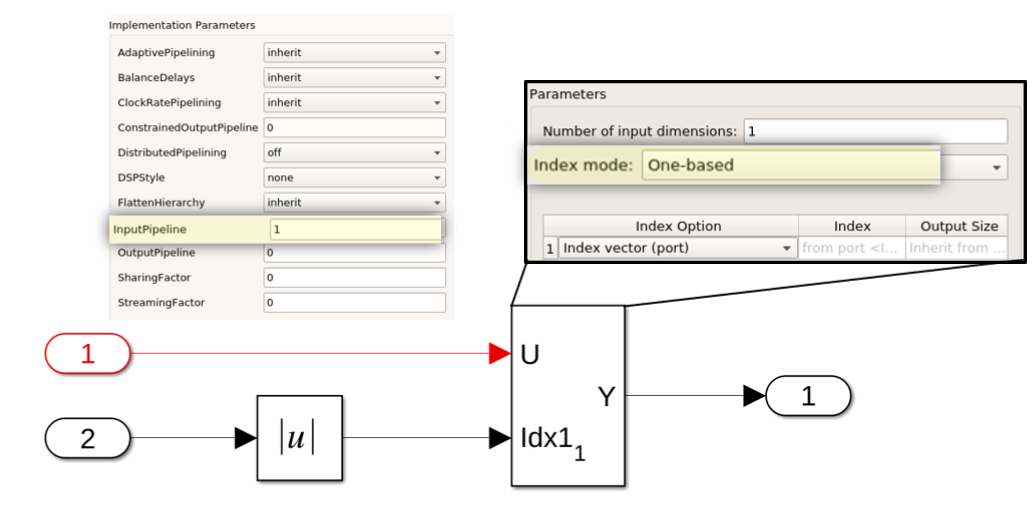
The DUT has one input pipeline register specified in the DUT's HDL Block parameters.
The selector blocks use one-based indexing, so a zero at the index port is an invalid
argument. Prior to R2021b, the generated model failed during simulation. In R2021b, for
the preceding model, you see a zero-protection switch is correctly applied in the
generated model and in the generated code. The simulation of the generated model is
successfully completed.
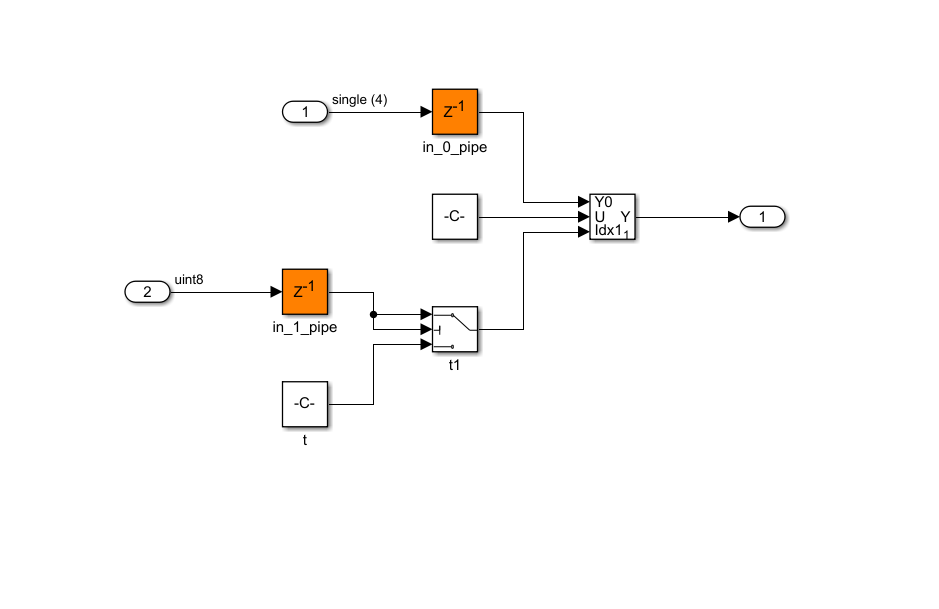
To avoid protection logic, minimize zeros feeding into blocks that do not expect zero run-time values.
Minimize intermediate initialization of variables in generated HDL code
In R2021b, HDL Coder performs optimizations during code generation to reduce area usage while
maintaining functionality and performance. For example, this figure shows the difference
in the generated code prior to R2021b and code generated in R2021b.
Improved optimizations for conditional subsystems
You can now more effectively apply optimizations such as streaming, resource sharing, and clock rate pipelining to enabled and triggered subsystems that contain integer delays that have a delay length greater than one. For example, you can apply resource sharing where you have the same resource across multiple conditional subsystems within your DUT.
Optimizations will not be applied if the configuration parameter
TransformNonZeroInitValDelay is disabled and the delay has a
nonscalar expandable initial value.
Delay-balancing behavior standardization in BalanceDelays=off network
Turning off delay balancing during code generation is discouraged. If any
optimizations are enabled, you must balance any pipelines introduced as a part of those
optimizations. If you do not balance automatically inserted pipeline delays, you might
encounter issues in generated code deployed in hardware. You can select an additional
diagnostic option check TreatBalanceDelaysOffAs to detect the presence
of unbalanced delays in the generated HDL code to highlight that
BalanceDelays is set to off. The goal is to avoid unbalanced delays
in your model. For more information, see Check for presence of unbalanced delays in generated HDL code (R2021b).
Starting in R2021b, the BalanceDelays option is no longer a global
option in the model configuration parameters. If you decide to disable delay balancing for
your model by using the command line (not recommended), see Delay Balancing Considerations (R2021b). If you turn off
BalanceDelays, also turn off any features that automatically generate
pipelines or add latency, such as optimizations like resource sharing, streaming,
pipelining, or enabling the MapToRAM HDL block property of a lookup
table (LUT) block. Manually balance the delays instead.
Lookup Table blocks mapping to RAM and adaptive pipelining
In R2021b, the mapping of Lookup Table blocks to RAM is not associated with the
adaptive pipelining optimization option. You can now independently enable the mapping of
Lookup Table blocks to RAM by using the Map lookup tables to RAM
option. For more information, see Map lookup tables to RAM (R2021b). Select this option to add non-reset delays next to the
lookup tables and to save resources on the target FPGA hardware by mapping lookup tables
to block RAM.
In R2021b, the default MapToRAM HDL block property default is
Inherit. The default option prevents you from having to search
through your model and individually set the MapToRAM option to
on for each Lookup Table block.
Prior to R2021b, when you enabled adaptive pipelining, Lookup Table blocks were mapped to RAM. Adaptive pipelining inserted pipeline registers at the input port, output port, or both input and output ports of certain blocks to create patterns that efficiently mapped blocks to DSP units on the target FPGA device. You should enable adaptive pipelining based on your design requirements. For more information, see Design Patterns That Require Adaptive Pipelining (R2021b).
You can highlight the Lookup Table blocks in your model that are mapped to RAM by
enabling Highlight lookup tables mapped to RAM. For more information,
see Highlight lookup tables mapped to RAM (R2021b).
IP Core Generation and Hardware Deployment
Microsemi Libero System On A Chip (SoC) support for IP core generation workflow
In R2021b, HDL Coder enhances support for the Microsemi Libero SoC synthesis tool. You can now use the Microsemi Libero SoC tool for IP core generation workflow in HDL Workflow Advisor. Prior to R2021b, Microsemi Libero SoC tool supported only the Generic/ASIC FPGA workflow.
To generate an IP core by using the Microsemi
Libero SoC synthesis tool, use Generic Microchip
Platform as your Target Platform. The support extends
for Microchip FPGA families such as IGLOO 2, RTG4®, Polarfire, and SmartFusion® 2. You can use the generic microchip platform with the external ports
interface and AXI4 (AXI4 Master and AXI4 slave) interface. AXI4-Lite interface is only
supported for the Polarfire FPGA.
Using the IP core generation workflow, you can instantiate the IP core to the
Microsemi
Libero SoC SmartDesign. HDL Coder generates a TCL file to instantiate the IP core in
Microsemi
Libero SoC SmartDesign. Then you can generate the bitstream for your design by
using the Microsemi
Libero SoC.
MATLAB Prototyping API Enhancements: Support complex data in AXI4 Stream Interface and input register readback in AXI4 Interface
In R2021b, HDL Coder has enhanced the MATLAB prototyping API to support complex data and input register readback.
HDL Coder supports complex data type streaming on the AXI4 stream interface. You can
now specify the complex data for your DUT ports in the
hdlcoder.DUTPort API. A new property IsComplex
is added in hdlcoder.DUTPort API to set the complex data type for the
ports. The ports support complex data for a 64-bit word length.
You can readback the input registers for your DUT ports in the
hdlcoder.DUTPort API by using the AXI-Slave interface. The readback
feature is supported in both the Xilinx and Intel reference designs. When you select Enable readback on AXI4-Slave
write registers, in your generated setup script, the input ports directions
are mapped to the INOUT in
hdlcoder.DUTPort API.
Upgrade to Intel Quartus Pro 20.2
HDL Coder has been tested with Intel Quartus Pro 20.2.
Inserted JTAG AXI Master at fixed frequency to avoid timing issue
In R2021a, when you inserted MATLAB JTAG AXI Master to control a generated IP Core and set the target frequency to greater than 100 MHz, you might have experienced timing failure for your reference design.
In R2021b, HDL Coder resolves the timing failure issue by controlling the clock frequency of the MATLAB JTAG AXI Master based on the target frequency of the reference design. The clock frequency of the inserted MATLAB JTAG AXI Master is fixed to 50 MHz when the target frequency of your design exceeds 100 MHz. For the target frequency less than or equal to 100 MHz, the MATLAB JTAG AXI Master is driven at the same clock frequency as your Design Under Test (DUT) clock.
Unsupported tool version in HDL workflow advisor
In R2021b, a new UI check box Allow unsupported version is added to the HDL Workflow Advisor in the Set Target Device and Synthesis Tool dialog box. HDL Workflow Advisor now runs the check for the unsupported tool version and asks whether you want to use the unsupported tool version. You can use the unsupported tool version by selecting the Allow unsupported version checkbox and creating a project in the HDL Workflow Advisor.
This option is supported for all the third-party FPGA synthesis tools. The support is extended for these targeted workflows:
Generic ASIC/FPGA
IP Core Generation
FPGA Turnkey
Simulink Real-Time™ FPGA I/O
FPGA-in-the-Loop
HDL Coder continuously upgrades support for the latest tool version. It is recommended to use the supported tool version in the HDL Workflow Advisor for better synthesis results. For more information, see HDL Workflow Advisor Tasks (R2021b).
Multicycle path constraint packaging for IP core
In R2021b, when you apply the multicycle path constraints in the IP core generation workflow, the generated MCP constraints file is now packaged with the IP core. With this enhancement, you can directly use the generated MCP constraints to the IP core in the Vivado and Qsys project. You do not need to manually insert the constraints by using a separate TCL script. HDL Coder supports this packaging for the Xilinx and Intel workflows.
HDL Coder Workflow Advisor: Option to expose DUT clock enable port and clock enable output port
In R2021b, the HDL Coder Workflow Advisor enables you to expose the design under test (DUT) block clock enable input and clock enable output port. You can use the clock enable input port to trigger the DUT from upstream IPs. Use the clock enable output port to drive or synchronize with other custom IPs.
Devicetree generation for IP cores
When using the Hardware-Software (HW/SW) codesign workflow from HDL Coder, you must configure the ARM processor with a correct devicetree. A devicetree is a file that describes hardware devices accessible to the ARM processor. On system-on-chip (SoC) boards, the devicetree must include details about accessing the FPGA interfaces.
Previously, HDL Coder allowed only fixed, precompiled devicetree files to be specified for a reference design. In R2021b, HDL Coder allows devicetree source files to be specified for boards and reference designs. It also supports the dynamic generation of parts of the devicetree corresponding to the HDL Coder generated IP core. You can:
Register new devicetree files to the board plugin file and reference design plugin file by using the
addDeviceTreefunction.Specify an include file to compile the code against by using the
addDeviceTreeIncludeDirectoryfunction.Declare the existence of a processing system (PS) in the reference design by using the
HasProcessingSystemfunction.Enable generation of devicetree nodes for the HDL Coder generated IP core by using the
GeneratedIPCoreDeviceTreeNodesfunction.Add AXI4-Slave and AXI4-Stream interfaces to the devicetree if these interfaces connect to the ARM processor. Use the
addAXI4SlaveInterfaceandaddAXI4StreamInterfacefunctions.
See Generate Device tree for IP Core (R2021b).
Updates to addAXI4StreamInterface function for
fpga hardware connection object
In R2021b, you can specify the read data and write data widths on the AXI4-Stream
interface for your fpga hardware connection object by using the
ReadDataWidth and WriteDataWidth name-value
arguments. The allowed width values are 8, 16, 32, 64, and 128. The HDL Coder generated
software interface script includes the ReadDataWidth and
WriteDataWidth name-value arguments.
Reset AXI4-Stream TLAST counter
When mapping DUT ports to an AXI4-Stream master interface, you can optionally model a TLAST protocol signal. If you do not model the TLAST signal, HDL Coder generates this signal for you. It also generates a programmable register in the IP core that contains the frame length. In the generated IP core, the TLAST signal is asserted when the number of valid samples counts up to the frame length. In previous releases, changing the frame length through the programmable register did not reset the state of the counter, causing the TLAST signal to not asset properly for partial frame transfers. Starting in R2021b, if the frame length register is changed in the middle of a frame, the counter state is reset to zero and the TLAST signal is asserted early.
HDL Coder Workflow Advisor: Improved code generation times
In R2021b, HDL Coder improves HDL Coder Workflow Advisor code generation times when using the MATLAB command-line interface by reducing the number of times a model is compiled. The code generation time has been reduced by a factor of three when using the HDL Coder Workflow Advisor command-line interface workflow. For example, HDL Coder Workflow Advisor command-line code generation times for models prior to R2021b that took 60 minutes now takes 20 minutes.
HDL Coder Workflow Advisor: Resource and timing report enhancement
In R2021b, the resource report and timing report of the HDL Workflow Advisor has been enhanced. The resource summary now shows the available FPGA resources such as LUT Slices, DSPs, Slice Registers, and many more in a target device and its utilization percentage in your design. The timing summary shows clock frequency of the design. You can view this enhanced report in HDL Workflow Advisor UI and from MATLAB command-line interface. This enhancement works for the Xilinx and Intel (Altera) FPGA devices.
Data type for Speedgoat PCIe Interface: Map bus data types to Speedgoat PCIe Interface
When using the Simulink Real-Time FPGA I/O workflow, in the Target Platform Interface table, you can map bus signals at the DUT ports to PCIe interfaces.
The bus signals workflow includes an IP Core Generation report that displays address offsets of PCIe interface-accessible registers generated for each bus element scalar and vector datatype in the Register Address Mapping section. The top-level and sub-level bus data types do not have a register offset address. The address mapping for scalar and vector bus elements is not contiguous. See Map Bus Data Types to PCIe Interface (R2021b).
HDL Coder Support Package for Xilinx RFSoC Devices: Generate IP core and deploy reference designs on Xilinx RFSoC devices
HDL Coder Support Package for Xilinx RFSoC Devices enables the generation of IP cores that can integrate into RFSoC devices. You can generate an HDL IP core by mapping the DUT ports to I/Os and AXI interfaces. This feature enables you to connect your algorithm to the RF tiles and the external DDR memory.
This support package includes reference designs for popular RFSoC development kits, including Xilinx Zynq UltraScale+ RFSoC ZCU111 and Xilinx Zynq UltraScale+ RFSoC ZCU216 evaluation kits.
You can use the IP core generation workflow to automate integration, execution, and verification of reference designs for RFSoC platforms. You can also interactively send and retrieve a frame of data to an FPGA. You can control the AXI registers in your generated IP core from MATLAB by using the generated MATLAB software interface script. For more information, see Generate Software Interface Script to Probe and Rapidly Prototype HDL IP Core (R2021b).
You can use the SoC Blockset product for system-level modeling of RFSoC devices, exportation of custom reference designs for Xilinx RFSoC devices, and deployment of complete SoC applications, including executables for ARM Cortex®-A53 processors.
For the complete documentation of this support package, see HDL Coder Support Package for Xilinx RFSoC Devices (R2021b).
Simscape Hardware-in-the-Loop Workflow
Support multiple solver times in Simscape models
In R2021b, Simscape HDL Workflow Advisor enables you to apply different solver times to different domains within the same Simscape model. Previously, in Simscape HDL Workflow Advisor, you could not apply different solver times to different domains within the same Simscape model.
Enable FPGA parameters in the protected model
Previously, simulation of protected models failed due to a mismatch in the parameter values between the protected model and top model:
Family
Device Name
Package Name
Speed Value
Target Frequency
In R2021b, HDL Coder enables a difference in the values of these parameters between the protected model and the top model so that you can simulate and generate HDL code for top model and protected models while retaining top model synthesis parameters settings.
RAM mapping for partition solver
In R2021b, HDL Coder optimizes the resource utilization of your Simscape models deployed to FPGAs by enabling you to map state-space parameters to RAM. For more information, see Map State Space Parameters to RAMs (R2021b).
Model and Architecture Design
Half precision floating-point example for Field-Oriented Control algorithm
You can now generate HDL code for the Field-Oriented Control (FOC) algorithm for a Permanent Magnet Synchronous Machine (PMSM) that is implemented by using half-precision floating-point types.
See Floating Point Support: Field-Oriented Control Algorithm (R2021a).
This table compares synthesis results for half-precision floating-point type,
single-precision floating-point type, and signed fixed-point type with word length 16 and
fraction length 10 (fixdt(1,16,10)) for a Xilinx
Virtex-7 xc7v2000t device.
| Resources | FOC_Half | FOC_Single | FOC_Sfix16_En10 |
|---|---|---|---|
| Fmax (MHz) | 100.47 | 82.69 | 63.123 |
| Slices | 3348 | 5928 | 336 |
| LUTs | 9539 | 15853 | 1119 |
| DSPs | 19 | 40 | 21 |
Comments tab in Global Settings pane and option to disable comments
In the Configuration Parameters dialog box, on the HDL Code Generation > Global Settings tab, you can now use a new Comments tab to specify comment options for HDL code generation. On this tab, you can specify whether to enable or disable the comment options by using a new Enable Comments check box.
See Generate Code with Annotations or Comments (R2021a).
HDL Code Advisor check for file extension based on target language
Previously, the HDL Code Advisor check Check VHDL file extension
identified whether the file extension is specified as .vhd when you
generate code with VHDL as the target language.
In R2021a, the check is renamed as Check file extension folder.
When you run the check, it also identifies whether the file extension is specified as
.v when you generate code with Verilog as the target language.
See Check file extension (R2021a).
Hard Floating Point Support using Intel Quartus Pro
In R2021a, you can select Intel
Quartus Pro as the target synthesis tool when using the makehdl
function and the Generic ASIC/FPGA workflow. These limitations apply when using the
Intel
Quartus Pro tool:
The HDL code generation language must be set to VHDL. For more information, see Language (R2021a)
The floating-point library must be set to
Altera Megafunctions (ALTERA FP FUNCTIONS). For more information, see Floating Point IP Library (R2021a)
Block Enhancements
Enhancement to parameterized HDL code generation for 1-D and 2-D mask values
You can now specify 1-D vectors and 2-D matrices as mask values and generate parameterized HDL code from the masked subsystems by using the Generate parameterized HDL code from masked subsystem (R2021a) parameter.
HDL code generation for For Each Subsystem block with 1-D and 2-D partitioning of mask parameters
You can now generate HDL code for the For Each Subsystem (R2021a) block with 1-D and 2-D partitions of mask parameter values. To partition the mask parameters, in the Parameter Partition tab of the For Each (R2021a) block, select each mask parameter that you want to partition, and then specify the Partition Dimension and Partition Width.
See Repeat an Algorithm Using a For Each Subsystem (R2021a).
HDL code generation for For Each Subsystem block with matrix ports
In R2021a, you can use 2-D matrices at the ports of the For Each Subsystem (R2021a) block for HDL code generation. You can partition the input into elements, vectors, and subarrays. After performing the computations, the elements are concatenated at the output to form the 2-D matrix result.
See Generate HDL Code for Blocks Inside For Each Subsystem (R2021a).
HDL code generation for Interval blocks and additional Detect blocks
HDL Coder now supports code generation for these blocks:
Detect Fall Negative (R2021a)
Detect Fall Nonpositive (R2021a)
Detect Rise Nonnegative (R2021a)
Detect Rise Positive (R2021a)
Interval Test (R2021a)
Interval Test Dynamic (R2021a)
You can also access these blocks from the HDL Coder > Logic and Bit Operations in the Simulink Library Browser.
ShiftAdd architecture for Product block to avoid
DSP consumption
In R2021a, you can use the ShiftAdd architecture for the Product (R2021a) block. Use this architecture to map the Product block
implementation to lookup tables instead of DSP units on the target FPGA device because it
performs multiple shift and add operations.
See UsePipelines (R2021a).
HDL Coder library for fixed-point mathematical function blocks with latency
You can now use a HDLMathLib library to generate HDL code for
fixed-point mathematical function blocks. The library includes these blocks with control ports:
Sqrt
atan2
Sin
Cos
Sincos
Cos+jSin
Divide
Reciprocal
To use these blocks in your model, at the MATLAB Command Window, enter:
HDLMathLib
Count hit port for HDL Counter block to indicate when count value resets
In the Block Parameters dialog box of the HDL Counter (R2021a) block, you can now specify a Count hit port.
This port indicates when the counter resets by outputting the value 1
when the count value resets to the Initial value. The Count
hit port port and Count direction port are mutually
exclusive.
3-D lookup table support
Starting in R2021a, HDL Coder supports 3-D direct lookup tables and 3-D n-D lookup tables. When you use
inputs and breakpoints that are floating-point values, use 3-D n-D lookup tables. When you
use inputs that are fixed-point values, use 3-D direct lookup tables. 3-D n-D lookup
tables support flat and linear interpolation from your table data. Floating-point support
for the blocks is limited to single, double, and
half data types for HDL code generation.
See Direct Lookup Table (n-D) (R2021a), n-D Lookup Table (R2021a).
HDL Code Generation for Data Type Conversion block supports enumerated data types
You can now use enumerated signals at the ports of the Data Type Conversion (R2021a) block for HDL code generation. You can use the Data Type Conversion block to convert the enumeration data to integer or integer-to-enumeration data. Specify your enumerated data to your Data Type Conversion block. For example:
Simulink.defineIntEnumType('ModelName', ... {'Red','Yellow','Orange','Blue','Green'},[40;50;60;70;80],'DefaultValue','Red');
Enhancement to HDL code generation for Sqrt block
In R2021a, HDL code generated for a Sqrt block with its
Architecture set to SqrtFunction and
UseMultiplier set to off has improved area and
operating frequency compared to previous releases.
For example, this table illustrates the performance of the square root operation by
setting UseMultiplier to off, and
LatencyStrategy to inherit for a Xilinx device.
| UseMultiplier | Fmax (MHz) | LUTs | DSP Slices |
off | 345 | 543 | 255 |
on | 235 | 921 | 423 |
New HDL-optimized Simulink blocks for reciprocal, divide, and modulo
Starting in R2021a, Fixed-Point Designer™ has additional Simulink blocks for performing reciprocal, division and modulo operations:
Complex Divide HDL Optimized (R2021a)
Real Divide HDL Optimized (R2021a)
Real Reciprocal HDL Optimized (R2021a)
Divide by Constant HDL Optimized (R2021a)
Modulo by Constant HDL Optimized (R2021a)
These blocks use hardware-friendly control signals and provide an efficient hardware implementation. These blocks support HDL code generation using HDL Coder.
Reduced HDL resource utilization in fixed-point matrix library blocks
In R2021a, blocks in the Fixed-Point Designer HDL Optimized > Matrices and Linear Algebra library that operate on complex inputs have improved algorithms to reduce resource utilization on hardware-constrained target platforms.
Wireless HDL Toolbox Reference Applications: Implement 5G NR MIB recovery for FR2, OFDM interleaver and deinterleaver, and WLAN time and frequency synchronization
The NR HDL MIB Recovery for FR2 (R2021a) (Wireless HDL Toolbox) reference application builds on the NR HDL MIB Recovery (R2021a) (Wireless HDL Toolbox) reference application by adding support for millimeter wave frequencies.
The HDL OFDM Transmitter (R2021a) (Wireless HDL Toolbox) and HDL OFDM Receiver (R2021a) (Wireless HDL Toolbox) reference applications include these enhancements:
Interleaver and deinterleaver blocks are added to the header and data chain blocks in transmitter and receiver designs to improve burst error performance. For more information about interleaving and deinterleaving, see the HDL Interleaver and Deinterleaver (R2021a) (Wireless HDL Toolbox) example.
The header field cyclic redundancy check (CRC) polynomial length is increased from 8 bits to 16 bits to improve error detection performance.
An input valid port is added to the transmitter to access payload data from an external source.
The WLAN HDL Time and Frequency Synchronization (R2021a) (Wireless HDL Toolbox) example shows how to perform packet detection and time and frequency synchronization operations according to wireless local area network (WLAN) standards 802.11a, 802.11b, 802.11g, 802.11n, 802.11ac, and 802.11ax. These operations are essential for proper demodulation and decoding of packet information. This example supports 20, 40, and 80 MHz bandwidth options.
These examples support HDL code generation and are ready for deployment to hardware.
Wireless HDL Toolbox Blocks: Model OFDM Equalizer, NR CRC Encoder, and NR CRC Decoder
The OFDM Equalizer (R2021a) (Wireless HDL Toolbox) block equalizes OFDM data using a channel estimate and noise variance in the frequency domain. The block uses zero forcing (ZF) and minimum mean square error (MMSE) equalization methods.
The NR CRC Encoder (R2021a) (Wireless HDL Toolbox) block generates cyclic redundancy check (CRC) code bits and appends them to input data. The NR CRC Decoder (R2021a) (Wireless HDL Toolbox) block detects errors in input data using CRC bits. The blocks support these six cyclic generator polynomials specified in the 5G NR standard: CRC6, CRC11, CRC16, CRC24A, CRC24B, and CRC24C.
External Memory Modeling Examples: Model and deploy streaming video algorithms that require random access to memory (requires SoC Blockset product)
The Vertical Video Flipping Using External Memory (R2021a) (Vision HDL Toolbox) example shows how to use SoC Blockset blocks to model random-access external memory for streaming vision applications. Then, to generate code for FPGA and processor designs, and deploy the design on a board, the example uses the SoC Builder tool.
The Contrast Limited Adaptive Histogram Equalization with External Memory (R2021a) (Vision HDL Toolbox) example shows how to use the SoC Blockset workflow to model frame buffer memory for a CLAHE design.
Multipixel-Multicomponent Video Streaming: Implement Pixel Stream Aligner, Pixel FIFO, and ROI Selector blocks for high-frame-rate color video
The Pixel Stream Aligner (R2021a) (Vision HDL Toolbox), Pixel Stream FIFO (R2021a) (Vision HDL Toolbox), and ROI Selector (R2021a) (Vision HDL Toolbox) blocks now support streams that are both multicomponent and multipixel.
The HDL implementation replicates the algorithm for each pixel and component in parallel.
The blocks support input and output matrices of
NumPixels-by-NumComponents pixels. The
ctrl ports remain scalar, and the control signals in the
pixelcontrol bus apply to all pixels in the matrix.
You can simulate System objects with a multipixel streaming interface, but they are not supported for HDL code generation. Use the equivalent blocks to generate HDL code for multipixel algorithms.
Functionality being removed or changed
The HDL Reciprocal block is not recommended
Still runs
The HDL Reciprocal block is not recommended. This block has been moved from
the HDL Coder/Math Operations library to the Simulink/Simulink Extras/Additional Math
library. Use the reciprocal function with the Newton-Raphson method in
the Math Function (R2021a) block instead. Existing models
continue to work.
Code Generation and Verification
Improvement to HDL code generated for Stateflow Moore Chart blocks
Starting in R2021a, the generated HDL code for Stateflow Moore Chart blocks complies with HDL coding standards.
The
generated HDL code for Moore Chart blocks is also more structured and
readable because it uses separate process or always
statements for updating the state variables and computing the next state.
Stateflow Chart property Initialize Outputs Every Time Chart Wakes Up cleared for HDL code generation
You can now clear the Stateflow Chart property Initialize Outputs Every Time Chart Wakes Up for HDL code generation. When the property is disabled, the Moore Chart includes an additional register that holds the previous value instead of passing the initial value to the output when the Chart wakes up.
See Generate HDL for Mealy and Moore Finite State Machines (R2021a).
HDL block property GenericList for Subsystem blocks
with BlackBox architecture
Starting in R2021a, when you generate VHDL code, you can specify whether to flatten the vector ports into a set of scalar ports only at the DUT level instead of the entire model. This optimization speeds up code generation especially for large models that have many vector inputs.
This setting has been renamed as Scalarize ports. You can specify this setting when generating HDL code for the MATLAB to HDL workflow and for your Simulink model by using Scalarize ports (R2021a) parameter. See Scalarization of Vector Ports in Generated VHDL Code (R2021a)
Single file for identical Simulink systems (Atomic and Virtual)
Starting in R2021a, HDL Coder can identify logically identical Simulink subsystems and generate a single reusable file to represent the subsystem
logic. You can generate this reusable logic regardless of whether the system is marked
'Atomic' or 'Virtual'. This file represents and
instantiates multiple identical systems. At the command line, you can toggle this feature
by setting the SubsystemReuse flag to these options:
'Atomic and Virtual': Causes the code generator to create a single reusable file for multiple identical systems.'Atomic Only': The code generator creates reusable code only for atomic systems. This option is the default setting.
Setting SubsystemReuse to 'Atomic and Virtual'
reduces artificial algebraic errors and improves the recognition of identical subsystems,
irrespective of their topology within the rest of the design. Identification of similar
subsystems can help resource sharing.
To set these values to your required setting, in the MATLAB Command Window, enter:
hdlset_param('myHDLModel', 'SubsystemReuse', 'Atomic and Virtual')
Alternatively, you can set this option from the top-level HDL Code Generation pane in the Configuration Parameters dialog box. Under Global Settings > Coding style, you can change the Code reuse setting to the required option.
The previous commands set the SubsystemReuse option for your
project. To set this option for only the current code generation session, enter:
makehdl(<DUT system>, 'SubsystemReuse', 'Atomic and Virtual')
Speed and Area Optimizations
Improved delay balancing support for multiple instances of atomic subsystems
In 2021a, HDL code generation adds support for multiple instances of atomic subsystems that have different input and output configurations, or have different optimization settings across different hierarchical paths.
Improved streaming in presence of scalar expanded constants
In R2021a, HDL code generation has improved streaming optimization in the presence of scalar-expanded constants from Constant blocks. The code generator optimizes the design by reducing the serialization logic for the constants, which reduces the overall area of the system. This optimization also increases opportunities to stream logic, if the constants exist at a lower level of the model hierarchy. The improved streaming works with scalar constants and nonscalar constants that have identical values.
Enhancement to optimization that removes redundant logic for atomic subsystems and model references
In R2021a, when your model contains multiple instances of atomic subsystems, model references, or For Each Subsystem blocks, if these blocks are determined to be active during HDL code generation, then all ports are preserved in the generated code. Components connected upstream to these ports are also considered active.
This optimization is enabled by default. To disable it, either clear the Remove Unused Ports (R2021a) check box in the Configuration Parameters dialog box or set
the DeleteUnusedPorts property to off by using
hdlset_param (R2021a).
hdlset_param(gcs, 'DeleteUnusedPorts', 'off')
See Remove Redundant Logic and Unused Blocks in Generated HDL Code (R2021a).
Enhancement to sharing optimization for matrix data types
The Serializer and Deserializer blocks now support matrix inputs for HDL code generation. You can therefore use the resource sharing optimization with matrix types instead of having to use Reshape blocks to convert between matrix and vector types.
See Resource Sharing Parameters for Subsystems and Floating-Point IPs (R2021a).
Adaptive pipelining optimization disabled on model by default
By default, the adaptive pipelining optimization is now disabled on a model. If you decide to use this optimization, you must manually enable it.
In many situations, you can manually insert pipelines in your model and generate efficient HDL code without enabling the adaptive pipelining optimization. However, for certain design patterns, you must enable adaptive pipelining before generating code. See Design Patterns That Require Adaptive Pipelining (R2021a).
In previous releases, the adaptive pipelining optimization was enabled by default. If you now load a pre-R2021a model, the optimization is disabled on the model.
If the adaptive pipelining report for your legacy model showed that the code generator inserted adaptive pipelines in previous releases, manually enable adaptive pipelining when you generate code for that model in R2021a. See Adaptive Pipelining Report (R2021a).
To reenable the optimization on the model, either select the Adaptive pipelining (R2021a) check box in the Configuration Parameters dialog box, or
set the AdaptivePipelining property to on by
using hdlset_param (R2021a).
Generation of target-specific timing databases for critical path estimation
Use the genhdltdb (R2021a) function to generate timing databases for a specified target
device, target device speed grade, and target tool. To find the critical path in your
design, use these custom timing databases. For more information on critical path
estimation, see Critical Path Estimation Without Running Synthesis (R2021a).
IP Core Generation and Hardware Deployment
Updates to supported software
HDL Coder has been tested with:
Xilinx Vivado Design Suite 2020.1
Intel Quartus Pro 20.2
Intel Quartus Pro 20.1
See HDL Language Support and Supported Third-Party Tools and Hardware (R2021a).
Data Type Support for AXI4 Slave: Map bus data types to AXI4 slave interfaces in IP Core generation
When using the IP Core Generation workflow, in the
Target platform interface table, you can map bus signals at the DUT
ports to AXI4 or AXI4-Lite interfaces.
The bus signals workflow includes an IP Core Generation report that displays address offsets of AXI4 interface-accessible registers generated for each bus element scalar and vector data type in the Register Address Mapping section. The top-level and sub-level bus data types do not have a register offset address. The address mapping for scalar and vector bus elements is not contiguous. For more information, see Custom IP Core Generation (R2021a).
HDL Workflow Advisor Enhancements
Before generating code, expedite checks on your models by using the optimized HDL Workflow Advisor checks.
The HDL Workflow Advisor has these enhancements:
Replaced the Check Global Settings, Check Algebraic Loops, Check Block Compatibility, and Check Sample Times tasks with the Check Model Settings task. The algebraic loop, block compatibility, and sample time checks are now optional. You can perform these checks by using the HDL Code Advisor and additional HDL compatibility checks.
Merged the Set Basic Options, Set Report Options, Set Advanced Options, Set Optimization Options, and Set Testbench Options tasks into Set HDL Options.
Enabled HDL DUT port generation for test points directly from the Set Target Interface task, which simplifies the mapping of test points to IP core interfaces.
For more information, see HDL Workflow Advisor (R2021a).
In R2021a, in the Prepare Model for HDL Code Generation checks in the HDL Workflow Advisor these tasks have been removed:
Check Global Settings
Check Algebraic Loops
Check Block Compatibility
Check Sample Times
In R2021a, in the Set Code Generation Options tasks in the HDL Workflow Advisor these tasks have been removed:
Set Basic Options
Set Report Options
Set Advanced Options
Set Optimization Options
Set Testbench Options
FPGA Data Capture in HDL Workflow Advisor supports sequential trigger
When you use FPGA Data Capture in HDL Workflow Advisor, you can now provide a sequence of trigger conditions at multiple stages to read data from an FPGA. To enable this feature, specify the maximum number of trigger stages as a value greater than 1 for the FPGA Data Capture maximum sequence depth parameter in step 3.2 Generate RTL Code and IP Core of HDL Workflow Advisor. For more information on capturing data, see Data Capture Workflow (R2021a) (HDL Verifier).
To use this feature, you must install the HDL Verifier Support Package for Xilinx or Intel FPGA boards. To access supported hardware for the HDL Verifier product, see HDL Verifier Supported Hardware (R2021a) (HDL Verifier).
FPGA Data Capture integration with IP Core Generation workflow for generic Xilinx and generic Intel targets
The generic Xilinx platform and the generic Intel platform now support FPGA Data Capture in the IP Core Generation workflow of HDL Workflow Advisor. For more information on the IP Core Generation workflow, see IP Core Generation (R2021a).
To use this feature, you must install the HDL Verifier Support Package for Xilinx or Intel FPGA boards. To access supported hardware for the HDL Verifier product, see HDL Verifier Supported Hardware (R2021a) (HDL Verifier).
Multirate IP Core Generation: Support AXI4-Stream interface on slower-rate DUT ports
HDL Coder now supports the IP Core generation workflow for designs that map the AXI4-Stream interface to ports that have slower rates than other DUT ports. You can now design fully functional multirate designs for AXI4-Stream interfaces. Your design now supports these options:
DUT ports running at a rate faster than AXI4-Stream interface ports.
Resource sharing where the model runs at a single rate and optimizations introduce a faster rate.
Clock rate pipelining at a rate faster than the design rate.
AXI4-Stream master and slave channels run at different rates. All AXI4-Stream master ports must be at the same rate. All AXI4-Stream slave ports must be at the same rate.
For more information, see Multirate IP Core Generation (R2021a).
Complex data type on AXI4-Stream data port
In R2021a, you can now map complex data types as input signals to the AXI4-Stream interface.
High Bandwidth AXI Stream: Generate IP cores that have bit-widths greater than 128 bits on AXI4-Stream data ports
You can now generate an HDL IP Core that has a greater bit-width than 128-bit data on AXI4-Stream interfaces.
Simulink supports fixed-point data types that have word lengths of up to 128 bits. To model your data ports that have word lengths greater than 128 bits, use vector data types. For example, to model a 512-bit data port, use a vector port that has four 128-bit elements. The vector elements are packed into a 512-bit AXI4-Stream data port on the HDL IP core interface.
Generation of HDL IP cores that have greater than 128 bits on external IO interfaces and external ports
When you create your own custom board design that has external IO interfaces and external ports by using the addExternalIOInterface (R2021a) and addExternalPortInterface (R2021a) methods of the hdlcoder.Board (R2021a) class, you can now map DUT ports that have flattened word lengths greater than 128 bits to external IO interfaces and external ports. You can then connect the HDL IP core more easily to other IPs in the reference design that have word lengths greater than 128 bits.
Simulink supports fixed-point data types that have word length of up to 128 bits. To model your data ports that have word lengths greater than 128 bits, use vector data types. For example, to model a 512-bit data port, use a vector port that has four 128-bit elements. The vector elements are packed into a 512-bit AXI4-Stream data port on the HDL IP core interface.
Interface option to customize initial value of AXI4 Master and AXI4 Stream registers
When you run the IP Core Generation workflow and map the DUT ports to AXI4 Master and AXI4-Stream master interfaces, you can customize the initial value of the default read and write base addresses for the AXI4 Master and default frame length for the AXI4-Stream master.
In the Set Target Interface task, when you map the DUT port to AXI4 Master interfaces, click the Options button that appears on the Interface Options column of the target platform interface table. Specify the DefaultReadBaseAddress or DefaultWriteBaseAddress. If you have already specified the default base read and write addresses in the reference design file you cannot specify the addresses in the interface option.
In the Set Target Interface task, when you map the DUT port
to AXI4-Stream master interfaces, click the Options button that
appears on the Interface Options column of the target
platform interface table. Specify the DefaultFrameLength.
If you have already mapped the TLAST signal for the AXI4-Stream master
the DefaultFrameLength option is disabled.
This setting is saved on the DUT port in the model as the HDL block property
IOInterfaceOptions. For example, if you map a DUT input port to
AXI4-Stream interface, set DefaultFrameLength to
512, and then generate the IP core. The
IOInterfaceOptions property of that input port is saved with the
value {'DefaultFrameLength','512'}.
Simscape Hardware-in-the-Loop Workflow
Partitioning solver: Use partitioning solver to generate HDL code from nonlinear models
When you use nonlinear Simscape models, you can now use the partitioning solver to generate the HDL implementation model and then generate HDL code and deploy the code to Speedgoat Simulink-Programmable I/O modules.
The partitioning solver converts the entire system of equations for the Simscape network into several smaller sets of switched linear equations that are connected through nonlinear functions. By using this solver, you can run the Simscape HDL Workflow Advisor without having to remove nonlinear blocks in your model or replacing them with the corresponding Simulink blocks.
To use the partitioning solver, on the Solver Configuration (R2021a) (Simscape) block, set the Solver type
block parameter to partitioning and then run the Simscape HDL
Workflow Advisor.
Optimal value of oversampling factor automatically set on HDL implementation model
Previously, when you ran the Simscape HDL Workflow Advisor, the Oversampling
factor was set to 60 on the HDL implementation
model. When you used this value to generate HDL code from the model, delay balancing was
sometimes unsuccessful, and you had to increase this value to accommodate the latency
introduced by the floating-point operations. In some cases, to run your design at the
maximum achievable target frequency on the target design, you had to further adjust the
oversampling factor.
Starting in R2021a, the Simscape HDL Workflow automatically sets an optimal value for the Oversampling factor. You can then generate HDL code from the model and run your design at the maximum achievable target frequency with minimal or no modifications to this value.