One-Button Cube
When I started developing a game for the MATLAB One-Button Game MiniHack, my biggest challenge was deciding how to control a Rubik’s Cube with just one button. A normal cube needs several different moves, and each face can be turned in two directions. How could I give the player these choices with a single click?
I realised that the button did not have to select the face and direction directly. Instead, the game could automatically cycle through the available moves, and the player could click at the right moment. This became the main idea behind my One-Button Cube.
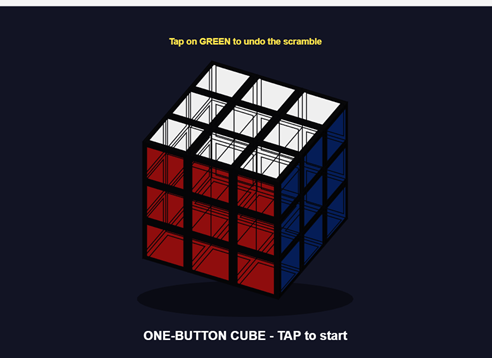
The starting screen with the solved cube.
How I used AI to develop the game
I used an AI tool as a coding assistant to turn my idea into MATLAB code. I described the cube, the one-click restriction, the automatic scramble and the visual guidance I wanted. I refined the approach through prompts, focusing on the game logic, graphics and player experience. The AI helped translate these requirements into functions and mathematical operations. The key was to give clear instructions rather than simply ask for a cube game.
How I implemented the cube in MATLAB
The cube is built from 27 small cubes arranged in a 3 × 3 × 3 grid. Each small cube has a position and a rotation matrix. Coloured stickers are placed on the outer faces. MATLAB patch objects display the cube, while a mathematical camera projection, depth sorting and lighting calculations give it a 3D appearance.
For each turn, the code selects the nine small cubes on the chosen face and rotates them smoothly by 90 degrees. At the end of the animation, the rotation is rounded to exact integer values to avoid numerical drift. The game uses three main functions: init to create the scene, update to handle moves and timing, and render to display the cube and messages.
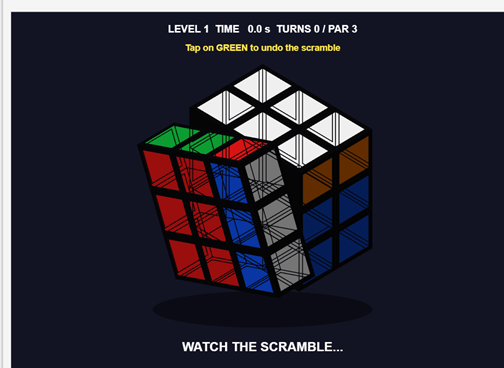
The cube automatically scrambles at the start of a level.
Making one click do more
I limited the available moves to the red, blue and white faces, with clockwise and counter-clockwise turns for each. The game automatically cycles through these six choices. It stores the reverse of each scramble move in a list, so it knows which move should be undone next. A green highlight identifies that move; yellow indicates that the player should wait.
The same click starts the game, applies a selected move and advances to the next level. A short grace period of up to 0.3 seconds after the correct highlight helps players who click slightly late. This design avoids extra buttons and makes timing the main challenge.
How to play
- Click to start and watch the cube scramble automatically.
- Wait while the highlight cycles through the six possible moves.
- When the outline and arrow turn GREEN and “TAP NOW!” appears, click once.
- Repeat until the cube is solved. Click again to start the next level.
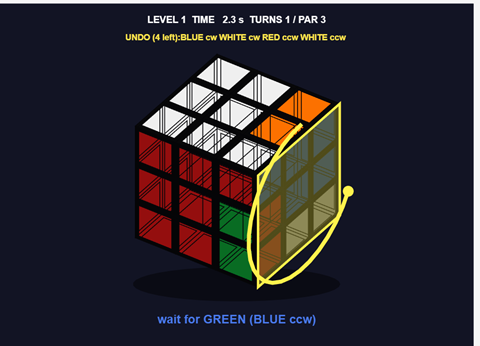
Yellow highlight: wait for the correct move.
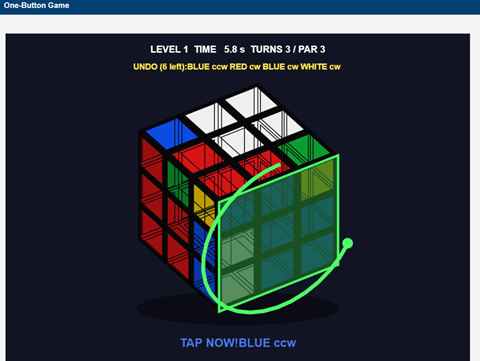
Green highlight: click to apply the correct move.
Tips and tricks
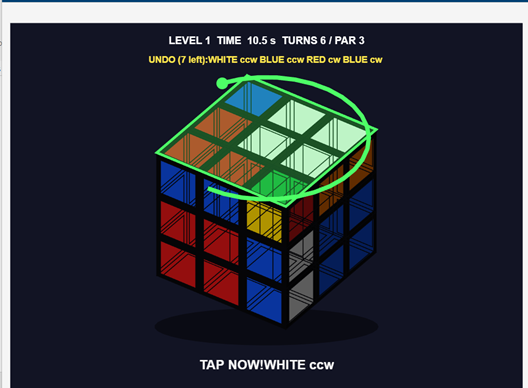
Follow the green highlight, even when the face is not green.
- Focus on the highlight colour, not the sticker colour. Green means click; yellow means wait.
- Use the UNDO list at the top to see the next moves. CW means clockwise and CCW means counter-clockwise.
- Avoid repeated or random clicks. A wrong move adds another move to undo, but you can still recover.
- Try to match PAR, the number of original scramble moves. Level 1 starts with three moves; later levels increase the scramble up to eight moves and the selection speed increases.
- There is no countdown. Take your time to learn the rhythm, then try to improve your best time and turn count.
Play the game: One-Button Cube on MATLAB Central
Tags


