Pull up a chair!
Discussions is your place to get to know your peers, tackle the bigger challenges together, and have fun along the way.
- Want to see the latest updates? Follow the Highlights!
- Looking for techniques improve your MATLAB or Simulink skills? Tips & Tricks has you covered!
- Sharing the perfect math joke, pun, or meme? Look no further than Fun!
- Think there's a channel we need? Tell us more in Ideas
Updated Discussions


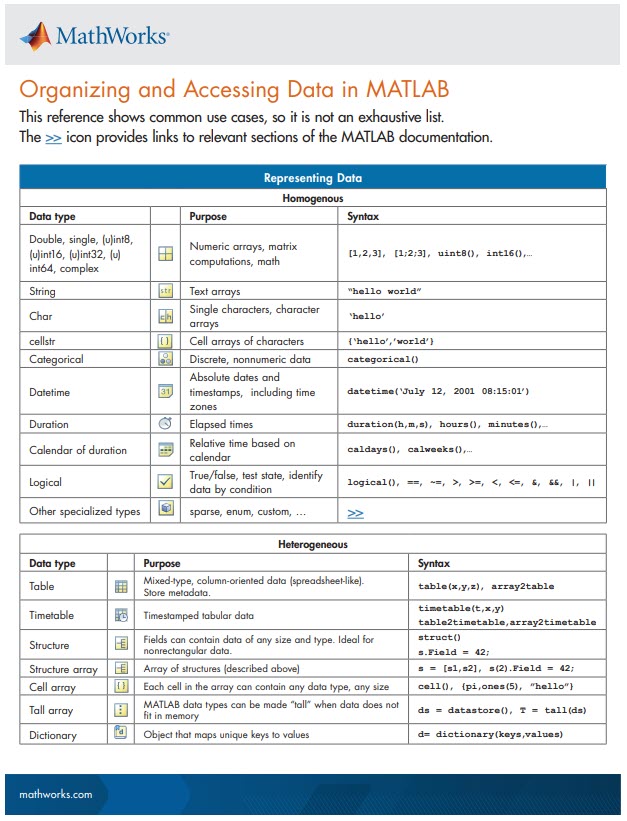





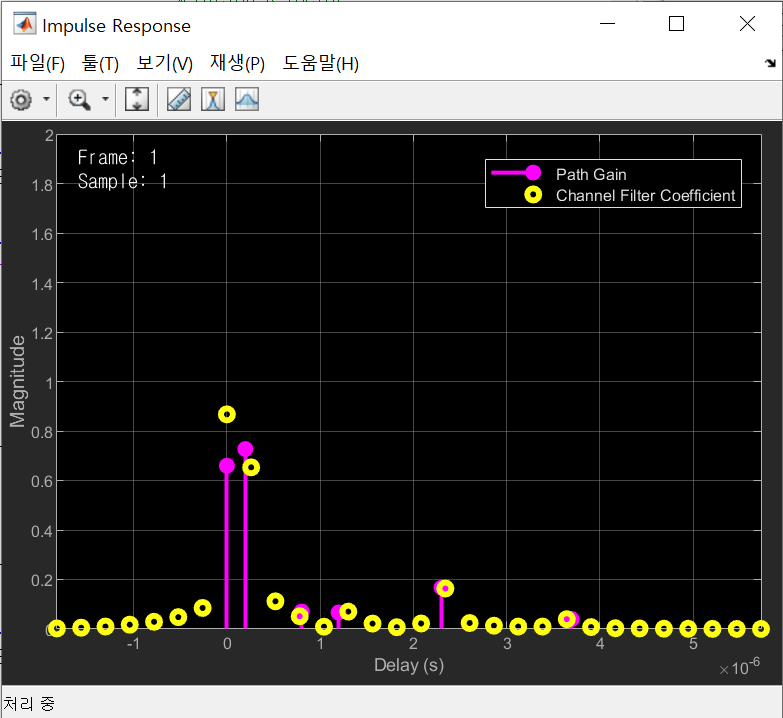
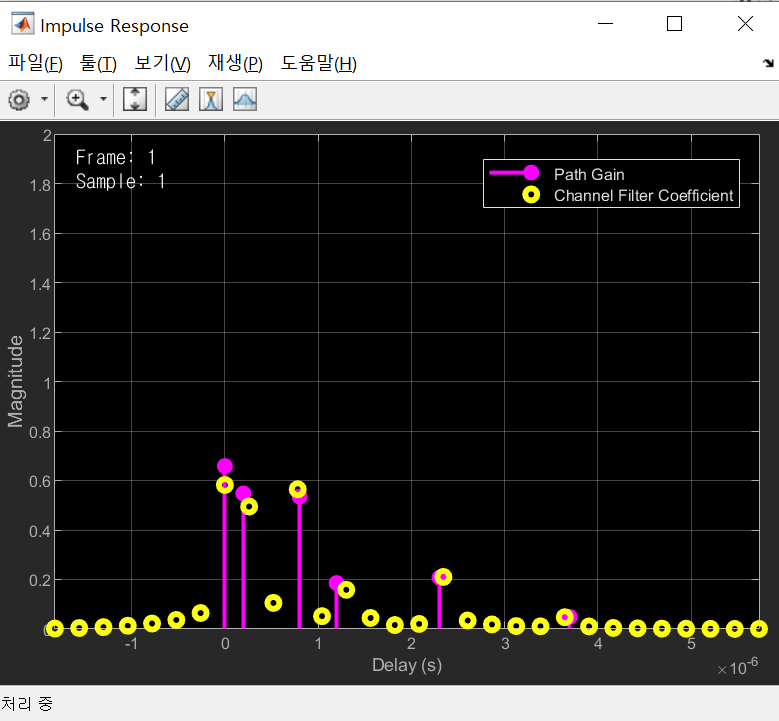
- Using "UIHTML" to create app components and Lightning
- Creating generative art with MATLAB
- Making MATLAB run on the Steam Deck (it was a wager)



New in R2021a, LimitsChangedFcn
LimitsChangedFcn is a callback function that responds to changes to axis limits ( release notes ). The function responds to axis interaction such as panning and zooming, programmatically setting the axis limits, or when axis limits are automatically adjusted by other processes.
LimitsChangedFcn is a property of ruler objects which are properties of axes and can be independently set for each axis. For example,
ax = gca();
ax.XAxis.LimitsChangedFcn = ... % Responds to changes to XLim
ax.YAxis.LimitsChangedFcn = ... % Responds to changes to YLim
ax.ZAxis.LimitsChangedFcn = ... % Responds to changes to ZLim
Previously, a listener could be assigned to respond to changes to axis limits. Here are some examples.
However, LimitsChangedFcn responds more reliably than a listener that responds to setting/getting axis limits. For example, after zooming or panning the axes in the demo below, the listener does not respond to the Restore View button in the axis toolbar but LimitsChangedFcn does! After restoring the view, try zooming out which does not result in changes to axis limits yet the listener will respond but the LimitsChangedFcn will not. Adding objects to axes after an axis-limit listener is set will not trigger the listener even if the added object expands the axis limits ( why not? ) but LimitsChangedFcn will!
ax = gca();
ax.UserData.Listener = addlistener(ax,'XLim','PostSet',@(~,~)disp('Listener'));
ax.XAxis.LimitsChangedFcn = @(~,~)disp('LimitsChangedFcn')
How to use LimitsChangedFcn
The LimitsChangedFcn works like any other callback. For review,
The first input to the LimitsChangedFcn callback function is the handle to the axis ruler object that was changed.
The second input is a structure that contains the old and new limits. For example,
LimitsChanged with properties:
      OldLimits: [0 1]
      NewLimits: [0.25 0.75]
         Source: [1×1 NumericRuler]
      EventName: 'LimitsChanged'
Importantly, since LimitsChangedFcn is a property of the axis rulers rather than the axis object, changes to the axes may clear the LimitsChangedFcn property if the axes aren't held using hold on. For example,
% Axes not held
ax = gca();
ax.XAxis.LimitsChangedFcn = @(ruler,~)title(ancestor(ruler,'axes'),'LimitsChangedFcn fired!');
plot(ax, 1:5, rand(1,5), 'o')
ax.XAxis.LimitsChangedFcn
ans =
    0×0 empty char array
% Axes held
ax = gca();
hold(ax,'on')
ax.XAxis.LimitsChangedFcn = @(ruler,~)title(ancestor(ruler,'axes'),'LimitsChangedFcn fired!');
plot(ax, 1:5, rand(1,5), 'o')
ax.XAxis.LimitsChangedFcn
ans =
  function_handle with value:
    @(ruler,~)title(ancestor(ruler,'axes'),'LimitsChangedFcn fired!')
Demo
In this simple app a LimitsChangedFcn callback function is assigned to the x and y axes. The function does two things:
- Text boxes showing the current axis limits are updated
- The prying eyes that are centered on the axes will move to the new axis center
This demo also uses Name=Value syntax and emoji text objects !
Create app
h.fig = uifigure(Name="LimitsChangedFcn Demo", ...
    Resize="off");
h.fig.Position(3:4) = [500,260];
movegui(h.fig)
h.ax = uiaxes(h.fig,...
    Units="pixels", ...
    Position=[200 26 250 208], ...
    Box="on");
grid(h.ax,"on")
title(h.ax,"I'm following you!")
h.eyeballs = text(h.ax, .5, .5, ...
    char([55357 56385 55357 56385]), ...
    HorizontalAlignment="center", ...
    FontSize=40);
h.label = uilabel(h.fig, ...
    Text="Axis limits", ...
    Position=[25 212 160 15], ...
    FontWeight="bold",...
    HorizontalAlignment="center");
h.xtxt = uitextarea(h.fig, ...
    position=[25 191 160 20], ...
    HorizontalAlignment="center", ...
    WordWrap="off", ...
    Editable="off",...
    FontName=get(groot, 'FixedWidthFontName'));
h.ytxt = uitextarea(h.fig, ...
    position=[25 165 160 20], ...
    HorizontalAlignment="center", ...
    WordWrap="off", ...
    Editable="off", ...
    FontName=get(groot, 'FixedWidthFontName'));
h.label = uilabel(h.fig, ...
    Text=['X',newline,newline,'Y'], ...
    Position=[10 170 15 38], ...
    FontWeight="bold");
Set LimitsChangedFcn of x and y axes
h.ax.XAxis.LimitsChangedFcn = @(hObj,data)limitsChangedCallbackFcn(hObj,data,h,'x');
h.ax.YAxis.LimitsChangedFcn = @(hObj,data)limitsChangedCallbackFcn(hObj,data,h,'y');
Update text fields
xlim(h.ax, [-100,100])
ylim(h.ax, [-100,100])
Define LimitsChangedFcn
function limitsChangedCallbackFcn(rulerHand, limChgData, handles, xy)
% limitsChangedCallbackFcn() responds to changes to x or y axis limits.
% - rulerHand: Ruler handle for x or y axis that was changed (not used in this demo)
% - limChgData: LimitsChanged data structure
% - handles: structure of App handles
% - xy: either 'x' or 'y' identifying rulerHand
switch lower(xy)
    case 'x'
        textHandle = handles.xtxt;
        positionIndex = 1;
    case 'y'
        textHandle = handles.ytxt;
        positionIndex = 2;
    otherwise
        error('xy is a character ''x'' or ''y''.')
end
% Update text boxes showing rounded axis limits
textHandle.Value = sprintf('[%.3f, %.3f]',limChgData.NewLimits);
% Move the eyes to the new center position
handles.eyeballs.Position(positionIndex) = limChgData.NewLimits(1)+range(limChgData.NewLimits)/2; % for linear scales only!
drawnow
end
See attached mlx file for a copy of this thread.
Highlight Icon image
Starting in MATLAB R2021a, name-value arguments have a new optional syntax!
A property name can be paired with its value by an equal sign and the property name is not enclosed in quotes.
Compare the comma-separated name,value syntax to the new equal-sign syntax, either of which can be used in >=r2021a:
- plot(x, y, "b-", "LineWidth", 2)
- plot(x, y, "b-", LineWidth=2)
It comes with some limitations:
- It's recommended to use only one syntax in a function call but if you're feeling rebellious and want to mix the syntaxes, all of the name=value arguments must appear after the comma-separated name,value arguments.
- Like the comma-separated name,value arguments, the name=value arguments must appear after positional arguments.
- Name=value pairs must be used directly in function calls and cannot be wrapped in cell arrays or additional parentheses.
Some other notes:
- The property names are not case-sensitive so color='r' and Color='r' are both supported.
- Partial name matches are also supported. plot(1:5, LineW=4)
The new syntax is helpful in distinguishing property names from property values in long lists of name-value arguments within the same line.
For example, compare the following 2 lines:
h = uicontrol(hfig, "Style", "checkbox", "String", "Long", "Units", "Normalize", "Tag", "chkBox1")
h = uicontrol(hfig, Style="checkbox", String="Long", Units="Normalize", Tag="chkBox1")
Here's another side-by-side comparison of the two syntaxes. See the attached mlx file for the full code and all content of this Community Highlight.







About Discussions
Get to know your peers while sharing all the tricks you've learned, ideas you've had, or even your latest vacation photos. Discussions is where MATLAB users connect!
More Community Areas

Ask & Answer questions about MATLAB & Simulink!

Download or contribute user-submitted code!

Solve problem groups, learn MATLAB & earn badges!

Get the inside view on MATLAB and Simulink!

Use AI to generate initial draft MATLAB code, and answer questions!