Control Simulations with Interactive Dashboards
R2026bCreate an interactive dashboard for your model using a variety of controls and displays available in the Dashboard library and the Customizable Blocks library.
Controls connect to variables and block parameters in your model, providing an interface for you to tune values during simulation.
Displays connect to signals and display the signal value during simulation.
To design custom dashboard blocks that look like controls and displays in your real system, choose blocks from the Customizable Blocks library. For example, you can create a photorealistic model of the speedometer in a real vehicle.
You can model real-life dashboards and control panels by adding blocks from the Dashboard library and the Customizable Blocks library to Simulink® panels. Panels float above the canvas, can be moved to any location over the canvas, and can be minimized when you want to work on the model underneath them. Panels can have multiple tabs, so that you can organize your dashboard blocks into different groups.
Blocks
 | Dashboard Scope | Trace signals on scope display during simulation |
 | Display | Display signal value during simulation |
 | Gauge | Display signal value on circular scale |
 | Half Gauge | Display input value on semicircular scale |
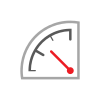 | Quarter Gauge | Display input value on quadrant scale |
 | Linear Gauge | Display input value on linear scale |
 | Lamp | Display color that reflects signal value on lamp |
 | MultiStateImage | Display image reflecting input value |
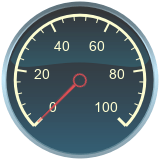 | Circular Gauge | Display signal value during simulation on circular gauge with customizable appearance |
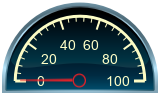 | Half Gauge | Display signal value during simulation on gauge shaped as half-circle with customizable appearance (Since R2024a) |
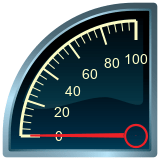 | Quarter Gauge | Display signal value during simulation on gauge shaped as quarter-circle with customizable appearance (Since R2024a) |
 | Display | Display signal value during simulation in box with customizable appearance (Since R2023b) |
 | Horizontal Gauge | Display signal value during simulation on horizontal gauge with customizable appearance |
 | Vertical Gauge | Display signal value during simulation on vertical gauge with customizable appearance |
 | Lamp | Display color that reflects signal value on lamp with customizable appearance |
 | MultiStateImage | Display images based on signal values on block with customizable appearance (Since R2026b) |
 | Edit | Enter new value for parameter |
 | Knob | Tune parameter value with dial |
 | Slider | Tune parameter value with sliding scale |
 | Push Button | Change parameter or variable value using button |
 | Rotary Switch | Switch parameter to set values on dial |
 | Radio Button | Select parameter value |
 | Combo Box | Select parameter value from drop-down menu |
 | Check Box | Select parameter or variable value |
 | Rocker Switch | Toggle parameter between two values |
 | Slider Switch | Toggle parameter between two values |
 | Toggle Switch | Toggle parameter between two values |
 | Callback Button | Execute MATLAB code using button |
 | Edit | Enter new value for parameter or variable during simulation in edit box with customizable appearance (Since R2026a) |
 | Knob | Change parameter or variable value using knob with customizable appearance |
 | Horizontal Slider | Change parameter or variable value using horizontal slider with customizable appearance |
 | Vertical Slider | Change parameter or variable value using vertical slider with customizable appearance |
 | Push Button | Change parameter or variable value using button with customizable appearance |
 | Callback Button | Execute MATLAB code using button with customizable appearance |
 | Rotary Switch | Change parameter or variable value using rotary switch with customizable appearance |
 | Radio Button | Change parameter or variable value during simulation using radio button with customizable appearance (Since R2025a) |
 | Combo Box | Change parameter or variable value during simulation using combo box with customizable appearance (Since R2025a) |
 | Check Box | Change parameter or variable value during simulation using check box with customizable appearance (Since R2024b) |
 | Rocker Switch | Change parameter or variable value using switch with customizable appearance |
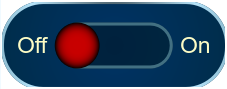 | Slider Switch | Change parameter or variable value using switch with customizable appearance |
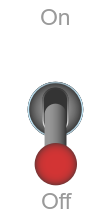 | Toggle Switch | Change parameter or variable value using switch with customizable appearance |
Tools
| Simulation Pacing Options | Slow simulation to a specified ratio of simulation time to wall clock time |
Functions
simulink.dashboard.isDashboardBlock | Check whether block is dashboard block (Since R2026a) |
simulink.dashboard.switchPanelTab | Switch dashboard panel tab (Since R2026a) |
Objects
Topics
Model Dashboards with Panels
- Getting Started with Dashboard Panels
Learn how to add dashboard blocks to panels, edit panels, and edit panel contents. - Use Dashboard Panels to Monitor Signals and Control Parameters
Use virtual dashboards to interact with the model during simulation. - Create Tabbed Dashboard Panels
Organize your panel content into multiple tabs. - Create Dashboard Panel
This example shows how to create a climate control screen for an automotive infotainment system, modeled as a dashboard panel. - Deploy Dashboard Panel as App
Deploy your panel as a standalone desktop app or web app.
Connect Dashboard Blocks
- Connect Dashboard Blocks to Simulink Model
Connect dashboard blocks to interactively tune and monitor model. - Connect Dashboard Blocks to Stateflow (Stateflow)
Dashboard blocks help you to control and visualize your Stateflow® chart during simulation and while your simulation is paused.
Display Signals and Control Parameters with Dashboard Blocks
- Tune and Visualize Your Model with Dashboard Blocks
Use blocks in the Dashboard block library to visualize and interact with your model. - Design Custom Gauges
Design gauges using the Circular Gauge, Horizontal Gauge, and Vertical Gauge blocks. - Design Custom Knobs
Design knobs using the customizable Knob block. - Design Custom Lamps
Design lamps using the customizable Lamp block. - Design Custom Rocker, Slider, and Toggle Switches
Design switches using the customizable Rocker Switch, Slider Switch, and Toggle Switch blocks. - Design Custom Buttons
Design buttons using the customizable Callback Button and Push Button blocks. - Design Custom Rotary Switches
Design rotary switches using the customizable Rotary Switch block. - Design Custom Sliders
Design slider switches using the customizable Slider Switch block. - Design Custom Displays
Design displays using the customizable Display block. - Design Custom Image Displays Based on Signal Value Ranges
Design display of images using the MultiStateImage block.
Learn More About Visualizing Simulation Data
- Decide How to Visualize Simulation Data
Choose the right visualization technique for each modeling and simulation task.
Featured Examples
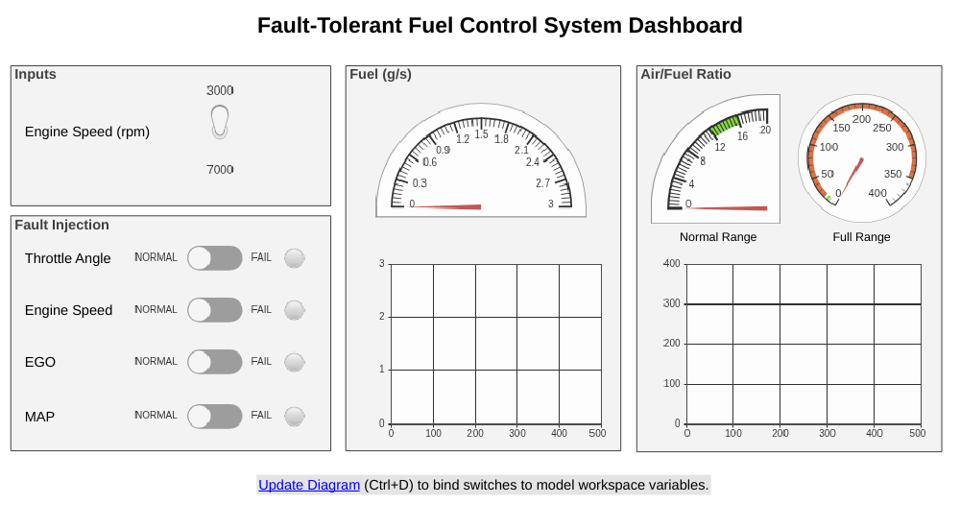
Model Fault-Tolerant Fuel Control System
Combine Stateflow® and Simulink® capabilities to model hybrid systems. This type of modeling is useful for systems that have many possible operational modes based on discrete events. Simulink handles traditional signal flow while Stateflow implements changes in control configuration. This example describes a fuel control system for a gasoline engine. The system is robust because it detects individual sensor failures, and dynamically reconfigures the control system for uninterrupted operation.
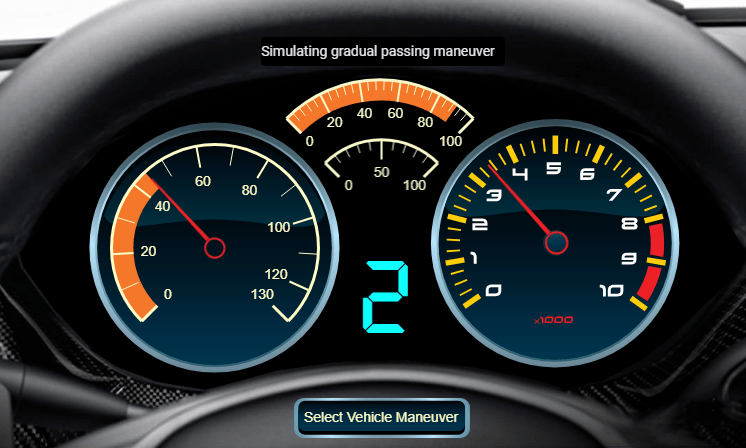
Create a Realistic Dashboard Using Blocks from the Customizable Blocks Library
Use the Circular Gauge and Display blocks to create a realistic dashboard for your model.
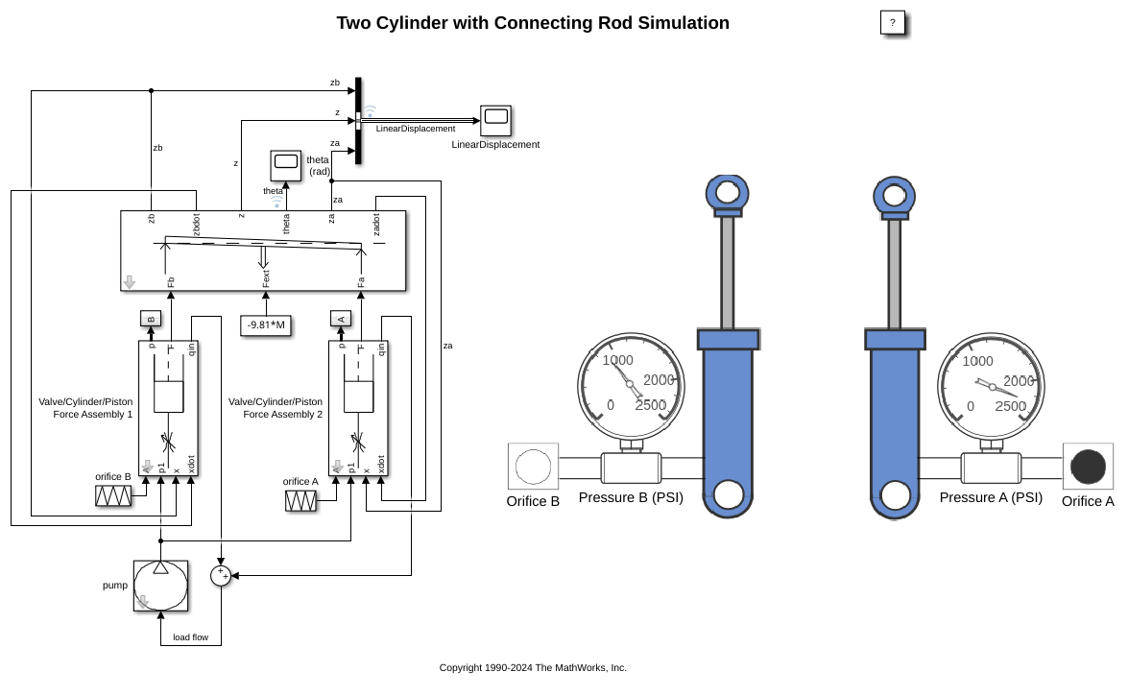
Two Cylinder Model with Load Constraints
Use Simulink to model a rigid rod supporting a large mass interconnecting two hydraulic actuators. This model eliminates the springs as it applies the piston forces directly to the load.

