Experiments with Claude code and MATLAB MCP Core Server
Introduction
MCP is an open protocol that can link Claude and other AI Apps to MATLAB using MATLAB MCP Core Server (released in Nov 2025). For an introduction, see Exploring the MATLAB Model Context Protocol (MCP) Core Server with Claude Desktop. Here, I describe my experience with installation and testing Claude-Code and MATLAB, a security concern, and in particular how I "taught" Claude to handle various MATLAB file formats.
Setup
A basic installation requires you download for your operating system claude-code, matlab-mcp-core-server, and node.js. One configuration is a terminal-launched claude connected to MATLAB. To connect Claude App to MATLAB requires an alternate configuration step and I recommend it for interative use. The configuration defines the default node/folder and MATLAB APP location.
I recommend using Claude itself to guide you through the installation and configuration steps for your operating system by providing terminal commands. I append Claude’s general description of installation for my APPLE Silicon laptop. Once set up, just ask in Claude App to do something in MATLAB and MATLAB App will be launched.
Security warning: Explore the following at your own risk.
When working with Claude App, Claude code, and MATLAB, you are granting Claude AI access to read and write files. By default, you must approve (one time or forever) any action so you hopefully don’t clobber files etc. Claude App believes it can not directly access file outside the top node defined in the setup. For this reason, I set the top node to be a folder ..../Documents/MATLAB. However, Claude inherits MATLAB App's command line privileges, typically your full system privileges. Claude can describe for you some work-arounds like a Docker container which might still be license validation compatible. I have not explored such options. During my setup, Claude just provided me terminal commands to copy and run. After setup, I've demonstrated it can run system level commands via matlab:evaluate_matlab_code and the MCP server. Be careful out there!
My first test
Claude can write a text-based .m script, execute it, collect text standard output from it, and open files it makes (or any file). It cannot access figures that you might see in MATLAB App unless they are saved as files or embedded in files. As we will see, the figures generated by a Live Script are saved in an Claude-accessible format when the Live Script is saved so the code need not itself export them.
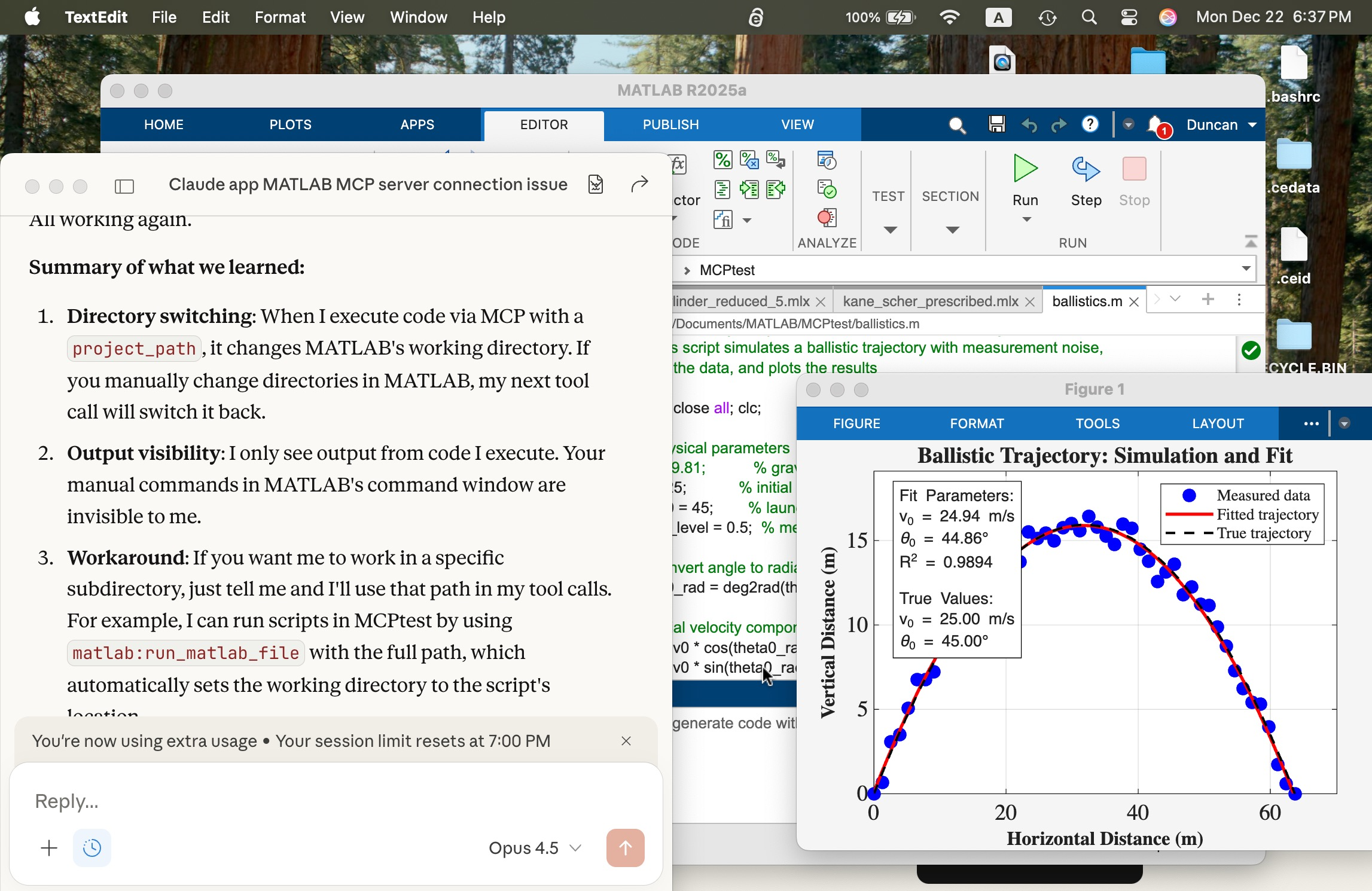
In the screen shot below, the window at left is the Claude App after a successful connection. The MATLAB App window shows a script in the MATLAB editor that simulates a ballistics experiment, the script created successfully with a terminal-interfaced Claude and a simple prompt on the first try.
I deliberately but trivially broke this script using MATLAB App interactively by commenting out a needed variable g (acceleration of gravity) and saving the script to the edit was accessible to Claude. Using Claude App after its connection, I fixed the script with a simple prompt and ran it successfully to make the figure you see. The visible MATLAB didn’t know the code had been altered and fixed by Claude until I reloaded the file. Claude recommends plots be saved in PNG or JPEG, not PDF. It can describe in detail a plot in a PNG and thusly judge if the code is functioning correctly.
Live Scripts with Claude
What about Live Scripts (.mlx) and the (2025a) .m live? A .mlx file is a zipped package of files mixing code and images wtih XML markup. You can peek inside one and edit it directly without unzipping and rezipping it using a tool like BBEdit on a Mac, as shown below. This short test script has two interactive slider controls. You can in v2025+ now save a .mlx in a transportable .m Live text file format. The .mlx and .m Live formats have special markup for formatted text, interactive features like sliders, and figures.
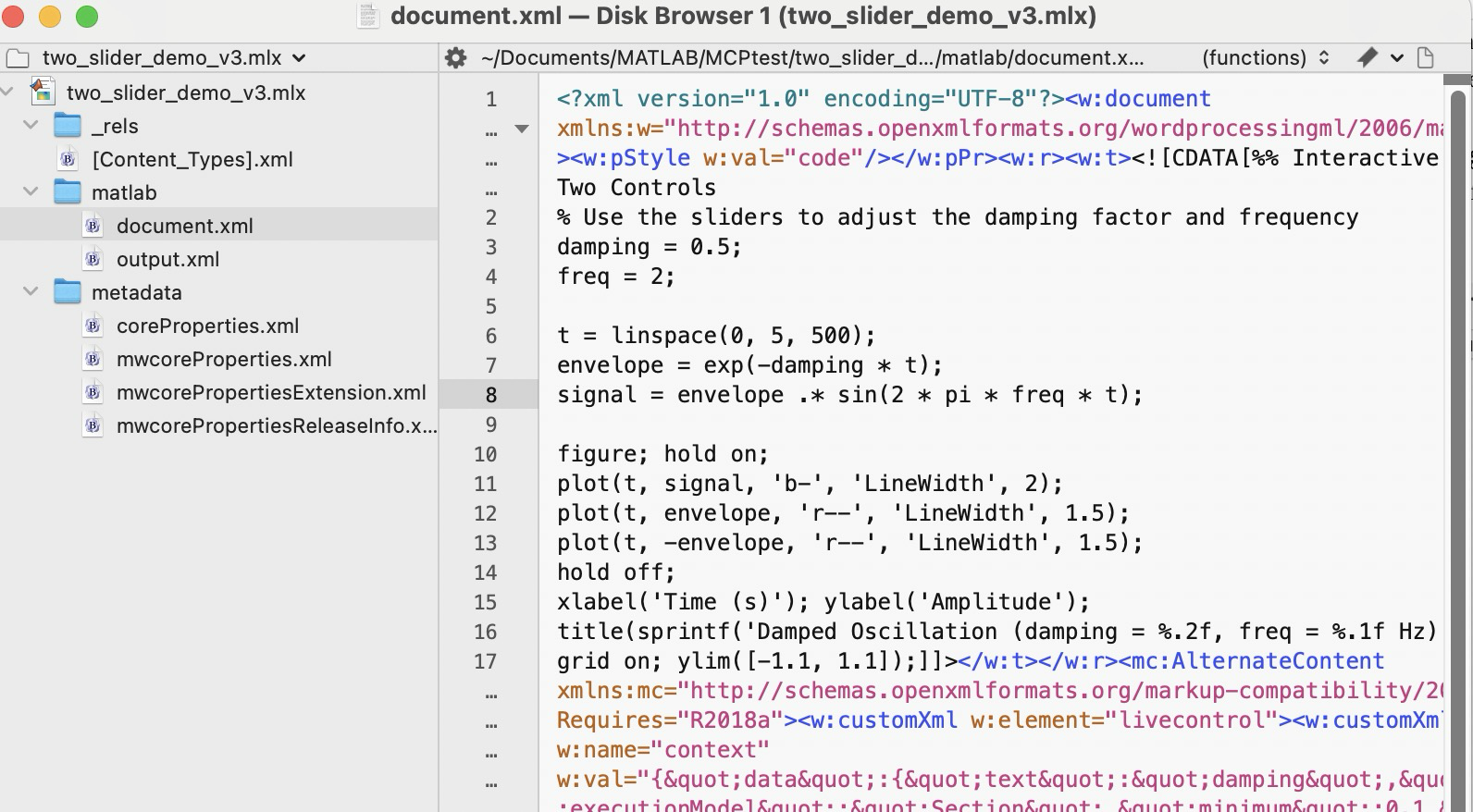
Claude can convert a vanilla .m file to .mlx using matlab.internal.liveeditor.openAndSave(source.m, dest.mlx) and the reverse matlab.internal.liveeditor.openAndConvert('myfile.mlx', 'myfile.m’).
These functions do not support .m Live yet apparently. It would be great if they did.
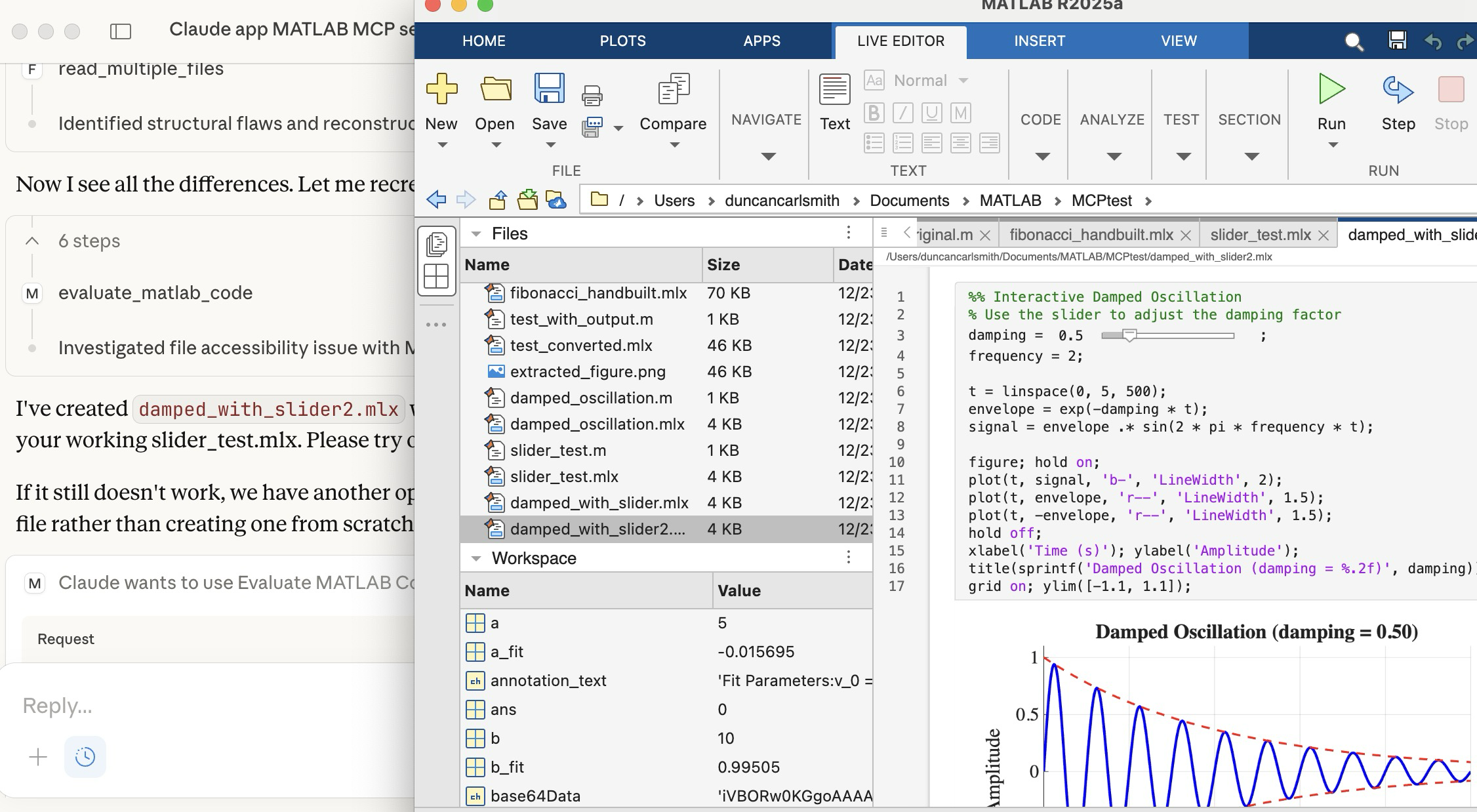
Vanilla Claude doesn’t know all the details of the .mlx and .m formats yet. To teach Claude these formats, I created a simple .mlx with interactive features (sliders), saved it, and exported it to .m Live. I then sketched for Claude these structures. Claude digested these files and was then able to create such formats from scratch immediately. Wow! In the figure below, you see Claude on the left after creating a .mlx with sliders from scratch. The successfully executed Live Script appears in the MATLAB App.
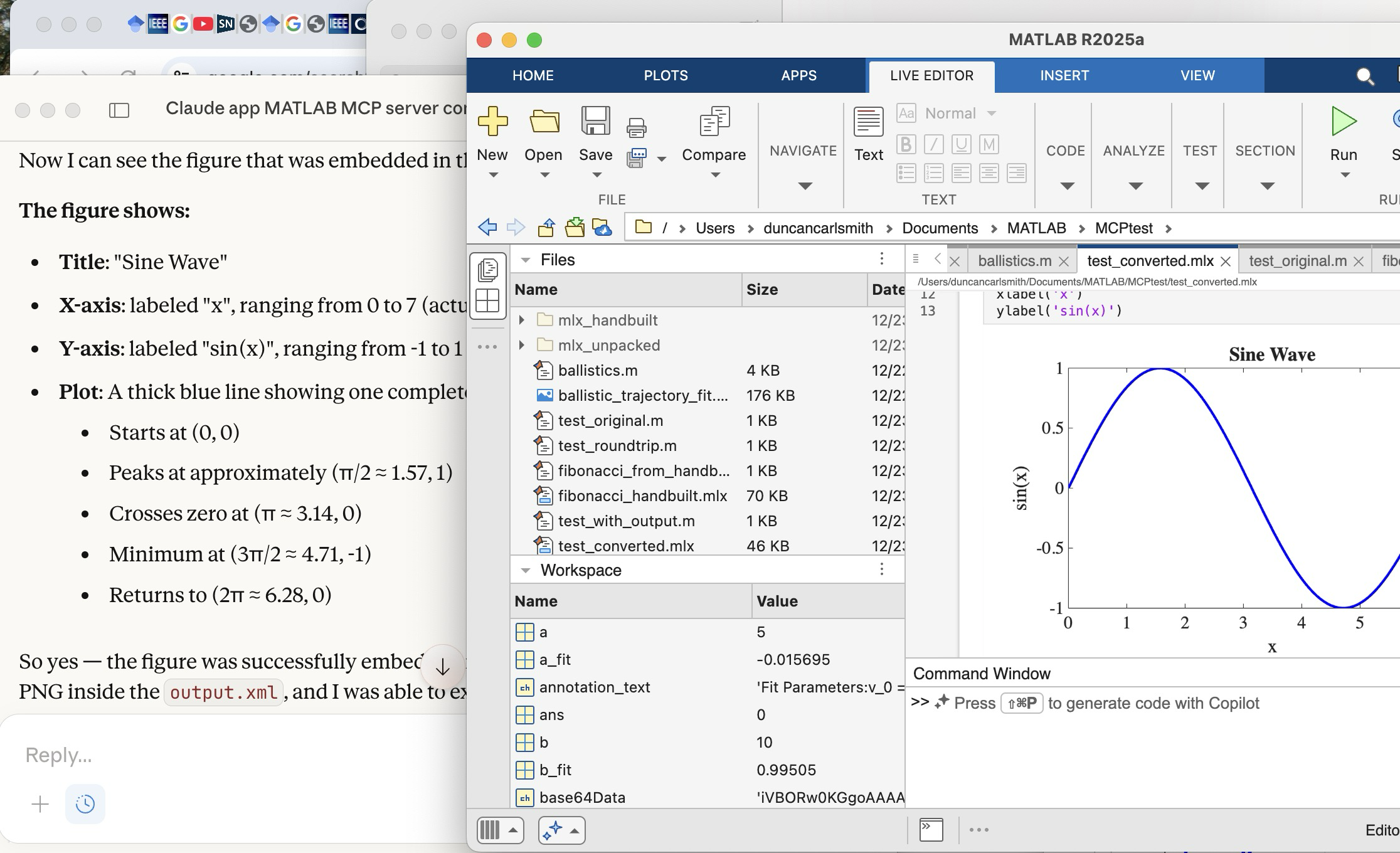
Once Claude knows the .mlx format, it can peek inside a saved .mlx, process a PNG figure saved there, and describe it, as illustrated below. Here you see Claude describing a plot it found in the .mlx shown in the MATLAB window.
Wrap up
This summarizes my first look at using claude-code. The generation of simple MATLAB codes with the latest models is increasingly trivial with Claude, Perplexity, Open.ai GPT and other apps and the direct method of code and other file transfer between a native MATLAB and Claude seems to beat a copy-paste workflow. New methods to connect MATLAB Online with commercial AI's like Comet and Anthropic's Chrome extension seem to me more fluid and intuitive in that the user and the AI are co-working the same interface without copy-paste steps, but seem slower.
Appendix
Here are installation and setup instructions for Mac from Claude for reference.
Setting Up Claude Code + MATLAB MCP Server on Mac
Part 1: Claude Code
Install via npm:
bash
npm install -g @anthropic-ai/claude-code
Or via Homebrew:
bash
brew install claude-code
Run it:
bash
cd /path/to/your/project
claude
You'll need to authenticate with your Anthropic account on first run. Claude Code works in your terminal and can read/write files, run commands, and do agentic coding tasks.
Part 2: MATLAB MCP Server
Step 1: Download the server binary
Go to the MathWorks GitHub or File Exchange and download matlab-mcp-core-server for macOS (Apple Silicon or Intel depending on your Mac).
Step 2: Make it executable
bash
chmod +x ~/Downloads/matlab-mcp-core-server
Step 3: Create/edit Claude Desktop config
Edit ~/Library/Application Support/Claude/claude_desktop_config.json:
json
{
"mcpServers": {
"matlab": {
"command": "/Users/YOURUSERNAME/Downloads/matlab-mcp-core-server",
"args": ["--matlab-root", "/Applications/MATLAB_R2025a.app"]
},
"filesystem": {
"command": "npx",
"args": [
"@modelcontextprotocol/server-filesystem",
"/Users/YOURUSERNAME/Documents/MATLAB"
]
}
}
}
Replace YOURUSERNAME with your actual username, and adjust the MATLAB version if needed.
Step 4: Install Node.js (if not already)
bash
brew install node
Step 5: Restart Claude Desktop
Quit fully (Cmd+Q) and reopen. You should see a hammer/tools icon indicating MCP servers are connected.
Part 3: Verify Connection
In Claude Desktop, ask me to run MATLAB code. I should be able to execute:
matlab
disp('Hello from MATLAB!')
Troubleshooting
Check logs:
bash
cat ~/Library/Logs/Claude/mcp-server-matlab.log
cat ~/Library/Logs/Claude/mcp.log
Common issues:
- Missing --matlab-root argument → "no valid MATLAB environments found"
Connecting Claude App to MATLAB via MCP Server
Edit ~/Library/Application Support/Claude/claude_desktop_config.json:
json
{
"mcpServers": {
"filesystem": {
"command": "npx",
"args": [
"-y",
"@modelcontextprotocol/server-filesystem",
"/Users/YOURUSERNAME/Documents/MATLAB"
]
},
"matlab": {
"command": "/Users/YOURUSERNAME/Downloads/matlab-mcp-core-server",
"args": [
"--matlab-root", "/Applications/MATLAB_R2025a.app"
]
}
}
}
Then fully quit Claude Desktop (Cmd+Q) and reopen.
Tags