systemcomposer.activity.JoinFork
R2026bDescription
The JoinFork object represents a join or fork node within
an activity diagram. This class inherits from the systemcomposer.activity.ControlNode class.
Creation
Create a join or fork node using the addNode function with the nodeType specified as
joinfork.
jfork = addNode(activity,'jfork','joinfork');
Properties
Object Functions
addProperty | Define custom property for stereotype |
changeStereotype | Change currently applied stereotype to new stereotype in its stereotype hierarchy |
destroy | Remove model element |
getEvaluatedPropertyValue | Get evaluated value of property from element |
getFlow | Get flow from activity diagram |
getProperty | Get property value corresponding to stereotype applied to element |
getPropertyValue | Get value of architecture property |
getStereotypeProperties | Get stereotype property names on element |
getStereotypes | Get stereotypes applied on model element |
hasProperty | Find if element has property |
removeStereotype | Remove stereotype from profile |
setProperty | Set property value corresponding to stereotype applied to element |
applyStereotype | Apply stereotype to model element |
connect | Create activity diagram flows |
hasStereotype | Find if element has stereotype applied |
Examples
This example shows how to create an activity diagram programmatically. An activity diagram describes system behavior that models the flow of tokens from inputs to outputs through a controlled sequence of actions. You can use activity diagrams to conceptualize a system, visualize functional flow through actions or decisions, and understand how system components interact with one another. To learn more about authoring activity diagram, see, Author a Simple Activity Diagram.
In this example, you create an activity diagram to illustrate the steps involved in placing an order, checking inventory availability, and canceling the order if items are unavailable.
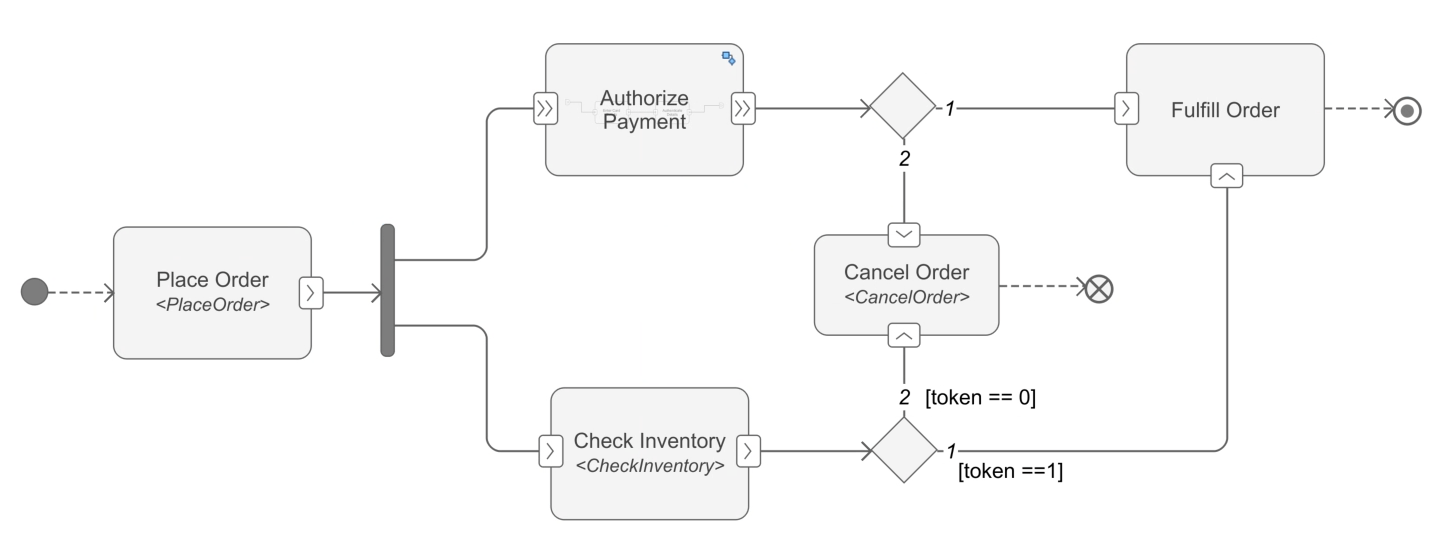
Create New Activity Diagram
Create a new activity diagram named AuthorActivity using the systemcomposer.createActivity function.
activityName = 'AuthorActivity';
adModel = systemcomposer.createActivity(activityName,true);
activity = adModel.Activity;
Add Initial Node and Action Nodes
Add an initial node and required action nodes using the addNode function.
init1 = addNode(activity,'init1','initial');
action1 = addNode(activity,'Place Order','action');
action2 = addNode(activity,'Authorize Payment','action');
action3 = addNode(activity,'Check Inventory','action');
action4 = addNode(activity,'Cancel Order','action');
action5 = addNode(activity,'Fulfill Order','action');
Define Action Node Behavior and Add Pins
Add the behavior type of an action node using the setBehaviorType function. You can specify the MATLAB® functions for an action node with a behavior type of MATLAB by using the BehaviorDefinition property.
setBehaviorType(action1,'MATLAB');
action1.BehaviorDefinition = 'PlaceOrder';
setBehaviorType(action2,'Activity');
setBehaviorType(action3,'MATLAB');
action3.BehaviorDefinition = 'CheckInventory';
You can add pins on an action node using the addNode function. For more information on pins, see Pin.
outPin1 = addPin(action1,'order','out');
inPin1 = addPin(action2,'order1','in');
outPin2 = addPin(action2,'order2','out');
inPin2 = addPin(action3,'order3','in');
outPin3 = addPin(action3,'order4','out');
inPin1.IsStreaming = true;
outPin2.IsStreaming = true;
Create Nested Activity
You can create a nested activity for an action node with Activity behavior type.
childActivity = action2.ChildActivity;
childAction1 = addNode(childActivity,'Enter Card Details','action');
childAction2 = addNode(childActivity,'Authenticate Details','action');
Add Control Nodes
Add a join or fork node and a merge or decision node. For more information on control nodes, see systemcomposer.activity.ControlNode.
jfork = addNode(activity,"jfork","joinfork");
decMerge1 = addNode(activity,"decMerge1","mergedecision");
decMerge2 = addNode(activity,"decMerge2","mergedecision");
Add Flow Final and Activity Final Nodes
Add a flow final node and an activity final node.
ffinal = addNode(activity,"ffinal","flowfinal");
afinal = addNode(activity,"afinal","activityfinal");
Connect Flows
Connect the flows to complete the activity diagram. You can create guard expressions for flows that output from decision node.
flow1 = connect(init1,action1);
flow2 = connect(outPin1,jfork);
flow3 = connect(jfork,inPin1);
flow4 = connect(jfork,inPin2);
flow5 = connect(outPin2,decMerge1);
flow6 = connect(outPin3,decMerge2);
flow7 = connect(decMerge2,action5);
flow8 = connect(decMerge2,action4);
flow9 = connect(decMerge1,action5);
flow10 = connect(decMerge1,action4);
flow11 = connect(action4,ffinal);
flow12 = connect(action5,afinal);
Create guard expression for flows that output from decision node.
flow7.Guard = 'token == 1';
flow8.Guard = 'token == 0';
You can use the Simulink.BlockDiagram.arrangeSystem function to improve the layout of the activity diagram model.
Simulink.BlockDiagram.arrangeSystem('AuthorActivity');More About
Version History
Introduced in R2026a
See Also
Functions
systemcomposer.createActivity|addNode|addParameter|getNode|getNodes|getFlow|connect|getParameter|getParameters|getPin|getPins|addPin|addTag|getParentPin|applyStereotype|removeStereotype|getStereotype|destroy|setBehaviorType|linkToModel
Objects
systemcomposer.activity.AcceptAction|systemcomposer.activity.Action|systemcomposer.activity.Activity|systemcomposer.activity.ActivityNode|systemcomposer.activity.ActivityFinal|systemcomposer.activity.ControlNode|systemcomposer.activity.Flow|systemcomposer.activity.FlowFinal|systemcomposer.activity.Model|systemcomposer.activity.Initial|systemcomposer.activity.MergeDecision|systemcomposer.activity.Parameter|systemcomposer.activity.Pin|systemcomposer.activity.SendAction|systemcomposer.activity.TimeAction
Tools
Blocks
- Initial Node | Action Node | Accept Action Node | Send Action Node | Pin | Parameter Node | Decision or Merge Node | Join or Fork Node | Flow Final Node | Time Action Node | Activity Final Node
Topics
- Describe System Behavior Using Activity Diagrams
- Establish Traceability and Extend Model Elements
- Simulate, Visualize, and Validate Activity Diagrams
- Compose Architectures Visually
- Implement Component Behavior Using Activity Diagrams
- Implement Component Behavior Using Stateflow Charts
- Implement Component Behavior Using Simscape

