Author Block Masks
R2026bA block mask is a custom user interface that you can create for a block. Mask a block to hide its underlying implementation details and provide a more user-friendly interface for setting parameters and options. Block masks are particularly useful for complex blocks or subsystems whose internal workings are not necessary for the user to understand or interact with directly. You can create a mask for a custom block and reuse it as unique instances of the block.
Classes
Tools
| Icon Editor | Design and create icons for masked blocks (Since R2022b) |
Topics
Introduction to Masking
- Masking Fundamentals
Learn the basics of masking and when to mask blocks. - Create a Simple Mask
Mask a block interactively by using the Mask Editor or mask it programmatically. - Manage Existing Masks
View or edit an existing block mask.
Mask Editor
- Mask Editor Overview
Create and customize masks using the Mask Editor. - Create a Custom Mask Dialog Box with Controls and Containers
Create a mask dialog box. - Use Mask Containers to Group Parameters on Mask Dialog Box
Mask containers helps to organize and group mask parameters. - Customize Tables for Masked Blocks
Add custom tables to a mask dialog box. - Control Custom Table Parameter Programmatically
Use a programmatic interface to control custom tables. - Control Masks Programmatically
Specify and edit block masks programmatically.
Masking Features
- Promote Block Parameters to a Mask
Promote an underlying block or subsystem parameter to its mask. - Specify Data Types for an Edit Parameter Using Data Type Parameter
Specify the acceptable data types for a mask edit parameter with a data type parameter. - Pass Values to Blocks Under the Mask
Specify input values using the mask dialog box. - Mask Linked Blocks
Add a custom interface to linked blocks. - Use Mask Parameters for Per-Instance Variant Control in Variant Blocks
Control variant choices per block instance by defining a mask parameter as the variant control variable and setting its value from the mask dialog box. - Define Measurement Units for Masked Blocks
Set measurement units for output and input ports of a masked block. - Create Hierarchical List in Mask Dialog Box
Use the hierarchical list of data on a mask. - Tune Mask Enumeration Parameters - Popup and Radio Button
Reference an external enumeration file to assign numerical values to popup parameter. - Visualize and Plot N-Dimensional Data Using Mask Lookup Table Control
Look-Up Table control refers to a block or a set of blocks that use pre-defined data to map input values to output values. - Preserve Tunability of Parameters That Are Modified or Created in Mask Initialization
Preserve the tunability of mask parameters in generated code. - Preserve Variant Parameter Expressions from Mask Initialization in Generated Code (Simulink Coder)
This example shows how to control variant behavior and generate tunable code by defining variant controls and variant parameters in the mask initialization code of a masked subsystem. - Reuse Mask Parameters and Dialog Controls Across Multiple Masked Blocks
Use the Mask Part Reference container of the Mask Editor to create and save the parameters and dialog controls in an XML file.
Mask Constraints
- Validate Mask Parameters or Port Signals Using Constraints
Add validation to mask parameters using constraints. - Create and Validate Mask Parameters Using Constraints
A mask contains parameters that take user input from the mask dialog box. - Create Custom Constraint for Mask Parameters
Validate input to mask parameters using custom constraints. - Share Parameter Constraints Across Multiple Block Masks
Create a parameter constraint and share it across masks of different blocks in the same model or different models. - Validate Input and Output Port Signals Using Port Constraints
Validate compile-time signal attributes on the input and output ports of a masked block by using port constraints. - Validate Port Signals Among Ports of the Same Masked Block
Validate cross port constraints to validate compile-time signal attributes among ports of the same masked block. - Validate Port Signals and Parameter Values Using Cross-Port Parameter Constraints
Use cross port parameter constraints to establish constraint among ports and parameters within the same masked block. - Share Port Constraints Across Multiple Masked Blocks
Create a port constraint and share it across masks of different blocks in the same model or different models. - Author Parameter and Port Constraints Using Standalone Constraint Manager
Manage multiple shared constraint files independently of a block context.
Block Mask Icon
- Create and Edit Block Mask Icons Using Icon Editor
Use the Icon Editor to graphically create and edit icons for masked blocks. - Draw Mask Icon Using Drawing Commands
Use mask drawing commands to customize the appearance and functionality of block masks. - Add Images in Masks
Add images as mask icons and save them in the SLX file.
Mask Callbacks
- Introduction to Mask Initialization and Parameter Callback Code
Use MATLAB® code to initialize a block mask. - Organize Mask Initialization and Callbacks in a MATLAB File
Organize mask initialization and mask callback code in a separate MATLAB class file. - Create Dynamic Mask Dialog Box
Create dialog boxes for masked blocks whose appearance changes in response to user input. - Use Variant Blocks and Self-Modifiable Masks to Modify Linked Library Blocks
Modify linked blocks from a library that uses self-modifiable masks and variant blocks. - Debug Masks That Use MATLAB Code
Troubleshoot errors in the mask initialization code.
System Mask
- Introduction to System Mask
Learn about masking a model. - Create and Reference a Masked Model
Mask a model interactively. - Create and Display System Mask Programmatically
Apply a system mask to a model or a subsystem block diagram.
Example Models
- Masking Example Models
View Simulink® models that demonstrate masking capabilities.
Related Information
Featured Examples
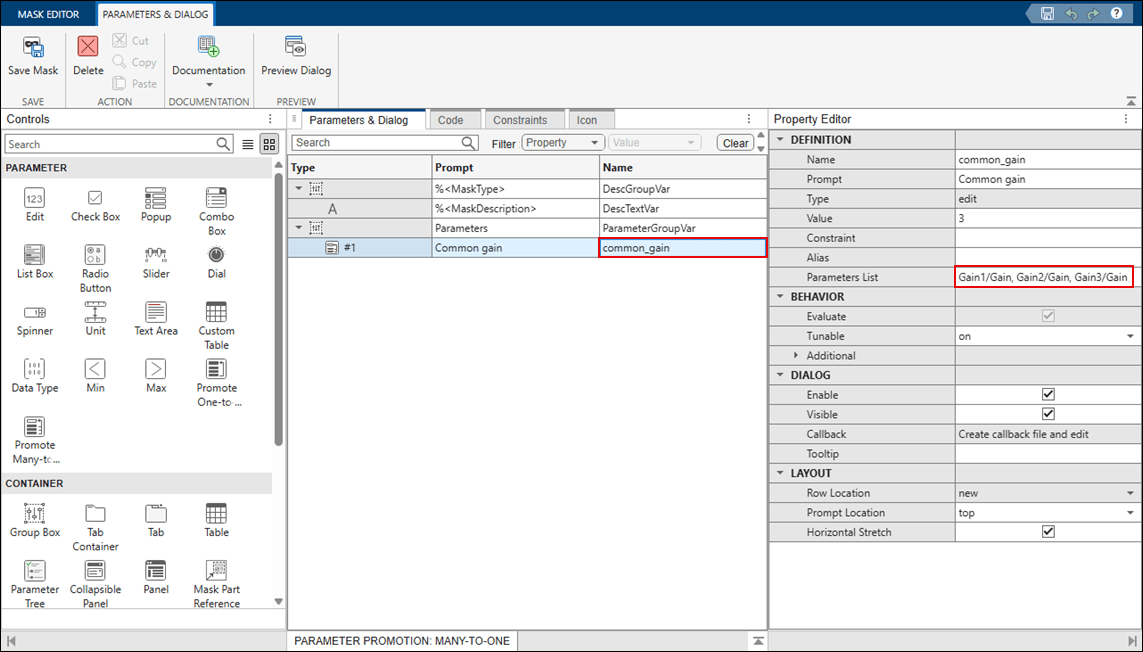
Promote Block Parameters to a Mask
Promote an underlying block or subsystem parameter to its mask.
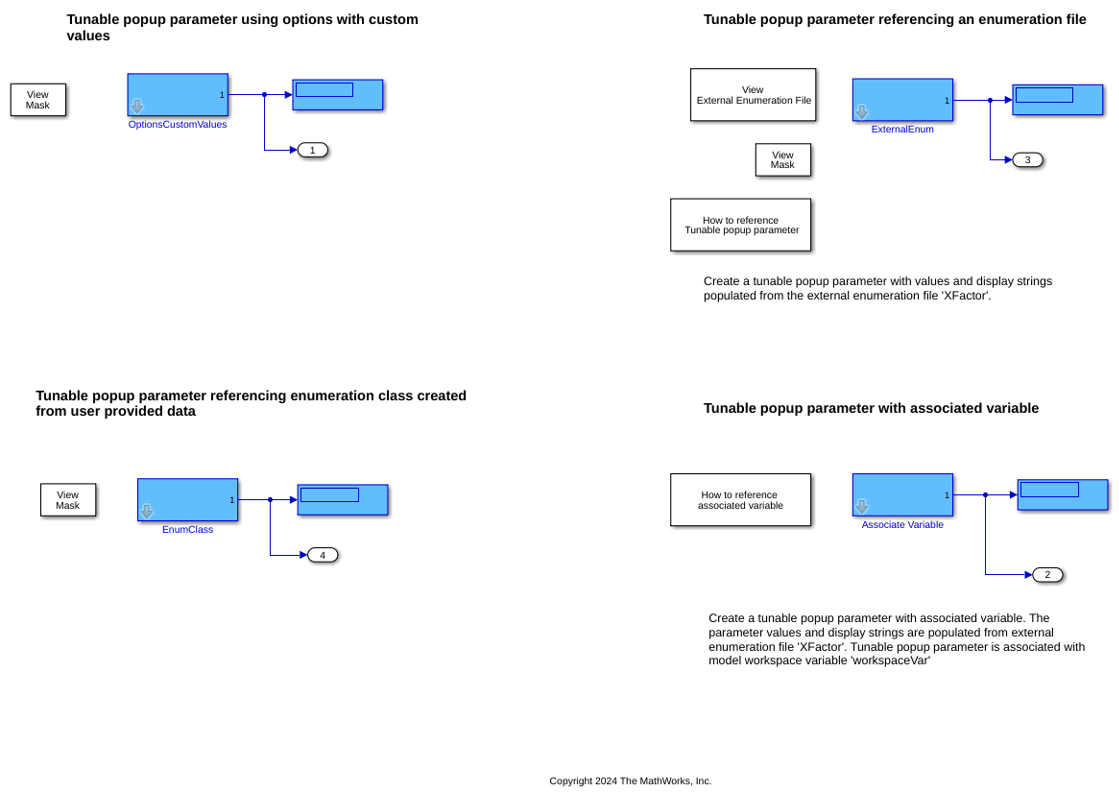
Tune Mask Enumeration Parameters - Popup and Radio Button
Reference an external enumeration file to assign numerical values to popup parameter.
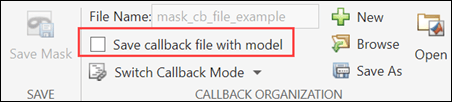
Organize Mask Initialization and Callbacks in a MATLAB File
Organize mask initialization and mask callback code in a separate MATLAB class file.
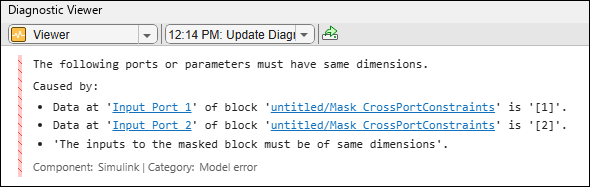
Validate Port Signals Among Ports of the Same Masked Block
Validate cross port constraints to validate compile-time signal attributes among ports of the same masked block.

